Are you lending your cell phone? See how to limit its use to one app.


Someone asks for your phone to use the calculator or look up some information. Before handing over the device, you can temporarily limit browsing to one app. On Android, look for the app pinning option; on iPhone, the feature is called Guided Access.
To lend your phone with an app, start by choosing exactly what the other person needs to do. A calculator is a simple example. A photo app requires more attention to the content that will remain available within it.
How to pin an app on Android
O path indicated by Google it is located in Settings → Security or Security and location → Advanced → App pinning. Activate the feature. If you can't find the option, consult the manufacturer's support; menus vary.
- Open the app that will be loaned to you.
- Swipe up from the bottom and hold in the middle to open recent apps. In the three-button navigation, tap on Overview.
- Tap the icon above the app preview and choose Fix.
To release, swipe up and hold if using gestures. With three buttons, hold Back and Overview pressed; with two, Back and Home. Enter the requested PIN, pattern, or password. On Pixel phones, part of this process requires Android 11 or later.
How to use Guided Access on iPhone
- In Settings → Accessibility → Guided Access, activate the feature and configure the code in Code Adjustments.
- Open the app. Press the side button or the Home button three times, depending on the model. Choose Guided Access if a panel appears.
- In the initial setup, define areas that should not respond to touch and review. Session Adjustments or Options. Tap on Start.
If that app has already been configured, the session can begin immediately with the previous settings. To end it, press the button three times, authenticate, and tap on Close. A Apple's current direction Indicates double-tap to pause on iOS 18 or earlier. Face ID or Touch ID may be alternatives when configured.
During Guided Access, Accident Detection and Emergency Services are unavailable. Log out to use these features.
Check out what else can be done within the app.
Pinning an app doesn't mean selecting a single photo for viewing. As a rule of thumb, consider that the person will be able to explore the content available in that app. Before lending it, test the controls you intend to leave accessible and rehearse exiting the chosen mode.

Also prepare for the return.
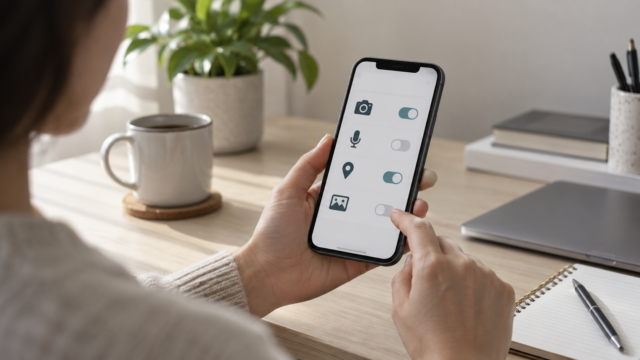
When you receive the device back, lift the restriction and confirm that you can switch apps. If your concern is deciding what data the apps themselves can access, complete the review with the guide for... Review permissions on Android and iPhone..