Wi-Fi via QR Code: how to share your network on Android and iPhone.

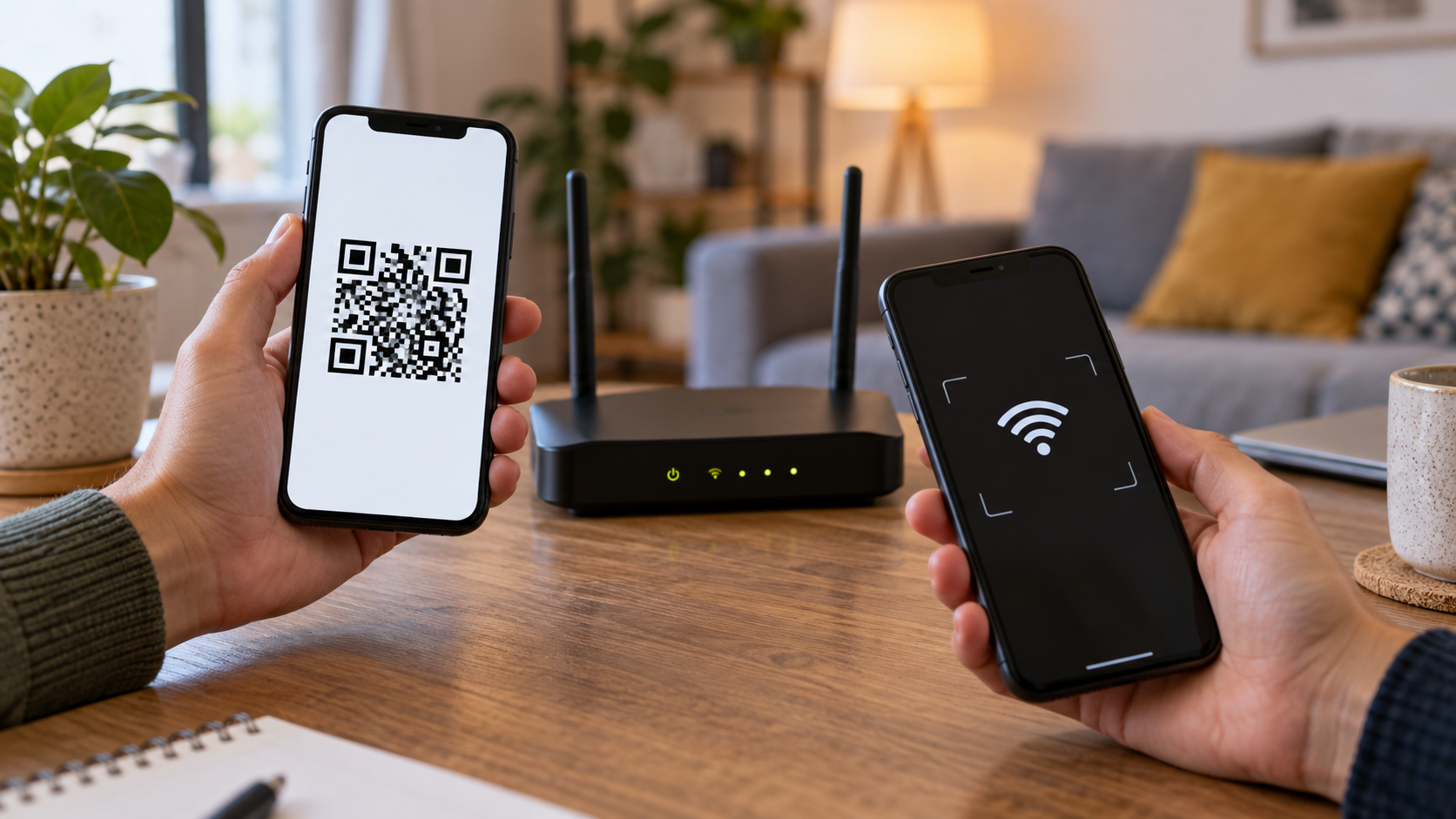
Sharing your Wi-Fi password via text message is convenient, but it's also easy to misspell a letter, mix up uppercase and lowercase letters, or reveal the combination to an entire group. On many cell phones, the network can be shared via a QR code. The invited person points their camera at the code, and the device fills in the connection details without needing to type the password.
This feature does not create a new network or change the router password. It only temporarily transforms the network name and key into an image readable by another device. Therefore, the screen should only be shown to those you wish to authorize. A photographed code can be used later, as long as the password remains the same.
How to share on Android
Open Settings and enter Network and internet or Connections. Tap on Wi-Fi, select the network your phone is connected to, and search. To share, QR code or a similar icon. The device may ask for fingerprint, face, or PIN unlock before displaying the code.
Show the screen to the other person. On the guest phone, open the camera or built-in QR code reader and point it at the code. A notification should offer network connection. Tap it and wait a few seconds. In recent versions of Android, the network may appear in the Wi-Fi list after scanning, without any manual typing.
The names vary between Pixel, Samsung, Motorola, and Xiaomi. If the option isn't in the Wi-Fi menu, use the search function within Settings and look for "share Wi-Fi." Avoid apps that promise to generate QR codes and ask for the password from an unknown server; the native feature is usually sufficient.
How to connect an iPhone to the code
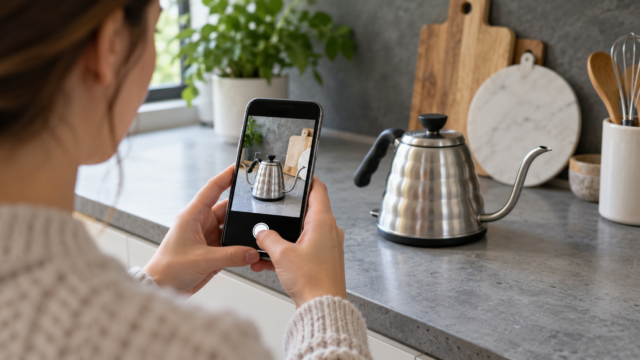
The iPhone can read the code using the Camera app. Open the camera in Photo mode, frame the QR code, and tap the prompt that appears at the top. iOS will offer to connect to the network and automatically fill in the password. If nothing appears, confirm that the camera has permission and try increasing the brightness of the screen displaying the code.
To share a network between nearby Apple devices, iOS can also display a sharing prompt when both contacts are saved and Bluetooth is enabled. This function differs from QR codes and depends on account and proximity requirements. When people use different platforms, QR codes tend to be more universal.
How to generate a code for a network that is not connected
The native menu usually generates the active network code. If you need to share a saved network, connect the device to it first or consult your router. Some models display saved networks but require authentication before revealing the data. Do not attempt to guess the password or change the router configuration without noting the current key.
On a guest network, verify that the code contains the correct name and that the network is visible. Hidden networks may require the visitor to manually enter the SSID and choose the security type. Reader compatibility also depends on the standard used by the router.
What to do when the reading fails
Clean the lens, increase the screen brightness, and keep both devices steady. Reflections can prevent the recognition of small squares. If the network has a very long name, reduce the distance and try again. On older devices, install only one QR code reader from the official store and check the permissions requested.
When the QR code is recognized but the connection fails, confirm that the router accepts new devices, that the signal is strong, and that the password hasn't changed. Some routers use separate 2.4 GHz and 5 GHz bands with similar names. Check which network the code represents and choose that one. In corporate networks, additional authentication may prevent the use of a simple QR code.
Privacy and security
Treat the code as you would a password. Don't post a photo of it on social media, don't leave it on a reception screen, and don't share it in groups unnecessarily. If you suspect someone unauthorized has photographed the screen, change the password on the router and generate a new code. The change disconnects old devices and requires residents to receive the new key.
For visitors, use a guest network with separate access to home computers and devices. This setup limits what a connected device can find on the main network. QR codes facilitate access, but they don't replace network separation or router updates.
In cafes, hotels, and airports, prefer the official network and confirm the name with an employee. A QR code pasted over the original may redirect your phone to a malicious network. After connecting, avoid accessing sensitive services if the public network requires a login portal you don't recognize.
How to disconnect afterwards
After the visit ends, you can tell the person to forget the network on their device. On Android, open the Wi-Fi list, tap the network, and choose "forget." On iPhone, go to Settings, Wi-Fi, tap the information button, and select "forget this network." This step isn't mandatory on a guest network, but it helps prevent future automatic connections.
Quick questions
Does the QR code reveal the password?
It encrypts the network data, and a compatible reader can display the username and password. Therefore, only show the code to authorized individuals.
Does it work between Android and iPhone?
Generally, yes. Android generates the code and the iPhone reads it through the camera, provided the network uses a compatible security standard.
Can I print the code?
Yes, but protect the paper with a password. In public areas, use a guest network and replace the key if the paper goes missing.
Why doesn't the network connect after reading?
Check the signal strength, bandwidth, device limit, current password, and router policies. Corporate networks may require additional authentication.

See specific instructions in Official Android support for connecting to Wi-Fi networks.
If you manage a rental property or a small office, document which QR code belongs to each network and the date it was created. Regularly replace old keys and remove access from devices that should no longer be connected. A simple inventory prevents the code from continuing to circulate for months without anyone knowing who still has a copy.
When a guest only needs internet access, don't share the main network. A separate network reduces the impact of a potential malfunction in the guest's device and makes it easier to change the password without interrupting computers, printers, and home devices.
When traveling, scan the certificate before leaving the reception area and confirm that the authentication portal is the official one. If the phone displays a certificate warning or asks for bank details to unlock the network, stop the process and ask the establishment for guidance.
This verification is especially important on public networks, where the network name can be imitated by third parties.
Conclusion
QR codes make Wi-Fi access faster and reduce typing errors, but they remain a way to share credentials. Use the device's native function, confirm the network, and choose a guest network when hosting people. Then, forget the connection or change the password if the code has been exposed more than intended.