How to transfer files from your phone to your computer without losing quality.
To transfer files from your phone to your computer without losing quality, the key is to send the original file. A screenshot, a photo forwarded via chat, or an export at a lower resolution may arrive differently even before the transfer begins.
You don't need to use the same method in every situation. For Android and Windows, there's Quick Share and USB cable. Between iPhone and Mac, AirDrop is usually the built-in option. When the systems are different, LocalSend allows you to work over the local network. See how to choose and what to check in each case.
Choose based on the pair of devices you have.
- Android and Windows: Quick Share for wireless transfers or a USB cable for direct file copying.
- iPhone and Mac: AirDrop, pay attention to the format options when sharing photos.
- iPhone and Windows, Android and Mac, or combinations with Linux: LocalSend, installed on both devices connected to the same local network.
The methods below do not require a cloud storage subscription. However, installing an application, downloading an original file stored in the cloud, or updating the system may require internet access. Prepare for this before starting an offline transfer.
LocalSend: an option for different systems
O LocalSend It's free, open-source, and has versions for Windows, macOS, Linux, Android, and iOS. It transfers files over a local network, without requiring an account. It cannot be used to send a file to a distant person via the internet.
- Install the app on both devices using the links on the official website.
- Connect both to the same Wi-Fi network and open LocalSend.
- On the source device, select the files and choose the destination device.
- Check the recipient's name and accept delivery when prompted.
- Wait for the file to finish and then open it.
A guest network can separate devices even if they show the same Wi-Fi name. If the destination doesn't appear, check the app's local network permissions and try a known home network. Avoid indiscriminately disabling computer protections to make discovery work.
Quick Share: Wireless Android and Windows Share
Install Quick Share for Windows using path indicated by Google. For Samsung PCs, the recommendation is to use the Samsung version from the Microsoft Store. Check your computer's requirements before installing.
Open the app, adjust the visibility, and keep Wi-Fi and Bluetooth on. On Android, select the file, open the sharing option, and choose Quick Share; then select the computer. Check the request on the recipient's device and, if a PIN appears, compare it on both devices.
For personal files, choose the option to restrict visibility to your devices when available. On Windows, received items are stored in the Quick Share folder within Downloads. Google indicates availability in most countries, with exceptions such as Cuba, Iran, North Korea, and Syria.
Don't confuse sending with exporting: if you select an already reduced version of the photo, Quick Share will not recover the details that were previously discarded.
AirDrop: Check the photo format on your iPhone
Between nearby iPhones and Macs, AirDrop allows you to share items without going through a conversation. Turn on Wi-Fi and Bluetooth, check your Mac's receiving settings, and select your computer from your iPhone's sharing menu. Apple maintains a AirDrop shipping guide with the requirements and adjustments.
In the Photos app, open the image, tap share, and then go to... Options. The option Current It prevents format conversion. Already All Data from the Photos App allows you to share the original with edit history and metadata, as per the Apple sharing documentation.
Preserving the format doesn't guarantee that any program will be able to open it. If the destination doesn't accept a HEIC file or a video format, keep the original and create a compatible copy separately. This way, the need to open the file doesn't eliminate the need for a reference version.
USB cable: a direct alternative between Android and Windows.
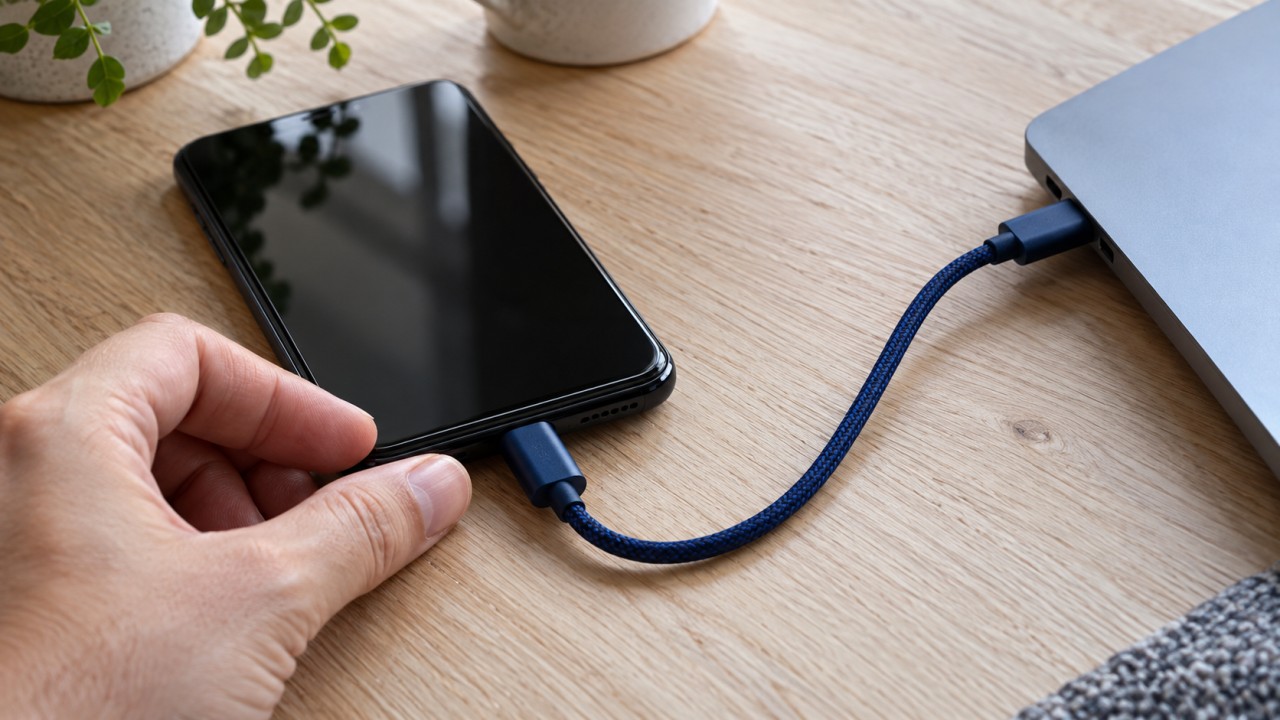
Connect your unlocked Android device to your computer using a data-enabled cable. In the phone's USB notification, select... File transfer. Next, open the device on your computer and copy the items to a folder of your choice. Android support This procedure details the process.
If the phone is only charging, the cable may not be transmitting data or the connection mode may be incorrect. Try another suitable cable before looking for additional applications. When the copying is complete, eject the device from Windows and disconnect it.
To begin, choose a small batch. A folder with ten photos is easier to check than several years' worth of mixed images. Once the process is clear, repeat it for folders or time periods.
How to check if the file arrived as you needed it.
Viewing a thumbnail on a computer isn't enough. Open at least a few items and check them out:
- Amount: Did all the selected files arrive?
- Format: Does the extension remain the same or was there a conversion?
- Photos: Do the pixel dimensions match those of the source file?
- Videos: Are the duration, resolution, and playback settings correct?
- Documents: Are the pages, images, and formatting still present?
Name, size, and dimensions help to identify differences, but they alone do not prove that two files are identical. When you need an exact copy, a checksum comparison can verify the content. For everyday use, keep the originals until you have completed the verification and have a proper backup copy.
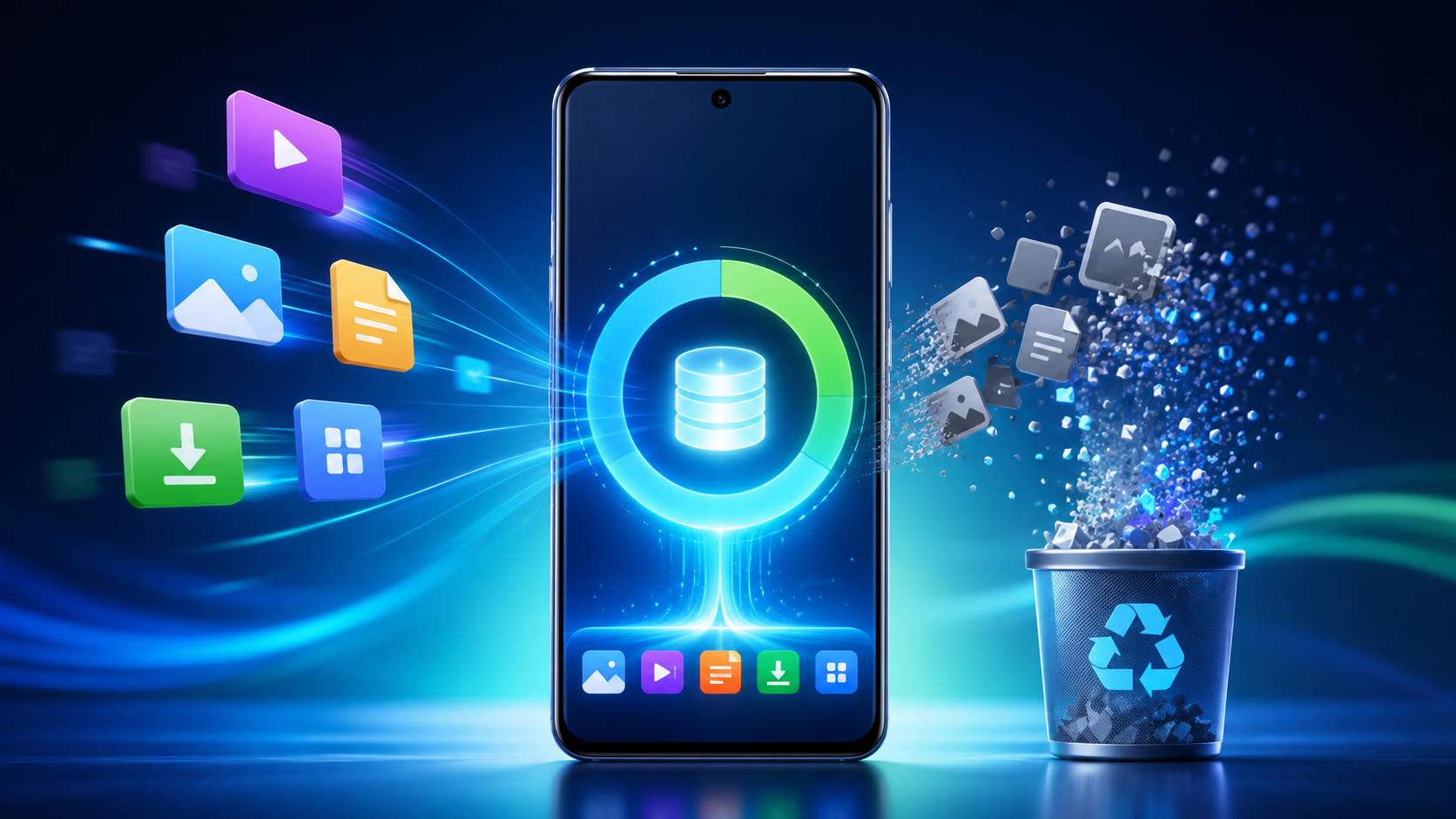
If the idea is to free up storage space after the transfer, also follow our guide for... free up space on your phone.. For documents that are still on paper, see the options for digitization via mobile phone before organizing the folder on the computer.
Official sources consulted on September 18, 2026. Menus and compatibility may vary by version. Options were compared using documentation, without speed testing.
Conclusion: copy first, check later.
Choose the method compatible with your devices and send the original file, avoiding unnecessary conversions. Then open the result on your computer. Only consider deleting the copy from your phone when you are sure you have received everything and that your important files remain protected.