Who can access your camera? See how to review permissions on Android and iPhone.
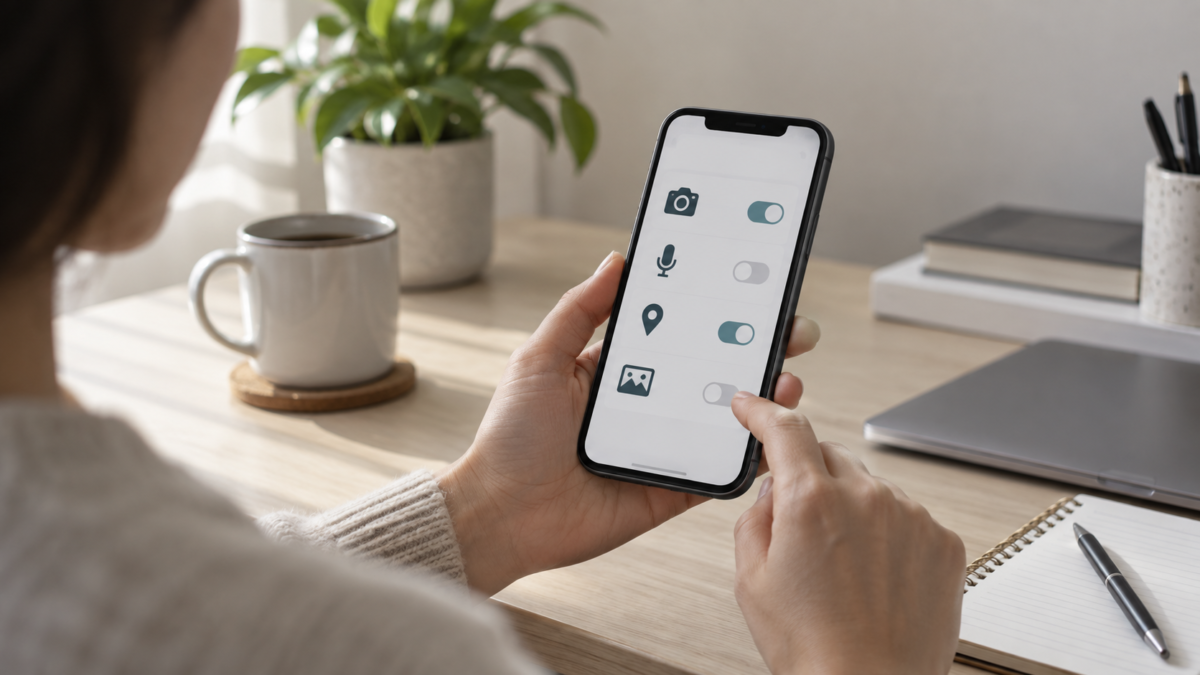
You install an app, accept a few requests, and go about your day. Months later, you might not even remember which apps can access your location, microphone, or photo library. Reviewing these permissions helps keep your phone consistent with your actual usage.
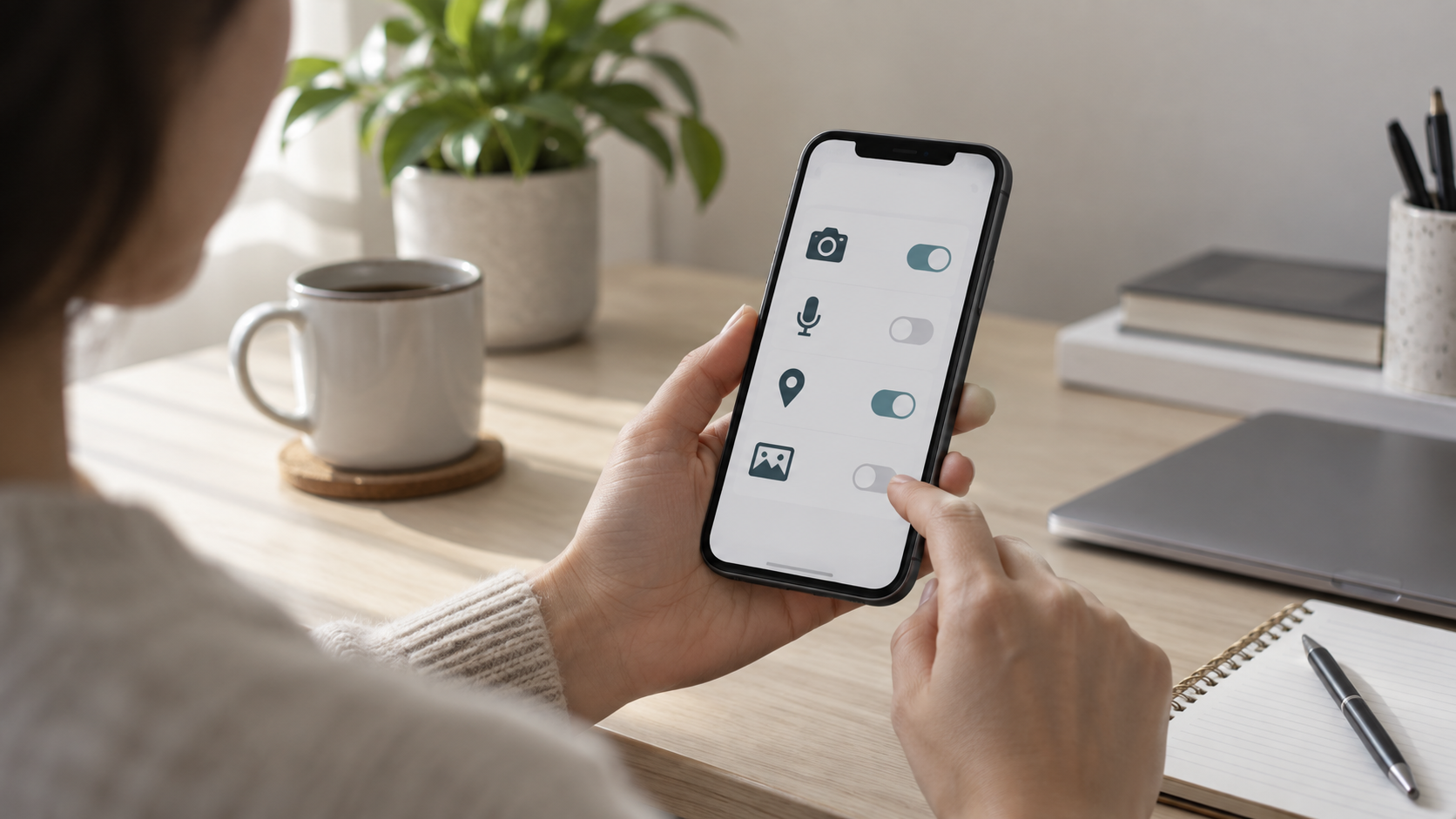
Android and iPhone offer different controls, but the question remains the same: does this access match the function I'm using? A video calling app needs a camera and microphone during the call; a photo editor might only need the images you choose.
What does a permit allow?
A permission authorizes the app to access resources such as the camera, microphone, location, contacts, photos, or nearby devices. It does not, by itself, explain how the service stores or shares data. For that, consult the app's own privacy policy.
How to review permissions on Android
Check out a specific application.
- Open your phone's settings.
- Enter Applications and choose the app.
- Tap on Permissions.
- Open each item and choose to allow during use, always ask, or not allow, when these options exist.
The paths vary between manufacturers and versions. If you can't find the menu, use the settings search and look for "permissions".
View all apps that use a feature.
Search for Privacy, Security and privacy or Permissions Manager. When you choose camera, microphone, or location, you can see which apps have authorized or denied access. The privacy panel may indicate recent accesses, but it's not a complete history of everything the app has done.
How to review permissions on iPhone
Open Settings > Privacy and Security Select Location Services, Photos, Contacts, Bluetooth, Microphone, or Camera. Review the listed apps and adjust access as needed. You can also open the settings for a specific app; the organization may vary between iOS versions.
If an app doesn't appear in a category, it may not have requested that access yet. This doesn't necessarily indicate a problem.
Start with the most sensitive permissions.
Location
A ride-hailing app may need your location to identify the starting point, but that doesn't mean access needs to be continuous. When available, allow it only during use. Choose between precise and approximate location based on the function: a weather forecast might work with a wide area, while a pick-up address requires more precision.
Photos
Compatible Android and iOS devices allow, in some workflows, the selection of specific photos instead of unlocking the entire library. If you're only going to upload one image, opt for the limited selection when it's available.
Camera and microphone
Free up these resources for calls, audio recording, scanning, and other related functions. The systems display indicators when the camera or microphone is in use; use this signal to check if the access matches what you are doing.
Contacts
Access to the contact list can make it easier to find people within a service, but consider whether this convenience is necessary. Some apps allow you to add contacts manually or use basic features without unlocking the contact list.
Special access options on Android
Not every important control appears on the common list. Special access to apps, There may be options such as appearing on top of other apps, accessing notifications, or installing apps from specific sources. Accessibility services have legitimate uses, but they grant broad capabilities: activate them only when you understand the function and trust the app.
Revoking a permission may cause the app to lose a feature or request authorization again. This restricts future access, but does not automatically delete information that has already been sent to the service. To delete account data, use the app's own privacy controls.

Conclusion
Start with the apps you use infrequently and set permissions for location, camera, microphone, and photos. Make changes related to a specific need and repeat the review after installing an app, ceasing to use a feature, or noticing an unexpected request.
Related readings: control mobile data on your cell phone e passkeys on mobile.
Official sources: permissions on Android e Privacy on iPhone.