NFC on your cell phone: how to activate, use, and understand the limitations.
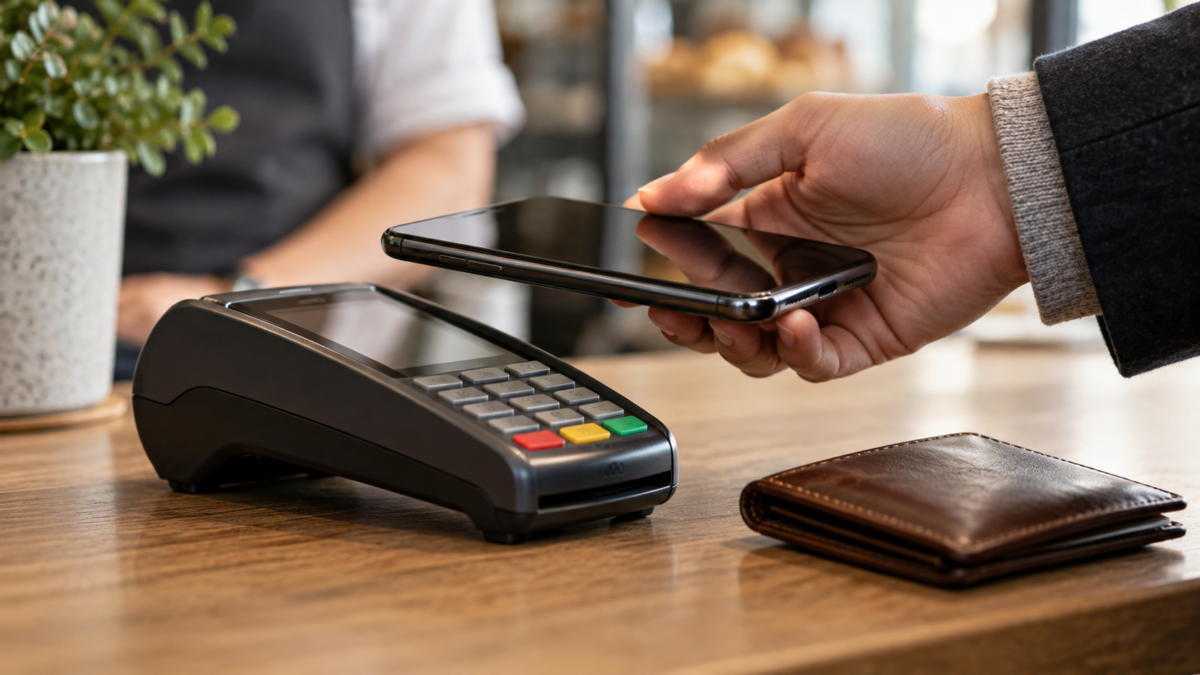
NFC allows devices to exchange small amounts of information when they are very close. On mobile phones, it appears in contactless payments, transit cards, smart tags, accessory pairing, and automations. Although it seems like a single feature, what you can do depends on the model, the system, the application, the carrier, and the services available in your country.
This guide explains how to check if your device has NFC, activate the feature on Android, use digital wallets securely, and understand what the iPhone does with tags and payments. It also shows why a wallet or card might not be accepted, even when the phone has the technology.
What is NFC and what is it used for?
NFC stands for Near Field Communication. The phone's antenna exchanges data within a few centimeters of a reader, tag, or other compatible device. The short distance reduces the risk of accidental contact, but it doesn't make every touch a secure action: final confirmation still depends on the app, the unlocking process, and the service used.
In payments, the mobile phone uses a virtual card or token authorized by the bank. On a tag, it can open an address, show an instruction, or initiate an automation. In accessories, NFC can speed up pairing, although the main connection then uses Bluetooth or Wi-Fi. The same proximity symbol can represent different functions.
How to check and activate NFC on Android
Open Settings and search for NFC. On many models, you'll find it under Connected devices, Connection preferences, Connections, or More connection settings. Enable NFC and, if the screen offers the option, choose your default contactless payment app.
Menus vary considerably between Samsung, Motorola, Xiaomi, Google Pixel, and other brands. When the search doesn't find NFC, confirm the model specifications on the manufacturer's website. A device may have the same commercial name in different regions and still use different components or features.
To pay with Google Wallet, your phone needs to have NFC enabled, a compatible payment method, screen lock, and software that meets security requirements. Open Wallet, add your card, and complete the verification requested by your bank. Approval is not automatic: the issuer decides whether that card can be tokenized.
On some Android devices, Wallet needs to be set as the default payment app. Look for NFC, Contactless payments, and Default app in the settings. If another service is selected, the phone may open the wrong wallet or report that there is no payment method ready.
How to use NFC to pay on Android
Before going to the cashier, unlock your phone and confirm that the default card is correct. Bring the back of the device close to the reader and hold it still for a few seconds. The antenna may be at the top, center, or bottom of the device; if there is no response, slowly change its position instead of pressing hard.
A confirmation mark on the screen indicates that the wallet completed the transaction, but the terminal may also ask for a password or other verification. Check the amount on the machine's display and in your bank's app. If the transaction is declined, do not try repeatedly without understanding the reason; the decline may be due to the bank, the store, the limit, or lack of regional support.
NFC does not require you to hand your phone to the operator. Hold the device and keep the screen lock active. Very thick cases, magnetic wallets, or physical cards stuck to the back can interfere with reading. Remove the case only if the wallet manufacturer recommends doing so.
NFC and payments on iPhone
The iPhone uses NFC integrated with Apple Pay and other Apple-authorized features. To pay in a store, double-press the side button on models with Face ID, confirm with your face or passcode, and bring the top of your iPhone close to the reader. On models with Touch ID, double-press the home button and use your fingerprint.
Add cards through the Wallet app and follow the verification process with your financial institution. Apple and the issuer may require confirmation via SMS, banking app, or customer service. The fact that a card works with physical contactless payment does not guarantee that it is enabled for Apple Pay.
The use of transportation, digital identity, keys, and other passes varies by country, model, and partner. If an option doesn't appear, check the service's official page to verify compatibility with your country, institution, and device. Avoid installing unknown profiles or apps that promise to unlock a blocked function.
How to read NFC tags
Some cell phones automatically recognize an NFC tag when the screen is active. The tag may contain an address, a contact, a Wi-Fi network, or an automation instruction. Read the preview before opening any link, especially when the tag is on a poster, counter, or packaging that you do not control.
On Android, the behavior depends on the version and the installed application. On iPhone, tag reading may appear as a notification or a system action on compatible models. The tag does not create internet access: if it points to a page, you still need a connection to load it.
Do not bring your phone close to an unknown tag when using a digital wallet or sensitive app. A tag could open a fake login page, initiate a call, or suggest a download. NFC reduces the communication distance; it does not validate the intent of the content.
Why NFC isn't working?
First, confirm that the device actually has NFC and that the function is turned on. Then, remove thick cases and cards from the back, unlock the phone, and bring the antenna close to the reader for a few seconds. In payments, confirm that the correct wallet is set as default and that there is an active card.
A transaction may fail due to lack of signal from the terminal, suspended card, uncertified system, unlocked bootloader, or rooted device. Google Wallet may also limit functions on work profiles and in some countries. Check the warning displayed in the wallet instead of repeatedly deleting and adding the card.
On your iPhone, check if the store accepts Apple Pay and if your card is supported by your bank. If the payment appears as completed on your phone, but the cashier hasn't received confirmation, wait for the terminal to respond and ask for help before attempting the transaction again. Keep the receipt and check your bank statement.
Security and privacy
Keep screen lock, updates, and biometric authentication active. Contactless payment uses digital credentials, but phone protection remains essential. If your device is lost, use Find My or Find Hub to lock it and suspend cards through your wallet or bank.
Review which apps are allowed to open links, read tags, or act as your default wallet. Be wary of apps that request contacts, microphone, and location for a simple NFC task. In public places, don't touch your device to readers you can't identify.
Frequently Asked Questions
Do all cell phones have NFC?
No. Some basic models or versions intended for specific markets do not include the antenna. Check the official specifications and look for the NFC option in the settings.
Does NFC require internet?
The exchange between the phone and the card reader can occur without internet access, but payment or the content of the label may require a connection, bank validation, or subsequent synchronization.
Can I use NFC with the screen locked?
Payments typically require unlocking or authentication. Reading certain tags may work with the screen active, depending on the system and the type of action configured.
Why does my physical card work, but my cell phone rejects it?
The bank needs to approve the card for the digital wallet, and the device needs to meet the security requirements. Compatibility with the physical card is not sufficient.

Conclusion
NFC on your phone is a short-range bridge that can simplify payments, tags, and accessories, but each use depends on compatibility and configuration. Activate the function only when needed, use an official wallet, check the amount at the terminal, and keep your device protected by a screen lock. If something fails, check the model, bank, region, and default app before concluding that the antenna is broken.
Consult the guide for Google Wallet for contactless payments and the guidelines of Apple Pay. To reduce risks after a loss, also see how Block unwanted contacts and calls..