How to record your phone screen with audio on Android and iPhone
Recording your phone screen is useful for explaining a procedure, recording an error, saving a lesson, or sending a demonstration to someone else. Android and iPhone already offer native tools, but each system decides differently which sounds can be captured, how to display ringtones, and where to save the video.
This guide shows a complete workflow for recording your screen with or without a microphone, choosing the right audio, stopping the recording, and editing the result. It also explains why some apps block screen capture, how to avoid large videos, and what precautions to take to protect conversations, notifications, and data that might accidentally appear.
Before starting the recording
Close notifications and conversations that shouldn't appear in the video. Activate Do Not Disturb mode or review which alerts might appear during recording. Check your free storage space: a recording with movement and audio takes up more space than a regular screenshot, especially at high resolution.
Define the objective. To show a button, a moderate resolution is sufficient. To demonstrate photo editing or a game, you might need higher quality and a powerful device. If the video is to be sent via messenger, allow room for compression and test a short clip before recording everything.
How to record your screen on Android
Double-swipe from the top of the screen to open Quick Settings. Look for Screen Recording. On some devices, the shortcut is on a second page; swipe to the side or tap the pencil to add it to the panel. Official Android support describes this path and notes that the feature may vary by manufacturer.
Before you begin, choose whether you want to record audio from the device, the microphone, or both. Some models also offer the option to show screen touches. This marking helps in tutorials because the viewer understands where you touched, but it can be distracting in a video that will be published.
Tap start and wait for the countdown. Take the steps slowly, keeping the phone in the orientation that will be used by the audience. To stop, open Quick Settings again and tap the recorder notification. The video is usually saved to Google Photos or the manufacturer's gallery, within a screen recording album.
How to record your screen on iPhone
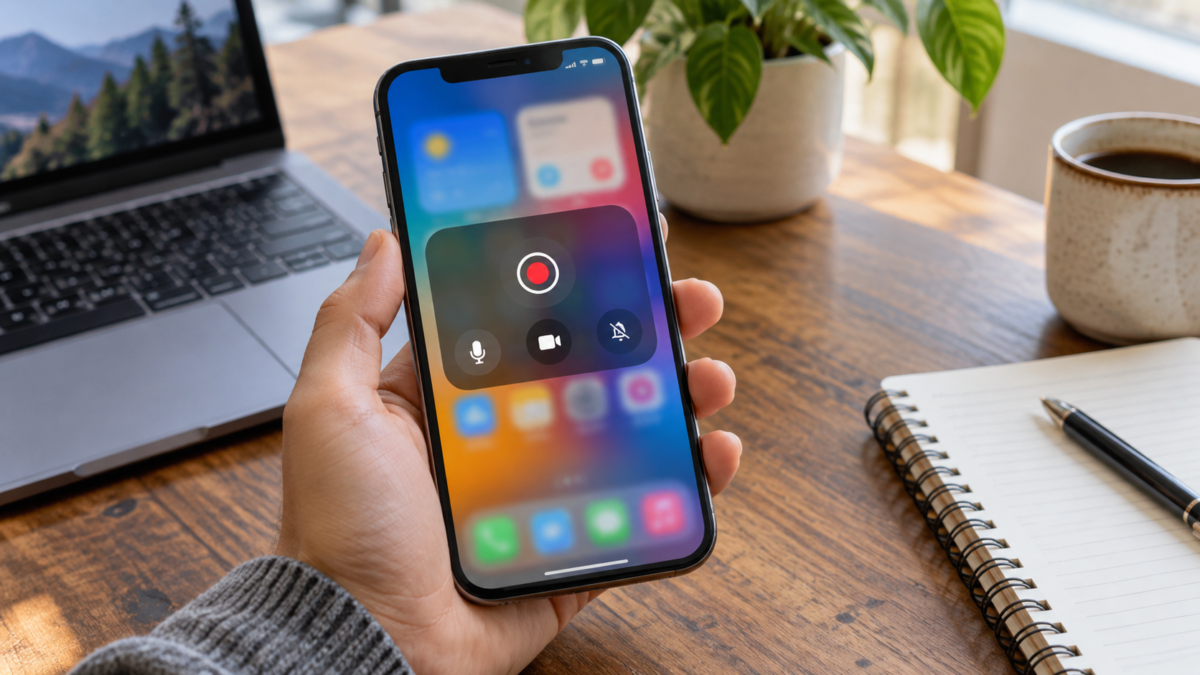
Open Control Center and look for the Screen Recording button. If it doesn't appear, touch and hold the bottom of Control Center, choose Add a Control, and include Screen Recording. The iPhone will start after a three-second countdown, giving you time to close menus and position the screen.
To include your voice, tap and hold the record button, activate Microphone, and then start recording. Microphone audio is captured along with video, so record in a quiet environment and avoid covering the microphone with your hand. Apple advises that some apps may prevent audio or video recording.
To stop, tap the red indicator at the top and confirm, or open Control Center and tap the button again. The file is saved in Photos, in a screen recordings category. Apple's documentation also explains how to locate and edit this type of video.
Choose the right audio.
Device audio records sound from compatible videos, games, and apps. The microphone records your explanation and ambient noise. Having both is useful for narrated tutorials, but can create echo if the speaker is loud. Use headphones or lower the volume when you need to speak while internal audio is playing.
Not all apps allow you to capture your sound. Streaming services, calls, and protected content may mute recordings for copyright and privacy reasons. Don't try to circumvent this limitation with unknown tools. If you need to explain a screen, record only the permitted interface and do the narration separately.
Show touches and movements clearly.
The option to show taps is valuable in lessons and technical support. The circle or marker indicates where you tapped, especially when the screen is small. Test it to make sure the marker doesn't cover buttons or text. In a public video, consider whether the taps reveal a code, number, or personal information.
Vertical or horizontal recording?
Choose the orientation before you start. Social media tutorials usually work best in portrait mode, while demonstrations on a monitor, spreadsheet, or game can benefit from landscape mode. Rotating the device during recording can cause strange cropping and create sidebars.
If the content will be edited later, maintain the same framing in all segments. Record a few seconds before and after the main action to facilitate cuts. Avoid repeatedly tapping the screen to "mark" the beginning, as these taps will also appear in the final result.
Edit and reduce the file size.
Open the video in Photos, Google Photos, or your preferred editor. Trim the countdown, parts where you searched for a menu, and the end after pausing. If the file is large, export it at a resolution compatible with the destination. Reducing it too much can make small text illegible, so compare the result on another device before sending.
For a tutorial, include titles or arrows in the edit instead of adding overlay apps during recording. This keeps the recording clean and allows you to correct the explanation later. Remove or cover phone numbers, emails, recovery codes, and private notifications before sharing.
Why does the recording go black or have no sound?
A black screen usually indicates protected content, a private call, or an app restriction. Test the tool on a regular system screen to distinguish between a recorder issue and a content limitation. If only one app fails, consult its official help section.
If there is no sound, open the recorder options and confirm the audio source. Check that the microphone is not being used by another call and that the device volume is turned up. On Bluetooth headphones, the audio path may change when recording starts. Test for ten seconds before repeating the process.
Privacy during capture
The recording captures everything that appears, including typed passwords, contact names, and messages that arrive during the video. Activate Do Not Disturb mode, clear the clipboard if it appears on the screen, and use a test account whenever possible. Before publishing, watch the entire file looking for information that shouldn't leave the device.
If you record someone else's phone for support, ask for permission and agree on where the file will be stored. Delete temporary versions that are not needed. A public sharing link may remain accessible even after you forget where you sent it.
Alternatives when the native feature does not exist.
Some older devices don't have a built-in recorder. In that case, look for a system update or a tool from the manufacturer. External apps may work, but review their permissions, ads, and video handling policies. A recording app doesn't need access to your contacts to capture the screen.
To explain just a short sequence, multiple screenshots with annotations can be lighter than a video. For a visual problem, send a screenshot with the time and error message, removing personal data. Choose the format that communicates the solution with the least exposure.
Frequently Asked Questions
Does the recording capture phone calls?
It depends on the system, the model, and local laws. Many calls are blocked or recorded without audio from one of the parties. Don't assume the other person will be recorded; inform participants and follow applicable rules.
How do I record just one application?
Some recorders allow you to select a window or start recording directly from within the application. Even so, system notifications may appear. Use Do Not Disturb mode and test it first.
Why does the video take up so much space?
Resolution, frame rate, duration, and audio all influence the file size. Cut out unnecessary sections and export a copy with adequate quality for the destination, keeping the original only if you really need it.
Can I record streaming content?
Services may block capture or display a black screen. Respect the terms of service and content rights. For a tutorial, record the permitted interface and explain the procedure with your own images.
Conclusion
Recording your phone screen becomes simpler when you choose the audio, orientation, and quality before tapping start. Use the native Android or iPhone recorder, do a short test, and review the entire video before sending. Notifications, calls, and protected content require special attention, as they can interrupt the recording or expose information that shouldn't be shared.
Check out Official Android step-by-step guide and the Apple's guide to recording your iPhone screen.. If you need to move the file for editing on another device, see also How to transfer files from your phone to your computer..