How to securely transfer Google Authenticator to another phone.
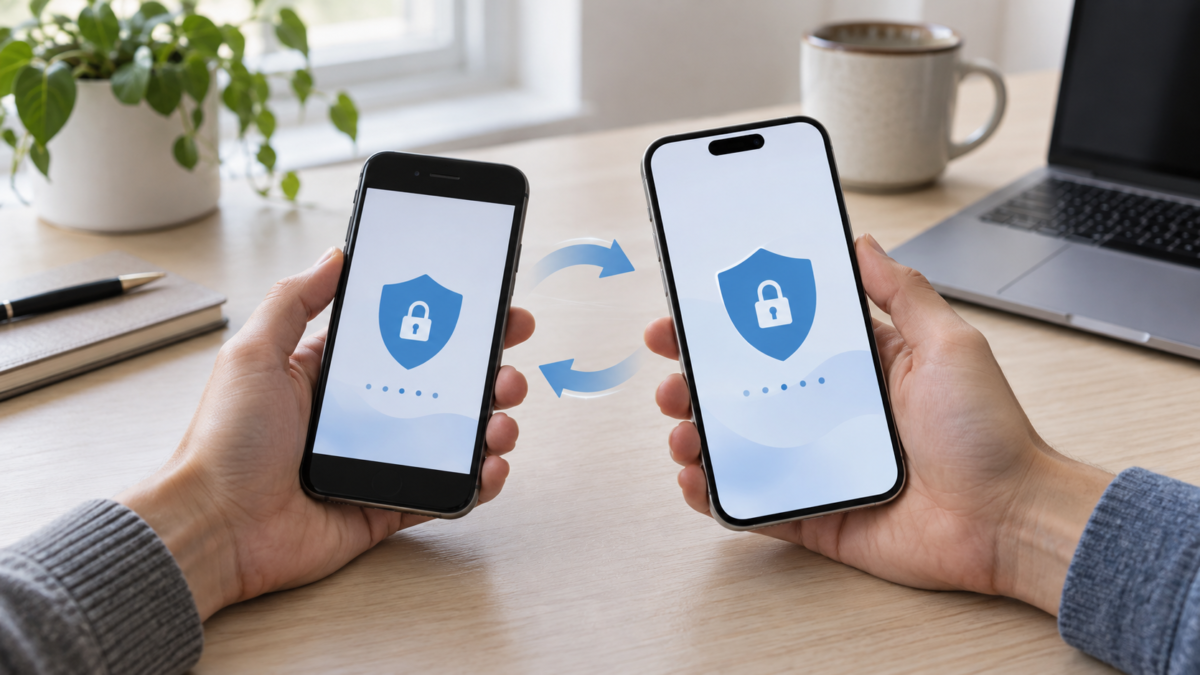
Switching phones involves photos, conversations, and apps, but also the codes used to log into your accounts. With Google Authenticator, installing the app on your new device is just the beginning: your codes can be synced with a Google Account or saved only on your old device.
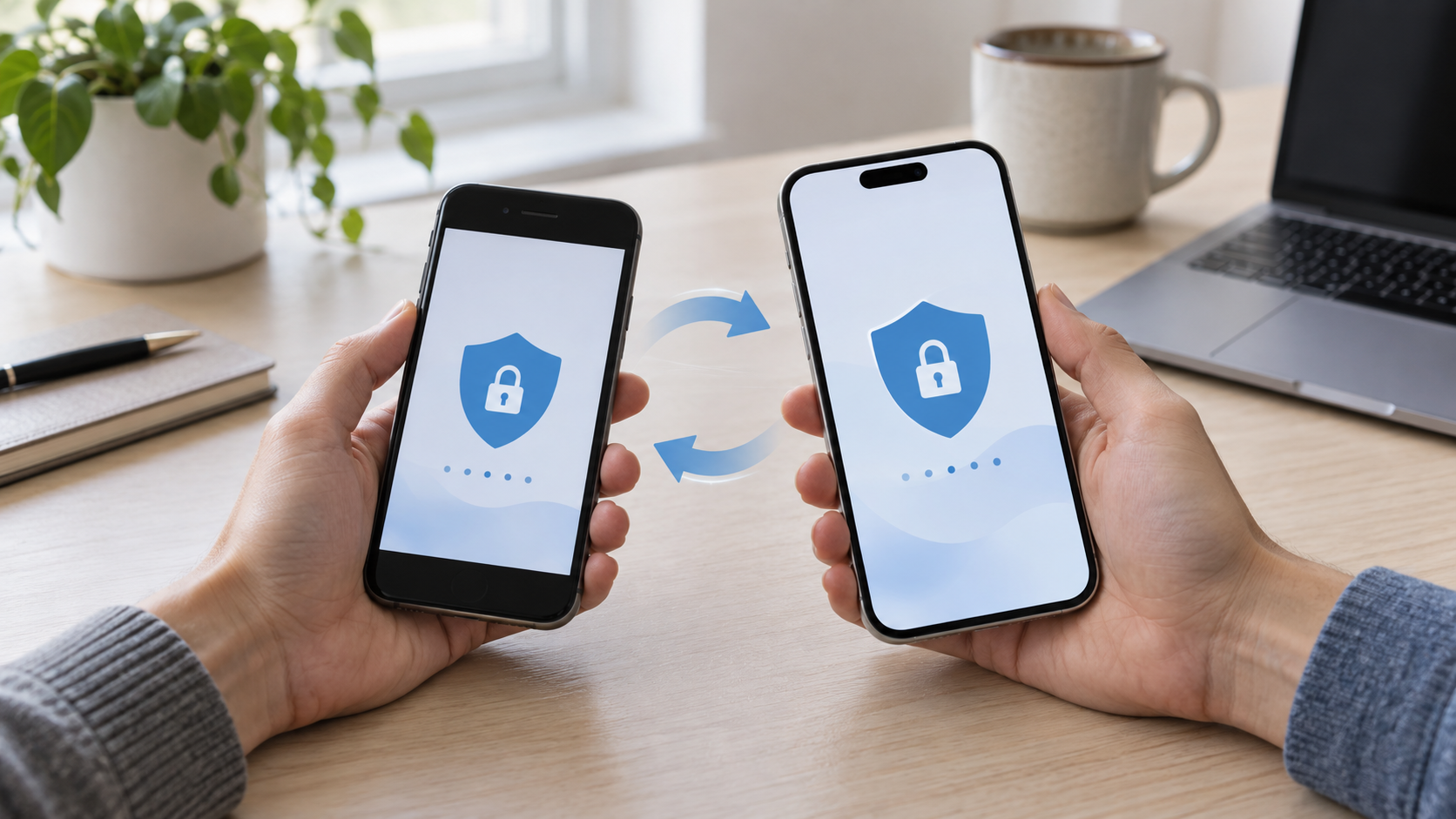
Keep your old phone available until you confirm that the codes on your new device work. This way, you avoid losing access to email, work, and other services protected by two-step verification.
Before you begin, prepare for recovery.
Open the security settings for your most important accounts and check that your recovery email and phone number are up to date. Generate or locate backup codes when the service offers this option and confirm if there is another access method.
These codes are provided by each service; they do not form a universal backup of the Authenticator. Keep them in a safe place that remains accessible if the old device stops working.
Transfer using Google Account syncing.
Once synchronization is already enabled in the Authenticator, the process is usually straightforward:
- Open the Authenticator on your old phone and check which Google Account is selected.
- Install the official app on your new device.
- Sign in with the same Google Account.
- Check if the expected bills appear in the new app.
Being signed in to your Google Account in other apps doesn't prove that the codes are synced. Check the indication within the Authenticator itself. If the list doesn't appear, confirm the chosen account and consider that the old device may be using the no-sync mode.
Be careful when deleting synchronized codes.
Deleting a synced entry may remove it from other devices linked to the same account. Do not use individual deletion as a way to clean up an old phone. First, verify access; then perform a factory reset of the device through the system controls.
Transfer via QR code
If the codes are only on the old device, use the app's export and import feature:
- On your old phone, open the Authenticator menu and choose to transfer accounts or export.
- Confirm your identity, if requested, and select the accounts.
- On the new phone, select import and scan the QR code displayed on the old device.
- Repeat the scan if the app displays more than one code.
The export QR code contains information capable of generating authentication codes. Scan it directly between the two devices in a private environment. Do not share the image or save it as a screenshot.
How to confirm that it worked
Keep an existing login session whenever possible and log in to the service again through the official website or app. Start with your main email and most important accounts. If a code is rejected, wait for the next one, check that you have chosen the correct login, and verify that the date and time on your new mobile phone are set to automatic.
A temporary code expires after a short interval; this is expected. Many consecutive attempts may also cause a temporary service block.
If the old device was lost
If synchronization was enabled, signing into the same Google Account may recover the codes. Without synchronization or export, you will need to use backup codes, another registered factor, or the official recovery procedure for each account. In case of loss, review open sessions and reconfigure the authenticator for the affected accounts.
Conclusion
Erase your old phone only after confirming the codes on the new device, testing access, and ensuring that recovery methods are available. Copying photos and documents does not automatically transfer authentication.
Related readings: Passkeys on your mobile phone e Transfer files between your phone and computer..
Official source: Google Authenticator and verification codes.