How to scan documents and create PDFs using your mobile phone.
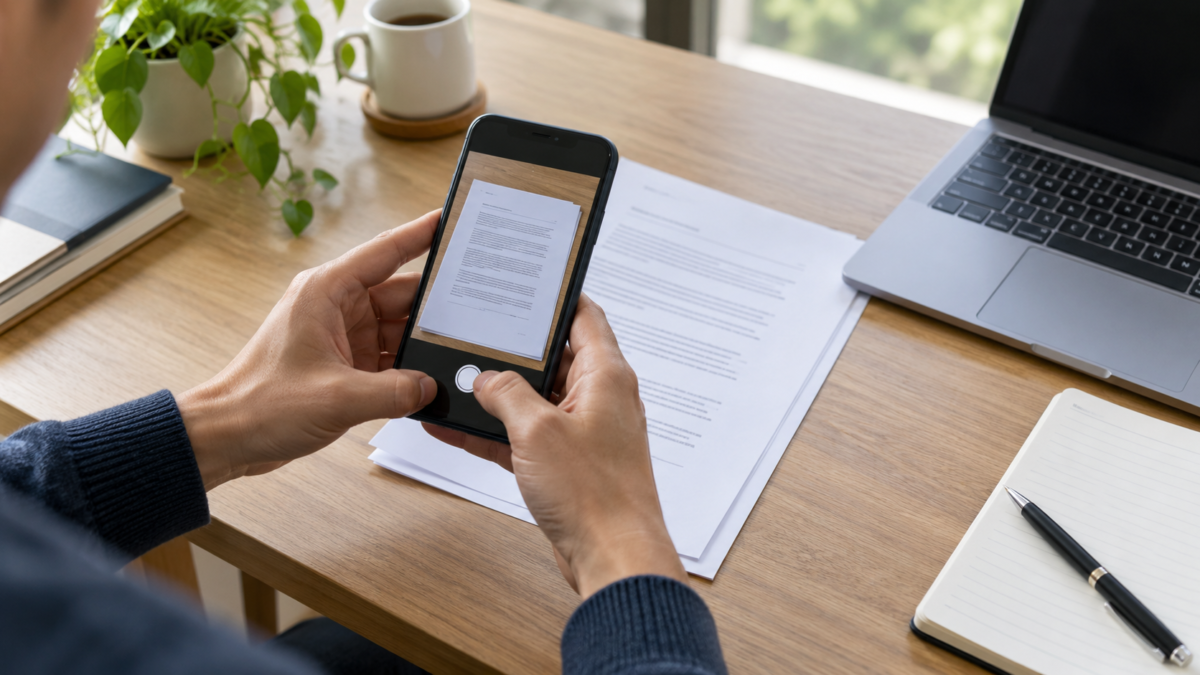
You don't need a dedicated scanner to transform receipts, contracts, and forms into PDFs. Your phone's camera, combined with Google Drive on Android or the Notes app on iPhone, corrects edges, improves contrast, and merges multiple pages into a single file. The result can be sent by email, saved to the cloud, or shared with an institution. This guide explains the complete process, how to improve capture, and what precautions to take with sensitive documents.

Prepare the table and the document.
Before opening the app, choose a flat, well-lit surface. Avoid reflections from lamps and shadows from your hands. Clean the camera lens with a soft cloth, remove clips or objects that obscure the edges, and ensure all pages are oriented the same way. A background color different from the paper facilitates automatic corner detection.
If the document contains personal information, work in a private environment and check where the file will be sent. Scanning doesn't mean erasing the original: keep the sheet until you confirm that all pages are legible. For thermal receipts, scan quickly, as the paper may fade. In contracts, also photograph the signature page.
Scan to Google Drive
On Android, open Google Drive and tap the camera button or New and Scan, depending on your app version. Point your phone at the page and hold it parallel to the paper. Drive can detect the edges and capture automatically; if you prefer, tap the capture button. Review the crop, rotate the image, and choose a filter that keeps the text sharp. Avoid filters that smudge stamps or signatures.
After reviewing the first page, tap "add page" to continue in the same file. Reorder the thumbnails when you're finished and remove accidental captures. Give it a descriptive name, choose the correct folder, and tap "save as PDF." The file will be in Drive, where you can copy a link, download a copy, or share it with specific permissions. Google's guide confirms that the scanning feature uses the mobile device's camera and saves the result as a PDF.
Google Drive also helps organize scanning. Create a folder by project or by year and use names like “rental-contract-2026.pdf” instead of “scan001”. If the document is important, keep a second copy on another service. When sharing, prefer “Reader” to prevent changes and make sure the link is not public.
Scan on iPhone from the Notes app
On your iPhone, open Notes, create a note, and tap the attachments button. Choose Scan Documents. The device detects the edges and automatically captures when it's stable; you can also tap the capture button to control the timing. Adjust the corners, choose to keep the image, and continue with the following pages. When you tap OK, the document is saved as a PDF within the note, as per Apple's documentation.
To export, tap the PDF in the note and use the share button. You can send it via Messages or Mail, save it to Files, and choose a folder from iCloud Drive or local storage. For a file that someone else needs to edit, use an OCR tool after exporting; the PDF created by the camera may be an image, even when the text appears very sharp.
The Notes app also lets you insert recognized text in supported languages. Use the Scan Text command when you want to copy a short passage without generating a PDF. For formal documents, keep the original PDF and treat the converted text as supporting material only, because accented characters, tables, and numbers may be misinterpreted.
How to improve quality
Position your phone so that the lens is centered and parallel to the page. If you need to photograph an open book, press the edges to reduce curvature and capture each page separately. Use soft side lighting, not a flash pointed directly at glossy paper. Check that the resolution allows you to read small print before sending.
Review page by page. Look for cut corners, slanted lines, fingerprints on the text, and out-of-order pages. The zoom function on your phone screen helps to check document numbers and values. When the app offers black and white, compare it to the color mode: stamps, watermarks, and signatures can disappear in an aggressive conversion.
Searchable PDF, size and accessibility
A PDF created solely with photos is not necessarily searchable. To find words, apply OCR in a reliable application or open the file in a text recognition service. Review the result, especially names, numbers, and values. For documents containing personal information, avoid unknown websites that require uploading the file.
If the PDF becomes large, reduce duplicate images and choose moderate compression. Do not compress to the point of blurring text. For accessibility, maintain strong contrast, avoid slanted pages, and, when possible, add a title and description to the file. A clear name and an organized folder are as important as camera quality.
Sharing and privacy
Before sending, confirm the recipient and address. For cloud-based links, limit the duration or remove access after delivery. For contracts and identity documents, use a channel indicated by the institution and check if there are any format requirements. If you need to hide information, create a redacted copy using a tool that actually removes the information, not just a rectangle over the text.

Frequently Asked Questions
Does Google Drive scan on iPhone?
The Drive app may offer scanning depending on the version and operating system. If the button doesn't appear, use Notes on your iPhone or update the app from the official store.
Can I combine pages later?
Yes. Drive and Notes allow you to add pages during capture. For separate files, use a reliable PDF application to combine the documents and review the order before sharing.
Will the PDF retain a valid signature?
Scanning a signature creates a visual copy, but it does not replace a certified digital signature when the institution requires authentication. Follow the recipient's rule.
Why is the text blurry?
The most common causes are a dirty lens, low light, movement, or excessive cropping. Rest your arms, increase indirect lighting, and shoot again before applying filters.
When to use a dedicated app
For recurring workflows, such as a small business that digitizes orders daily, a dedicated application can offer automatic naming, batch OCR, and integration with enterprise storage. Compare the privacy policy, processing location, and the ability to export files without a signature. For occasional use, native features are often sufficient and reduce the number of permissions granted. Regardless of the tool, perform a test capture with a sample page and check if the result opens on another device before migrating a large file.
Conclusion
Your phone handles most everyday scanning tasks when you prepare the surface, capture each page carefully, and review the PDF before sending it. Use Google Drive to organize your files in the cloud and Notes to save documents directly within the Apple ecosystem. Preserve copies, limit permissions, and apply OCR only when you need to search the content.
Check out the Google Drive tutorial. and see the Apple's official guide to scanning documents..
Read also: check How to organize downloaded files on your phone..