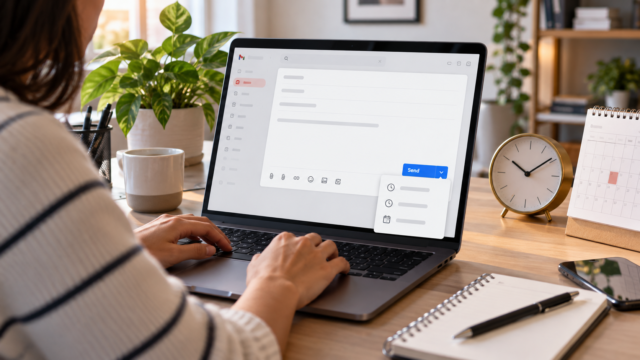
Read aloud on your phone: how to listen to texts on Android and iPhone

A long article on a small screen doesn't always coincide with a time when you can pay attention to it. Read aloud on your cell phone It allows you to listen to the text while following the page or resting your eyes. In many cases, Android, iPhone, or the browser itself already offers this feature.
The first step is to identify the material: a web page, a selectable excerpt, or a scanned document. This difference explains why a button can read a news article but doesn't recognize the content of a PDF made with photos.
Which resource should I choose for each type of text?
- Open articles in Chrome on Android: Look for the "Listen to the page" option in your browser's menu.
- A paragraph in an app: Try selecting the text and looking for the reading action.
- Long texts on Android: Google's Reading Mode can combine display and voice settings.
- Content displayed on the iPhone screen: Use the speech controls in Accessibility.
- Scanned PDF or photograph: First, check if there is recognized text; the image of the words does not equate to selectable text.
Start with the feature that's already on your device. Only install another tool when there's a real need, such as an incompatible page or more suitable reading controls for you.
How to listen to a page in Chrome on Android
Open the article in Chrome, tap the three-dot menu, and search. Listen to this page. The controls allow you to pause, adjust the speed, and track highlighted words. This option does not appear on all websites.
According to official Chrome guide, The feature depends on the configuration. Improve search and navigation.. Please review the explanation of this setting before activating it; if you prefer to keep your current configuration, try one of the accessibility alternatives below.
There's an important distinction: standard playback reads the words from the page, while the AI-powered mode transforms the content into a podcast-like conversation. To follow along with the original text, choose the... standard playback When the selector is available. It accepts Portuguese; availability of the AI mode depends on additional conditions, including the Chrome language.
Android: Listen to a selected excerpt
In compatible apps, press and hold a section of text, adjust the selection, and search. More > Read aloud. It's a practical way to listen to just one paragraph without having to read the entire page.
Another possibility is the feature Select to listen:
- Open the device settings and go to Accessibility.
- Search Select to listen and activate the corresponding shortcut.
- Go back to the content, activate the shortcut, and tap on the item or select the area you want to listen to.
If the option is not present, consult Google's guidance for updating it. Android Accessibility. Some steps require Android 11 or later, and compatibility varies between apps and browsers. Names may also change depending on the manufacturer.
Reading mode: an option for long articles on Android.
O Google Reading Mode It combines font size adjustments, contrast, and voice reading. It supports smartphones with Android 9 or later and can be useful when you switch between listening and visually following the text.
Use the Play Store link provided by official support, install the app, and follow the accessibility shortcut setup instructions. This permission is required for the feature to function; check the system screen before authorizing.
One limitation deserves attention: Reading Mode was designed for long-form content on compatible websites and apps. Google states that it... It does not accept PDFs, emails, chat messages, or social media feeds.. Installing the app does not automatically solve the problem of reading any document.
iPhone: Enable screen or selection reading.
On your iPhone, open Settings > Accessibility > Reading and Speaking. This is the path described in the current Apple manual; earlier versions may show different names.
- Speaking Screen Content: Activate the option and slide two fingers down from the top of the screen to start reading.
- Speaking of Selection: activate the option, select a passage in a compatible app, and tap on To speak.
The speech controls allow you to pause and adjust the speed. You can also choose voices and language in the settings. You don't need to activate VoiceOver to use these functions, according to the... Apple's read-aloud manual.
If the pronunciation is incorrect, check the chosen language before increasing the speed. Text in another language may require a corresponding voice to be understood.
What if the document is a PDF or a photo?
Perform a simple check: try selecting a phrase. If you succeed, there's a text layer that a compatible reader could use. This still doesn't guarantee that the application offers voice reading, but it helps to distinguish a compatibility issue from a file that only contains images.
If the page is a photograph or scan without recognized text, optical character recognition, known as OCR, will be necessary. Then, review the result before listening to it: blurry numbers, columns, and words can be misinterpreted. Selection may also fail due to file or viewer limitations, so consider these possibilities.
Our guide to apps for scanning documents It helps with the digitization stage. When choosing an OCR tool, check separately if the function is included and which languages it recognizes.
Three adjustments before listening to an entire text.
- Listen to the first paragraph. Check if the feature started in the desired content or in page menus and notices.
- Adjust the speed based on your understanding. A technical text may require a different pace than a short news story.
- Check out important segments on the screen. Names, dates, and instructions deserve a second reading if the pronunciation is unclear.
Guidelines based on official sources consulted on September 18, 2026. Menus and availability vary by version, language, and application; this guide does not report testing on all devices.
Conclusion: choose the text you want to hear.
To begin, open a short article and try the feature already available on your phone. If it works well, adjust the voice and speed before moving on to longer content. If it fails, identify the reason: incompatible page, lack of selectable text, or language setting. This check is usually more useful than installing multiple readers without knowing what is preventing reading.