Gmail: How to schedule an email and cancel sending when needed.
Not every email needs to go out the moment it's written. A message for a client in a different time zone, a reminder for the team, or a text you want to send early can all be prepared in advance in Gmail. The scheduling feature helps separate the writing time from the delivery time, but it works best when you understand what happens to the message after scheduling.
In this guide, you'll learn how to schedule emails in Gmail using your browser and mobile device, change or cancel a schedule, use the undo send period, and avoid common mistakes. The step-by-step instructions apply to personal accounts and many work accounts, although Google Workspace administrators may apply different rules.
What Gmail's programming actually does.
When you choose a date and time, Gmail saves the message in its own folder and attempts to send it automatically at the specified time. The computer doesn't need to be on and the phone doesn't need to remain connected to the internet. The action is linked to the account, so you can start the process on your mobile phone and check the result in your browser later.
Scheduling a message is not the same as setting a reminder. Gmail sends the content without asking for confirmation. If you are still reviewing sensitive data, attachments, or recipients, it's best to save it as a draft. Scheduling is suitable when the message is already ready and you just want to control the delivery time.
How to schedule an email in Gmail using a computer.
Open Gmail and click Compose. Fill in the recipients, subject, and message body. Carefully review the addresses, because an incorrect contact remains an incorrect contact even if the message is sent hours later. If there are attachments, open them once to verify that they are the correct files and that they are not empty.
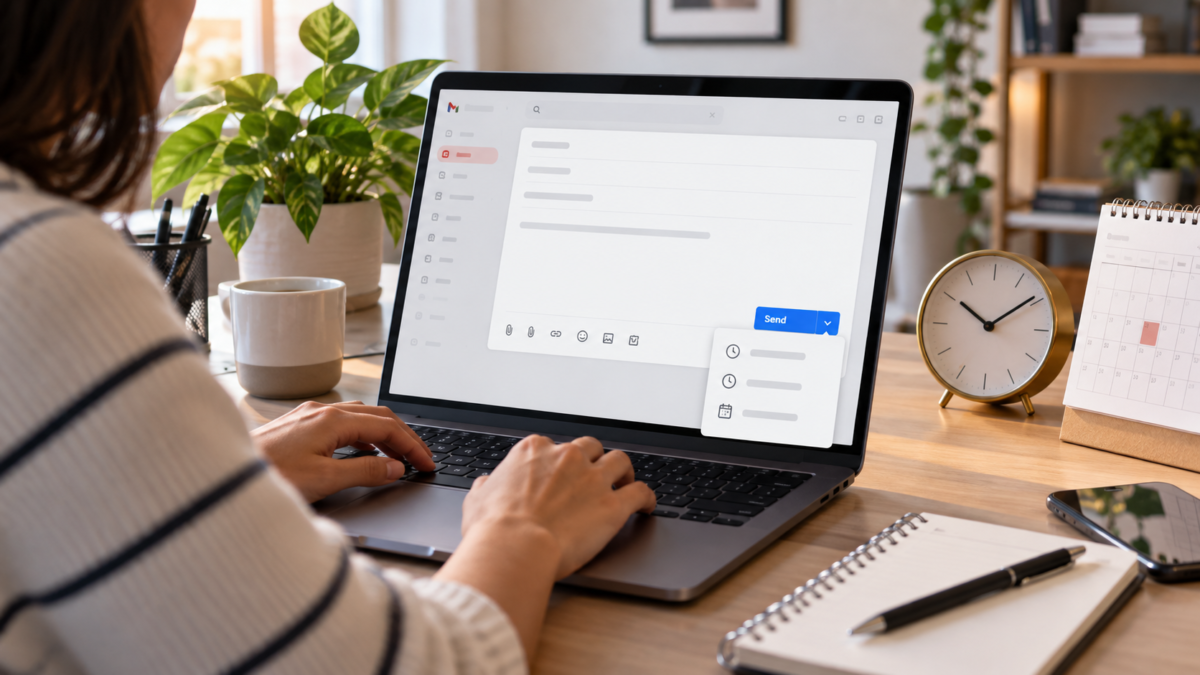
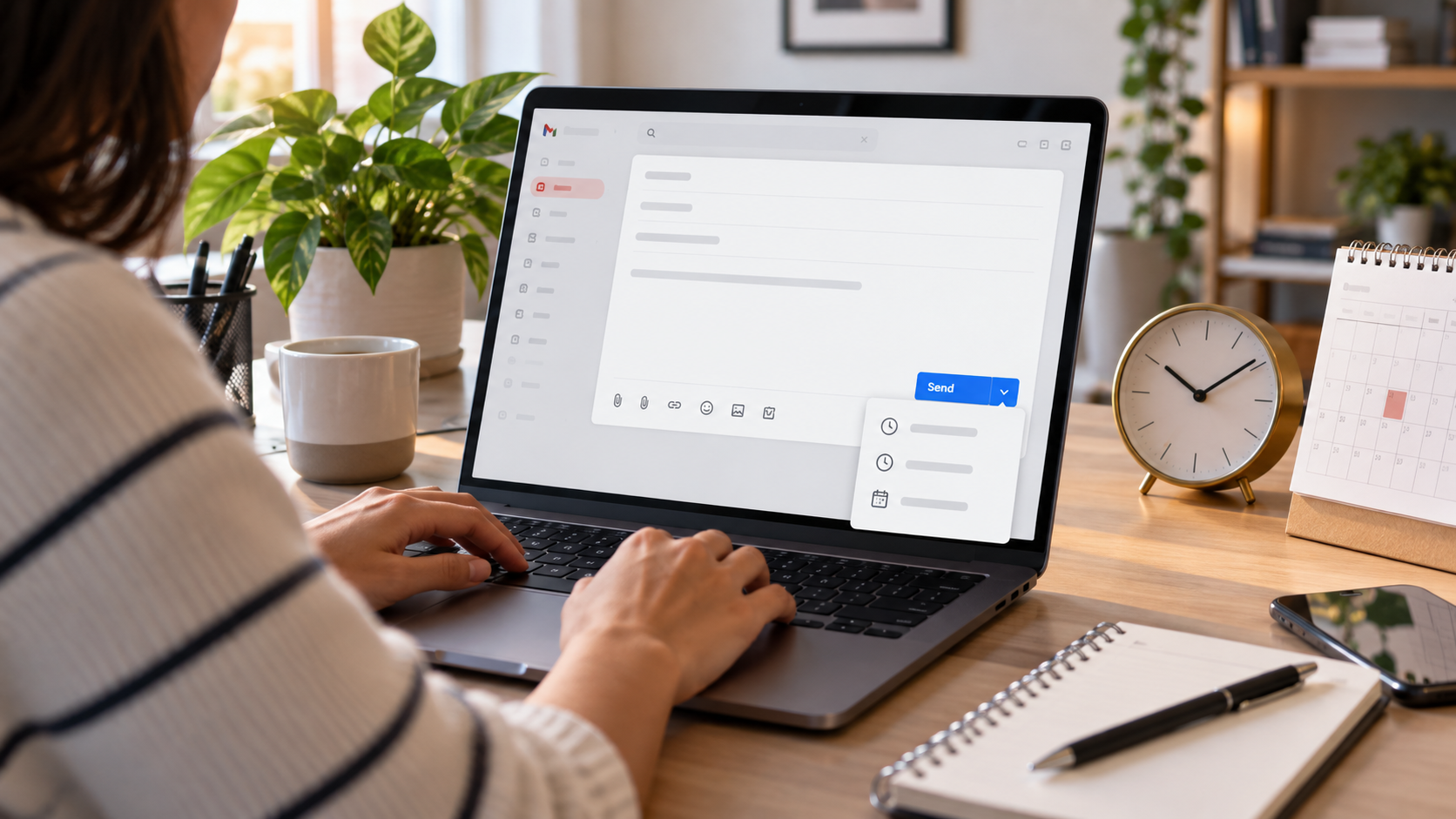
When finished, click the arrow next to the Send button and choose Schedule send. Gmail offers some suggested times, such as the following morning, but also allows you to set a date and time. Select an option that makes sense for the recipient's time zone. A message sent at 8 am in Cuiabá might arrive in the middle of the night in another region.
Confirm the scheduling. The email will be moved from drafts to Scheduled. The message remains editable, but any changes will require canceling the scheduling and rescheduling. Gmail does not automatically create a copy of the previous version, so save the text elsewhere if it's important.
Programming via Android and iPhone
In the Gmail app, write your message as usual. Tap the three-dot menu on the composition screen and choose Schedule send. The app shows suggestions and a prompt to choose a date and time. The names may vary slightly between Android, iPhone, and translated versions, but the option is always in the message menu, near Discard and Save draft.
The time displayed uses the device and account settings. Before confirming, check the full date, especially if it's close to midnight or you're traveling. Daylight saving time can also change the time difference between countries. If the recipient is in another region, it's best to mention the date in the text to reduce ambiguity.
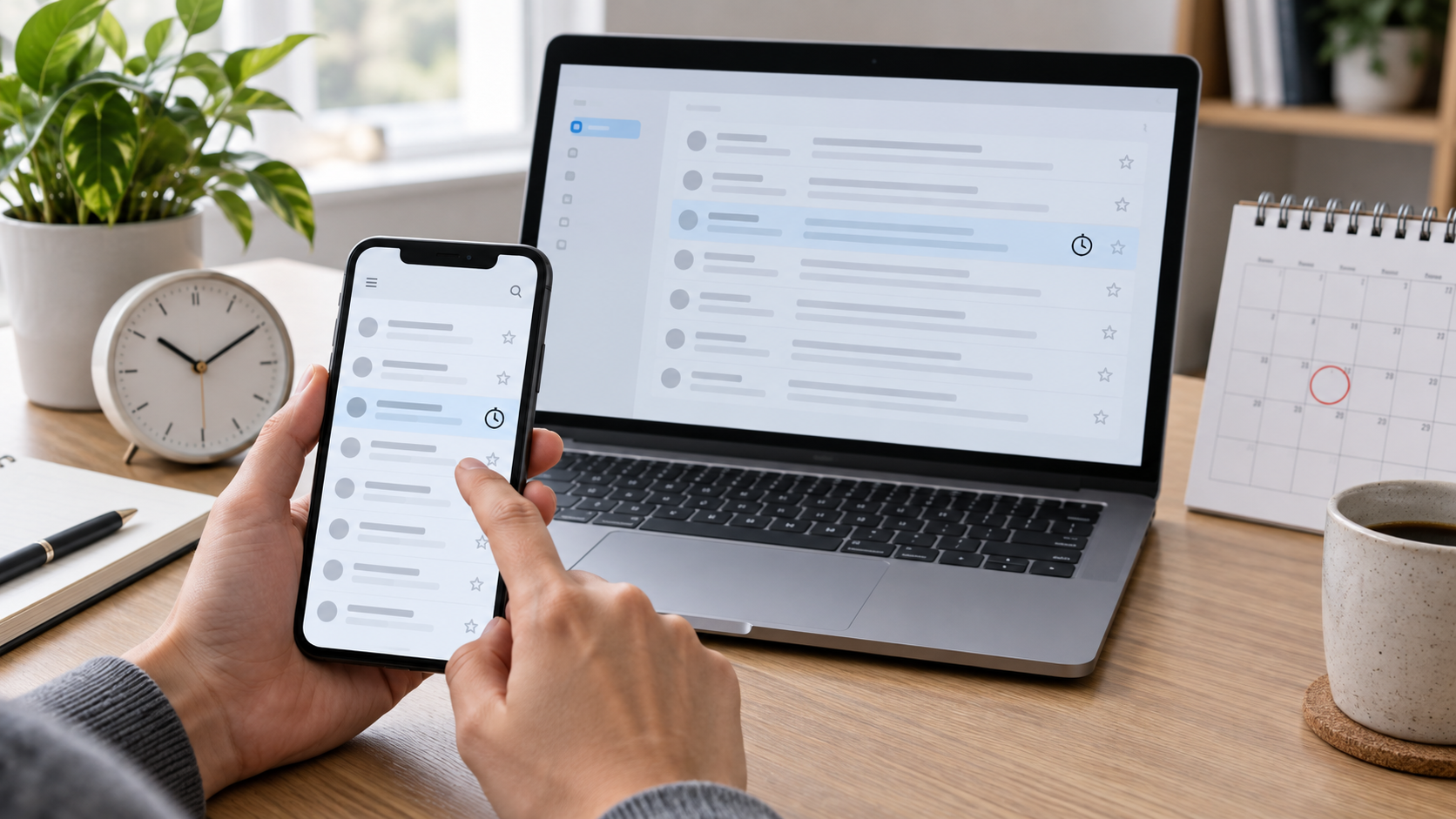
After scheduling, open the app's side menu and tap on Scheduled. This is where you'll find messages waiting to be sent. The queue syncs with Gmail on the web, so canceling on your phone will also cancel on your computer. If the folder doesn't appear, refresh your inbox and check that you're logged into the correct account.
How to cancel or change a scheduled message
Go to Scheduled Sends and open the desired message. Click or tap Cancel Send. Gmail returns the message to Drafts and retains recipients, subject, text, and attachments. This does not send anything. You can correct the content and schedule a new time or simply leave the draft saved.
There is no button to change only the time of an already scheduled item. The safe process is to cancel, review the message, and choose "Schedule sending again." Do this before the scheduled time. If processing has already started, the message may be sent even if you try to cancel; therefore, don't leave important changes until the last minute.
To cancel multiple messages, open the Scheduled folder, select the items, and use the available cancel command. Then check in Drafts to see if they have all been restored. For accounts with filters or delegation, also check if someone else has changed the message while you were working on it.
Undo submission: a different kind of protection
Gmail offers an Undo Send option immediately after you click Send. This feature holds the message for a few seconds and allows you to stop delivery. It does not retrieve an email that has already reached the recipient. To increase the interval, open Settings, go to See all settings, and look for Undo Send. The available limit is short, so use it as a margin to notice an error, not as a review system.
Scheduling and undoing send solve different problems. The first controls a future time; the second creates a small window to cancel a recently sent message. Even with both active, check the recipient's address, subject, attachments, and links before sending or scheduling.
How to avoid errors with attachments, time zones, and recipients.
Write the email first and add the recipient last. This order reduces the chance of accidentally sending it while you're still composing. Use the Bcc field when multiple people don't need to know each other's addresses. For a large list, confirm that sending complies with your organization's rules.
When the attachment is large, wait for the upload to finish before scheduling. Gmail may remove an attachment if the connection drops. Links from external services also deserve review: confirm access permission in an incognito window or with a test account, without exposing private data.
If you are scheduling for another region, check the time zone shown on your calendar and mobile phone. Avoid saying "tomorrow morning" in international messages; write "September 30th, at 9 am Lisbon time," for example. This clarity remains useful if the recipient sees the message in a copy or forwarded copy.
Frequently Asked Questions
Will Gmail send the message if I'm offline?
Yes. Once the scheduling is confirmed, the sending is associated with Gmail's servers. You don't need to keep your computer or phone turned on. The message only depends on being correctly stored in the Scheduled folder and the account remaining active.
Can I program a response in an old conversation?
Yes. Open the conversation, choose to reply, and use the three-dot menu to schedule the sending. Check if the reply will be sent to everyone or only to the sender. In long conversations, also check if old attachments are not being included by mistake.
Does the recipient know that the email was scheduled?
There is no standard notification indicating that the message has been scheduled. For the recipient, it arrives as a regular email. If the sending time is relevant, you can specify the time zone in the text, but this is a communication choice, not a technical requirement.
Why doesn't a suggested time appear?
Suggestions depend on the time zone, language, and application. Even when an option doesn't appear, the date and time selection command usually allows manual setting. Update the application and check your device's clock if the list is inconsistent.
To view the updated names and limits of the resource, see the official documentation. Gmail on email scheduling and the page about undo send. If you use other features on your mobile phone, you can also take advantage of our guide on... video editing on mobile to organize creative tasks at different times.
Conclusion
Scheduling emails in Gmail is a simple way to prepare your work at your own pace and deliver the message at a more convenient time. The process works on both computers and mobile devices, allows you to cancel before sending, and combines well with careful review of recipients, attachments, and time zones. Use the feature to control the delivery time, but make it a habit to check the content before queuing any message.