How to mirror your phone screen to your TV using Android and iPhone.
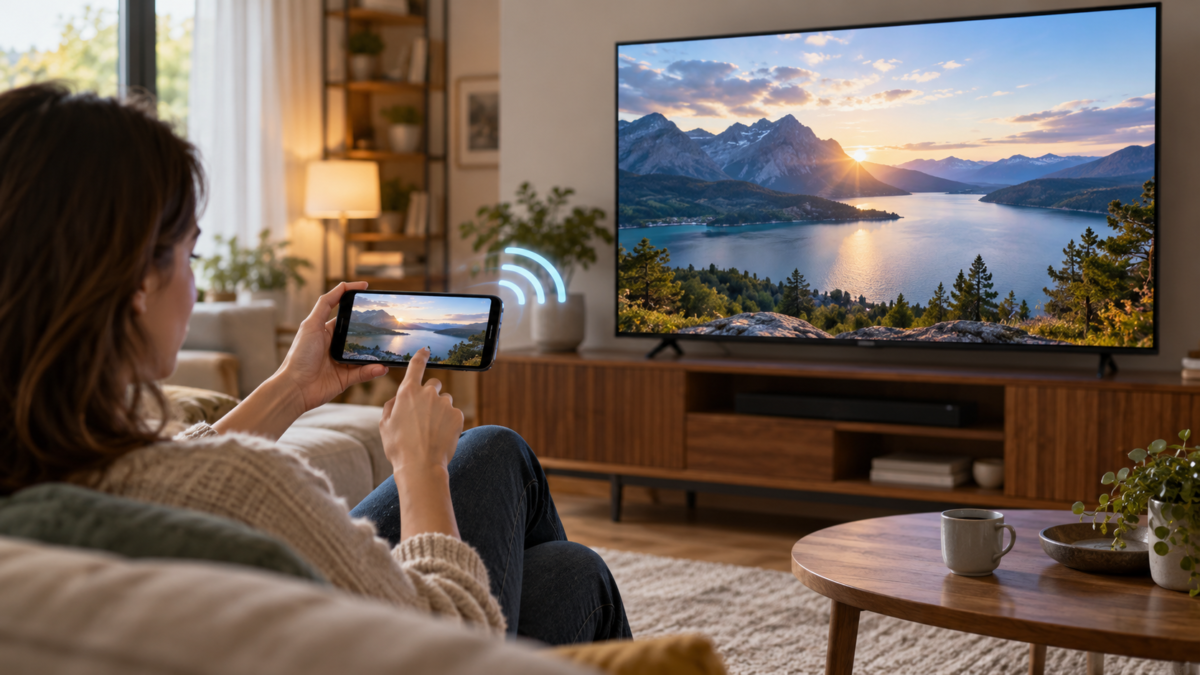
Mirroring your phone screen to a TV is useful for showing photos, following a class, playing games, giving a presentation, or watching a video on a larger screen. The task seems simple, but "streaming" a video and "mirroring" the entire screen are different functions. The first sends compatible media and frees up the phone; the second reproduces almost everything that appears on the device and is more dependent on the network.
This guide explains setup paths for Android and iPhone, including Google Cast, Chromecast, AirPlay, and wired adapters. You'll see requirements, limitations per app, privacy considerations, differences between TV brands, and a diagnostic sequence for when the connection fails. Button names vary by manufacturer, but the principles remain the same.
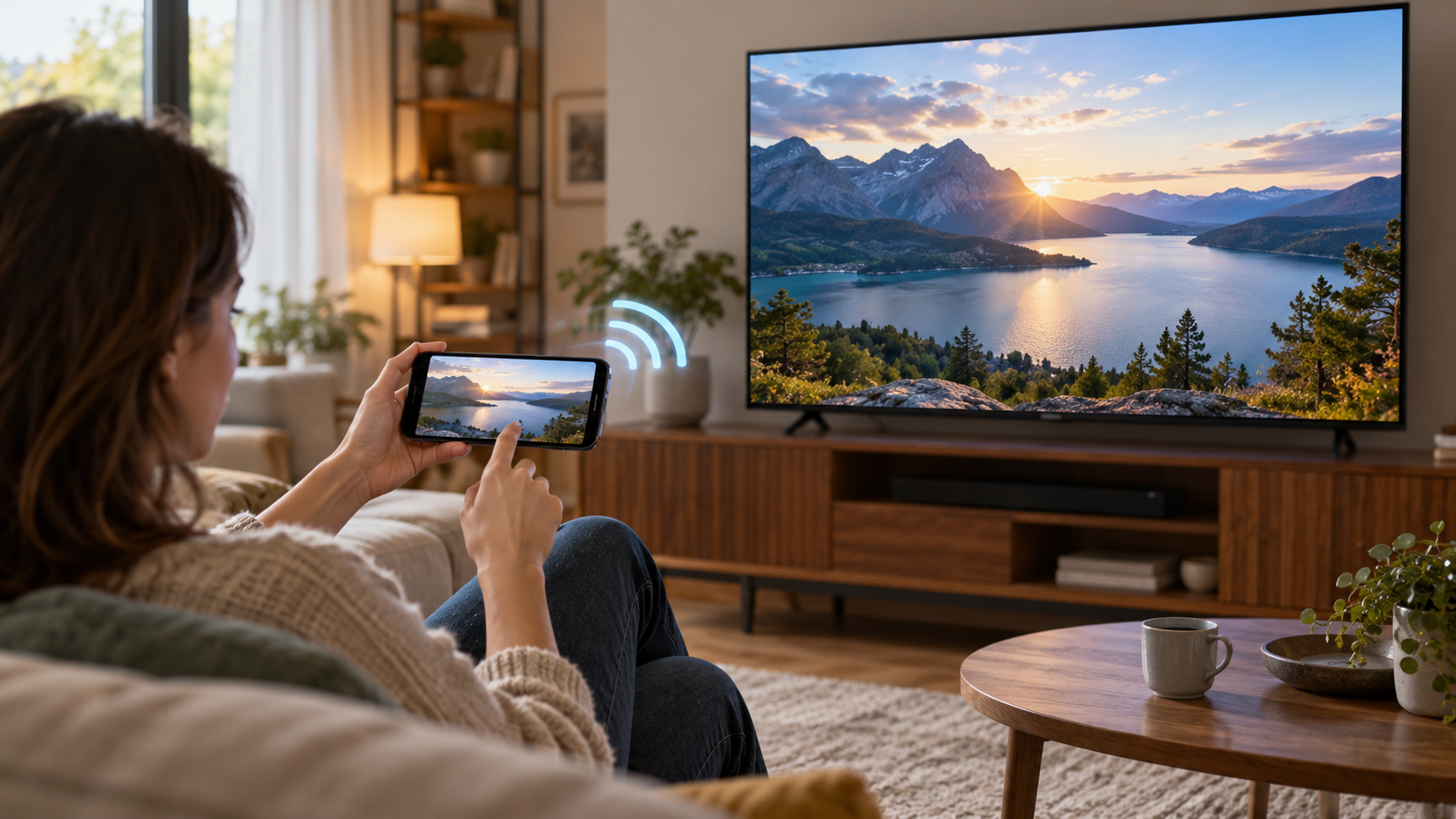
Transmission and mirroring are not the same thing.
In this type of streaming, the phone acts as a remote control, and the TV or streaming device retrieves the video directly. This happens when you tap the Cast icon in a compatible app. Playback usually consumes less battery and continues even if you switch apps, but it only works for services that offer this feature.
When mirroring, the TV receives a copy of what's on the phone's screen. Notifications, menus, and other apps may appear, so it's best to activate Do Not Disturb mode before sharing. Some services block capture due to copyright; in these cases, mirroring may show a black screen even if the connection is correct.
Before you begin: check the network and TV.
Connect your phone and TV to the same Wi-Fi network and, ideally, the same network name, or SSID. Guest networks and routers with access point isolation prevent the devices from finding each other. official Google guidelines We recommend confirming this condition to obtain better performance on Android.
Connect the TV to the correct HDMI input if you are using a Chromecast or other adapter. For smart TVs, update the system and confirm whether the feature is Google Cast, AirPlay, or just a proprietary protocol. A TV that advertises "mirroring" may require a manufacturer app and may not appear in Google Home or the AirPlay menu.
How to mirror an Android device using Google Cast
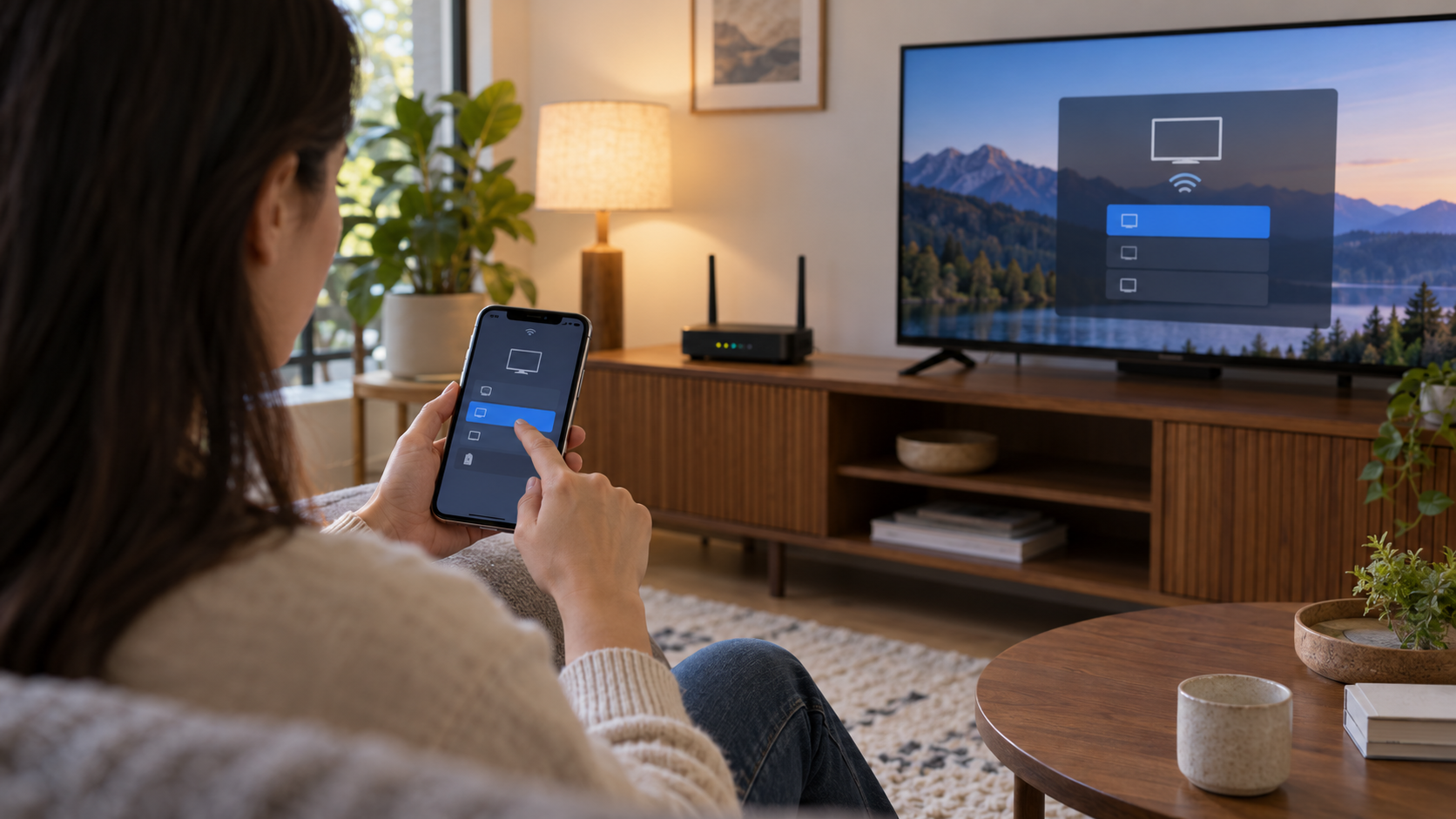
On many Android devices, open Google Home, tap on your TV or Chromecast device, and choose Cast your screen. Confirm the warning message and select the TV. On some brands of mobile phones, the same feature appears in the quick panel with names like Cast, Smart View, or Mirroring; tap it and choose the compatible device.
Google states that Google Home casting control is compatible with Android 8 or later, but the app and Chromecast requirements may be newer. See the [link/reference to Google Home documentation]. official Chromecast hub If the menu does not appear, keep your phone unlocked during the initial connection and accept local network permissions when prompted.
To stream a video without mirroring everything, open a compatible app, tap the cast icon, and select the TV. Use the app's controls to pause and adjust the volume. Not all content is available in all countries, and a plan with ads or device restrictions may prevent streaming even when the app opens normally.
How to mirror an iPhone using AirPlay
On your iPhone, open Control Center by swiping up from the top right corner. Tap on Mirror the Screen Select an Apple TV or a smart TV compatible with AirPlay. If a code appears on the television, enter it on your phone. Apple documentation on AirPlay It recommends keeping devices on the same network and using updated system versions.
To send just one video or photo, tap the AirPlay button within the app or use the Photos sharing menu. This method avoids showing notifications and is usually more stable. If the TV doesn't appear, enable AirPlay in its settings, restart your router, and check if a VPN or corporate network is hiding your local address.
When to use a cable or adapter
A USB-C to HDMI or Lightning to HDMI adapter is an alternative when Wi-Fi is congested, the TV is not compatible, or you need less latency in a presentation. Use a certified adapter and an HDMI cable that supports the desired resolution. Some Android devices with USB-C do not send video; the port needs to offer DisplayPort Alt Mode or an equivalent function.
The cable doesn't rely on discovering devices on the network, but it may require extra power and limits mobility. For long presentations, connect a charger to the adapter if there is an input for it. Also check for content protection: some streaming apps display a black screen on unauthorized adapters.
Audio, resolution, and delay
If the image appears without sound, check the TV volume, the selected audio output, and whether the phone is still connected to Bluetooth headphones. In games, wireless mirroring may experience lag; reduce the distance to the router, use the 5 GHz band when available, and close heavy downloads. The final quality also depends on the phone's resolution, the TV, and the bandwidth.
Google Cast sends media directly to the receiver when the app is compatible, while screen mirroring encodes the screen in real time. Therefore, a streamed video may be fluid, and a mirrored video call may experience stuttering. For meetings, prefer the sharing feature offered by the app itself, when available.
Privacy when sharing your screen
Before starting, silence notifications, close banking apps, messaging apps, and password managers, and disable previews on the lock screen. Mirroring continues until you tap Stop streaming, Disconnect, or end session. On a hotel TV or someone else's home, do not accept permanent pairings and remove the device from the list afterward.
If an unfamiliar TV channel appears in the list, do not select it without confirming the name and network. On public networks, avoid transmitting sensitive data. For a presentation, export only the necessary file or use a cable instead of sharing the entire screen.
What to do when the TV doesn't show up?
Start by turning Wi-Fi off and on again on your phone. Confirm that both are on the same network, restart your Chromecast or TV, and update Google Home, the TV system, and the streaming app. Temporarily disable VPN, proxy, and client isolation on your router. If Google Cast works for someone else on the same network, the problem may be with local permissions on your phone.
On iPhone, Settings, General, AirPlay, and Continuity show options that may limit automatic connections. On a smart TV, check if AirPlay or Cast is enabled. If only one app fails, consult the service's help center: region, plan, or streaming rights locks are not resolved by restarting the network.
Frequently Asked Questions
Do I need Chromecast to stream from Android?
Not necessarily. Some TVs already have Google Cast built-in and appear in Google Home. Others use their own protocols or require a cable. Check your TV's manual to find out which standard it supports.
Can I mirror an iPhone to any TV?
The iPhone requires an Apple TV, a smart TV compatible with AirPlay, or an HDMI adapter. TVs without these features can receive the signal through an intermediary device.
Why does a black screen appear?
The app may block capture or mirroring due to content protection. Try using the service's built-in streaming button or an officially compatible device, respecting regional availability and your subscribed plan.
Does screen mirroring use a lot of mobile data?
On a local Wi-Fi network, traffic is usually concentrated between the phone and TV, but the video may still use the internet. With shared mobile data, consumption can be high; monitor your plan before playing high-resolution content.
Conclusion
To mirror your phone on your TV, first choose between casting an app and mirroring the entire screen. Ensure you're on the same network, confirm compatibility, and protect notifications before starting. Google Cast and AirPlay offer the most seamless experience when the TV supports the protocol; HDMI adapters resolve incompatibilities and reduce Wi-Fi dependency. Following these criteria will help you avoid random attempts and find the right method for each situation.