How to use your cell phone's flashlight, adjust the brightness, and save battery.
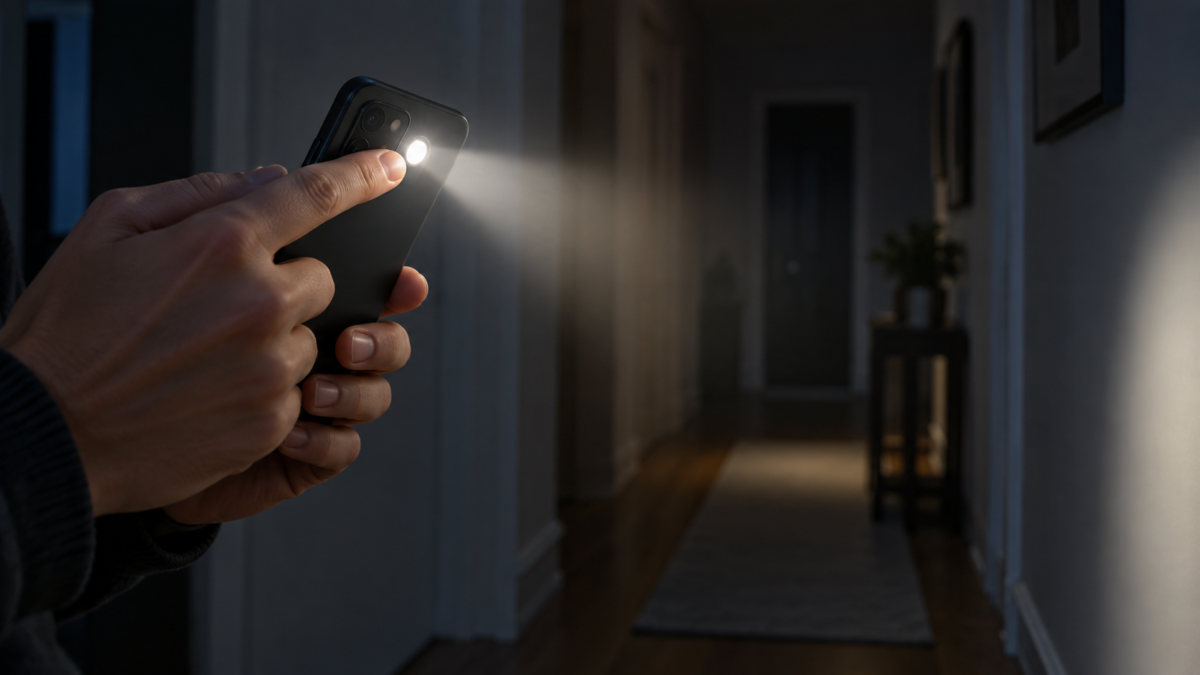
A cell phone flashlight solves much more than just a problem in the dark. It helps you find a key, read a label, walk to a light switch, and locate items inside a backpack. Android and iPhone offer quick shortcuts, brightness control on some models, and voice commands. The feature is simple, but there are important precautions: the LED consumes battery power, can overheat, bother other people, and should not replace adequate lighting in risky activities. Here's how to activate, adjust, and use the flashlight safely.
How to turn on the flashlight on Android
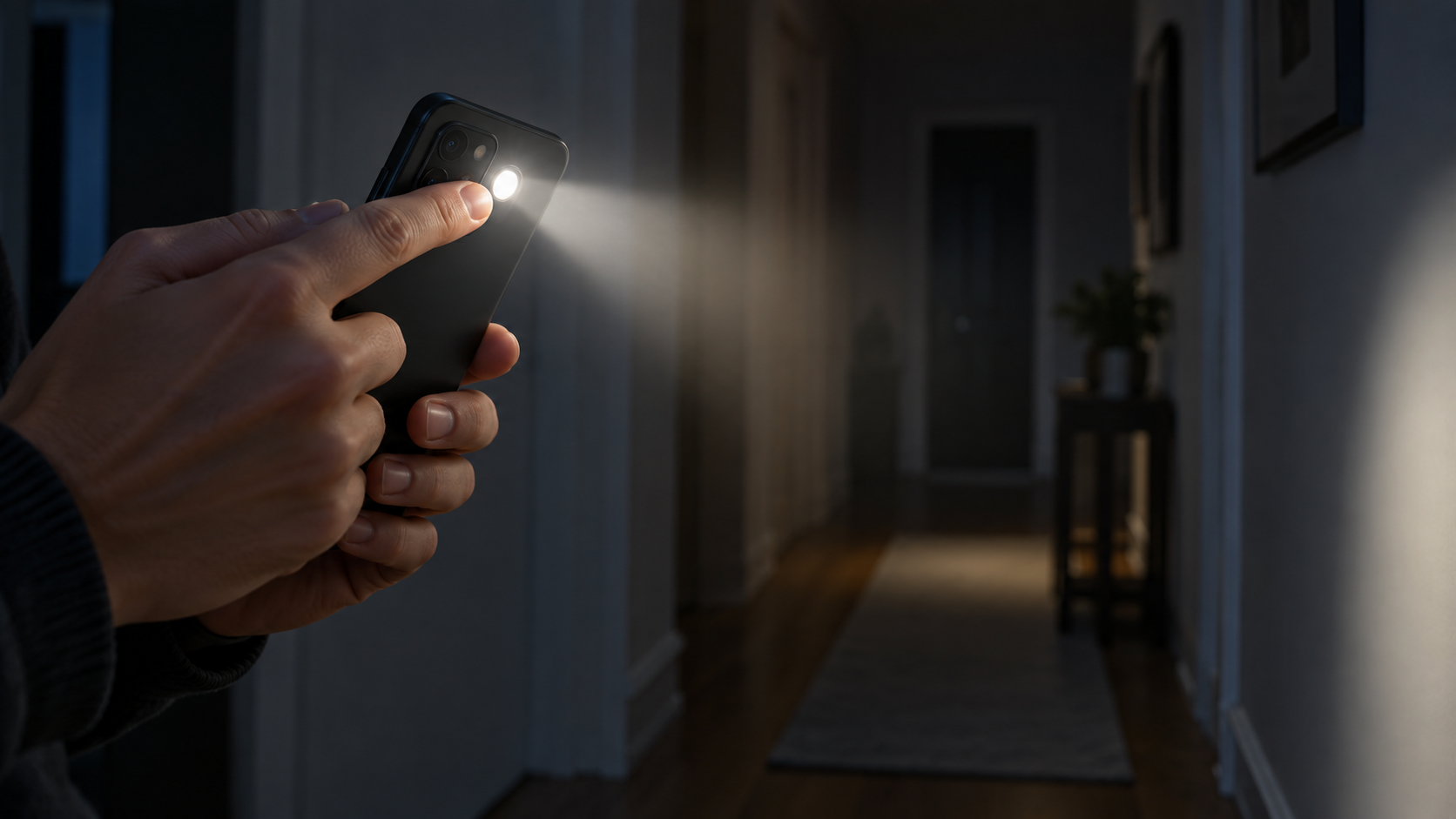
On most Android devices, swipe up twice from the top of the screen to open quick settings and tap on Flashlight. In some interfaces, the notepad is on the first page; in others, you need to tap the pencil and add it. Tap again to turn it off. If the screen is locked, certain models allow you to use the notepad without unlocking, while others require a password or biometric authentication.
You can also ask Google Assistant to turn the flashlight on or off, provided the device and language support this command. Saying "turn on the flashlight" works best when the phone is unlocked and can hear the request. Avoid leaving the microphone always on in sensitive areas; use the manual shortcut when you prefer more privacy.
How to turn on the flashlight on an iPhone
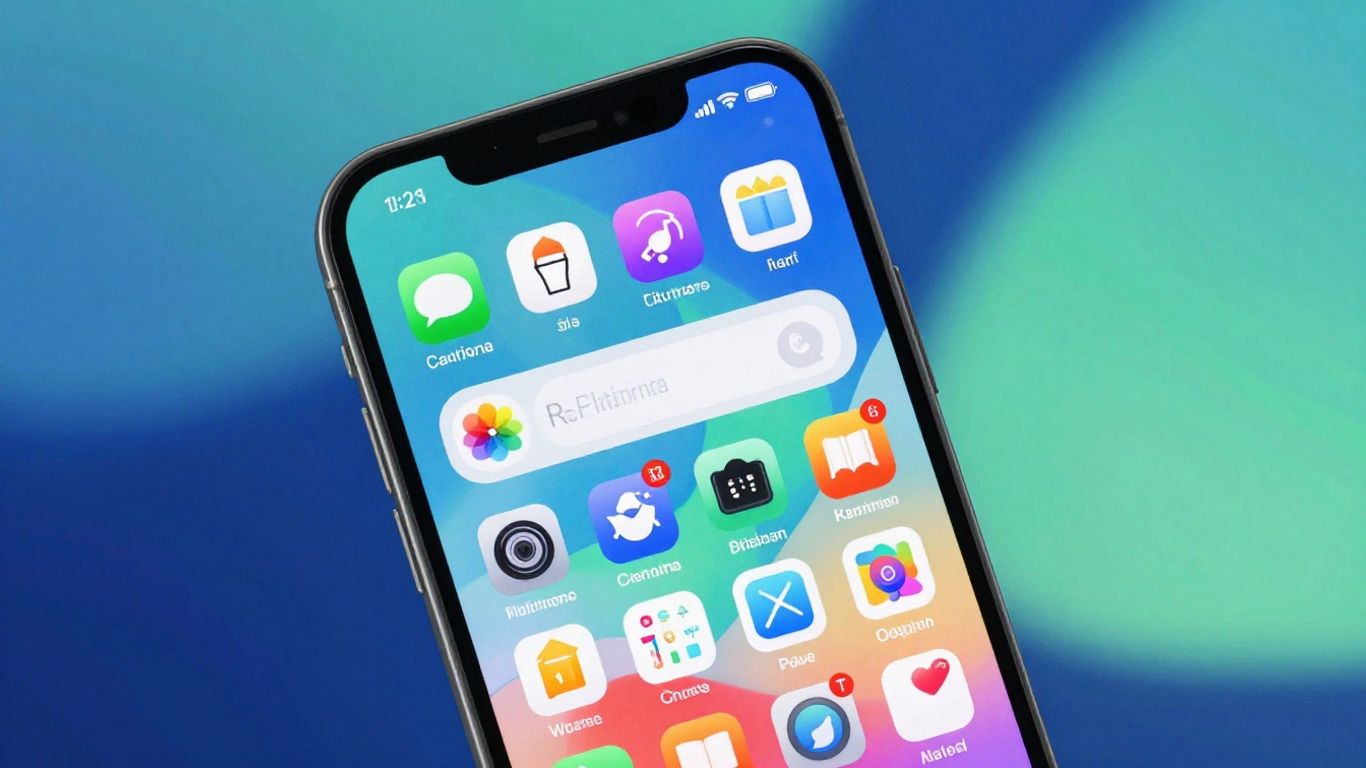
On an iPhone with Face ID, swipe up from the top right corner to open Control Center and tap the flashlight icon. On models with a Home button, swipe up from the bottom. You can also tap the flashlight button on the lock screen or ask Siri. Some models with an Action button allow you to set a tap to turn on the LED.
If the icon doesn't appear, open Control Center, press and hold the screen, and use... Add a Control To include a flashlight. The lock screen button can be accidentally pressed inside a bag; if this happens, disable the shortcut or use a case that prevents accidental touches.
How to adjust the brightness
On iPhone, press and hold the Flashlight button in Control Center. Drag the slider up or down to choose one of the available levels. Some recent models also allow you to adjust the beam width by tapping on Dynamic Island while the flashlight is on. The chosen level can remain active until you change it again.
On Android, control depends on the manufacturer. On Pixel and some interfaces, tap and hold the Flashlight tile to open the intensity adjustment. If nothing happens, the device may only offer on and off. Apps that promise to unlock brightness above the limit cannot safely modify the LED and may request unnecessary permissions.
Shortcuts, widgets, and lock screen
Place the flashlight among the first quick settings if you use the feature frequently. On some Android devices, a widget or double-tap gesture on the back can perform the action, but the names vary. On iPhones, the Control Center and the lock screen are the most consistent paths. Test the shortcut at night, when the phone's brightness is low, to confirm that you can find it without unlocking it.
Shortcuts should be convenient, not unpredictable. If a gesture also captures the screen or opens the camera, choose a different combination. Avoid installing outdated flashlight apps: the system already controls the LED, and a third-party app might display ads or request access to contacts, location, and microphone.
Battery, heat and duration
The LED consumes power, especially at maximum brightness. To search for something for a few minutes, use low brightness. On a hike, take a dedicated light source if the flashlight will be used for an extended period. The phone may heat up when the LED, camera, and network are working together; remove it from surfaces that retain heat and turn off the flashlight when finished.
If the battery is almost depleted, activate power saving mode and reduce the screen brightness. Do not cover the flash with your hand or fabric, as this will trap heat. If the device gets too hot, turn off the flashlight and wait for it to cool down. Never leave the LED on on a bed, inside a backpack, or pointed at flammable material.
Eye care and care for others
Do not point the flashlight directly into the eyes, especially those of children, animals, or drivers. In theaters, meetings, and dark places, use low brightness and partially cover the light when necessary. The flashlight is useful for finding your way, but should not be used to aggressively attract attention.
When cycling or hiking at night, the phone's LED can help you be seen, but it doesn't replace proper lighting and signaling. For emergencies, use the phone's alert mode or a dedicated flashlight with adequate battery life and beam. In wet environments, check your phone's water resistance before using it near water.
When the flashlight doesn't turn on
Close the camera, as the flash may be reserved for it. Restart the device, check that the battery is not in critical condition, and test the control on another screen. Cases or dirt don't usually prevent the LED from working, but physical damage can. If the flashlight remains unavailable after a fall or repair, seek technical assistance instead of forcing the hardware with apps.
When the button appears gray, the system may be overheating or using the flash for another purpose. Wait a few minutes, leave the phone in a well-ventilated area, and try again. System updates also fix bugs, but back up your data before performing a full system restore.
Frequently Asked Questions
Does the flashlight use up a lot of battery?
Power consumption depends on brightness, model, and usage time. For quick tasks, the impact is usually small; for prolonged use, carry a light source and a charged battery.
Can I increase the brightness beyond the system's control?
It's not recommended. The limit protects the LED and the device. Apps that promise higher brightness may overheat the phone or request permissions that are not compatible with the function.
Why doesn't the flashlight turn on during a video call?
The camera may be using the flash, or the system may be blocking the flashlight while another feature accesses the LED. Close the camera and try again.
Is it safe to leave a flashlight turned on inside a bag?
No. The heat may increase and the light may drain the battery. Turn off the LED before storing your phone.
Conclusion

Your phone's flashlight is a handy shortcut when you understand the brightness control and the device's limitations. Use the system settings, choose the minimum necessary level, and turn off the LED as soon as you finish your task. Avoid direct light in your eyes, monitor heat, and use a dedicated flashlight when you need more power or safety.
Include a flashlight in a simple emergency routine: keep your system updated, know where the shortcut is, and test it after switching devices. If you use your cell phone for camping or hiking, charge it beforehand and keep an extra light source. At home, keep the path to the light switch clear and only use the flashlight to achieve stable lighting. These habits prevent surprises and preserve battery power when you really need it.
After use, confirm that the icon has returned to the off state.