How to back up and restore WhatsApp conversations
A WhatsApp backup is only useful if it can be restored when you switch, lose, or reset your phone. On Android, the history can be saved to your Google Account; on iPhone, to iCloud. Backups depend on your phone number, the correct account, available storage space, and a stable internet connection. This guide shows you how to prepare a backup, restore conversations, and avoid decisions that delete the only existing backup.
What does the backup include?
WhatsApp can copy messages and media, including photos, videos, documents, and community content. The size varies depending on usage. Messages received after the last backup will not be restored if the device is lost. Videos are only included if the option to include videos was enabled before the backup.
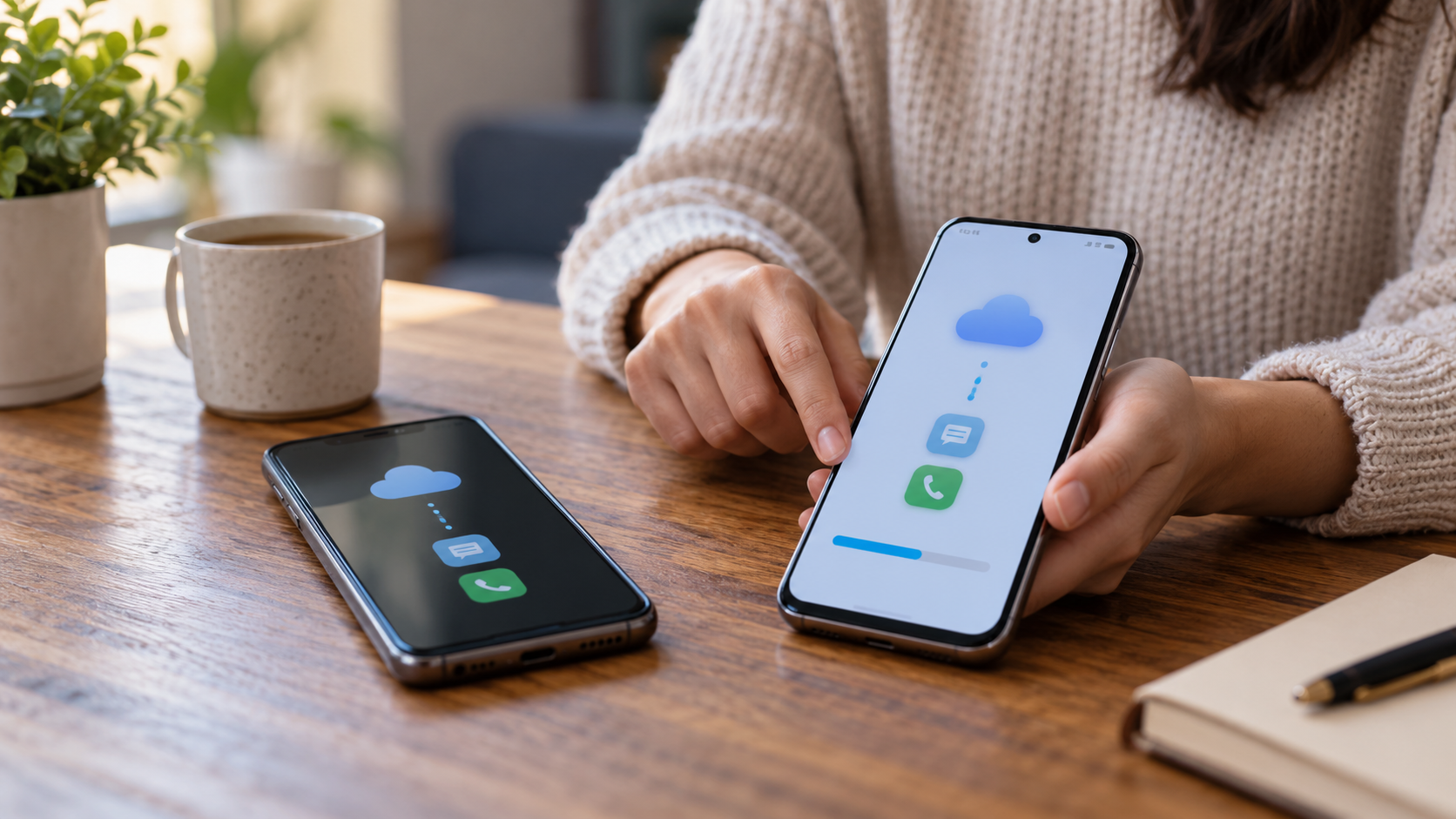
Cloud backup is not the same as a direct transfer between phones. A transfer can move data from one device to another without creating a permanent copy in the account. Choose the method according to the situation: backup is useful in case of data loss; transfer is practical when both phones are available.
Backing up on Android
Open WhatsApp, tap the three dots, then Settings, Chats, and Chat Backup. Choose your Google Account and set the frequency, such as daily, weekly, or monthly. Tap Back Up to create an immediate copy. Connect to Wi-Fi and, for the first backup, leave your phone charging; large files can consume mobile data and time.
Check the displayed account before tapping save. A backup associated with a different address will not appear when you try to restore. Check the free space on Google and on your device. WhatsApp informs that copies that haven't been updated for more than five months may be automatically deleted by Google, and that a new copy will replace the previous one.
Enable end-to-end encrypted backup if WhatsApp offers this option. You will need to save a 64-digit password or key; without it, WhatsApp cannot access the backup. Do not save the password in a conversation that will be within the backup itself.
Backing up your iPhone
On your iPhone, open WhatsApp, Settings, Chats, and Chat Backup. Tap Back Up Now or choose an automatic frequency. Confirm that iCloud Drive is turned on in Settings, your name, iCloud. Your iPhone needs to be signed in to the correct Apple Account and have enough space both on the device and in iCloud.
In recent versions, end-to-end encrypted backup is an additional layer. Enable it and store the password or key in a trusted manager. WhatsApp reminds you that iCloud backups do not automatically receive this encryption; check the security screen before erasing your device.
Restore on a new phone
Before installing WhatsApp on your new device, confirm that a backup exists. On Android, Google One may show the backup under Storage and Other. On iPhone, check the size and date under Chat backup. If there isn't a recent backup, don't uninstall the old app yet; try making a manual backup first.
Install WhatsApp on your new phone and confirm the same number used to create the backup. On Android, sign in with the same Google Account; on iPhone, use the same Apple Account and iCloud. When the app finds the backup, tap Restore. If you tap Skip, the installation will continue without restoring the history, and a new backup may replace the previous one.
Keep the device charging and connected to Wi-Fi. Messages will appear first; photos and videos can continue downloading afterward. Do not open dozens of conversations during the restore process. Wait for completion and then check old messages, groups, documents, and important media.
Transfer conversations directly
If you have both phones with you, a direct transfer might be faster. WhatsApp offers a workflow to move your history between two Androids or between two iPhones. Keep the devices close together, unlocked, and with battery power. Don't confirm the number on the new device before starting the migration on the old one when the app prompts you to do so.
To switch from Android to iPhone or from iPhone to Android, use the official method indicated by WhatsApp and the manufacturer. Compatibility depends on the system version, cable, and model. Payment messages and some media channels may have limitations. Do not trust third-party apps that promise to transfer everything and request access to the WhatsApp database.
Common mistakes and how to fix them.
If the backup doesn't appear, check your phone number, account, storage space, and connection. A phone number with a different country code might prevent the restore. On Android, update Google Play Services and confirm that Google Drive is accessible. On iPhone, enable iCloud Drive and check if WhatsApp has permission on iCloud.
If your device is low on space, free up storage before attempting this. Restoring requires more free space than the size of the backup; a partial backup may result in missing messages. Do not manually delete WhatsApp folders without a confirmed backup. To reduce future file size, disable automatic video downloads and review media through Manage Storage.
Privacy and security
Cloud backups are stored outside of WhatsApp's servers and follow Google or Apple's rules. End-to-end chat encryption does not automatically cover all cloud backups. Enable encrypted backup, use a unique password, and enable WhatsApp's two-step verification.
Never send your registration code to anyone claiming to be from support. If you've lost your phone, block the SIM, recover your number, and log back into WhatsApp. Then, review sessions from connected devices and close any you don't recognize. WhatsApp maintains guidelines at [website address - implied but not explicitly stated in the original text]. in case of loss or theft.
Checklist before changing devices
Update WhatsApp on your old phone, charge both devices, and confirm that the number still receives SMS messages or calls. Make a manual backup and wait for the date to change. Open the storage manager to see if videos and documents are taking up almost all the space. Keep the password for the encrypted backup off the phone and test access to your Google Account or Apple Account in a trusted browser.
Don't hand over your old device for recycling, sale, or repair before checking some important conversations on the new one. Verify photos, documents, work groups, pinned messages, and favorite contacts. If anything is missing, stop and make another backup; deleting the old phone eliminates the best chance of transferring what wasn't backed up.
Frequently Asked Questions
Can I restore an old backup?
Generally, there is one master copy per account. Each new backup may replace the previous one, so don't rely on older versions in the cloud.
Do I need the same number?
Yes. The number used to create and restore must be the same. If the number has changed, use the number change function before backing up.
Do the most recent messages come back?
Only those messages that were in the last completed backup. Subsequent messages need to be transferred from the old device or they cannot be recovered.
Is the backup encrypted?
Chats have end-to-end encryption, but cloud backup requires separate activation to have this protection. Check the WhatsApp screen and save the password.
Conclusion
Make regular backups, confirm your account and number, protect the copy with encryption, and test the restore before erasing your old phone. When switching devices, prefer the official method and be patient with large media files. A reliable backup is an ongoing routine, not an emergency button.