How to block spam calls on Android and iPhone
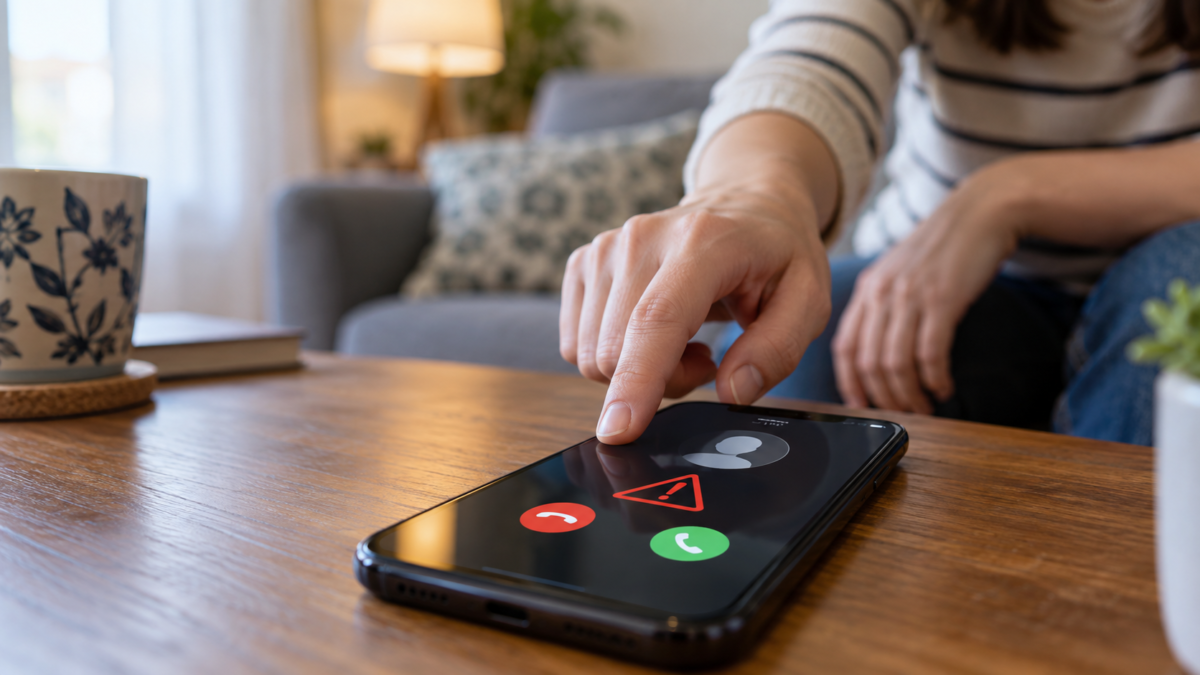
Telemarketing calls, robocalls, and scam attempts can interrupt your day multiple times. Android and iPhone offer tools to block specific numbers, silence unknown calls, and identify potential spam. Exact availability depends on the phone app, carrier, country, and operating system version.
This guide explains how to block a call after it happens, how to reduce calls from private numbers, when to forward unknown numbers to voicemail, and how to unblock someone by mistake. It also points out important limitations: no filter recognizes all numbers, and silencing unknown numbers can hide a legitimate call.
Blocking a number on Android
Open the Phone app and go to your call history. Tap the number you want to block and look for Block or report spam. On some devices, this option is located within the three-dot menu for calls. Confirm only after verifying that the contact is truly unwanted, as future calls will be automatically rejected.
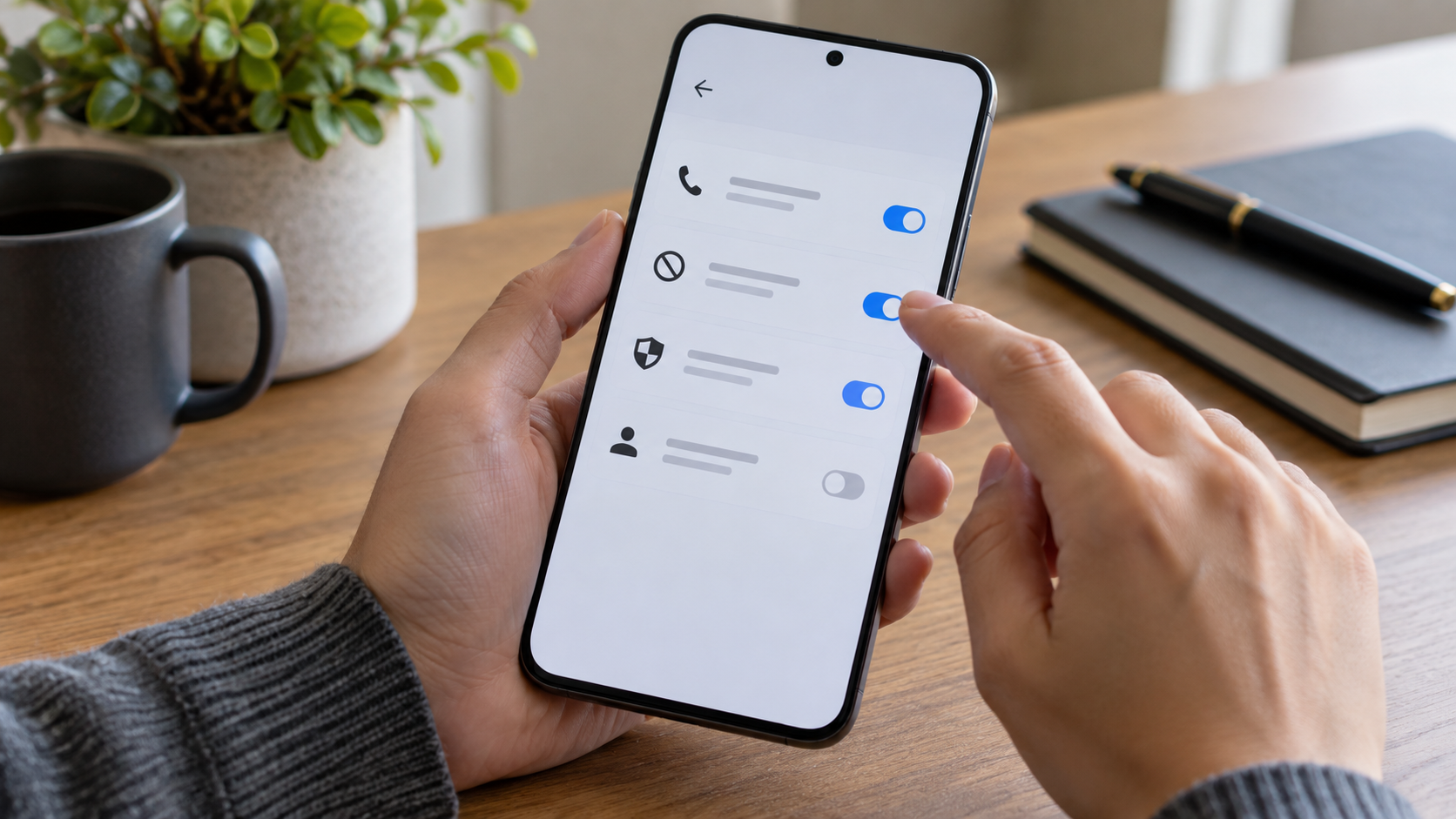
The Google Phone app also lets you block private or unidentified numbers. Open call settings, tap Blocked numbers, and enable the option for unknown numbers when available. This doesn't block all numbers that aren't in your contacts; generally, the option focuses on calls without caller ID.
If your device uses a manufacturer's phone app, the names may be different. Use the settings search for "blocked," "spam," or "caller ID." On corporate phones, an administration policy may hide or limit these controls.
Blocking a number on iPhone
On your iPhone, open the Phone app and tap Recents, Favorites, or Voicemail. Tap the information button next to the number, scroll down, and choose Block this Caller. The block also applies to messages and FaceTime calls associated with the contact, depending on the type of caller ID used.
To reduce unknown calls, open Settings, go to Apps, select Phone, and look for Silence Unknown Callers. With this feature enabled, calls from people not in your contacts may go directly to voicemail. The iPhone may still consider recent call numbers, Siri suggestions, and app contacts, so read the description before activating it.
Apple also offers the option to silence calls identified by the carrier as spam, when the carrier and region support it. This classification isn't perfect. A company might be mistakenly identified as spam, and a scammer might use a number that isn't yet in the database.
Identify spam before responding.
Some phone apps display a warning when a number has a history of complaints. Use the alert as a cautionary note, not as definitive proof. If you expect a call from a doctor, school, delivery person, or public service, confirm beforehand which number might appear and save it in your contacts.
Automated calls may be silent for a few seconds before starting a message. Do not give your full name, address, or security code to confirm your identity. Hang up and call back the number published on the company's official website, instead of using a number given by a stranger.
What happens after the lockdown?
The phone typically rejects the call and stops ringing. Depending on the system and voicemail service, the caller may go straight to voicemail. The blocked person does not receive explicit notification that they have been blocked, but may notice that the call does not go through.
Your call history remains until you delete it. Blocking calls also doesn't automatically remove previous messages, contacts, or app logs. If the call was accompanied by an SMS or message in another app, block the sender in those services separately.
How to unblock someone
On Android, open Phone, Settings, and Blocked Numbers. Tap the X or the unblock option next to the contact. On iPhone, open Settings, go to Apps, Phone, and Blocked Contacts; choose Edit and remove the number. The menu names may change, but the central list of blocked numbers is the right place to check.
If you unblock someone by mistake, they can call again. To reduce the risk, write down the reason for blocking them in a private note before changing the list. When testing a number, ask the person to send a message or call at an agreed-upon time.
When silencing strangers isn't a good idea.
Silencing all numbers outside of your contacts can be inconvenient for those receiving calls from clients, interviewers, delivery services, or medical assistants. Instead of permanently activating the filter, use it during rest periods and deactivate it when expecting an important call.
One alternative is to let the phone ring, but use caller ID and a smaller block list. You can also create a contact for recurring services and update the number after confirming the caller's identity. The balance depends on your routine and the number of legitimate calls you receive from new numbers.
Robot calls and scams
Robots may try to verify if your number is active. Answering and remaining silent may result in more calls, but there is no single rule for all services. The safest thing to do is not to confirm personal information, not to press any keys requested by an unknown recording, and to hang up when the message doesn't make sense.
If someone presents themselves as a bank, operator, or public agency and asks for a code, password, or transfer, hang up. Look for the official channel using an already installed app or a manually typed address. Blocking the number does not replace reporting the attempt to the operator or the appropriate service.
Regional and operator limitations
Automatic spam identification often relies on data from carriers, apps, and reporting communities. A feature that appears on Android in one country may not exist in another. On iPhones, some options require carrier support. Check your local settings and read the on-screen warning before assuming that the filter works in a certain way.
Fake numbers also make blocking more difficult. A scammer might display a real company's number, causing the block to affect subsequent legitimate calls. When this happens, block the specific call and inform the real company so they know their number is being misused.
Privacy review
Caller ID apps may request access to your call history, contacts, and call logs. Read the privacy policy and use the native feature only when it already meets your needs. Avoid installing multiple caller ID apps at the same time, as they may compete for phone functionality and collect the same data.
Review the list of apps with access to calls and contacts from time to time. Remove tools you no longer use and update the system. An update may fix filters, but it can also change the location of options, so it's worth checking again if the menu disappears.
Frequently Asked Questions
Does blocking a number prevent messages?
On iPhone, blocking a contact can prevent calls, messages, and FaceTime calls from that contact. On Android, the behavior depends on the phone app and the messaging app. Check both apps when the goal is to block any contact.
Can spammers know when they've been blocked?
The phone doesn't send a notification saying there was a block. An automated system might detect that the call didn't go through, but you don't need to answer to confirm anything.
How do you recover a legitimate connection that has been silenced?
Check your voicemail, recent calls, and filter notifications. Save the number to your contacts and temporarily disable silent mode when expecting an important call.
Does reporting spam block the number on all devices?
No. Reporting the number can help the app or carrier classify it, but blocking your line is local. Other devices need to review the call independently.
Conclusion
Blocking spam calls on Android and iPhone starts with reviewing your call history and using the native blocking tools. Silence unknown numbers only when it fits your routine, confirm important numbers through official channels, and treat spam alerts as a warning to investigate. Filters help reduce interruptions, but they don't replace the need for careful password protection, codes, and urgent requests.
Consult the instructions for Google Phone app and the guide to Apple to block or avoid unwanted calls. To keep support files organized on another device, see also How to transfer files from your phone to your computer..