How to create recurring events and share calendars on your mobile phone.

A calendar on your phone can do much more than just record birthdays. It helps separate personal and work appointments, repeat tasks, invite other people, and receive reminders at the right time. The challenge is sharing only what's necessary: a family calendar might allow editing, while a work calendar might only show availability. In this guide, you'll see how to create recurring events and shared calendars on Android and iPhone, how to choose permissions, and how to avoid time zone conflicts.
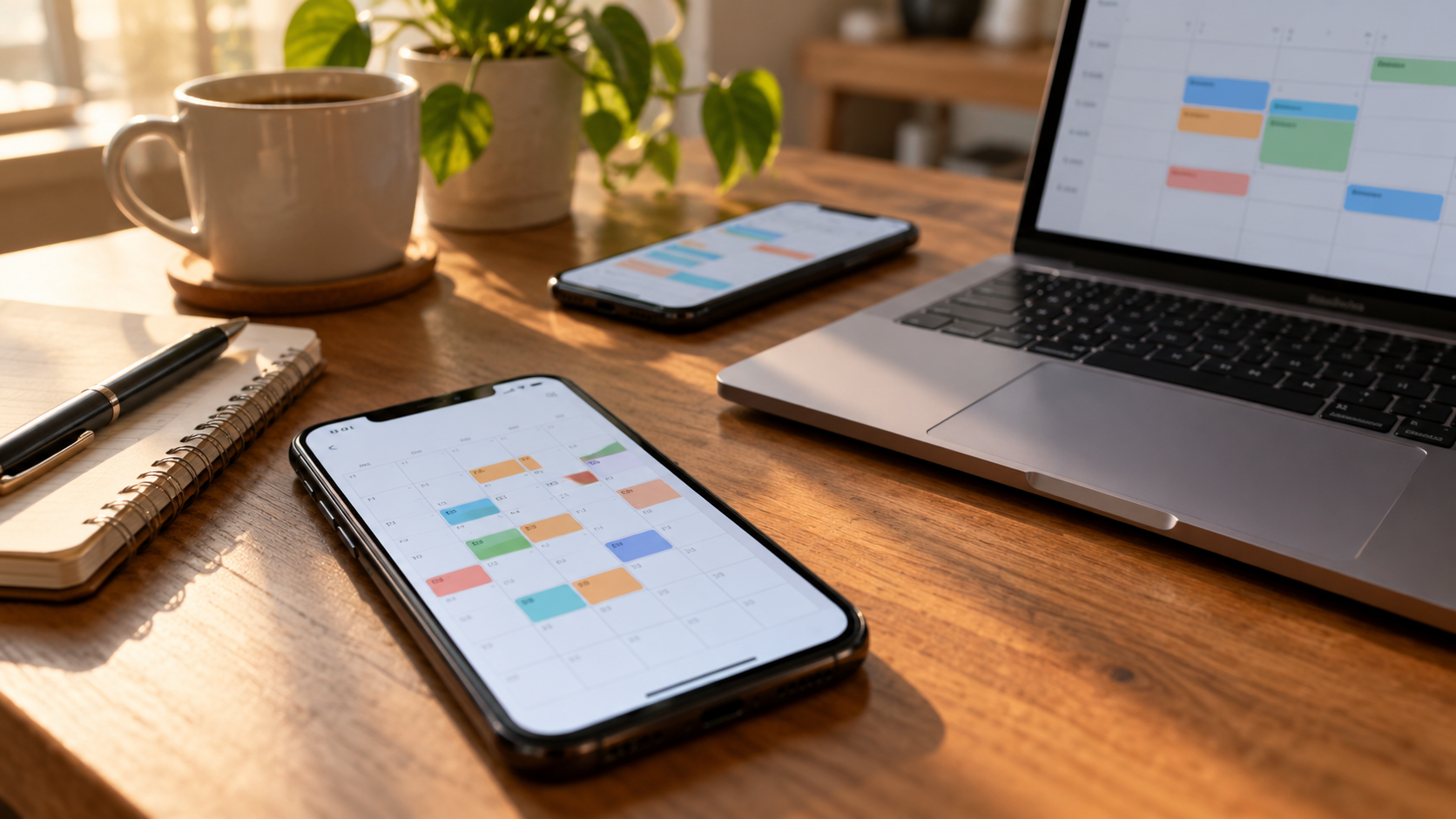
Separate calendars before sharing.
Start by listing what really needs to appear together. You can create one calendar for family, another for work, another for studies, and one for personal use. This separation makes sharing more secure: inviting someone to the "Meetings" calendar doesn't automatically reveal your personal appointments, as long as they are on different calendars. Use clear colors and names to identify each calendar.
Do not include sensitive information in the title of a shared event. A name like "consultation" reveals less than the diagnosis, and the location can be omitted when not necessary. In school or business accounts, the administrator can limit sharing and change the available options.
How to create recurring events in Google Calendar
On Android, open Google Calendar, tap on To create and choose Event. Enter the title, date, time, and calendar. Tap on It doesn't happen again. Select daily, weekly, monthly, yearly, or a custom option. Set an end date if the repetition is temporary and save. Google advises that recurring series have a limit on the number of occurrences; for long-term routines, review the series once a year.
- Choose the correct time zone for the event, especially when traveling.
- Add a reminder appropriate to the travel time.
- Use the description for instructions, but avoid including passwords or login details.
- When editing, choose whether the change applies to this event, to future events, or to the entire series.
If a meeting happens every Monday, create the series only once. For holidays or exceptions, edit only that occurrence. If the schedule changes, change the upcoming events instead of recreating multiple calendars. This avoids duplicates and maintains the history.
How to share a Google Calendar
On Android, open the Google Calendar menu, then go to Settings and select the calendar. Under “Shared with”, tap on Add people and groups, Select the contacts and set the access level. You can allow them to only see availability, view details, edit events, or manage sharing. The person receives an email and needs to accept the invitation.
Use the minimum necessary permissions. For a family that schedules appointments, "make changes" might be useful. For a colleague who only needs to know when you're busy, limit availability. If the invitation doesn't arrive, confirm the address and ask the person to check their spam folder. Remove old access permissions when a project is finished.
How to create a calendar on iPhone
Open the app Calendar, tap on Calendars and choose Add to Calendar. Give it a name, choose a color, and select the account that will store it, such as iCloud, Google, or another account configured on the device. When creating an event, check the Calendar field to avoid accidentally saving a personal appointment to the shared calendar.
To repeat an event, create or edit the appointment, tap on Repeat and select the frequency. You can also add an alert, address, and attachment. The address can allow Maps to estimate travel time and notify you when to leave. Do not add sensitive documents to a shared event if not all guests need them.
How to share an iCloud calendar
In the Calendar app, tap on Calendars, Tap the information button next to an iCloud calendar and choose Add Person. Inform the contact and specify if they can edit. For a read-only calendar, use the option to share a public link only when anyone can view the events. Stop sharing when the activity ends.
iCloud sharing is intended for people with an Apple Account. If someone uses Android or another platform, confirm whether an email invitation or a Google Calendar invitation would be better. Mixing accounts isn't a problem, but there may be differences in synchronization and permissions.
Time zones, notifications, and conflicts
An event created in Cuiabá and viewed in Lisbon may appear at a different time. Use the time zone of the event, not necessarily the current time zone of your phone. When traveling, check that your calendar is set to automatically update the time. For online meetings, check the time displayed on the invitation and avoid manually copying the time to another app.
Don't create two events for the same appointment just because you received an invitation. Accept the invitation in the correct calendar and delete the duplicate draft. If too many alerts are bothersome, keep one notification for the event and another only for appointments that require travel. A calendar full of reminders loses its helpfulness.
Privacy when sharing
Review your guest list periodically. For groups, use a separate calendar from your personal one. Schedule private events when the service allows it, and avoid making your calendars public for convenience. On work accounts, administrators can keep records and limit what guests can see.
Frequently Asked Questions
Can I share just one event?
Yes. In Google Calendar, you can invite people to an event without sharing the entire calendar. On iPhone, add guests to the appointment and define what will be sent.
What happens when I edit a series?
The service asks if the change applies to one event, future events, or all events. Choose carefully to avoid altering previously scheduled commitments.
Why isn't a shared calendar showing up?
Verify that the invitation has been accepted, that the correct account is connected, and that synchronization is active. Some registrations require a browser on a computer or owner approval.
Should I use a public calendar?
Only for information that can be viewed by anyone, such as opening hours. For family, clients, or staff, private invitations offer better control.
Conclusion

Shared calendars work best when each calendar has a purpose and each person receives only the necessary permissions. Create series with due dates, review exceptions, and check time zones before confirming. With colors, reminders, and a review routine, your phone becomes a reliable meeting point for appointments without exposing details that no one needs to see.
Before each week begins, open overlapping calendars and look for scheduling conflicts. When two people need to attend, use "event guests" instead of manually writing the same appointment. This way, schedule changes reach everyone and the response is recorded. For recurring events, do a monthly review: remove old series, update video conferencing links, and confirm who still needs access. This small ritual keeps the calendar useful without turning it into a collection of forgotten reminders.
If the calendar is being used by an international team, include the time zone in the meeting name or description and prioritize times that are clearly visible to everyone. When switching devices, keep the same account and wait for synchronization before recreating events. Exporting a copy or maintaining a second contact method for critical appointments avoids relying on a single screen.
For events involving other people, confirm the guests' responses and keep the event updated.