How to recover notification history on Android and iPhone

A notification can disappear when you accidentally tap on it, clear several at once, or receive dozens of alerts throughout the day. Android and iPhone offer tools to reduce this noise, but they are not the same. On Android, some devices keep a history of dismissed notifications. On iPhone, you can check the Notification Center, group alerts, and schedule a summary to receive messages at your chosen time.
The goal of this guide is to recover what is still available, adjust applications that cause excessive interruptions, and prevent important alerts from being hidden. Menus and names change depending on the system version, manufacturer, and configured language.
How does history work on Android?
Activate before you need to.
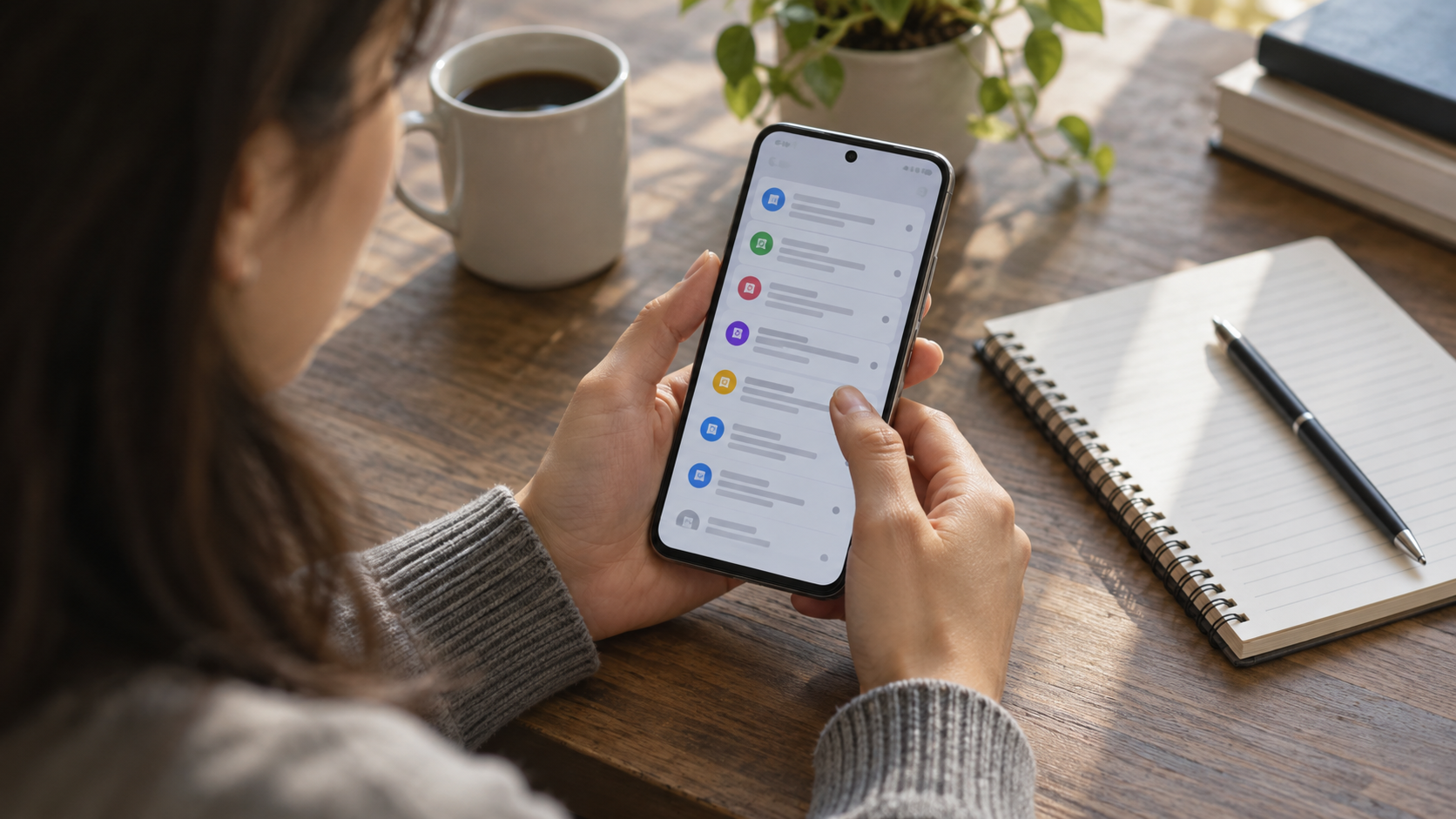
Open Settings and search for Notification history. On many devices, the path is Notifications > Notification History. Activate the switch and confirm the explanation. The system will begin recording future notifications; it will not retrieve alerts that were dismissed before activation. Some manufacturers or versions do not offer this feature, and the number of items saved may be limited.
On the history screen, you can see recently dismissed notifications and alerts of the day. Tap an item to identify the app that sent it. The log may only show the title or a preview, especially when the app hides sensitive content. A message deleted from the app will not reappear as if it were intact.
Review what each app can send.
In Settings > Notifications, open App notifications Choose an app. Disable promotional categories, reduce priority, or allow only direct messages. Some apps divide alerts into channels, such as comments, offers, broadcasts, and security. Turning off a security channel may hide important information; read the name before changing it.
O Official Android guide to notifications. Remember that history and options vary by device. If a button doesn't exist, use the Settings search and consult the manufacturer's documentation. On corporate phones, an administrator can block changes.
How to find notifications on iPhone
Use the Notification Center
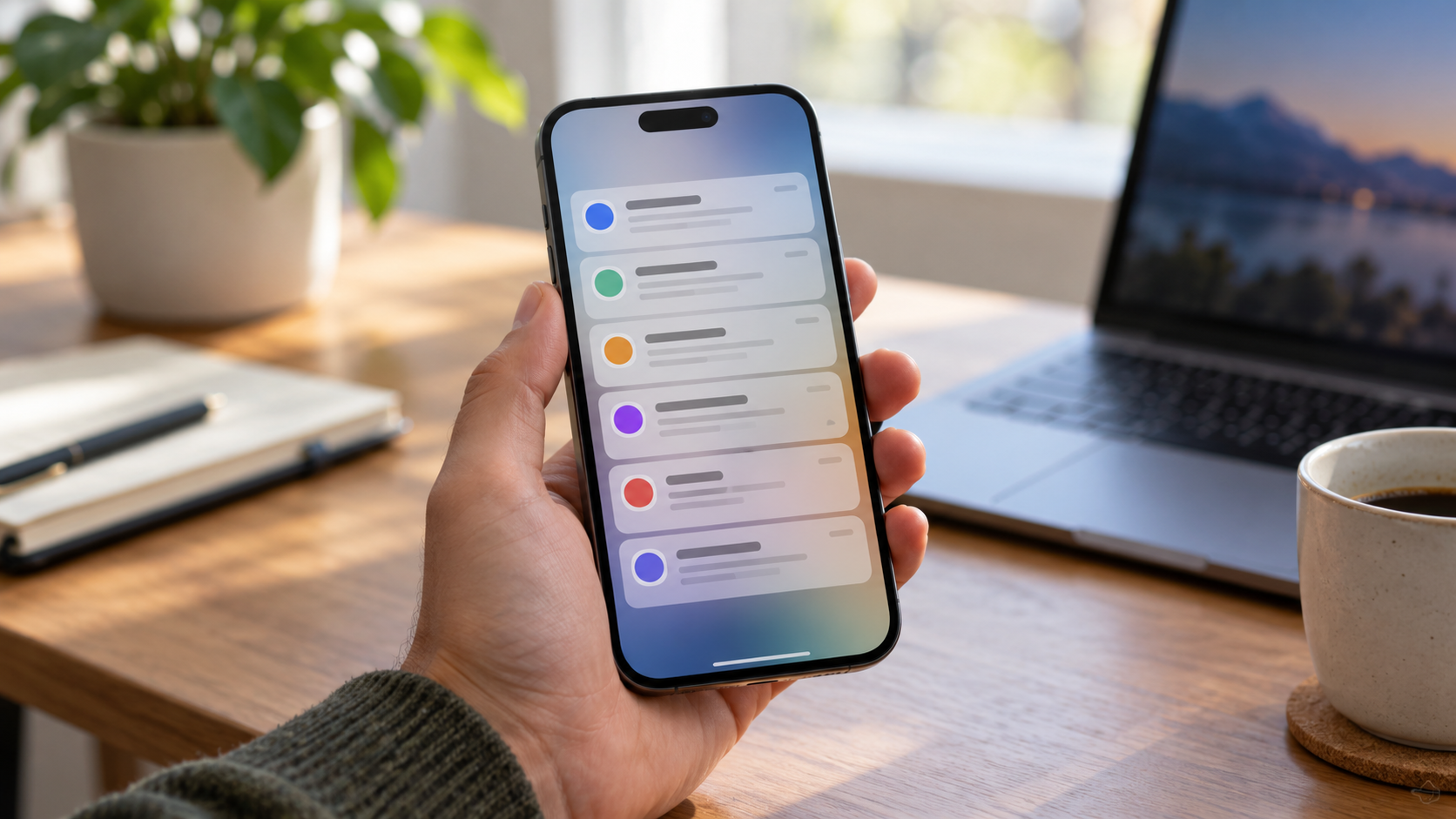
On the lock screen, swipe up from the middle of the screen to see older notifications. On other screens, swipe down from the top left corner. The iPhone groups alerts by app; tap the group to expand it. Swipe a notification to the left to see options like View, Mute, or Clear.
If you've already tapped on an alert, the app may have marked the task as read. In that case, look within the app itself, in your inbox, activity, or request history. The Notification Center doesn't function as an unlimited archive of everything that arrives. The content may disappear when you clear it, restart, or change the settings.
Schedule a summary
Open Settings > Notifications > Scheduled Summary. Activate the feature, set one or more schedules, and select the apps that can appear in the summary. Urgent messages, calls, and alerts marked as sensitive may still appear immediately, depending on the app and iOS version. Apple's documentation explains the summary and priority notifications..
On compatible iPhones, Apple Intelligence can summarize long or grouped notifications and prioritize some of them. This feature depends on the model, operating system version, language, and region; summaries may omit details and should be opened to confirm important information. Do not treat an automatic summary as a substitute for a receipt, authentication code, or emergency alert.
Reduce interruptions without losing messages.
Start with the apps that most frequently light up the screen, vibrate, or display banners. Keep calls, two-factor authentication, banking apps, and messages from close contacts. For news, promotions, and social media, choose silent delivery, disable sounds, or group by time. Focus on iPhone and Do Not Disturb mode on Android allow you to unblock specific contacts and apps.
Check the lock screen. Showing previews can be useful, but it exposes codes and messages to anyone nearby. On iPhone, use Notifications > Show Previews; on Android, review Notifications on the lock screen. In public places, show previews only when unlocked. For more privacy control, see our guide on [to privacy policy/service]. permissions and security on your mobile phone.
When an alert doesn't appear
Check if notifications are allowed in the app, if the device is in silent or Focus mode, and if battery saver has restricted background activity. An unstable connection can delay messages; on corporate networks, filters and VPNs can also interfere. Open the app directly to confirm that the information has arrived.
If the problem started after an update, restart your phone, update the app, and check the automatic date and time. Avoid installing "notification retrievers" that request full access to your messages. They may record private content and do not retrieve alerts that were never stored by the system.
Organize important alerts.
For reservations, inquiries, and billing, also use the calendar or email. A notification is a quick alert and can be cleared. Register a second channel when the service allows, save recovery codes, and keep copies of documents outside of the Notification Center. When changing your phone number, review the permissions and summary.
Use different filters at home and at work.
A work profile might require immediate notifications during work hours and silence at night. On Android, explore Do Not Disturb modes and conversation categories; on iPhone, create a Focus with a time, location, or app. Don't copy a setting without reviewing the allowed contacts: a filter that's too broad lets noise back in, while a strict filter might block an expected call.
Review your notification history weekly. If the same app appears repeatedly without offering value, disable the corresponding category or remove the subscription. If an important alert was dismissed, turn the information into a task, event, or reminder. This small routine prevents your history from becoming just a list of ignored notifications.
Frequently Asked Questions
Does Android save old notifications?
Only those that arrived after you activated history and while the system still keeps them. The time frame and level of detail vary depending on the device.
Is there a complete history available on the iPhone?
The Notification Center shows alerts that are still available, but it's not an unlimited archive. To retrieve details, check the source app, email, or calendar.
Could the iPhone's summary be hiding something important?
You can condense messages and change the order. Leave critical apps out of the summary or open the notification to read the full content before taking action.
Why doesn't the history show a message?
The app may have used internal synchronization, the notification may have been deleted before recording, or the system may not offer history. Confirm this in the app and in the permissions settings.
When sharing your device with someone else, activate screen protection and avoid leaving the Control Center accessible without unlocking it. This reduces the exposure of codes, addresses, and conversations.
Conclusion
Activate Android's message history before you need it, use iPhone's Notification Center to review still-available alerts, and schedule summaries only for messages that can wait. Reduce promotions, preserve security warnings, and confirm information in the originating app. With these adjustments, your phone will interrupt you less and continue showing you what truly deserves your attention.