How to save battery on Android and iPhone without losing important features.
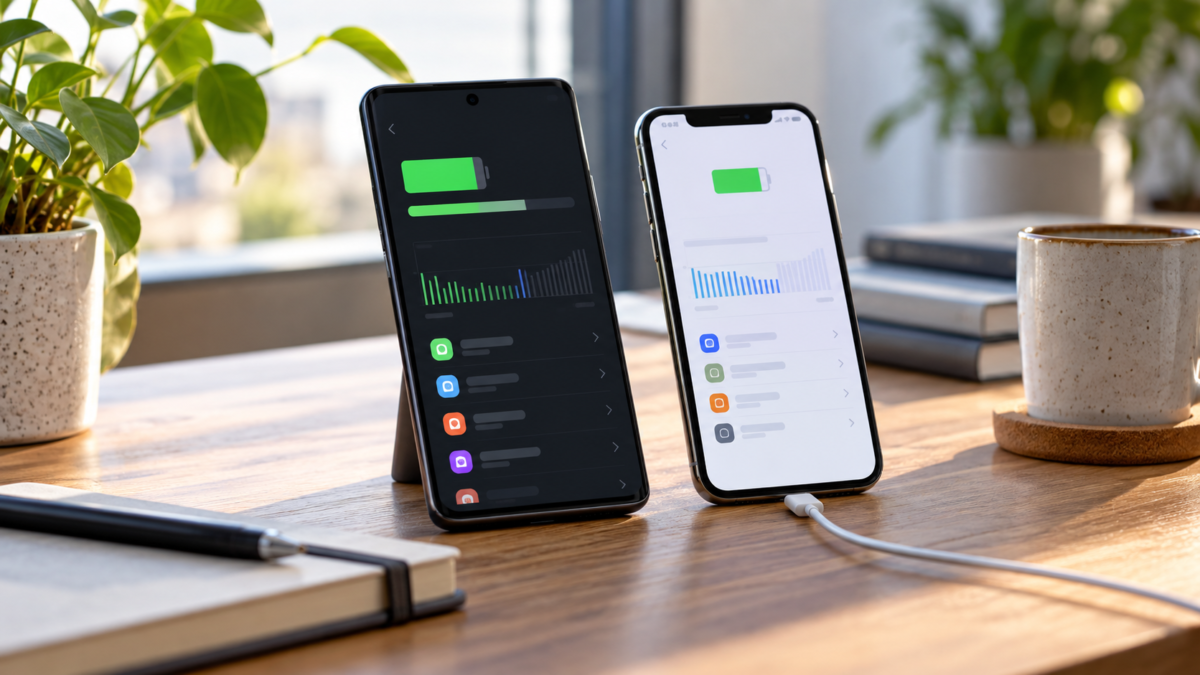
A cell phone battery rarely runs out because of a single app. High brightness, weak signal, continuous location tracking, synchronizations, and high temperature add up throughout the day. Therefore, saving battery doesn't mean turning your device into a basic phone: it means choosing which tasks deserve energy at any given moment.
Android and iPhone offer similar controls, but the names and scope vary depending on the system version and manufacturer. This guide shows a safe method for discovering what's draining your battery, adjusting the screen, limiting background activity, and using power saving modes only when truly necessary.
Start with the battery report.
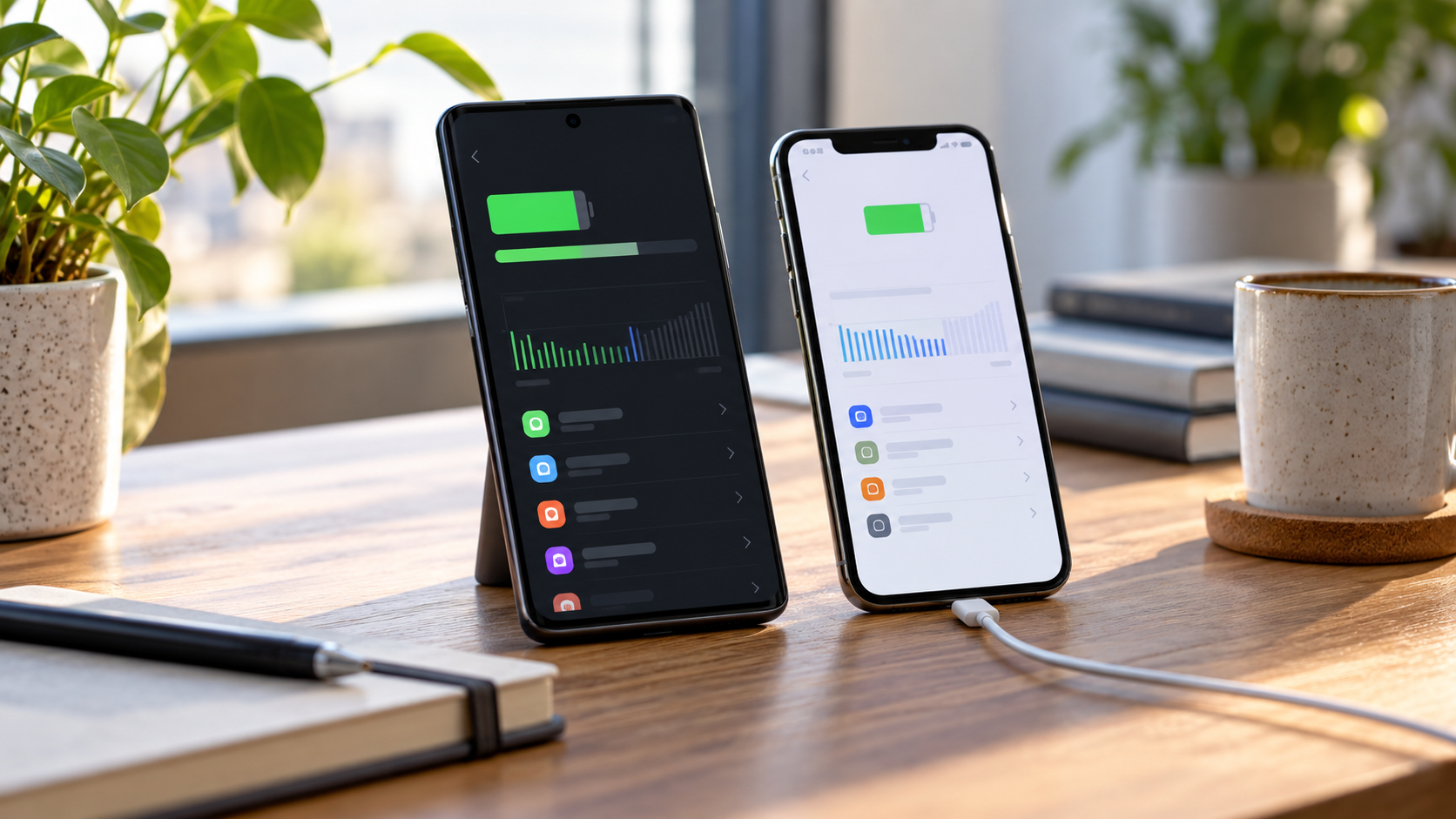
Before randomly disabling functions, open the battery panel. On Android, search for Settings > Battery; The path may change to "Battery Usage" or "Battery and Performance". On iPhone, open Settings > Battery. Both platforms show apps and activities that consumed the most energy in a recent period.
Observe the proportional usage and the time spent in the foreground and background. A video app might appear at the top simply because you've used it for hours. However, an app that's rarely used but runs in the background for a long time deserves investigation. Tap on the item to see options for restriction, updates, or location.
Adjust the screen first.
The screen is usually one of the biggest expenses on a cell phone. Reduce the brightness to a comfortable level and activate automatic brightness to prevent it from being too bright in dark environments. Shorten the lock time when you usually leave the device on a table. On high refresh rate screens, use adaptive or standard mode when you don't need such smooth scrolling.
Dark mode can be helpful on devices with OLED screens because black pixels consume less light. On LCD screens, the gain tends to be smaller, but the mode can still be comfortable at night. Disable live wallpapers and effects that keep elements moving on the home screen.
Control background activities.
Instant notifications are useful, but not every app needs to constantly check for updates. On Android, open each app's battery usage and choose a balanced option, such as "Optimized." Only restrict apps that tolerate delays, such as app stores, games, and news readers. On iPhone, review... Settings > General > Background App Refresh And keep active the services you actually use.
Avoid forcibly closing all applications. Continuously reopening a resource-intensive app can consume more energy than leaving it suspended. Close only an application that is frozen or exhibiting clearly abnormal activity. It's also worth disabling automatic synchronization for accounts you no longer use.
Use location, Bluetooth, and network wisely.
Maps, workouts, and deliveries require location services, but a calculator or text editor doesn't. Choose "While in use" whenever the system offers this option. Disable precise location services for apps that only need the city and review permissions after installing an update.
Bluetooth consumes little power when idle, but connected accessories and continuous scanning increase usage. Turn it off when traveling without headphones, a watch, or a car. In areas with reliable Wi-Fi, prefer wireless networks to mobile data. In areas with very weak signal, the device increases radio power to search for a tower; airplane mode, temporarily activated, can conserve battery.
When to activate Battery Saver
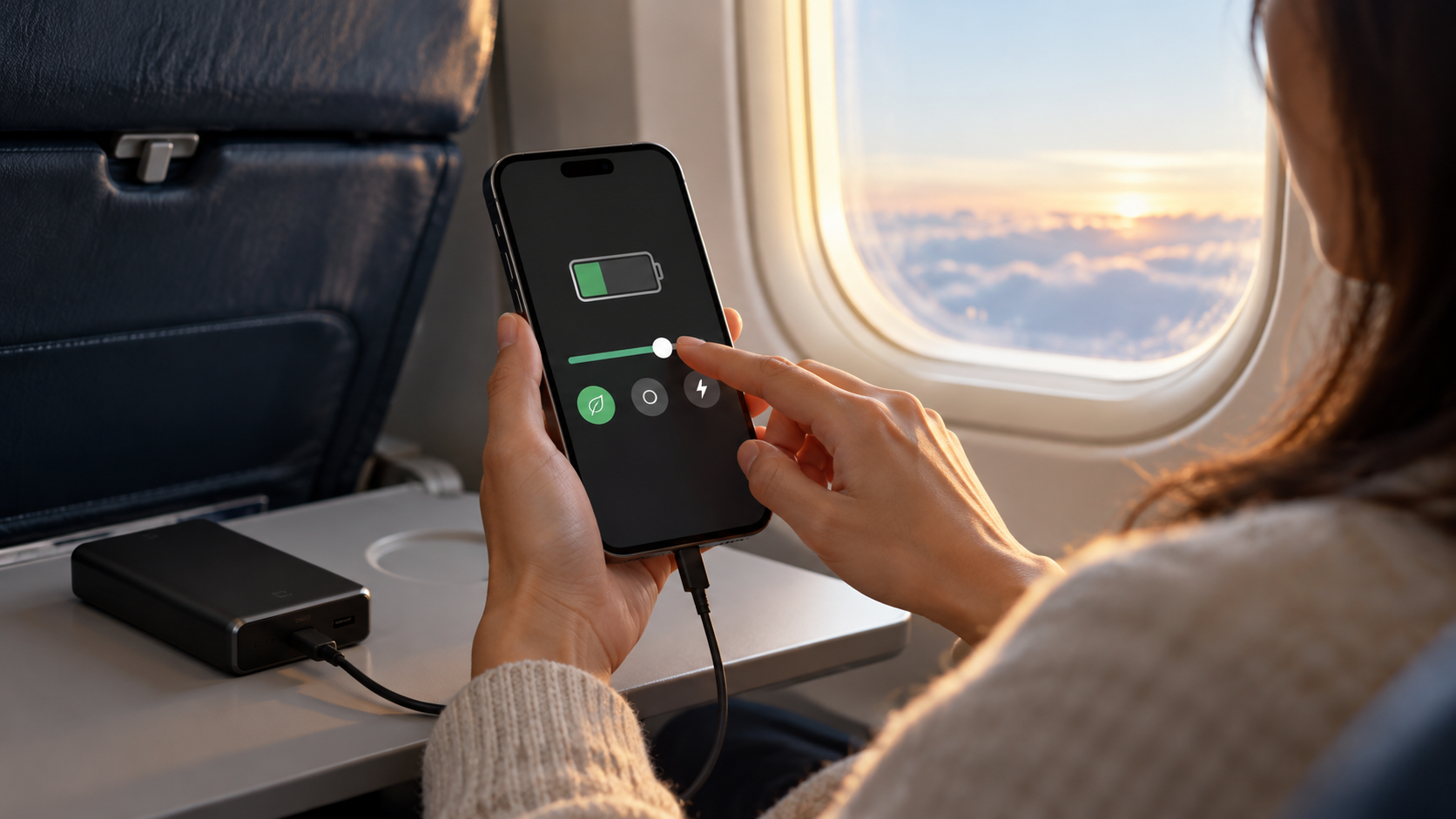
Use power saving mode when you need to get through the day quickly or when you're far from a power outlet. On Android, open Settings > Battery > Battery saver. On iPhone, use the Low Power Mode in Settings or Control Center. These modes reduce background updates, visual effects, and some synchronizations.
Find out what changes before activating. Alerts may be delayed, automatic downloads may wait, and the screen may respond less smoothly. If you are waiting for a call, an authentication code, or a delivery, keep the corresponding app running without restriction or disable power saving only during the task.
Take care of the temperature and charging.
Heat accelerates discharge and can reduce battery capacity over time. Avoid leaving your phone in a closed car, in direct sunlight, or under a pillow while charging. Graphic games, GPS navigation, and video recording generate heat; take breaks if the device gets too hot.
Use a compatible charger and cables in good condition. It's not necessary to wait for the battery to reach zero before recharging. Optimized charging features can keep the device at a lower charge level overnight and complete the charge closer to your usual wake-up time. Availability depends on the model and system version.
Identify a problematic application.
If the battery drains quickly without any change in your usage, restart your phone and install system and app updates. Compare the battery level before and after a typical day. An app that remains active for hours, heats up the device, or uses location services unnecessarily can be uninstalled and replaced with a reliable alternative.
Back up your data before removing any important app. In messaging services, confirm that conversations are synchronized. Don't install "optimizers" that promise to double your battery life: many keep processes running, display ads, and request unnecessary permissions.
Differences between Android and iPhone
Android allows for more detailed controls per app and may offer Adaptive Battery, depending on the manufacturer. The iPhone centralizes decisions in Low Power Mode, Background App Refresh, and location permissions. In both, the menu names may differ; use the search function within Settings when you can't find an item.
There are also regional differences. Some network features, system intelligence, and location services depend on the country, carrier, or model sold. If an option doesn't appear, consult the manufacturer's support page before concluding that the device is defective.
Frequently Asked Questions
Should I turn off Wi-Fi to save money?
Not necessarily. In general, a stable Wi-Fi connection uses less energy than mobile data, especially in areas with weak cell signal. Turn off automatic searching only when you don't intend to connect.
Does dark mode always increase battery life?
The benefit is greater on OLED screens. On LCD screens, the difference may be small, but dark mode reduces perceived brightness and can help you use the screen with less intensity.
Does restricting an app prevent notifications?
This can prevent or delay alerts, especially in apps that rely on background activity. Restrict only services that allow delays and test the result for a day.
Does charging overnight damage the battery?
Modern systems control charging, but excessive heat is harmful. Use a compatible charger, keep the device well-ventilated, and enable optimized charging if the model offers it.
Read the consumption throughout the day.
The battery indicator shows trends, not a definitive statement about the device's health. Compare days with similar usage and note when the charge drops. This observation helps distinguish normal behavior from a problem that requires technical assistance, cable replacement, or battery evaluation.
Conclusion
Saving battery works best as a diagnostic routine: review the report, adjust the screen, limit only non-essential activities, and reserve power saving mode for specific situations. Monitor temperature and charging, and reassess permissions after installing apps. The official guidelines from... Android and from Apple They help adapt the steps to your model.