How to use one-handed mode on your phone to make accessing the screen easier.

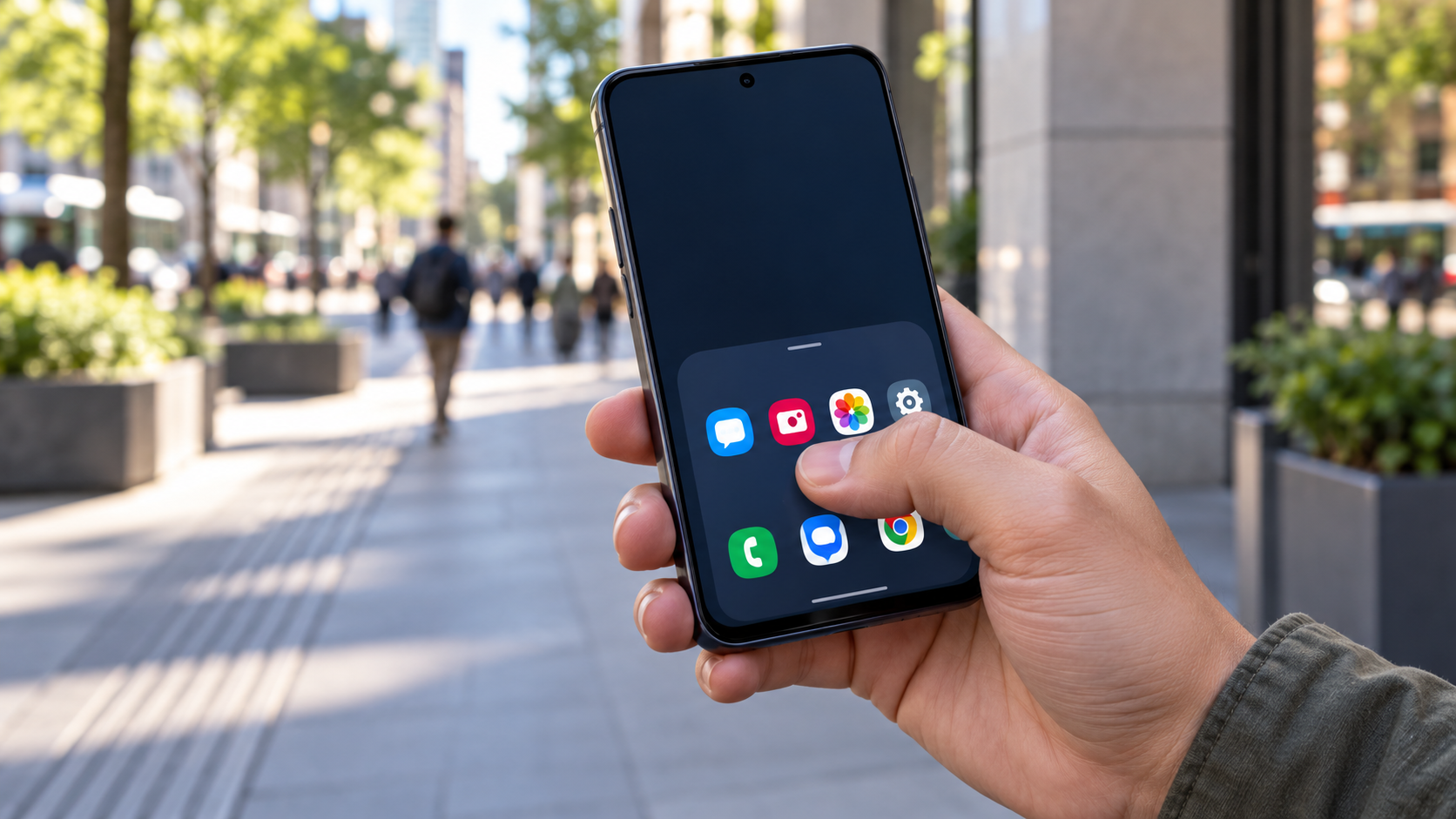
Modern cell phones have large screens because they display more information, videos, and controls, but the size also makes it difficult to reach the corners with one hand. One-handed mode reduces or repositions the usable screen area so that the thumb can reach buttons that would otherwise be far away. It's an accessibility and comfort adjustment, not a permanent change to the physical size of the device.
Android and iPhone offer different solutions. Some Android devices reduce the entire interface, while manufacturers like Samsung may shift the screen to a corner. On the iPhone, the Reachability feature temporarily lowers the top half. In this guide, you'll see how to activate the features, adjust the keyboard, match the mode with text size, and choose the safest setting for your routine.

When is it worth reducing the screen size?
This feature helps those who use their phone while walking, holding a bag, or supporting the device with their other hand. It is also useful for people with limited finger reach, joint discomfort, or difficulty touching small targets. It does not replace visual accessibility features: if the text is small, increasing the font size and zooming in may be more effective than reducing the screen size.
There's an inevitable trade-off. A smaller area displays less content and may require more scrolling. Some games, video players, and banking apps ignore the mode or revert to full size. Therefore, activate it as a quick shortcut, instead of leaving the interface reduced all the time, and preserve the ability to return to full screen with a tap.
Enable one-handed mode on Android
On Android devices similar to the Google standard, open Settings and search for One-handed mode. In recent versions, the path is usually located in System, Gestures e One-handed mode. Activate the option and choose the gesture or shortcut button. Android Accessibility Help informs that some steps depend on Android 12 or later and recommends searching directly for the feature name when the menus change.
After activating, swipe down from the bottom edge of the screen over the navigation bar. On devices with three buttons, there may be a specific button on the bar. Tap outside the reduced area to return to normal mode. If the gesture doesn't work, check your system's navigation settings: very thick cases and screen protectors can interfere with touching the edge, and the gesture sensitivity may need adjustment.
On Samsung phones, go to Settings, tap on Advanced features, open One-handed mode Choose between gesture and button. The system allows you to move the window to the left or right, according to your preferred hand. Xiaomi, Motorola, Oppo, and other brands may use different names, such as "Compact Screen" or "One-Handed Mode." Type "one-handed" in the settings search to find the option for your model.
Make the keyboard comfortable.
Even with a reduced screen size, the keyboard can still occupy the entire width. In Gboard, tap the four-square icon or the arrow in the top bar, select the three-dot menu, and choose... One hand. The keyboard moves to one side, and you can switch its position using the side button. To undo, tap the expansion icon that appears next to the keyboard.
On keyboards from other manufacturers, look for the shortcut in the keyboard settings menu. Reducing the keyboard size too much increases typing errors; choose a width that keeps the letters close together without obscuring the suggestion area. For long texts, voice dictation can save effort and still allow you to review with the reduced keyboard size.
Using Reachability on iPhone
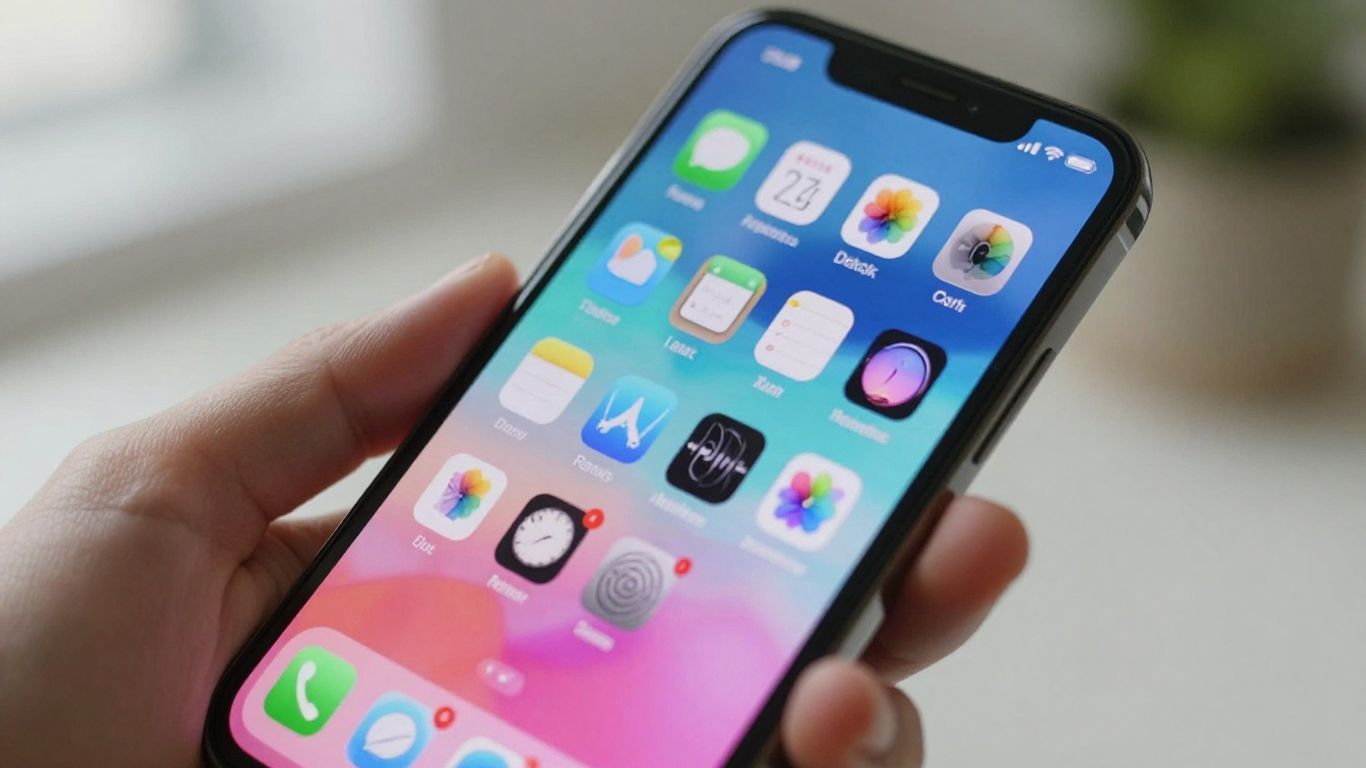
On your iPhone, open Adjustments, enter Accessibility, tap on Touch and activate Reachability. Apple advises that, on models with Face ID, you should swipe down from the bottom edge of the screen. On iPhones with a Home button, lightly double-tap the button. The top part will drop down and be within reach of your thumb; tap the top half to return to full screen.
The gesture works best with the iPhone in portrait orientation. If nothing happens, make a short movement starting exactly at the bottom edge, check if Reachability is enabled, and temporarily disable VoiceOver to test. The feature doesn't change the keyboard or reduce all elements, so combine it with text size, screen zoom, or AssistiveTouch when needed.
Adjust text, zoom, and controls.
One-handed mode resolves range, but not reading. On Android, use Settings > Display > Font and display size To increase font size and icons. On iPhone, go to Settings > Display & Brightness > Text Size or use Accessibility > Screen and Text Size. Enable larger text only up to the point where buttons and lines don't break in an inconvenient way.
If the controls are still too far away, add shortcuts to Control Center or Quick Settings. Android allows you to enable one-handed mode in this panel on compatible devices. iPhone offers AssistiveTouch to open a floating menu with actions like Home, Control Center, and Screenshot. These shortcuts reduce the need to reach for the top of the screen.
Privacy and security when using one hand
A displaced screen can make the device easier to drop, especially when you're using the phone while walking. Enable short auto-lock, use a grippy case, and avoid typing passwords while moving. This mode doesn't change permissions or protect apps; it only changes the interface position. For banking and password managers, it's best to prop up the phone and return to full-screen mode before confirming a transaction.
Also check that the gesture doesn't conflict with internal app gestures. Some readers, maps, and games use the bottom edge to switch screens. If you accidentally activate the mode too often, replace the gesture with an accessibility button or shortcut. The best setting is one that appears when you need it and disappears when it gets in the way.
Solving the most common problems
If the mode doesn't appear on Android, confirm your system version, search for the name in Settings, and check if the manufacturer has removed the feature. Updates may change this. On devices managed by a company or school, security policies may block gestures. On iPhone, confirm that Reachability is turned on and that you are initiating the movement from the bottom edge.
When the minimized window gets stuck, tap the top, rotate the device to landscape and then back to portrait. Restarting the phone usually clears a stuck gesture. If the problem started after installing a case, remove it for a few minutes. Avoid installing apps that promise to "shrink the screen" unnecessarily: many just draw a layer over the interface and may request excessive permissions.
Frequently Asked Questions
Does one-handed mode work in all apps?
No. The system alters the overall interface, but some apps, games, and protected screens ignore the reduced area. In these cases, use the app's own zoom function or the system's accessibility features.
Does shrinking the screen save battery?
The effect on battery life is practically negligible. The mode changes the arrangement of the elements and does not significantly reduce brightness, processor usage, or connection. To save power, use automatic brightness, limit synchronization, and control location.
Can I choose which side of the screen I want to wear?
Yes, on many Android devices. The mode allows you to move the window left or right. On iPhones, Reachability lowers the top center; the side you choose depends on the position of your hand and the model.
Does one hand equal zoom?
No. One-handed mode reduces or shifts the area to make it easier to reach. Zoom enlarges elements to make them easier to read. They can be used together, but overusing both makes the content require more scrolling.
Conclusion
One-handed mode is a small adjustment that makes large screens more manageable. Activate it through the official Android menu or the Reachability app on your iPhone, create an easy shortcut, and combine the function with a compact keyboard, larger text, and AssistiveTouch when it makes sense. Test it while sitting, walking, and holding objects to discover a secure gesture. This way, you gain comfort without relying on third-party apps or unnecessary permissions.
Official sources: Android Accessibility Help on one-handed mode e Apple's guide to Reachability.