How to record your phone screen on Android and iPhone
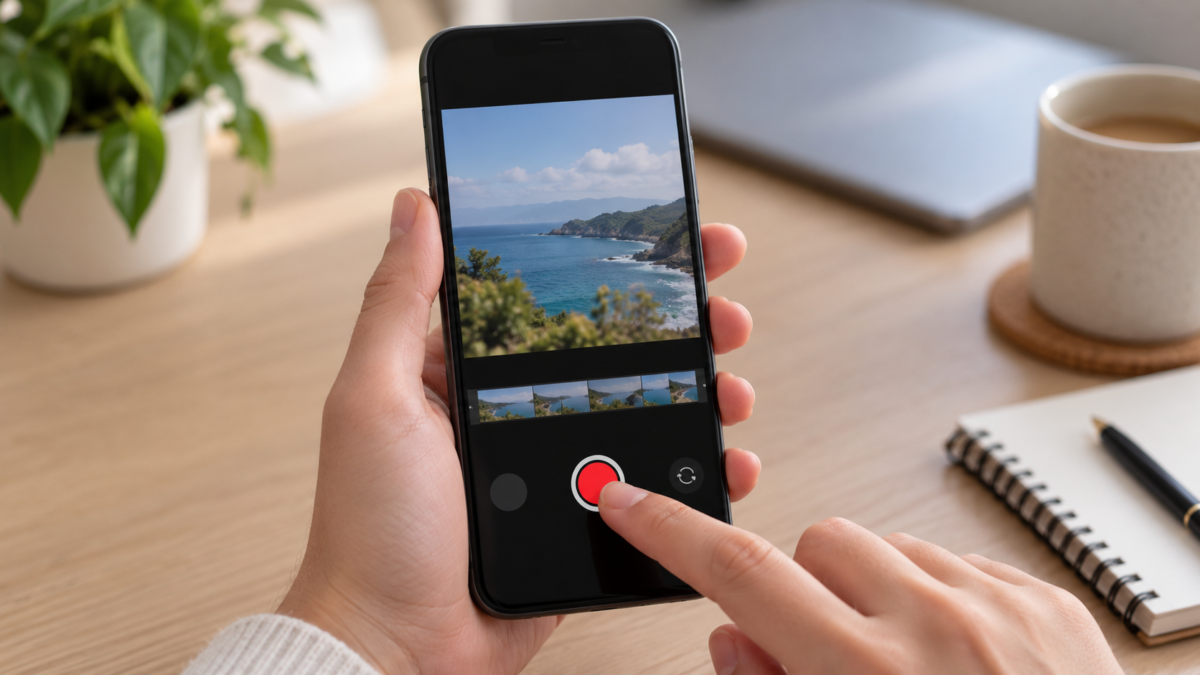
Recording your phone screen is useful for showing an error, teaching a procedure, recording a lesson, or explaining where to tap in an app. The video can also reveal notifications, passwords, conversations, and other people's data. Android and iPhone have built-in recorders with controls for audio and ringtones. Before you start, clear the screen, choose what to capture, and agree on a secure way to share it.

Prepare the screen before recording.
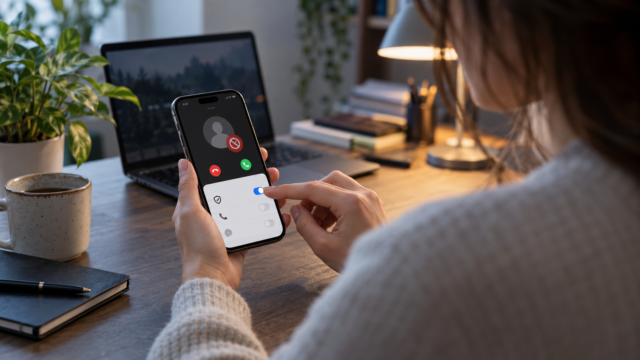
Close apps with private messaging, disable notification previews, and remove widgets that display addresses, calendars, or codes. Enable Focus or Do Not Disturb mode to avoid banners during recording. If you need to show a login, use a demo account and never type a real password in the video.
Decide if you need audio. For a tutorial, the microphone can explain each step; for a visual error, the system sound is sufficient. Let people nearby know if the microphone will be active. Screen recording should not be done secretly in a private conversation or call without consent.
Record the screen on Android
On Android, swipe down twice from the top to open Quick Settings. Tap Screen recording. If the button doesn't appear, tap Edit and drag the feature to the panel. Before the countdown, choose whether you want to record audio and show screen touches. Tap Start.
During recording, a notification indicates that the recorder is active. To stop, swipe down from the top and tap the Screen Recorder notification. The path and names may vary depending on the manufacturer. official Android guide It explains that certain steps depend on the version; on Pixel phones, some functions require Android 11 or later.
The file usually appears in Google Photos or in your gallery, under Movies or Screen Recordings. Open the video, trim the beginning and end seconds, and review each frame before uploading. If the video is large, export a smaller copy after preserving the original.
Record the screen on iPhone
On your iPhone, open Settings, Control Center, and add Screen Recording if the button isn't available. Open Control Center and tap the recording icon. After the three-second countdown, continue browsing as normal. To include your voice, press and hold the button, activate Microphone, and tap Start Recording.
To stop, tap the indicator at the top of the screen and confirm, or open Control Center and tap the button again. The video is saved to the Photos app. Apple documentation Remember that recording may capture sound and that some apps block content due to copyright or security reasons.
If the red indicator or Dynamic Island appears, leave that element out of the important area or crop it later. Before sharing, open Photos, tap Edit, and check that the beginning contains notifications. Use the crop feature, not an edit that automatically re-uploads to an unknown service.
Audio, microphone and copyright
System audio may be muted by music apps, calls, streaming services, and content protection services. This is expected and does not mean the recorder is broken. To demonstrate a procedure, narrate using the microphone or add a voice later in a reliable audio editor.
Do not publish a lecture, film, meeting video, or call without authorization. Even if the recorder allows capturing, the application's terms may prohibit redistribution. In a video conference, inform participants, use the service's own recording feature when appropriate, and save the file to an account with controlled access.
Fixing bugs and reducing size
If the button doesn't appear, update the system and look in Quick Settings or Control Center. Restart your phone and free up storage space. High-resolution recordings take up more space; for a simple tutorial, lower resolution and frame rate may be sufficient.
If the video freezes, close resource-intensive games and apps and disable unnecessary effects. Do a 20-second test and play it back before recording an entire lesson. On older devices, the audio may be delayed. Cut the segment or redo it with fewer applications open.
Edit and share securely.
Use the native gallery to crop the beginning and end. If you need to blur a number, name, or face, choose an editor that processes on the device or that explains where to send the file. Don't confuse cropping with hiding: the cropped section may still be recoverable in the original file. Delete the raw version when it's no longer needed, but keep a private copy if it has documentary value.
To send, prefer a link with a deadline or a private channel. Quick Share, AirDrop, or sharing through the service itself can reduce steps, but double-check the recipient before tapping send. Avoid posting support recordings with authentication codes, email addresses, or bank notifications. See our guide on... secure sharing to apply the same care to other data.
Accessibility and professional use
Show screen taps when the video teaches a sequence, but disable them when the goal is to present a clean design. Increase the text size and use system zoom so the person can follow along. In a support recording, state the system version, phone model, and the exact moment of the error without revealing personal information.
In a company, define a folder with a retention period and specify who can view the videos. Remove recordings of tests of devices used by customers. For lessons, include a written description and subtitles when necessary; video without audio can still be understood.
How to narrate a tutorial clearly.
Plan the sequence before recording: state the objective, make one tap at a time, and wait for the screen to finish loading. Don't speed up your speech to fit into a short video. If the person needs to repeat the procedure, use natural pauses and indicate the exact name of the menus. A visible cursor or screen taps help those following along on a smaller phone.
Record in landscape orientation only when the content requires space; for social media and messaging, portrait is usually easier to watch. Keep the brightness comfortable and remove background music. If an error occurs, stop, note the step, and redo the segment. This organization reduces aggressive cuts and makes the video more reliable.
After sending, check the link in a private window or with a test recipient. Verify that the audio is audible, that the file opens on Android and iPhone, and that the permission has not been made public. Only then delete the temporary copy from the device.
Frequently Asked Questions
Does the recorder capture notifications?
Yes, if they appear during recording. Turn on Focus or Do Not Disturb and hide previews on the lock screen before you begin.
Can I record a call?
The screen recorder may block or not capture call audio. Additionally, local laws and regulations may require consent. Check the official phone function and inform the participants.
Why wasn't the audio saved?
The microphone may be turned off, occupied by another app, or blocked due to copyright. Try a short test and consider narrating later.
How do I reduce the size of a video?
Cut out unnecessary sections, reduce the resolution in a reliable editor, and send a private link. Preserve the original until you confirm that the copy is correct.
Conclusion
A good recording starts before pressing the button: clear the screen, choose the audio, specify who will be recorded, and test for a few seconds. Use the native recorder, review the file, and share it through a controlled channel. This way, the video solves a problem or teaches something without turning accidental data into permanent exposure.