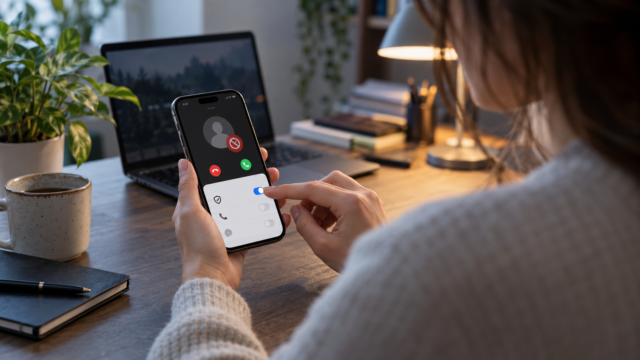
How to set up parental controls and time limits on your cell phone.

Parental controls aren't just about blocking apps. They combine time limits, content filters, purchase rules, permissions, and safety conversations. Android and iPhone offer their own tools, but each family needs to adapt the settings to the age, maturity, and region of the account. This guide presents a practical way to set limits without turning your phone into a surveillance black box.

Start by defining what needs to be protected.
Before opening any menu, define the objective. It could be to avoid use during the early morning hours, control purchases, prevent contact with strangers, or reduce distractions at school. A clear limit is easier to explain and review than a generic rule of "don't use it too much." Consider age, sleep schedule, tasks, accessibility needs, and the difference between weekdays and weekends.
Explain that the monitoring is a safety setting, not an automatic punishment. Agree on what will be monitored, when the rule can be relaxed, and how the child can request an exception. This conversation reduces attempts to circumvent the system and creates a routine for adjusting the rules as trust grows.
Setting up Google Family Link on Android
Family Link allows you to manage a child's account linked to a parent's account. Install the parent's app, follow the linking process, and confirm the correct account. On the child's profile, the screen time area shows daily usage and allows you to set a limit for the device. You can also schedule a downtime when the device is locked, with exceptions for authorized functions.
- Open Family Link and select the child's profile.
- Tap Screen time, then tap Time limits.
- Set a daily limit or different times for each day.
- Set your bedtime for the night.
- Review the app limits and choose which ones can be blocked.
In the app limits area, select an app and choose to block it, allow it for a limited time, or allow unlimited time. The unlimited time option should be used with caution, as it may override the overall limit. Games, short videos, and social media often deserve different rules than maps, family communication, and study tools.
Using Screen Time on iPhone
On your iPhone, open Settings, tap Screen Time, and turn it on. If your device is part of Family Sharing, select the child's name from the parent's device. Create a Screen Time passcode that is different from your unlock passcode. Then, set up Downtime, App Limits, and Content & Privacy Restrictions.
Downtime sets a pause period. In App Limits, you can choose specific categories or apps and separate weekdays from weekends. The Always Allowed option keeps essential communication and tools accessible. In Content and Privacy, review purchases, app installation and deletion, explicit content, websites, and account changes.
Time limits that work in practice.
A limit should reflect routine, not just an arbitrary number. Start by observing usage for a few days and discuss what's needed. A child might need more time for a school assignment, while the same app is recreational at another time. Use block times for sleep and meals, and category limits to control the total without having to discuss each app individually.
Allow a few minutes for transition. Warnings before the timeout is up help end a match or save work. If the timeout happens unexpectedly, the rule seems flawed. Adjust the start time of the sleep period, keep the device's clock correct, and confirm that the time zone is set to automatic.
Content, purchases and contacts
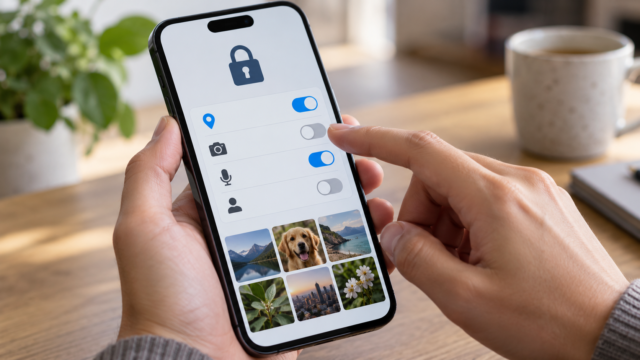
Age filters can block inappropriate movies, music, books, and apps, but no filter is perfect. Review ratings and discuss links received via messages. Disable unauthorized purchases and set up approval for new apps when this option is available in your account. In families with shared devices, make sure the correct account is connected to the store.
For contacts, use communication controls when the system offers this option. Explain how to block and report someone, and encourage the child to speak up when a conversation seems strange. Parental controls do not replace guidance on phishing, requests for photos, location services, and in-person meetings.
Privacy and proportionality
Avoid activating more data collection than necessary. Real-time location, browsing history, and detailed reports reveal sensitive data. Use the location feature only when there is a clear reason, such as route safety, and explain when it will be active. As autonomy increases, reduce the level of supervision instead of maintaining the same level indefinitely.
Protect the account of the responsible party with a strong password and two-factor authentication. Do not share the Screen Time code with other people and do not write it down with the device. Check connected devices and update the recovery email or phone number. A compromised account may allow silent changes to the rules.
When a child tries to circumvent the limits.
First, find out how this happened. It could be an adult account on the device, a clock change, a factory reset, or the use of another device. Review accounts, permissions, and updates. Avoid an escalation of blocks without discussion: the goal is to make the environment safe, not create a technical dispute. If the rule is causing a legitimate problem, adjust it and record the new combination.
Create a plan for exceptions. An adult can allow extra time for a trip, a task, or an important call and then reinstate the limit. On Android, Family Link allows you to approve more time; on iPhone, the parent can authorize an exception directly on the device. Use these permissions as part of the agreement, not as a secret.
Monthly review
Once a month, check reports, limits, and installed apps. Compare usage to your actual routine and remove rules that no longer make sense. Android and iOS updates may change menu names or age-related options; check the official Google and Apple pages if something disappears. Use this review to discuss recent scams, privacy, and respectful behavior.
Frequently Asked Questions
Does Family Link work on any Android device?
Features depend on the system version, account type, and country. Keep your app and device updated and check the official requirements.
Can I control an iPhone from an Android device?
The possibilities vary. Screen Time is more integrated into the Apple ecosystem. For mixed families, combine native controls with clear agreements and on-device review.
Does the blockage prevent emergency calls?
Emergency functions generally remain available, but confirm the behavior of the version you are using. Keep essential contacts set to Always Allowed whenever possible.
How can I change the rule without losing the history?
Edit the existing limit in Family Link or Screen Time. Avoid deleting your account or restoring your device, as this may remove history and other settings.
Conclusion
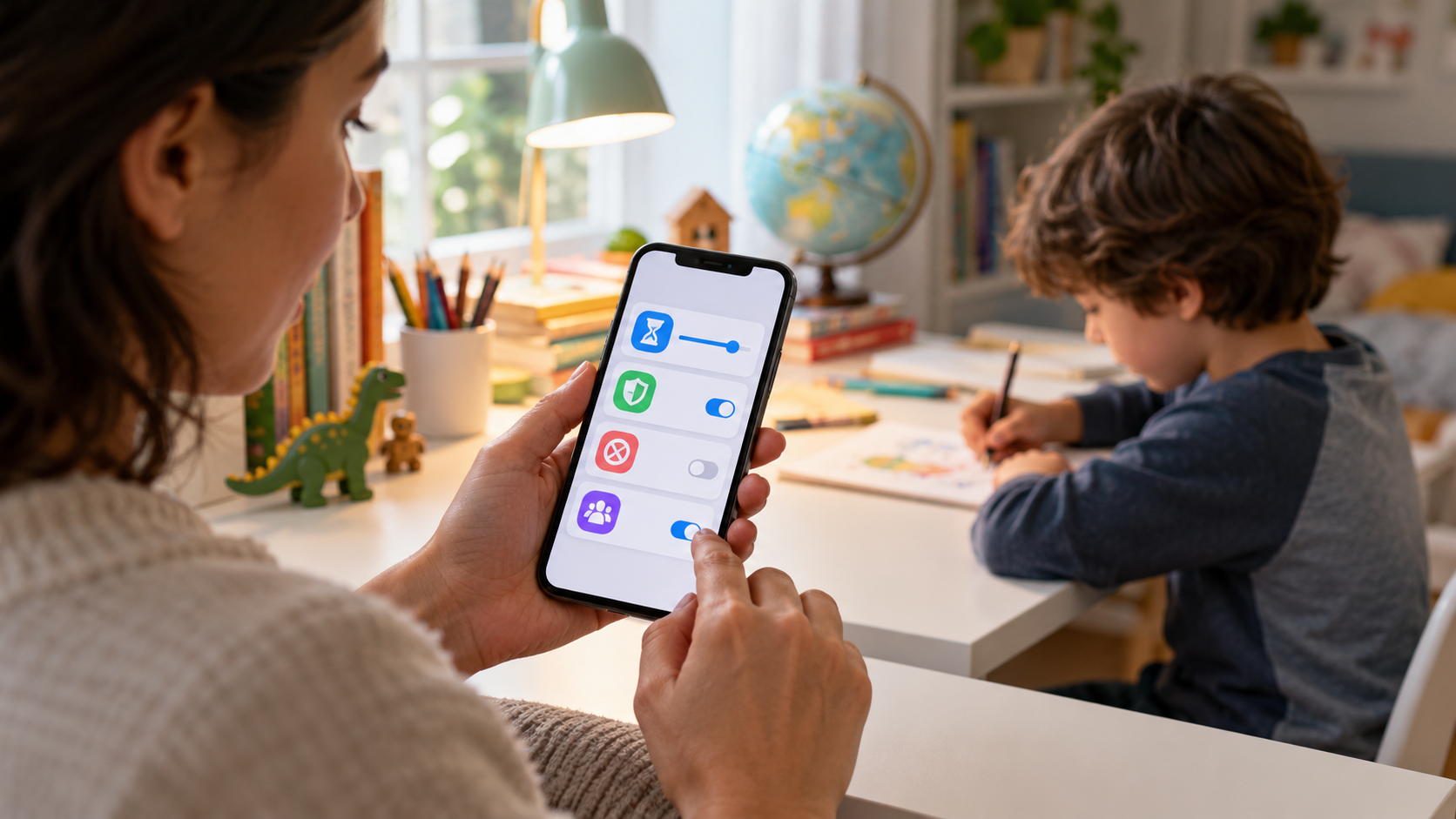
Good parental controls combine understandable limits, appropriate filters, and open communication. Set up the minimum necessary to resolve the identified problem, test it for a week, and review it with the family. Android and iPhone offer solid features, but no menu replaces digital education, account protection, and trust built over time.