How to review photo, camera, and location permissions on your mobile phone.
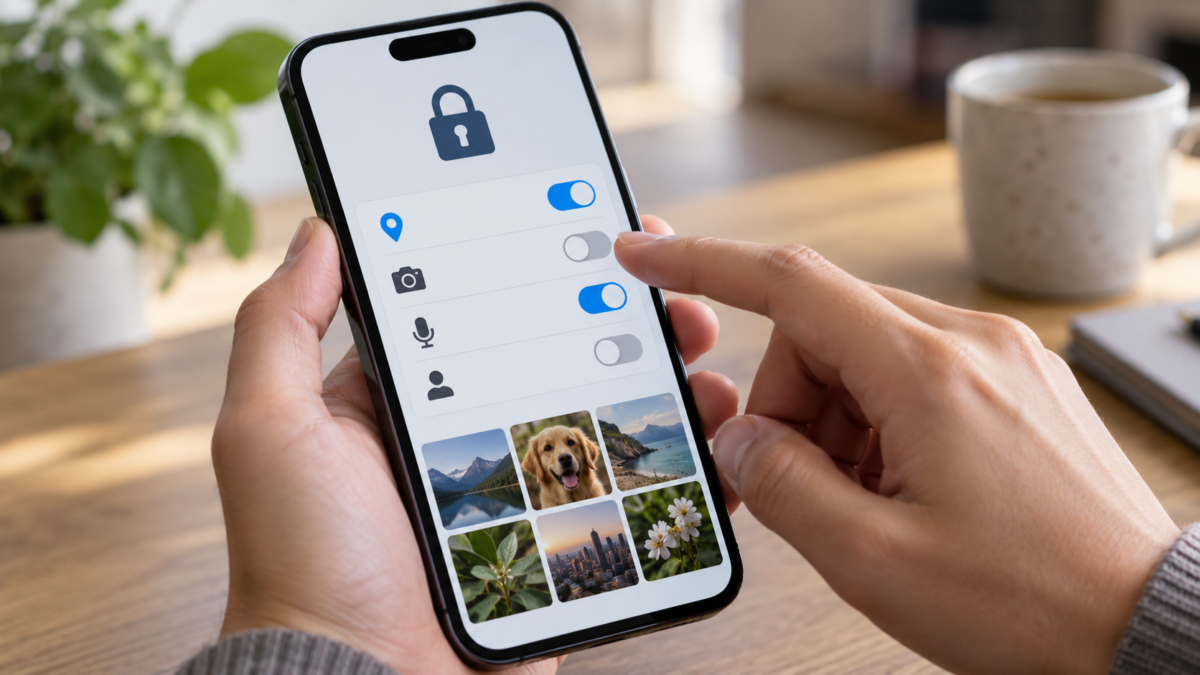
Apps request access to photos, camera, microphone, location, and contacts to offer useful functions, but many retain permissions you granted in haste. A periodic review reduces exposure without hindering normal use. The goal is not to block everything: it's to allow each feature when it's needed and remove access that has become unnecessary.
Android and iPhone offer similar controls, but with different names and levels. An editing app might need selected photos, while a map needs location data during navigation. This guide explains how to review permissions, choose temporary access, identify signs of abuse, and troubleshoot when an app stops working after a change.
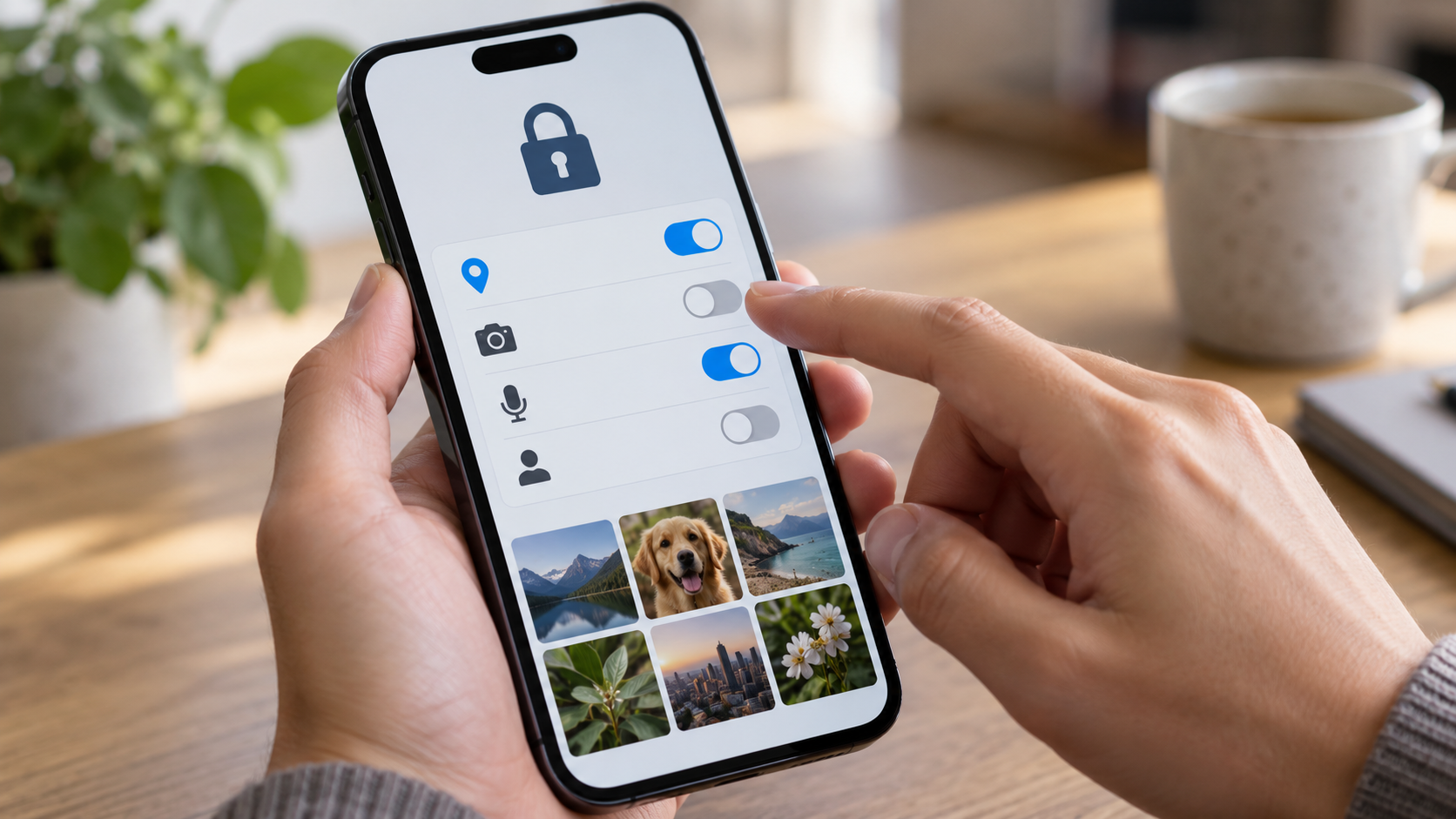
Start with the privacy panel.
On Android, open Settings > Privacy or Security and privacy and look for the panel that shows recent accesses. On an iPhone, open Settings > Privacy and Security. The screens list which apps used location, camera, and microphone, and help uncover unexpected access. Seeing a record doesn't, by itself, mean there was abuse; it indicates when the system detected the use of a sensor.
First, review high-impact permissions: precise location, microphone, camera, contacts, and full photos. Then look at calendar, Bluetooth, and nearby devices. A simple game that asks for contacts or a code reader that requires a permanent microphone deserves an explanation. If there's no corresponding function, deny access and test the app.
Understand the levels of access to the photos.
Modern Android and iPhone apps can offer access to selected photos instead of the entire library. Choose this option when an app only needs to edit or upload a few images. The app can request more photos later, and you decide on a case-by-case basis. Full permission is suitable for a backup tool that really needs to read the entire library, but it shouldn't be the default for social media and games.
If an editor can't find a photo, open the app settings and tap on Photos. On iPhone, select Selected photos and add the necessary items. On Android, the name might be Allow limited access. This choice preserves the core function and reduces the amount of data the app can analyze.
Control camera and microphone
Messaging and meeting apps need your camera or microphone when you start a call. They don't need constant access if you never use calls. Deny permission and grant "only while in use" when that option appears. On Android, the system may show green indicators when the camera or microphone is active; on iPhone, colored dots help identify the sensor in use.
If the camera stops working, check that another app isn't using the sensor. End calls, restart the device, and review the permissions. Avoid installing recorders or filters that require accessibility permissions to unlock effects. Accessibility allows control of the screen and is more comprehensive than a standard camera permission.
Choose the location time
For a map, select During use Whenever possible. “Always” allows background updates and may be necessary for trackers, workouts, or arrival alerts, but increases exposure and battery consumption. On iPhone, disable it. Precise location For apps that only need to know the city. On Android, use the approximate option when the function doesn't require an exact location.
Also review your account's location history. An app might stop receiving GPS data and still keep its own records if you don't delete the history within the service. For trips and deliveries, prefer temporary sharing and confirm when access ends. Don't send public location links in open groups.
Permissions for contacts, calendar, and Bluetooth.
A calling app might need contacts to find people, but a flashlight doesn't. A calendar is useful for scheduling and reservations; stores and games rarely need to read your appointments. Bluetooth and nearby devices might be necessary for headphones, cars, and watches, but turn off access for apps that don't connect to anything.
When you deny a permission, observe the behavior. If the app continues to function, maintain your decision. If a specific function fails to open, grant temporary access during the task and revoke it afterward. Do not grant permissions in bulk to avoid an error screen without understanding what will be shared.
Use the system's automatic controls.
Android allows you to pause permissions for apps you haven't used in a while. Enable this option for occasional apps, but exclude services that need to send alerts even when you don't open them. iPhone shows a list of apps and allows you to change each permission individually; use the search function in Settings to quickly locate an app.
Keep your system and apps updated. Patches may include new privacy controls and prevent an app from using a sensor without permission. Download apps from official stores and examine the developer, reviews, and privacy policy. A vague description does not justify granting access to personal data.
How to investigate an unexpected access.
If the dashboard records camera, microphone, or location data at an unusual time, note the app and the time. Open the app and look for a function that explains its use. Then, revoke the permission and see if the recording resumes. Also check widgets, assistants, clocks, and automotive systems, which may be using the phone in the background.
If the activity continues without explanation, uninstall the app, change your account password, and review connected devices. On iPhone, Security Checkup helps stop sharing and review who has access. On Android, the privacy panel and Google Play Protect can flag suspicious behavior. If you are at risk of being stalked, review the app from a safe location and seek support.
Removing a permission breaks the application.
Some apps display a clear message and only request access when you tap the function. Others fail without explanation. Open the app settings and grant permission during use, not "always." If the function still doesn't work, update or reinstall the app after confirming the backup. Don't grant access to contacts, photos, or microphone just to eliminate a permanent warning.
Corporate services may depend on management policies installed by the company. In this case, seek IT support before removing a profile. Authentication accounts, banks, and digital wallets also have specific requirements; changing permissions may require a new registration or identity verification.
Frequently Asked Questions
Should I deny all permissions?
No. Dismiss anything unrelated to the function and prioritize access during use or to selected photos. A map needs location data for orientation; a calculator doesn't need contacts.
Why does an app constantly ask for your location?
Trackers, workouts, and arrival alerts may use location services in the background. If you don't use these features, choose them during use and see if the app continues to meet your needs.
Does the green dot on the iPhone mean it's being spied on?
It indicates that the camera is in use; the orange dot indicates the microphone. Check the responsible app in the Control Center and revoke permission if there is no reason to.
How do I review my login information after switching phones?
Permissions are device-specific. When restoring a backup, open the privacy panel and reconfirm camera, microphone, location, and photos permissions for each important app.
Conclusion
Permissions are decisions that can change with your routine. Review the privacy panel, choose limited access to photos, use location services while using the app, and investigate unexpected logs. When a function requires more access, grant it for the shortest time possible and then revoke it. This habit keeps useful apps running without giving you a permanent view of your digital life.
Official sources: Android privacy controls e Privacy and location services on iPhone.