How to enable and use Wi-Fi calling on Android and iPhone
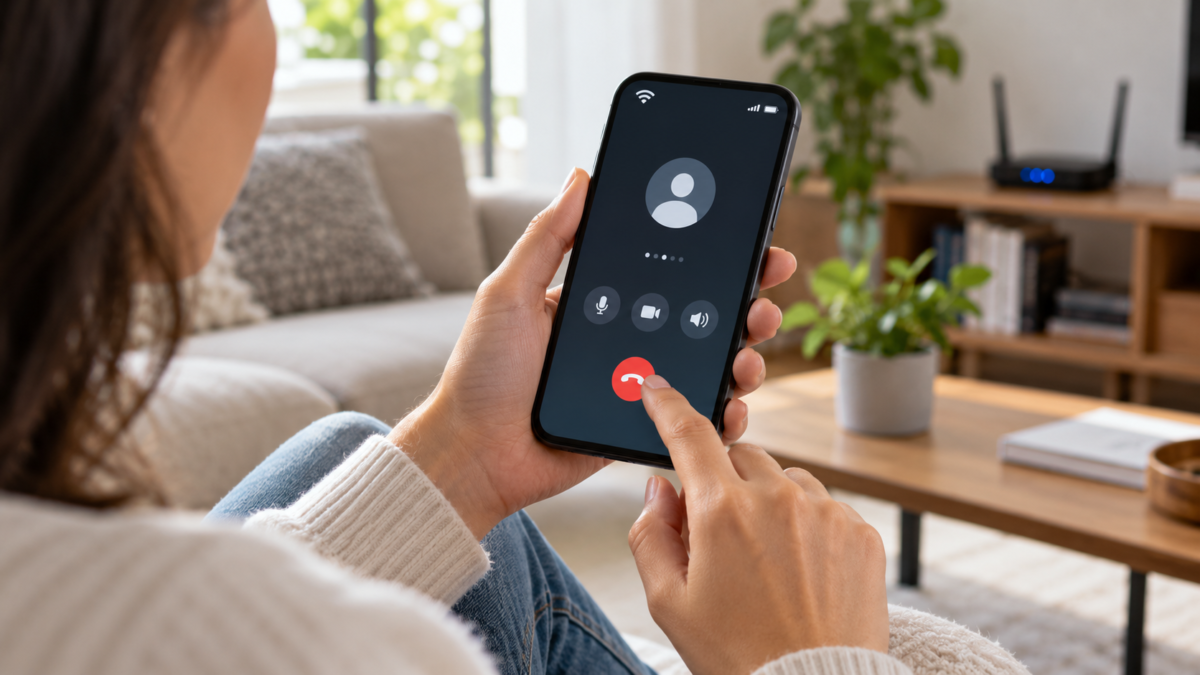
When your carrier signal fails at home, at work, or while traveling, Wi-Fi can keep your calls going. This feature is called Wi-Fi calling and uses your internet connection to carry the call, but continues to use your SIM card number and phone app. It's different from a WhatsApp or FaceTime call: the recipient can answer using their regular phone, and billing follows the rules of your plan.
In this guide, you will understand how to check if the service is available, activate the function on Android and iPhone, choose a suitable network, and avoid surprises with costs, roaming, and emergency calls. The menu names vary between manufacturers and countries, so the paths below serve as a reference and not as a guarantee that all phones will have exactly the same screens.
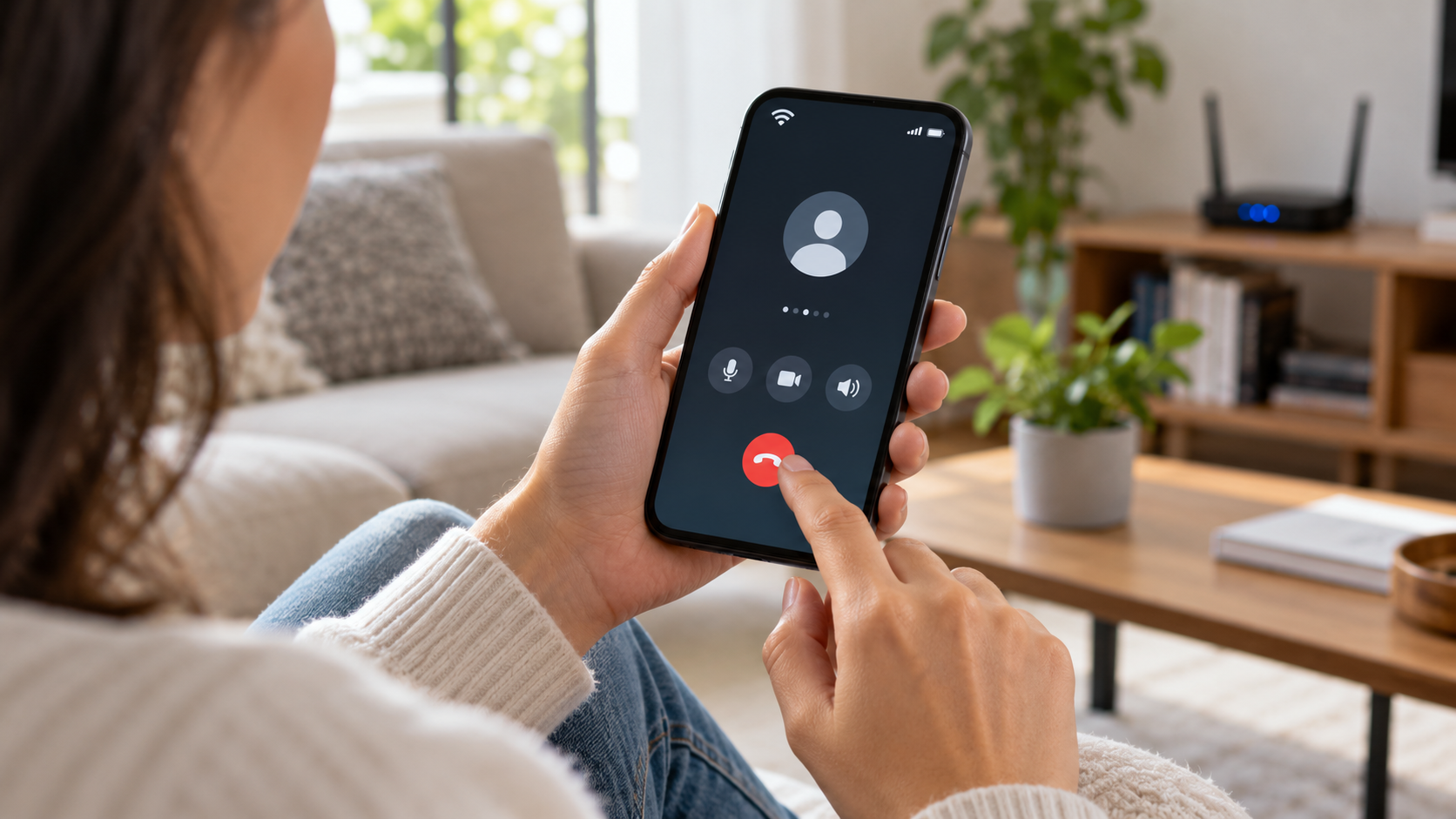
What are Wi-Fi calls?
In a conventional call, the voice travels over the operator's mobile network. With Wi-Fi calling, the device can use a wireless network to access the same operator's infrastructure. The phone chooses the best available route based on signal strength and service rules. In some models, the switch between Wi-Fi and mobile network occurs during the call; in others, there may be a brief interruption.
The feature doesn't transform any voice application into a phone. It depends on three elements: a compatible device, an updated system, and a carrier that offers the feature for your line. Even when the phone has the option in the menu, the carrier may disable it for a specific plan, region, or SIM card type. Therefore, it's worth checking the company's support page before insisting on changing the settings.
Before activating: check compatibility and costs.
Search your carrier's website for "Wi-Fi calling," "VoWiFi," or "Wi-Fi calling." Check if the service is included in your plan, if it requires activation through customer service, and if there are restrictions for prepaid, corporate lines, or devices purchased abroad. Google's Phone app Help warns that not all carriers are compatible and that charges may apply; Apple also states that availability varies by carrier, country, and region.
Also check how national, international, and special number calls are charged. In general, the call follows the line's voice package, but roaming treatment may be different. If you are outside the country, disable data roaming and confirm with your operator before calling. For emergencies, keep your registered address updated when the service requests this information, because Wi-Fi networks can make it difficult to automatically identify your location.
How to activate on Android
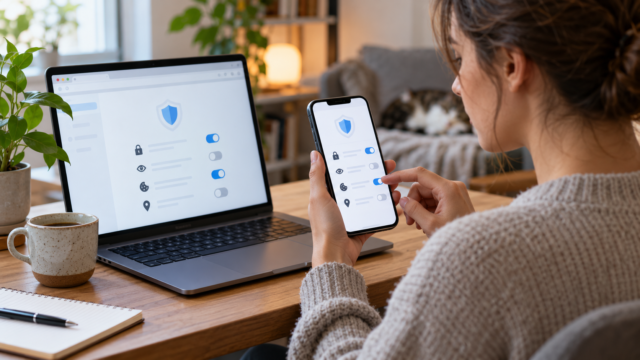
On many devices with recent Android versions, open Settings, enter Network and internet, tap on Chips or Mobile network, Choose the line and search. Wi-Fi connection. Activate the key and accept the emergency address registration, if it appears. On Samsung phones, the path is usually located in Connections and then Wi-Fi Calls; In other brands, the option may be within the Phone app or in the SIM settings.
If the item doesn't appear, search for "Wi-Fi" within Settings and restart the device after updating the system. Google's own documentation explains that when the option is unavailable, the carrier likely doesn't allow the feature for that line. It may also be necessary to enable VoLTE, use the primary SIM card for data, or install an update released by the manufacturer.
After activating it, connect to a stable Wi-Fi network and make a short call. Observe the status bar: some devices show “Wi-Fi Calling,” “Wi-Fi Calling,” or a phone icon with waves. If the phone disconnects from Wi-Fi, it should reconnect to the mobile network when there is a signal and when the carrier allows this transition.
How to activate on iPhone
On your iPhone, open Adjustments, tap on Cell phone, select the line and enter Wi-Fi Calls. Activate Make Wi-Fi calls on this iPhone. and confirm the requested information. Apple explains that the option may not appear on all carriers or in all regions. On dual-SIM devices, select the correct line and check that the enabled plan is the same one used for calls.
When the feature is active and the iPhone is connected to Wi-Fi, the carrier name may include “Wi-Fi” in Control Center or on the lock screen. Test it with a known contact, then temporarily turn off Wi-Fi to confirm how the device behaves on the cellular signal. Do not use an unknown public network for sensitive calls, as connection quality and security depend on the network.
Choose a network that helps, not hinders.
Wi-Fi calls require less speed than video, but need low latency and stability. A distant, congested router or one with frequent drops can result in a metallic, delayed, or interrupted voice. Prefer the 5 GHz network when you are close to the router and the 2.4 GHz network when you need to go through walls. Restarting the router, moving closer to the access point, and pausing heavy downloads is usually more effective than switching applications.
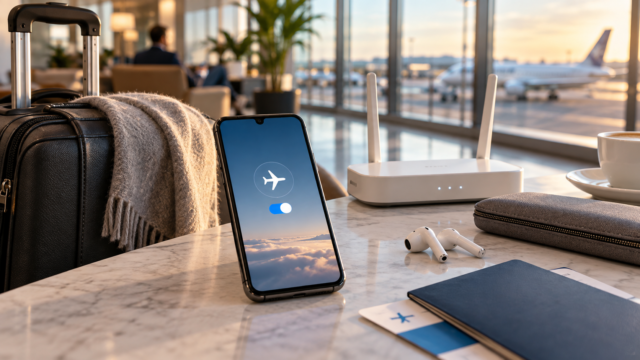
Corporate, hotel, and airport networks may block ports necessary for the service. A VPN can also alter the route and prevent the line from being logged. If the call fails only on one network, test another reliable connection before concluding that the phone is faulty. Avoid setting up automated calls on networks without a password, especially if the device is used to handle personal data.
Common problems and how to solve them.
When the option turns gray, update the system, confirm the active SIM card, and contact your carrier. If "no service" appears, turn airplane mode off and on, reconnect to Wi-Fi, and restart your phone. If the voice is cut off, temporarily disable battery saver, reduce the distance from the router, and test without a VPN. If only emergency calls fail, check the emergency address and seek guidance from your carrier instead of relying solely on Wi-Fi.
It's also possible that the device will prioritize the mobile signal even with the function enabled. On some Android devices, there's a preference between "preferred Wi-Fi" and "preferred mobile network." Choose Wi-Fi only when the service is stable and you know that the carrier supports the option. On iPhones, priority decisions are automatic and depend on the network, the carrier, and signal strength.
Frequently Asked Questions
Do Wi-Fi calls use my mobile data?
When the phone is actually connected to Wi-Fi, the voice travels through that network and not through the mobile data plan. If the Wi-Fi connection drops, the device may revert to the carrier's network. Check the indicator on the screen and the plan's rules to know when charges will apply.
Can I call any number?
Normally you dial as usual, but special numbers, international calls, and emergency services may have their own rules. The operator is the correct source to confirm each destination and rate.
Does the feature work abroad?
It depends on the plan and the country. Some carriers allow Wi-Fi roaming calls, while others block them or charge as international calls. Confirm before your trip and keep an alternative method, such as a messaging app.
Why did the option disappear?
An update, SIM card replacement, plan change, or coverage alteration may remove the menu. Restart, update the system, and ask your carrier to check the line. If they don't offer VoWiFi, no device adjustment will enable the service.
Conclusion
Wi-Fi calling is useful for keeping your traditional number working in locations where fixed internet signal is better than mobile internet. Activate the feature only after confirming compatibility, costs, and emergency rules. Test on a reliable network, observe the Wi-Fi indication during the call, and have an alternative when traveling or using public networks. This way, the function improves phone availability without creating a false sense of coverage.
Official sources: Google Help for Wi-Fi calling e Apple's guide to Wi-Fi calling.