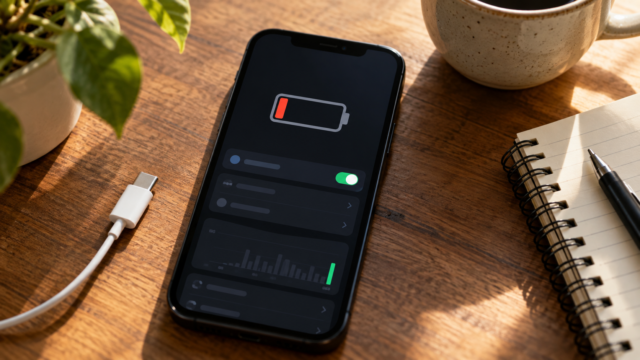
How to clear cache, cookies, and history in your mobile browser.

Cache, cookies, and browsing history are different parts of the data that your browser stores on your phone. They speed up page loading, maintain preferences, and help you retrieve tabs, but they can also accumulate files, expose browsing habits to the user, and cause errors when a website changes. Clearing this data is a simple maintenance task, as long as you understand what will be removed and preserve the information you still need.
In this guide, you'll see how to clear cache, cookies, and history in Chrome for Android and Safari for iPhone. I also explain when to use each clearing method, what happens to sessions and passwords, how to choose a safe interval, and what to do if the problem persists. The menu names may change slightly depending on the system version and language, but the logic is the same.

What each data type does
The cache consists of temporary copies of images, stylesheets, and other page elements. On your next visit, the browser attempts to reuse this material instead of downloading everything again. Clearing the cache does not delete your photos or uninstall applications, but the initial loading of some websites may be slower while the files are recreated.
Cookies are small files that websites use to remember your language, shopping cart, preferences, and login information. Some are essential for an account to function; others are used for advertising or measurement. Removing them may log you out and cause you to see consent prompts again. In some services, locally saved settings also disappear.
The browsing history is a list of visited addresses and searches performed by the browser. Deleting it removes suggestions from the address bar on that device, but it doesn't automatically delete records kept in a search service account, on the router, or on the website itself. For a more complete privacy cleanup, you also need to review these accounts.
How to clear Chrome on Android
Open Chrome, tap the three dots in the upper corner, and enter... Clear browsing data. The panel displays a time range, such as the last hour, the last 24 hours, the last seven days, or the entire period. First, choose the time range: to fix a failing website, start with one hour or 24 hours; to prepare a shared mobile device, use the entire period.
In the basic list, select browsing history, cookies and site data, and cached images and files as needed. Google itself describes these options in... Chrome's official help. If you select saved passwords or autofill data in the advanced panel, you will have to recreate this information later, so leave these options unchecked during regular maintenance.
Tap on Delete data and wait for confirmation. If you use multiple profiles or browsers, the clearing only applies to that Chrome profile. Synced history can be removed from other devices when the account is configured to sync history; read the message displayed before confirming to understand the scope.
How to clear cookies and cache in Safari on iPhone
On your iPhone, open Settings and look for Safari. To clear history, cache, and cookies all at once, use Clear History and Website Data and confirm. Apple explains this procedure in Official Safari guide. If the option is grayed out, there may be Screen Time restrictions, no data stored, or a corporate profile controlling the device.
When you need to keep your history, go to Safari, tap the book icon, open History, and swipe through items individually or choose a time period. To preserve useful logins, avoid deleting everything unnecessarily. In Settings, Safari, Advanced, Website Data, you can remove just one domain; this is useful when a specific website gets stuck in a redirect or displays an outdated version.
Safari also offers the option to block all cookies. This increases privacy, but it can prevent logins, payments, or preferences on legitimate websites. Instead of leaving global blocking enabled, it's better to clear data from the problematic domain and use the tracking prevention already activated by the system.
Which cleaning method to choose in each situation?
If a page appears broken after a refresh, start by checking the cache. If the site insists on displaying the wrong account, repeatedly asks for login, or doesn't save a preference, remove cookies only from that site or from a short interval. If the goal is to leave no trace on the device, clear the history and review downloads, open tabs, and keyboard suggestions separately.
Don't confuse browser cleanup with Android storage cleanup. The app menu may offer... Clear storage, This resets the app and may erase local data, accounts, and settings. Use this option only as a last resort, after confirming that synchronization and backups are working.
Impacts on accounts, passwords, and synchronization.
Deleting cookies usually ends sessions, but it doesn't remove the online account. You can still log in again if you remember your password and have access to two-factor authentication. Passwords saved in Google or iCloud are kept separate from cookies when you don't select the password option. Even so, check the exact name of each box before tapping confirm.
On work or school devices, management policies may prevent the removal of some data. Extensions, blockers, and corporate networks can also alter browser behavior. Perform cleanups when connected to a trusted network and avoid deleting data during a critical task, such as a subscription or purchase.

When cleaning doesn't solve the problem
If the error persists, try an incognito window. If it works there, the problem is likely related to cookies, extensions, or normal profile permissions. Update your browser and system, restart your phone, and check the automatic date and time settings, as certificates can fail with an incorrect clock. Then, try a different network to rule out local failures from website unavailability.
It's also worth checking for free space. Excessive cache is just one reason why a device might slow down; downloaded photos, videos, and large apps tend to take up more space. If the problem is a specific website, check the service's status page before repeatedly clearing it.
Frequently Asked Questions
Does clearing the cache delete photos or documents?
No. The browser cache contains temporary copies of pages. Photos saved in the gallery, files in storage, and downloaded documents remain on the device unless you delete them in another menu.
Will I lose my passwords?
No, if you leave the saved passwords option unchecked. The login cookie can be deleted, so you will need to log in again, but the password saved in the manager will remain.
How often should I do this?
There's no mandatory schedule. Do it when a website displays an error, when the browser is taking up unusual space, or when you're handing the device over to someone else. Automatic and repeated cleanups don't necessarily make browsing faster.
Does my browsing history disappear from my Google account?
Not always. Local history is separate from activity saved to your account. Please review. My Google activity if you also want to control searches and registered pages online.
Conclusion
Clearing cache, cookies, and history on your mobile phone is safer when you consciously choose the type of data and the time period. Start with a short cleanup to fix bugs, protect passwords, and use domain-specific removal when only one website is having problems. For privacy, combine your browser with account, download, and permission reviews. This way you resolve errors without turning simple maintenance into unnecessary loss of settings.