How to create and use passkeys on your mobile phone.
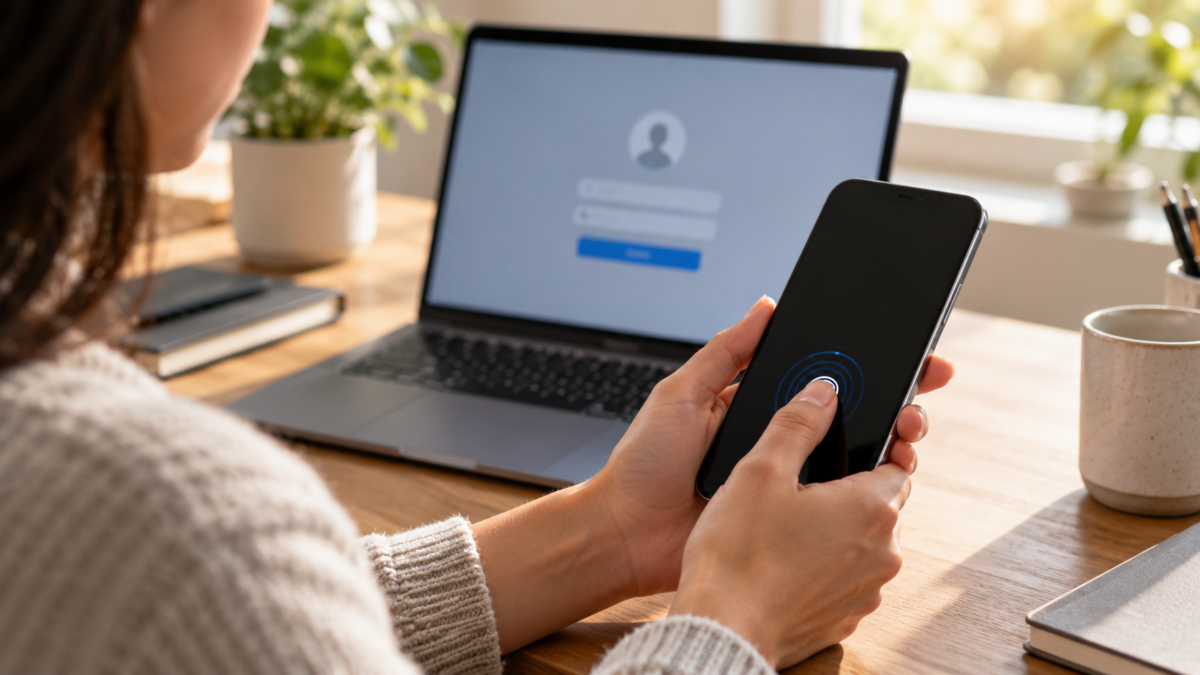
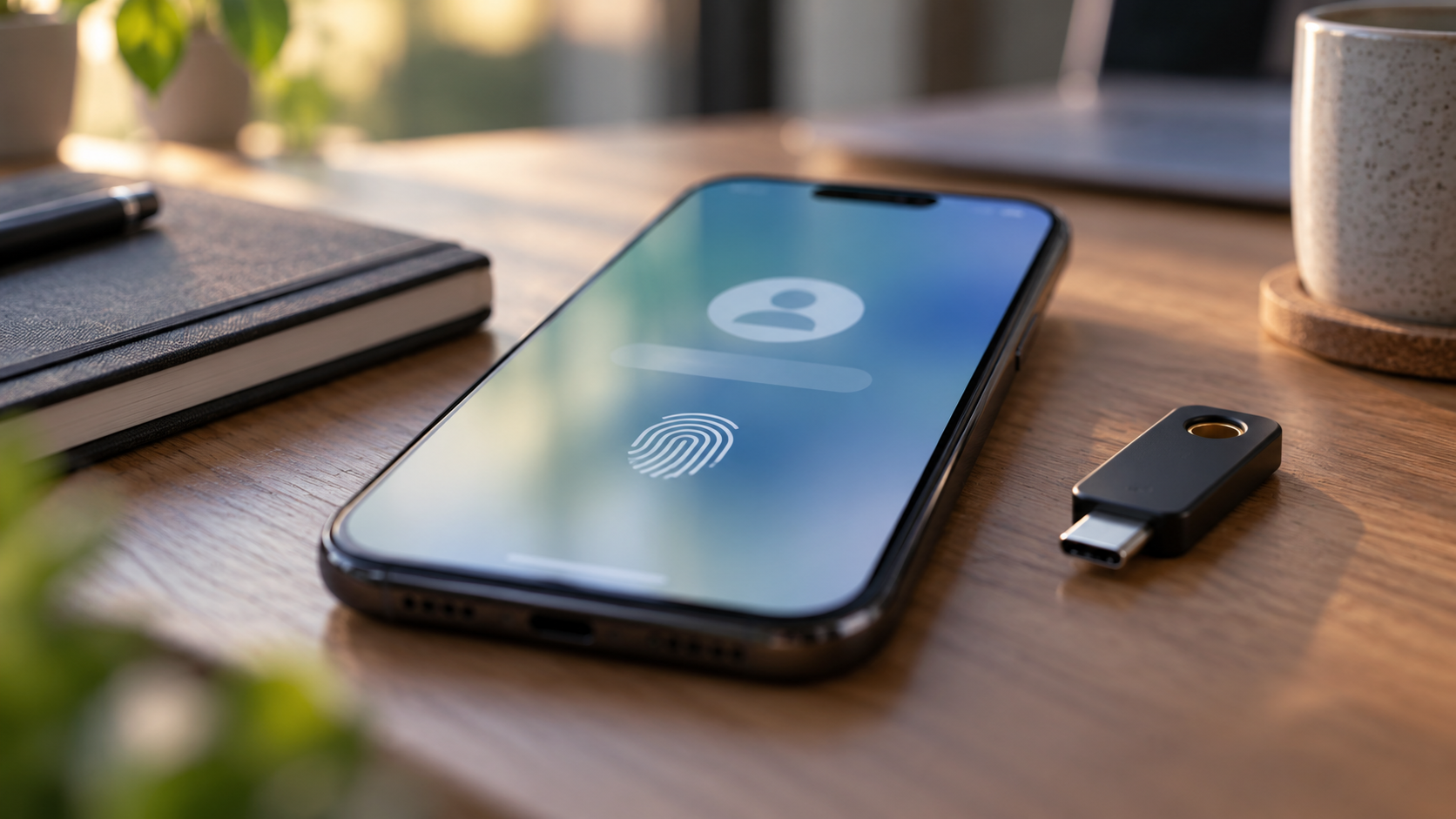
Access keys, also called passkeys or password keys, allow you to log into websites and applications using biometrics or the device's screen lock. Instead of typing a password that can be copied, you confirm ownership of the device. The technology reduces phishing scams, but requires care when choosing which devices to create the key on and how to recover the account if the phone is lost.

What is an access key?
When you create a passkey, the device generates a unique cryptographic key pair for that website or app. The private key is protected on your phone, computer, or a compatible manager; the service stores the public key. During login, the website sends a challenge, and the device responds after you confirm with your fingerprint, face, PIN, or local password.
The website never receives your biometric data. It only authorizes the system to use the key. This is different from sharing a password and also prevents an attacker from capturing a word typed on a fake page. Still, a key created on a shared device can give access to anyone who manages to unlock it.
When is it worth using?
Passkeys are useful for email, file storage, online stores, social networks, and services that already offer a "create a passkey" button. Use them for important accounts, but keep your recovery methods up-to-date. They don't eliminate the need for additional authentication in all scenarios and won't work on websites that haven't yet implemented the standard.
Before activating, confirm that the website address is the official one. The passkey should not be created after clicking on a link in a suspicious message. Open the app or type the address manually. This reduces the risk of registering credentials on a fake domain.
Create an access key in a Google Account
On your mobile phone or computer, access myaccount.google.com/signinoptions/passkeys, Sign in to your account and tap Create a passkey. Unlock your device when prompted. Google recommends creating passkeys only on personal devices and states that biometric authentication remains on the device.
After creating it, test it in a private window or another browser. Choose "Sign in with an access key" and confirm on your phone. Do not delete the password and recovery codes until you verify that you can log in through at least two methods. Some newly created keys may take a few days to be accepted across all login flows.
To use multiple devices, repeat the process on each one or use a manager that securely synchronizes passkeys. Check the device name in the account panel and remove keys from old, borrowed, or sold devices.
Using passkeys on iPhone
On iPhone, compatible websites may offer to create a passkey during registration or in security settings. Face ID or Touch ID authorizes login. Apple stores passkeys in the Passwords app and can sync them via iCloud Keychain across approved devices. See the Apple documentation on the Passwords & Keyrings app.
In iOS 18, open the Passwords app, unlock it, and search for the website in the corresponding category. In earlier versions, use Settings and Passwords. Apple explains that iCloud Keychain uses encryption and requires two-factor authentication. If you use a third-party password manager, set which app will handle autofill in Settings, General, AutoFill & Passwords.
In Safari, when a compatible website shows the option, choose to use a passcode and confirm with Face ID. If logging in is initiated on a computer, the iPhone can act as another device via a QR code and Bluetooth; check the screen before approving.
Android, Windows, and cross-platform sharing
Android devices can save passkeys in Google Password Manager or another compatible provider. On a Windows computer, the browser may ask for a PIN, biometric authentication, or a physical key. To log in on a different device, choose the option to use another device and follow the official procedure. Never scan a login QR code sent by a stranger.
Passwords are based on standards that allow interoperability, but the experience depends on the browser, system, and provider. A website might allow you to create one on an iPhone and use it on Android, or require you to bring the devices close together. If the option doesn't appear, update your system and browser; don't install extensions that promise instant compatibility.
Recovery and removal
A passkey is not a complete account backup. Keep a recovery email, a secure phone, backup codes, and a second form of authentication. If you lose your phone, use Locator or Find My to lock it and remove the passkey from the service dashboard using another device. After recovering your account, create a new passkey on a trusted device.
Remove passkeys from devices you've sold, returned, or shared. On Google, check the list of keys in the security panel. On your iPhone, open Passwords, locate the website, and delete the key if the service allows it. Deleting a key may prevent login through this method, so confirm there's another option first.
Privacy and boundaries
Biometric data doesn't leave the device, but the service can still record the time, IP address, browser, and login method. Read the website's policy. For work accounts, follow the organization's rule and don't create a key on a public computer. People who use screen readers or alternative methods may prefer a strong PIN if the sensor isn't accessible.
Passkeys protect against fake pages, but they don't prevent someone from tricking you into approving a legitimate login. If an authentication notification appears without you having initiated access, reject it and change your recovery password.
Checklist before activation
Confirm that the screen lock is protected, that the system receives updates, and that the account has current recovery email and phone number. Verify that the password app only syncs with your devices and that you know how to export or recover credentials according to the provider's rules. In a family, don't mix profiles: each person should use their own account and their own biometrics.
Keep a small inventory of the keys you've created. Note the website name, the device where the key was registered, and a date for review. This inventory makes removal easier when a phone is replaced and avoids the feeling that there are invisible credentials scattered around the house or workplace.
Frequently Asked Questions
Does Passkey replace the password forever?
Not necessarily. Some services keep the password as a backup or for account recovery. Use a unique and strong password and keep your recovery information up to date.
Is my fingerprint sent to the website?
No. Biometrics authorizes the use of the key on the device. The website only receives a cryptographic response.
Can I create a passkey on a public computer?
Avoid this. Whoever controls the unlocking of this computer can use the key. Opt for a personal device or a physical security key.
What should I do if my device is lost?
Block it using Locator or Find My, log out, and remove the passkey from the service dashboard. Use a reliable recovery method to log back in.
Conclusion
Access keys make logging in simpler and more resistant to phishing when created on the right device. Activate them on official websites, test recovery, maintain a second form of access, and remove credentials from old devices. The technology works best as part of a security routine, not as the sole plan.