How to use live captions on Android and iPhone

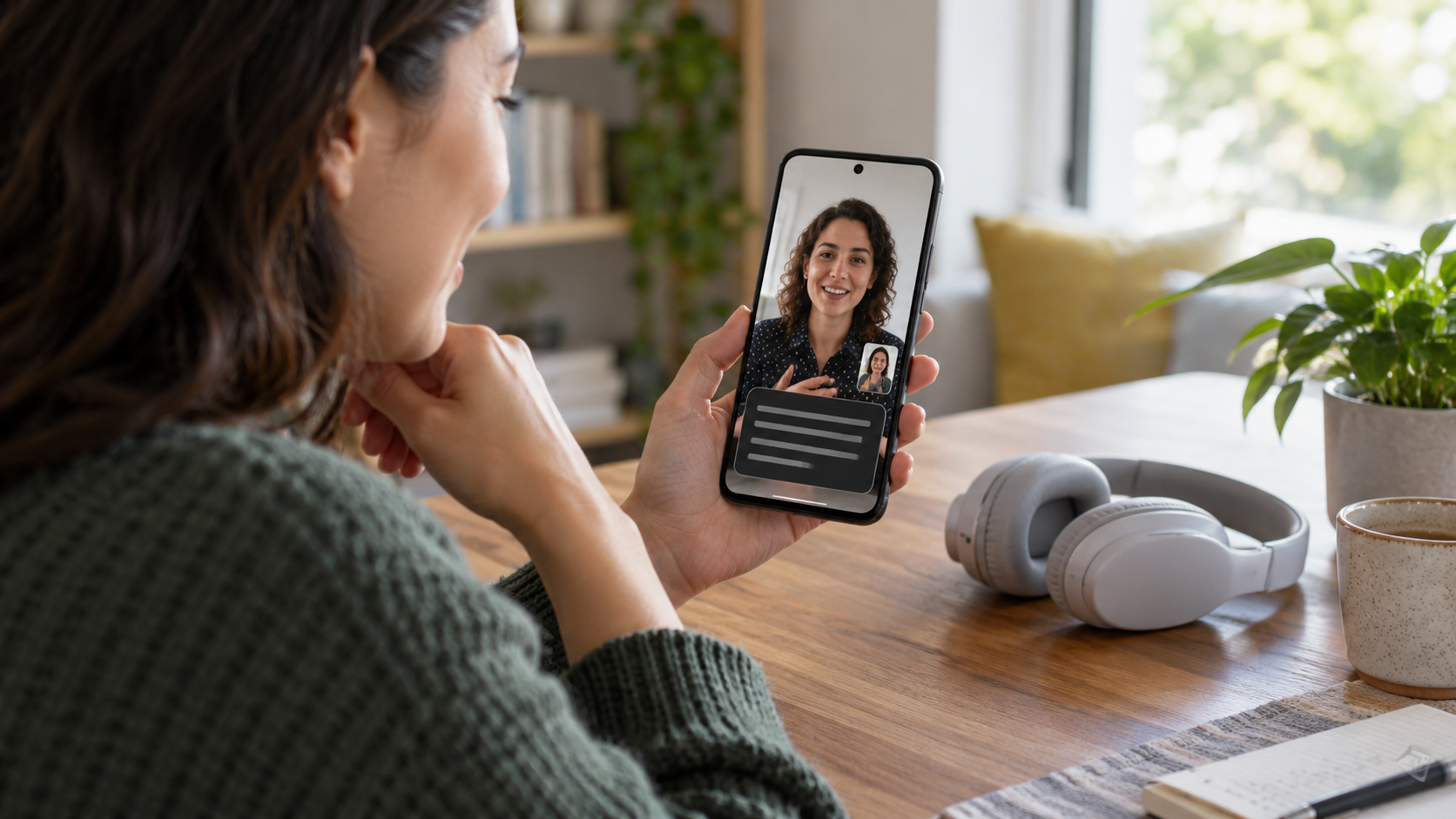
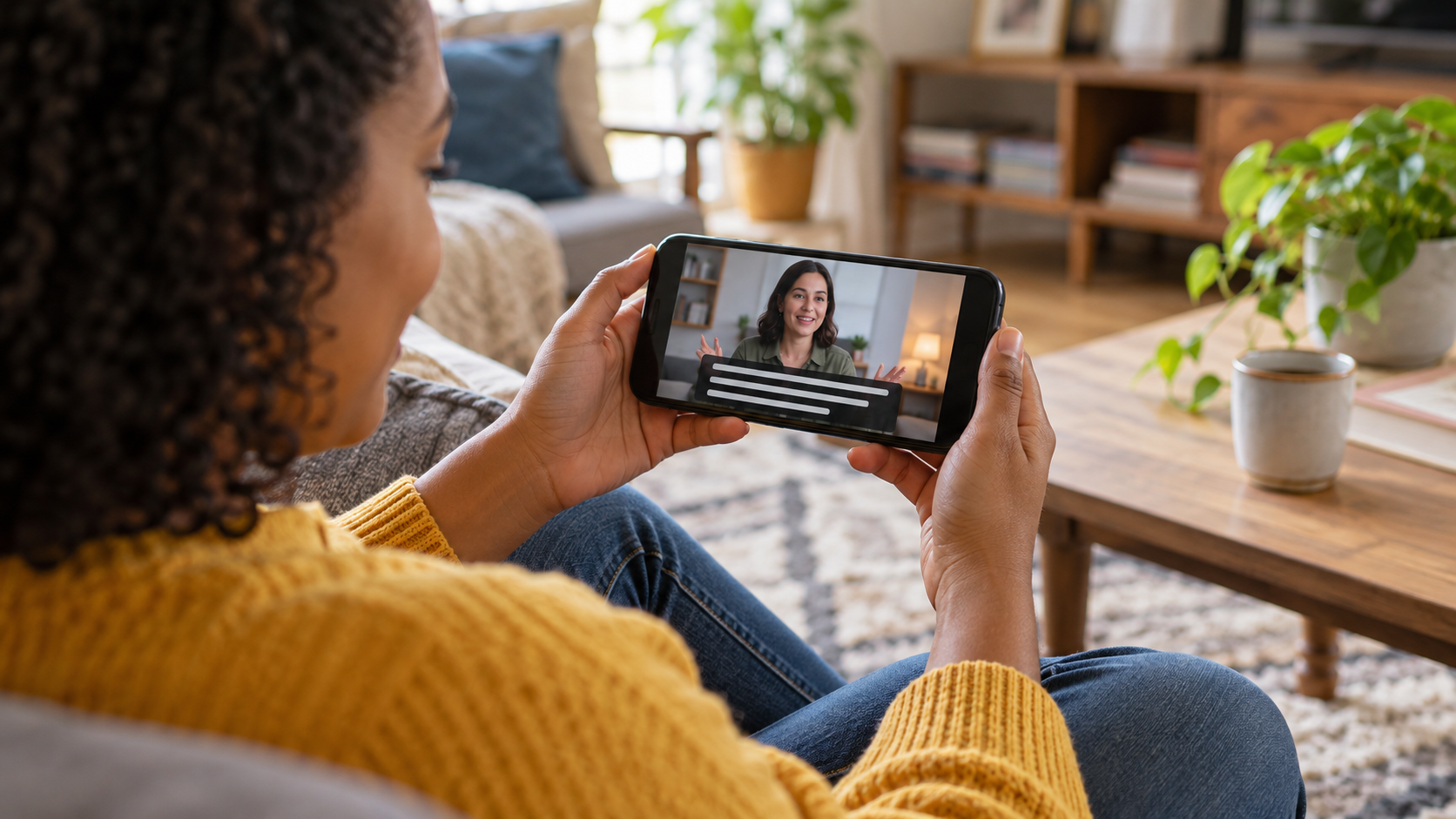
Live captions transform speech into text on the screen while a person is talking, watching a video, or participating in a call. This feature helps those with hearing loss, those in noisy environments, and those who prefer to follow difficult words in writing. It is not a perfect transcription nor does it replace revised captions: language, device, region, connection, and audio quality affect the result.
Live captioning, video captioning and transcription
Live captions appear during playback or conversation and usually disappear when the session ends. Video captions can be prepared by the creator and synchronized with the content. A transcript is a record that can be saved, edited, and searched. Knowing the difference avoids expecting a permanent archive of a resource that was designed for immediate accessibility.
Enable on Android
On many Android devices, press a volume button and tap More options. Look for the Instant Caption icon or menu. You can also open Settings, Accessibility, and Instant Caption. The path and appearance vary between Pixel, Samsung, Motorola, and other brands. Android accessibility guide List of compatible languages and devices.
Upon initial activation, the system may download a language pack via Wi-Fi. When processing is done on the device itself, the audio may remain local and not be sent to servers; confirm the indication displayed in your version. Some models offer subtitles for media, calls, and voice messages, while others limit the feature to videos.
You can drag the subtitle box, increase its size, and temporarily hide it. Adjust the style in Accessibility to improve contrast. If the button doesn't appear, update your system, confirm your primary language, and look for Instant Subtitles in the settings. Availability may also depend on the country and manufacturer.
Activate on iPhone
On your iPhone, open Settings, Accessibility, and Live Captions. Turn on the feature and choose whether it should accompany all audio or just calls and videos. Apple documents the path in [link to instructions]. Live Captions on iPhone. In FaceTime, there's a separate option to show transcripts during the call; see the [link/resource]. call guide.
Compatible models, languages, and regions may change with iOS. Some features rely on on-device processing; others require a specific version or language support. If you use translation with Apple's intelligent features, confirm model, language, and region requirements before relying on it in an important conversation.
How to improve accuracy
Subtitles need audible voices. Position the microphone closer to the person, reduce background music, and avoid talking over others. In videos, prefer an audio track without excessive compression. Proper names, accents, slang, numbers, and technical terms are sensitive points; check the sentence for context before acting.
When the captioning is delayed, pause and resume the content. In a call, ask the person to repeat numbers and confirm via message. Do not use automatic captioning as the sole proof of medical, legal, or financial instruction. To document decisions, write a summary afterward and send it to the participants.
Privacy and battery
Read the system warning about processing and storage. Even when there is no recording, the screen may display names, addresses, and other information to those nearby. Use headphones, reduce visibility, and disable the feature when finished. Language packs take up space, and continuous audio analysis can drain the battery, especially on older devices.
In a meeting, let people know you're using captions. This builds trust and allows for corrections. Never make a hidden recording just because the transcript is visible. If a third-party app promises unlimited transcription, check where the audio is sent, how long it's stored, and how to request deletion.
Captions for calls and voice messages
Phone calls are more difficult because the sound arrives compressed and there may be echo. On Android, check if your model offers captions for calls and if your carrier allows the feature. On iPhone, test Live Captions on a short call before using it for calls. For voice messages, play at a moderate volume and compare critical words with the original audio.
In video conferencing, the application may have its own captioning system. If it's more accurate or supports multiple languages, use it instead of maintaining two layers. Confirm who can see the transcript and whether it's attached to the recording. The accessibility feature should make the conversation clearer, not create a new, exposed file.
When the feature does not appear
Check your system version, language, and device model. Restart after an update and connect to Wi-Fi to download components. If it still doesn't work, check the manufacturer's accessibility support center. Transcription apps can be an alternative, but review permissions and privacy policies before granting microphone access.
If you require professional accuracy, consider hiring an interpreter, a human captioning service, or a proofread transcript. These options cost more, but are suitable for classes, events, and documents that demand precision. Use automatic captions as a backup, not a guarantee.
How to adapt reading for each person.
Not every reader needs the same presentation. Increase the font size and contrast for those with low vision, position the box so it doesn't cover the controls, and choose colors that remain legible in bright environments. In a room, a propped-up phone might be more comfortable than holding the device throughout the entire conversation.
For children or language learners, combine captioning with slowed-down speed and pauses. For meetings, share an agenda with names and acronyms before starting; this helps the system and the person recognize terms. If multiple people use the feature, define who corrects questions and where the final summary will be saved.
In content with music, ambient sounds, or more than one speaker, explain that the subtitles may omit details. Use verbal description or notes to indicate scene changes. Accessibility improves when the creator speaks clearly and offers an alternative channel, not just when the phone tries to interpret the audio.
Frequently Asked Questions
Do live captions record what is being said?
Behavior depends on the device and mode. Some processes locally and don't save text; other apps may send audio to the cloud. Read the feature notice and the app's policy.
Why are there misspelled words?
Noise, accent, microphone distance, and unusual terms affect recognition. Improve the audio and confirm important phrases by listening again.
Does it work in any language?
No. The list of languages and regional availability vary. Consult the documentation for Android, iPhone, and the app you are using.
Can I use it in an emergency?
Don't rely on automatic captions for critical instructions. Use official channels and confirm information via text or with a person.
Before an event, test it with the same microphone, language, and room. Save a support contact in case the feature fails.
To follow a long conversation, pause and confirm the general meaning instead of correcting each line. The caption is a visual aid; the decision still depends on the original source and context.
Conclusion
Enable live captions as an accessibility layer, test them in real-world situations, and adjust language, size, and privacy settings. When the conversation is important, confirm numbers and names through another channel. This way, the feature expands access to the audio without creating a false sense of accuracy.