How to free up space on your phone without deleting important photos.

When your phone warns you that storage is almost full, the problem is usually a combination of photos, videos, downloads, and temporary files. Randomly deleting things can erase important memories or make apps unstable. The best solution is to map out what's taking up space, create a copy of what should be preserved, and only then clear categories that can be recreated.
This guide presents a safe method for freeing up space on Android and iPhone. You'll see where to find the largest files, how to review duplicate media, when to use the cloud, what happens when you clear the cache, and how to set a routine to avoid hitting the limit every week. Menu names vary, but the principles work across different countries, brands, and carriers.

Start by diagnosing the storage.
Before removing any items, open the system storage panel. On Android, search for... Settings > Storage; On an iPhone, use Settings > General > iPhone Storage. The screen lists apps, photos, videos, downloads, and system data. Wait a few seconds for the phone to calculate the sizes. A high number in "other" or "system" cannot always be cleared manually.
Observe which categories have grown since the last cleanup. A messaging app might store years' worth of received videos, while a streaming service downloads episodes for offline viewing. Note the three largest groups and work on them in that order. Freeing up a few gigabytes of large videos is often more efficient than removing dozens of small apps you still use.
Make a copy before deleting photos.
Photos and videos are the most difficult files to replace. Enable backup in Google Photos, iCloud Photos, or another service you trust and wait for it to complete. Open the library through your browser or another device to confirm that recent files are there. If your connection is limited, back up over Wi-Fi and keep your phone charging.
After confirming the copy, use the service's own space-freezing function. Google Photos offers an option that removes items already stored in the cloud from your phone; on iPhone, the "Optimize iPhone storage" setting keeps smaller versions on the device while the originals remain in iCloud. Read the confirmation message: deleting the local copy should not remove the file from the cloud, but the service's trash can may synchronize deletions.
Find large and duplicate videos.
Open your file manager and sort by size. Look for screen recordings, videos sent multiple times, and files received by groups. Before deleting, play items that look the same. One version might have a higher resolution or contain a part you need. In messaging apps, go to... Settings > Storage and data and use the media manager to delete copies via conversation.
Avoid apps that promise to find duplicates without explaining how they perform the comparison. Some delete similar photos, not just identical copies. Prefer the system's native tool or manually review the results. If an export folder exists, move the files to a computer or external drive before emptying the recycle bin.
Clear downloads and offline media.
The Downloads folder accumulates PDFs, installers, images, and attachments that you've opened only once. Sort by date and remove only what you recognize. Music, video, and podcast apps also store offline content. Open each app and look for the downloads area to remove previously viewed episodes, old playlists, or files with higher quality than necessary.
Offline maps deserve attention: they can take up hundreds of megabytes and may need to be downloaded again when you travel. If the phone is used in an area without signal, keep the map for the trip and remove the others. The same applies to keyboard languages, voice packs, and camera filters that are not used.
Clearing the cache is different from deleting data.
The cache stores thumbnails and temporary files to speed up the application. On Android, you can open Settings > Apps > Storage and caching and touch Clear cache. This is usually reversible: the app recreates the files when necessary. “Clear storage” or “Delete data” is different and may end your session, remove settings, and delete content that is not synchronized.
On iPhone, there isn't a universal button to clear the cache. You can use the app's own option, delete and reinstall the app, or enable the feature to unload unused apps. Log in and confirm the backup before reinstalling messaging and publishing apps. Do not clear data from an authentication app without checking how to recover the accounts.
Review unused applications
The storage panel shows which apps are taking up the most space and when they were last used. Uninstall games and editors you don't open, but keep apps you need for travel, banking, or authentication. On Android, the Play Store may archive rarely used apps while preserving personal data; on iPhone, "Uninstall unused apps" removes the program and preserves files for future reinstallation.
After removing the file, restart your phone and check the storage again. If the capacity doesn't change, empty the trash of photos and files. Some systems keep deleted items for 30 days or more before permanent deletion. The trash is a second chance, but it also continues to occupy space until it is emptied.
Use external storage with care.
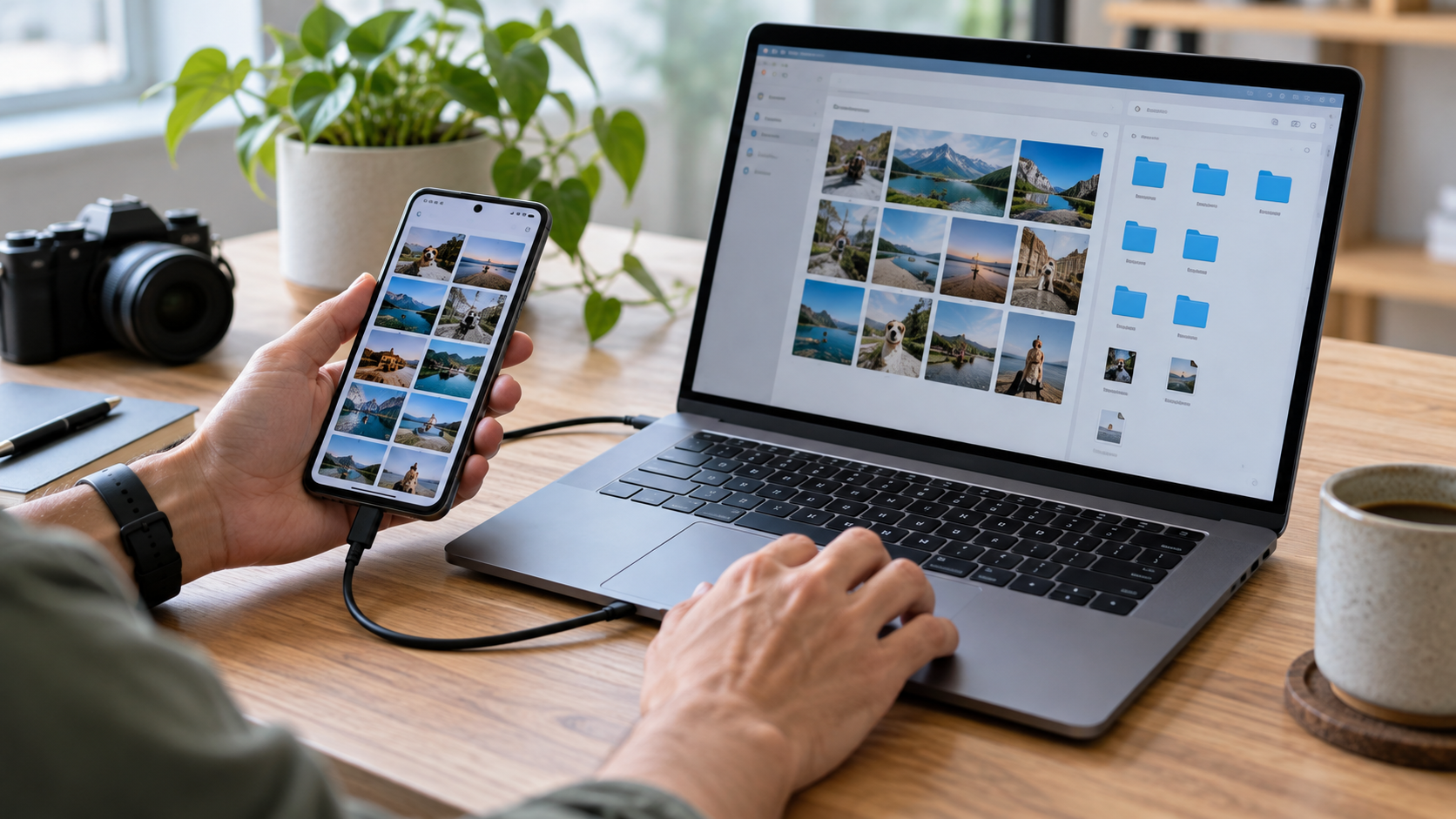
A computer, USB-C flash drive, or microSD card can free up space on your phone. Copy one folder at a time, open a few files at the destination, and compare the number of items before deleting the source. Use the device eject option to avoid data corruption. On older cards, errors may occur without warning; keep another copy for irreplaceable photos.
Cloud services are convenient for accessing files in multiple countries, but they rely on internet access and may incur charges when your data allowance runs out. Read the plan, deletion policy, and export options before transferring your library. For work documents, ensure your personal account complies with company rules.
Create a prevention routine.
A quick weekly cleanup prevents emergencies. Review downloads, received videos, and the trash. Every month, check the storage panel and remove offline maps and playlists that won't be used. Set up automatic backup and upload photos only over Wi-Fi if your mobile plan is limited.
Enable storage alerts when the system offers this option. Leave some free space for updates and for the camera to function: a full phone may fail to save a photo or install a security patch. If the capacity remains insufficient even after cleaning, consider upgrading to a model with more space instead of resorting to risky deletions.
Frequently Asked Questions
Will clearing the cache remove my photos?
Clearing an app's cache shouldn't remove personal photos. Deleting data or uninstalling the app may remove local content that hasn't been synced. Confirm your backup before using more advanced options.
Can I delete the Android or iPhone folder?
No. These folders may contain components necessary for the system and applications. Use the storage panel and file manager to remove identified items.
Why didn't the space return after deleting videos?
Check the trash folders in your photo app, file manager, and messaging app. Some items can be retained for weeks. You may also need to restart your phone to update the calculation.
Is a microSD card a definitive solution?
It expands storage capacity on compatible devices, but it can be unreliable and slower than internal memory. Use it for backed-up files and keep a copy in another location.
Conclusion
Safely freeing up space is a process of diagnosis, backup, and selective deletion. Start with large files, confirm your backups, clear cache and downloads, and only then remove applications. With a short routine and a free margin for updates, your phone remains fast without turning the cleaning process into a risk for your photos and documents.
Official sources: Google Photos and freeing up space e iPhone storage management.