Automatic captions on your phone: how to enable and adjust them on Android and Chrome.
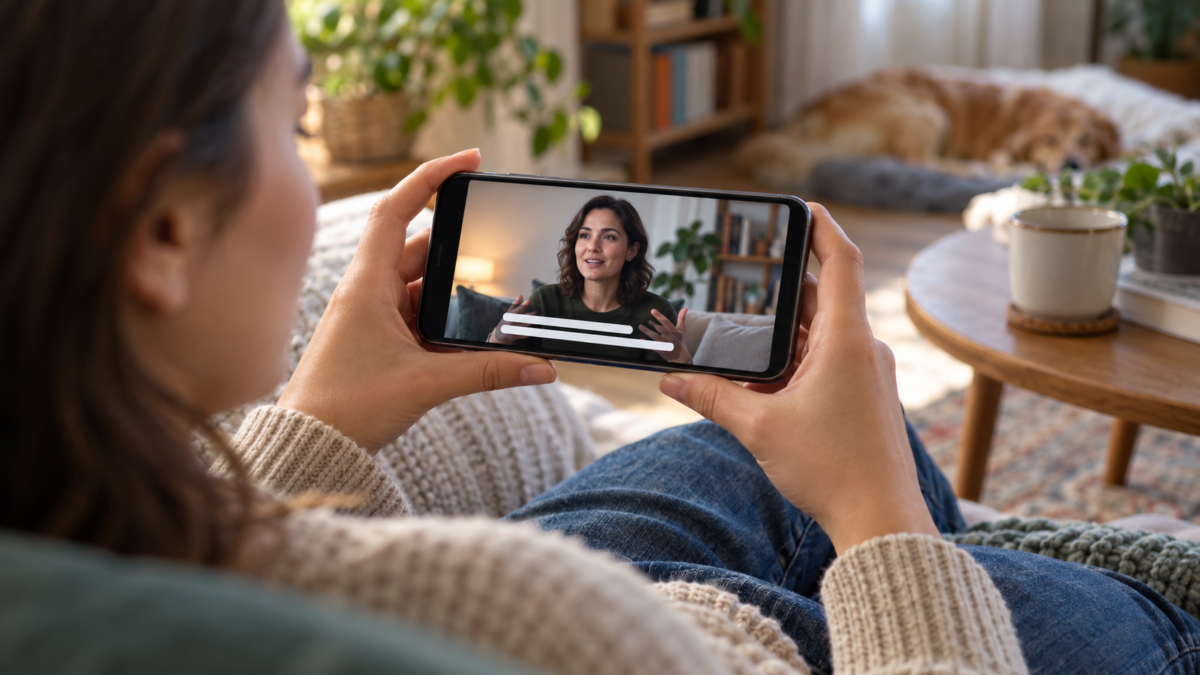

Automatic captions help you follow a video when the environment is noisy, when you can't use the audio, or when the content is in a language that requires more attention. Android and Chrome offer their own features to transform speech into text, but they don't work exactly the same way on all devices, browsers, and regions.
In this guide, you will understand what Live Caption is, how to activate and deactivate the function, adjust language and size, resolve delays, and choose an alternative when the device is not compatible. The goal is to make playback more accessible without promising a perfect transcription: noise, accents, music, and technical terms still affect the result.
What are automatic captions?
Automatic captions are generated by voice recognition. The system listens to the audio played on the device and displays a transcription on the screen. In many Android models, the feature is called Live Caption. In Chrome, there is a similar setting for videos, podcasts, calls, and other audio content played in the browser.
The transcription can be processed locally, depending on the device and language. This helps keep the audio within the device, but also means that availability varies depending on the installed language pack and the capabilities of the phone or computer. The caption does not alter the original video and is not automatically sent to the content creator.
How to activate on Android
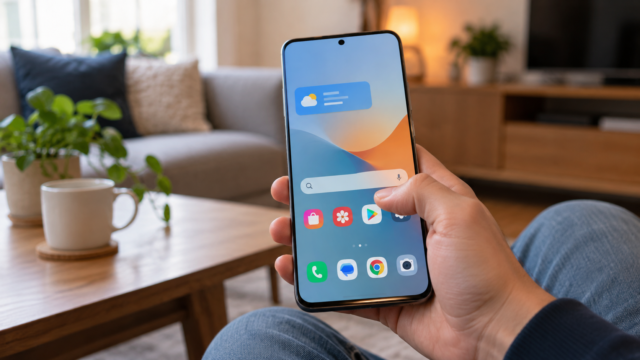
Open your Android settings and look for Accessibility. On some devices, it may appear under Sound and vibration or Subtitles. Look for Live Caption, Instant Caption, or an equivalent name and turn it on. The terminology varies between manufacturers, so use the internal search function in the settings if you don't find the option right away.
When the function is active, press a volume button to see the subtitle control, if the device offers this shortcut. Tap the icon to turn it on or off without returning to the settings. Some phones allow you to choose whether the box appears only when there is speech; others leave a small floating button on the screen.
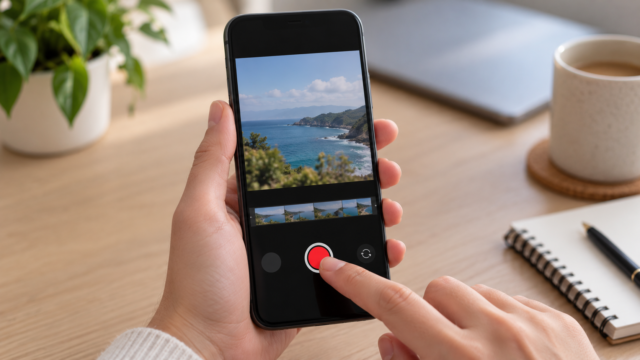
Try playing a short video and speaking some familiar terms. If nothing appears, confirm that the audio is playing through the speaker or a compatible app. Protected content, calls with specific apps, and very old files may behave differently.
Useful adjustments for reading
The subtitle menu usually allows you to change the text size, color, and background. Choose enough contrast for the video without obscuring important information. A semi-transparent black box is usually more legible than light-colored letters over a very dynamic image.
If you wear glasses or are watching from a distance, increase the font size gradually. Text that is too large can take up multiple lines and obscure faces or controls. On a small screen, try landscape orientation and adjust the brightness to reduce glare before concluding that the caption is illegible.
Some versions offer a filter to hide profanity or unspoken sounds. These filters can remove necessary words in a lecture, interview, or news report. Review the setting according to the context and disable it when text fidelity is more important than moderation.
How to use subtitles in Chrome
In Chrome on your desktop, open Settings and look for Accessibility. Turn on Instant Caption or Live Caption. The browser may download speech recognition files before displaying the first lines. Keep the window open during this process and choose an available language from the menu.
Once activated, the caption appears in a window that can be moved and resized. It works on videos, streams, and other content played in a tab. If the window disappears, check if it was minimized behind another application or if the audio was paused.
On a shared computer, remember that the window position and size are associated with your Chrome profile. Use a separate profile for work or study when different people are using the same machine. Extensions that alter audio may interfere with recognition and should be tested one at a time.
Languages, accents, and audio quality
Recognition tends to work best with clear speech, a close microphone, and little background noise. Music, applause, and several people speaking at the same time can produce incomplete sentences. The system can also confuse proper names, addresses, and technical terms that do not appear in common vocabulary.
When watching an international video, select the language that corresponds to the speech, not necessarily the language of your device's interface. The list of languages may be smaller on an older phone or on an account managed by an organization. When the correct language pack is not available, subtitles generated by the video itself usually offer a more reliable result.
Do not use automatic transcription as the sole source in critical situations. In a medical consultation, an evaluated class, or a meeting with important decisions, confirm the passages directly in the audio or request a human review. Subtitling is a support and accessibility tool, not an official record.
How to fix delays and failures
A slight delay is normal because the system needs to analyze a few seconds of audio before completing the sentence. If the delay increases, close tabs and applications that consume processing power, check your free space, and update your system. During a call, an unstable connection can also cause the audio to arrive in chunks.
When subtitles freeze, turn the function off and on again. In Chrome, try a new tab and temporarily disable audio extensions. On Android, restart your device and check if the chosen language has been downloaded. If only one app fails, the problem may be in how it sends audio to the system.
If the box covers important buttons, move it to another area or reduce its size. In vertical videos, the bottom often contains controls and comments; positioning the caption higher up can improve the experience. Make the adjustment before starting a meeting or presentation.
Frequently Asked Questions
Do automatic subtitles work without an internet connection?
On some devices and in some languages, recognition is processed on the device itself and may work offline. Other models require downloading a package or an initial connection. Test it in airplane mode before traveling if you rely on this feature.
Can I save a transcript of a video?
Live Caption typically displays the text without creating an editable caption file. To save content, look for a transcript provided by the service or make your own annotations, respecting copyright and the privacy of the people appearing in the audio.
Why do names and numbers come out wrong?
Proper names, codes, acronyms, and numbers have little redundancy for the system to correct. Pause the video, rewind a few seconds, and check the audio. In an important document, confirm the information in a written source.
Is there an alternative for incompatible devices?
You can use native player subtitles, system accessibility services, or transcription apps. Read the privacy policy before sending audio to an external service, especially when the content includes private conversations.
Please refer to the current details in the documentation. Live Caption on Android and in the instructions of Chrome on instant captions. For other ways to make mobile phones more affordable, see also our guide on Read aloud on your cell phone.

Conclusion
Enabling automatic captions on Android or Chrome can make videos, calls, and classes easier in many situations. Configure the language, contrast, and position according to your screen, test the feature with the audio you actually use, and keep an alternative when the transcription needs to be accurate. With realistic expectations, captions become a discreet support for listening to and understanding content in different environments.