How to control mobile data usage on Android and iPhone

Mobile data plans can run out before the end of the billing cycle for reasons that often go unnoticed: high-quality video recording, backups outside of Wi-Fi, automatic updates, and apps running in the background. control mobile data, The best way to start is to find out which services are actually using up your data allowance, and only then choose what to limit.
Android and iPhone show estimates per app, but the period measured by the device may not coincide with the carrier's billing cycle. Use your phone's dashboard to find the biggest consumers and confirm the total charged or deducted in your carrier's app.
What counts as mobile data?
This refers to the data traffic used when the device is connected to the carrier's network, such as 4G or 5G. The same application can consume mobile data or Wi-Fi depending on the active network. A video downloaded previously via Wi-Fi, for example, can be watched without needing to be downloaded again; a live stream continues to consume data while it plays.
Roaming deserves separate attention. In another country or in an area outside your usual network, the rules and prices may change. Controlling your mobile data plan helps avoid surprises, but it doesn't replace confirming your plan with your carrier.
How to check usage on Android
The names vary between manufacturers and versions. Look in the settings for... Data usage, Network and internet or Mobile data. The screen usually shows the total usage for the period and a list of the apps that used the operator's network the most.
On Pixel devices, the Data saving mode Limits most background traffic to Wi-Fi. You can allow exceptions for apps that need to receive messages or update information even when they are not open. On other Android devices, search for Data economy and check the instructions provided by the manufacturer.
Google also explains that some steps only work on certain versions of Android. If you can't find the menu, use the settings search and confirm your system version before following instructions for another model.
How to check battery usage on iPhone
On your iPhone, open Settings > Cellular or Settings > Mobile Data, Depending on the language and region, scroll down to the list of apps to see how much each one has used. You can turn off mobile data for a specific app; it will continue to work over Wi-Fi.
A Apple documentation It also shows how to activate the Low Data Mode, which reduces automatic updates and background tasks. When traveling, check Data roaming and turn it off when there is no suitable international plan.
If you use two SIM cards, check which line is selected for data. A correct report on the wrong line can lead to an incorrect decision.
How to align the mobile phone report with the carrier's billing cycle.
- Check your carrier's app, website, or bill to see when your billing cycle begins.
- Check the period shown in the device settings.
- If the periods are different, manually adjust the start date when the system offers this option, or note the date for comparison.
- Reset the statistics on the first day of the cycle, if that makes sense for your tracking.
- Use the carrier's number as a billing reference and the device report to find out which apps need attention.
This difference explains why phone numbers and carrier numbers don't always match. The device may count certain services differently, and the carrier may update usage with some delay.
Four adjustments that typically reduce consumption.
1. Reserve large downloads for Wi-Fi.
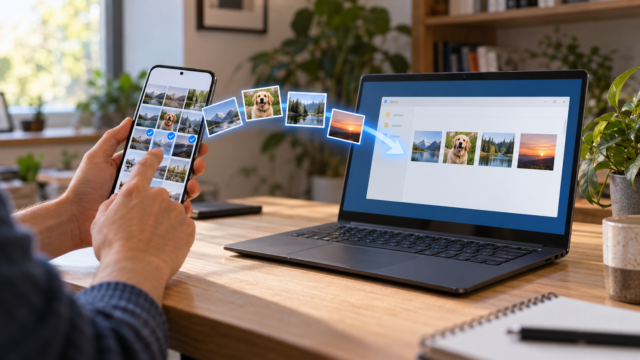
Movies, playlists, podcasts, updates, and backups can wait for a reliable network. When the app offers an option to download only via Wi-Fi, enable it. To organize files afterward, also see our guide on... Transfer files from your mobile phone to your computer..
2. Reduce autoplay and video quality
Social media and video services can load content even when you didn't intend to watch it. Disable autoplay and choose a lower quality when on a mobile network. The exact savings depend on the service, the video, and the viewing time; there's no one-size-fits-all number that works for all devices.
3. Limit the background with discretion.
Blocking all background data can delay important notifications. Start with apps that sync photos, videos, or content you rarely access. Keep exceptions for messages and tools that need to alert you.
4. Be careful with hotspots and roaming.
Sharing your internet connection with a computer can quickly deplete your data allowance, especially during updates. When roaming, disable mobile data for non-essential apps and confirm rates with your carrier before activating international data.
When the data economy gets in the way
After limiting traffic, test the functions you actually need. Banking, messaging, maps, and authentication services may depend on background activity. If a notification arrives late, review the app's exceptions instead of turning off all controls.
The power saving mode doesn't turn a small plan into an unlimited one. It only reduces automatic tasks; a long streaming session, a video call, or a manually initiated download can still use a lot of data.
Checklist before traveling
- Check your current billing cycle and balance directly with your mobile carrier.
- Download maps, music, and documents while on Wi-Fi.
- Review roaming and the chosen data plan on dual-SIM devices.
- Enable data saving mode and allow necessary exceptions.
- Disable mobile data for apps you don't intend to use.
Guidelines based on official Google and Apple documentation consulted on September 18, 2026. Menus and features vary by system, manufacturer, carrier, and region.

Conclusion: first measure, then limit.
Managing mobile data becomes simpler when you separate data analysis from data savings. Find out which apps are using your data allowance, align the usage period with your carrier's billing cycle, and apply limits only where they don't interfere with important alerts. This way, you reduce wasted data without turning your phone into a collection of overdue notifications.