How to use one-handed mode on Android and iPhone

Using your phone with one hand seems like a small necessity, but it makes a difference when you're standing on public transport, holding a bag, or trying to reach the screen without straining your fingers. Android and iPhone offer their own features to bring the top of the interface closer to your thumb. They don't reduce the content or change your apps: they only temporarily change the screen's position. In this guide, you'll see how to activate one-handed mode, which gestures work on each platform, and how to deal with limitations related to manufacturer, device size, and screen orientation.

What does the one-handed mode solve?
Large screens make reading and editing easier, but they leave menus at the top out of the natural reach of the thumb. One-handed mode moves the active area downwards for a few seconds. This allows you to tap buttons, open notifications, and confirm an action without changing your grip. This feature is different from zooming in on the interface: it preserves the aspect ratio of the elements and is usually deactivated when you touch outside the reduced area.
Before activating it, consider the context. If you're walking, prioritize stopping or supporting your phone, because any reach mode reduces hand stability. For sensitive tasks, such as confirming a purchase or deleting a photo, check the entire screen before touching. The feature helps with ergonomics, but it doesn't replace attention.
How to activate on Android
The exact path may vary between Samsung, Motorola, Google Pixel, and other brands, but the logic is similar on Android 12 or later:
- Open Settings and use the internal search for "one-handed mode" or "one hand".
- Enter One-handed mode and activate the option. Some devices show the alternative within System, Gestures or Advanced features.
- Choose the gesture recommended by the manufacturer. On many models, swiping down near the bottom edge reduces the screen size; on others, a double tap on the navigation bar does the same.
- Tap the arrow or the dark area around it to return to normal size. If the feature has a time shortcut, it may also automatically restore the screen.
Android allows you to add a shortcut to quick settings on several models. Double-swipe from the top, tap the edit pencil, and look for the one-handed mode tile. Place it among the first items so you don't have to open Settings. If you can't find the function, check your brand's specific documentation and confirm that your device has received the necessary system version.
How to use Easy Access on iPhone
On the iPhone, the feature is called Easy Access (Reachability). Open Settings > Accessibility > Touch and activate Easy Access. On models with Face ID, swipe down from the bottom edge of the screen. Make the movement along the bottom strip, without starting in the center, so that the system recognizes the gesture. The top half will slide down and you can tap the desired button.
On iPhones with a Home button, double-tap the button without pressing it. The gesture needs to be quick and light; pressing the button opens another function. To restore the screen, tap the arrow at the top of the shifted area or swipe up from the bottom edge. Easy Access works best in portrait orientation and may not appear in full-screen apps, games, or videos.
Adjustments that make the gesture more reliable.
Cases that are too high at the bottom edge hinder the swipe. Test the gesture with the case installed and, if necessary, increase the touch sensitivity or use the gesture navigation bar instead of buttons. On Android, some manufacturers allow you to choose whether the content is aligned to the left or right, which helps those who alternate their dominant hand. On iPhone, the position is centered and cannot be moved.
When you switch between apps, the mode may remain active or end, depending on the system. If an app is unresponsive, return to the home screen and try again. Rotating the phone usually restores the full area. For typing long texts, it's safer to prop up the device or use voice dictation; the reduced area doesn't change the keyboard size.
Limitations, accessibility and privacy
One-handed mode is not available in all versions, interfaces, or launchers. Manufacturers may remove the shortcut, rename it, or limit the feature to certain gestures. On tablets and foldables, the behavior also varies. The reduction is visual, so it does not correct poorly designed buttons within an application. If you have tremors, pain, or persistent difficulty, consider accessibility features such as touch size, voice control, and screen readers.
The feature does not collect location data or send data to the internet. However, the shifted screen may cause you to tap the wrong button. Always confirm the contact name, value, and displayed permission before accepting. For sensitive accounts, combine one-handed mode with biometric locking and discreet notifications on the lock screen.
Alternatives when the feature does not appear.
Reducing the font size or choosing a launcher with bottom navigation can decrease the necessary reach. Accessibility shortcuts, such as floating menus and voice control, are useful when the problem is touching specific areas. Some keyboards allow you to move the typing area to one side; this is different from reducing the screen size, but it solves the problem of quick messages. Another option is to connect a keyboard or use a watch for simple actions while keeping the phone supported.
Frequently Asked Questions
Does one-handed mode work in all apps?
It shifts the system interface and most common screens. Games, cameras, full-screen videos, and apps with their own gestures may bypass it. In these cases, use the accessibility menu or rotate the device.
Does enabling this feature permanently reduce the image size?
No. The screen returns to its normal size when you touch outside the reduced area, use the back arrow, or switch apps, depending on the model. The size of text and icons remains the same.
Why isn't the gesture working on my Android?
Check the system version, search for the term in the Settings search bar, and test without the case. The brand's interface may use a double tap on the bar, a swipe on the edge, or a floating button. If the option doesn't exist, the device probably doesn't offer the feature natively.
Can I use Easy Access with my iPhone in landscape mode?
The feature was designed for portrait orientation and can be disabled when the app is in full-screen or landscape mode. Switch back to portrait orientation and try the gesture from the bottom edge.
Conclusion
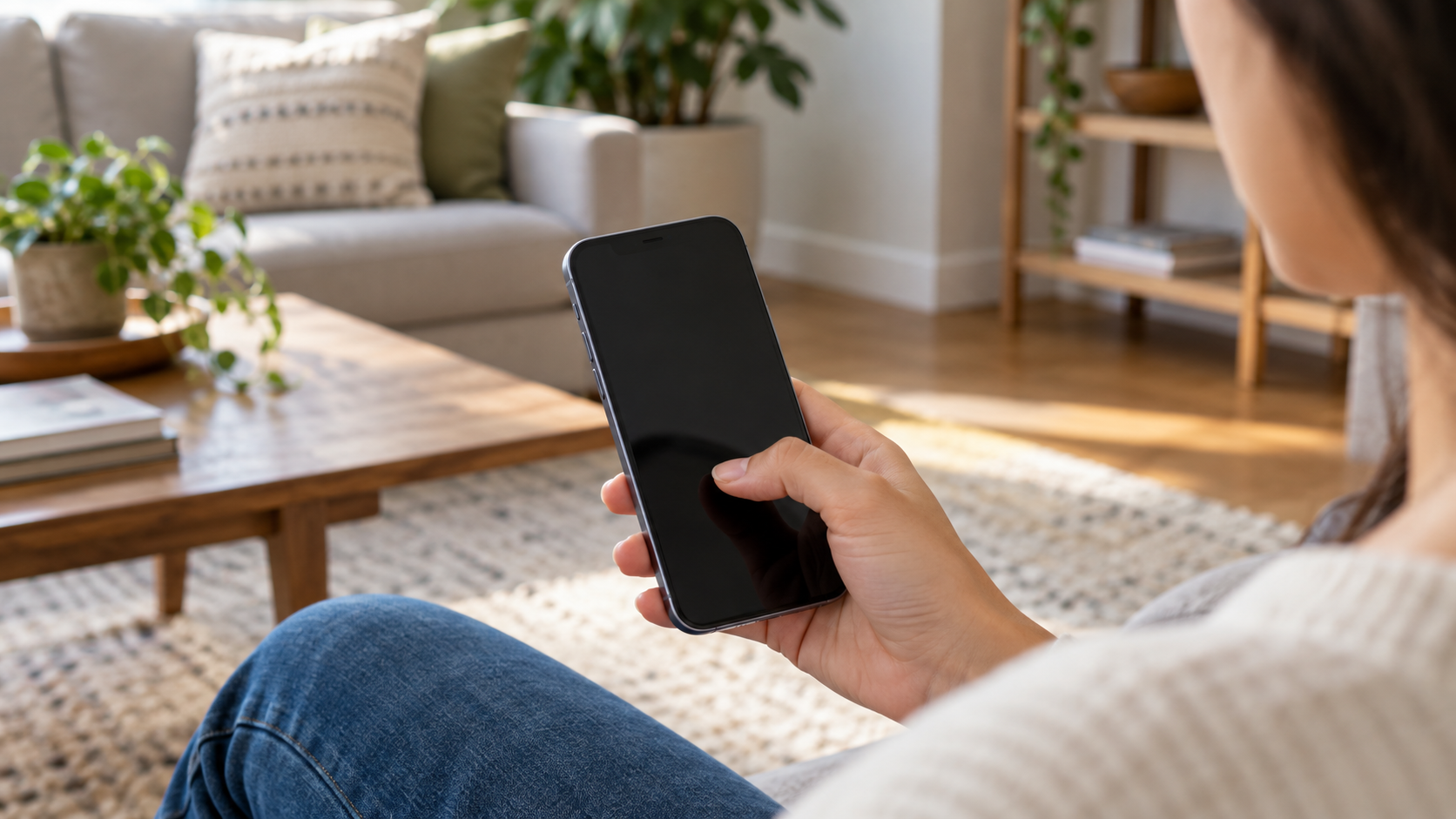
Activating one-handed mode is a simple change that improves range without requiring an extra app. Find the gesture on your device, test it with a case installed, and use the feature for short tasks, always checking for important confirmations. If range is still lacking, combine it with voice commands, accessibility shortcuts, or a more secure resting position. For other ways to use your phone with less risk, see also How to share the internet safely..
A good way to create a habit is to leave the shortcut available only when it's truly helpful. After completing the task, restore the screen to prevent accidental touches on the displaced area. If you share the device with someone else, explain the gesture so that no one thinks the screen is defective. On devices used by the elderly or children, combine the reduced reach with larger font sizes and favorite contacts at the bottom.