How to Safely Free Up Space on Your Phone: See What Really Works
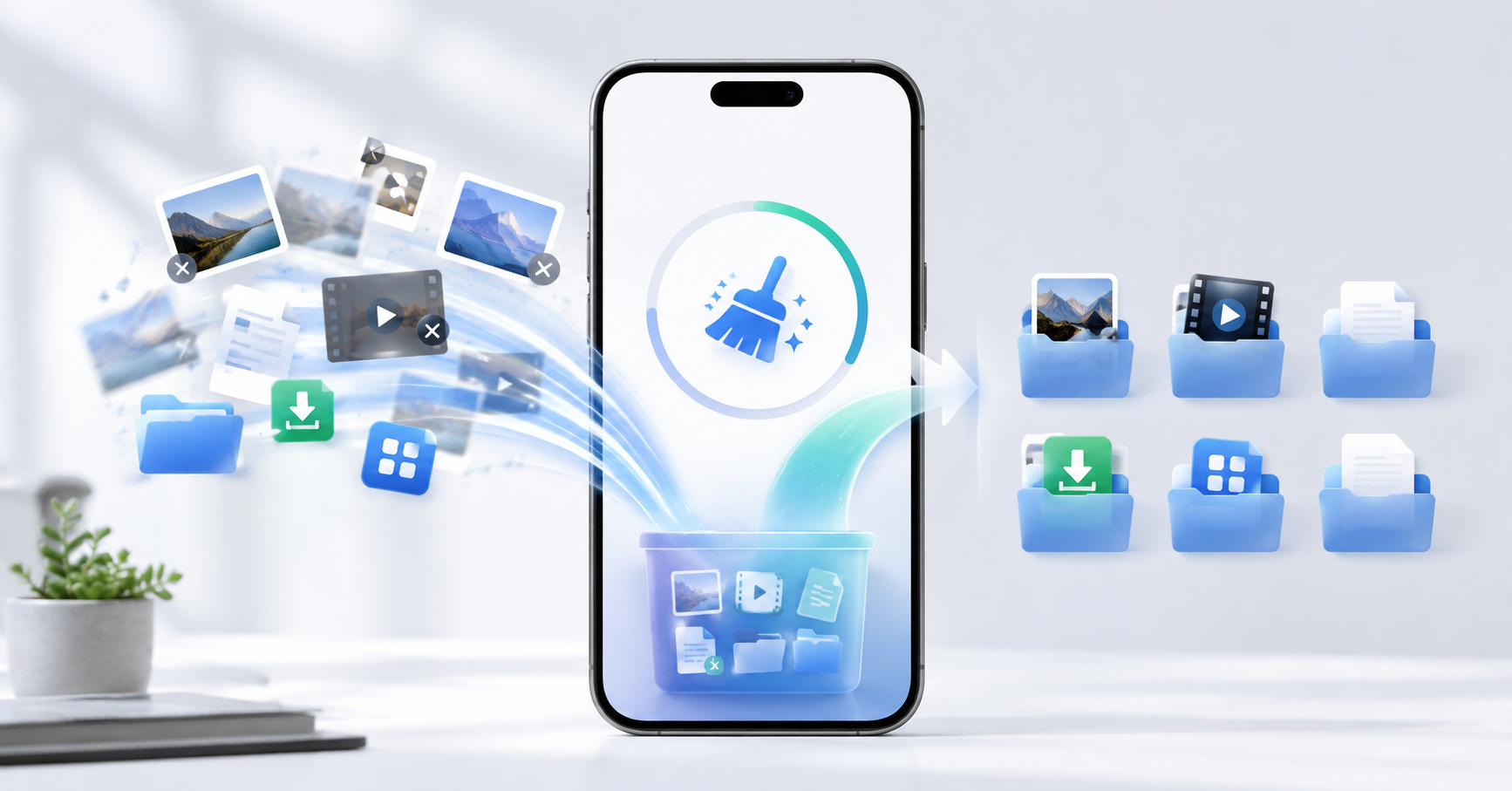
Is your phone showing "storage full" warnings, preventing you from downloading files, or making it increasingly difficult to find space for new photos and videos? Before installing various cleaning apps or randomly deleting files, it's worth figuring out what's actually taking up space on your device.
In most cases, the biggest culprits are videos, photos, files received through messaging apps, forgotten downloads, and apps you hardly use anymore.
In this guide, you will learn how to identify these files, what is worth removing, and which tools can make cleaning easier on Android and iPhone.
Important: Freeing up storage space doesn't physically increase the phone's capacity. A 128GB device will still have 128GB. The goal is to reclaim some of that space by deleting or moving content you don't need to keep on the device.

Before deleting anything, find out what's taking up space.
The best starting point is to check which categories are using the most storage. This avoids wasting time deleting small files when some videos or applications may be taking up several gigabytes on their own.
On Android
On many Android devices, open Settings > Storage. The names of the menus may vary slightly depending on the manufacturer and system version.
You will see an approximate breakdown of the space used by applications, photos, videos, documents, and other files.
Pay particular attention to which category is significantly larger than the others. If videos take up 30 GB, for example, it will probably be more efficient to start with them than to try to delete dozens of small documents.
On iPhone
Access Settings > General > iPhone Storage.
In addition to showing how much space is available, the iPhone displays a list of applications and the amount of storage used by each one. Depending on the device, the system may also provide recommendations for freeing up space.
Do this check before continuing. In just a few seconds you'll have a much better idea of what really needs to be organized.
1. Start with the videos and larger files.
If you need to free up space quickly, look for the largest files first.
A single high-resolution video can take up hundreds of megabytes or even several gigabytes. This means that deleting two or three unnecessary videos can free up more space than deleting hundreds of small images.
Review especially:
- old videos that you don't intend to keep;
- screen recordings;
- Videos sent or received via messaging apps;
- Downloaded movies and episodes to watch offline;
- Large files stored in the Downloads folder;
- photos or videos that appear more than once.
If the content is important, make a copy on a computer or cloud storage service before removing it from your phone.
2. Check the downloads folder.
The downloads folder is one of the easiest areas to forget about.
PDFs, images, documents, videos, compressed files, and installers can remain stored on the phone long after they have been used.
Open the file app on your device and locate the folder. Downloads. Sorting files by size, when that option is available, makes it much easier to identify the items that are taking up the most space.
Don't delete everything automatically. Open or check the names of important files before removing them.
3. Review photos, videos, and files received via WhatsApp.
WhatsApp groups and conversations can accumulate a huge amount of media over time.
In recent versions of the app, look for the area of Settings > Storage and data > Manage storage. The names may vary slightly depending on the version installed.
There you can identify conversations and content that are using the most space.
There's no need to delete your conversations. Start by reviewing large videos, duplicate files, memes, old documents, and forwarded content that is no longer useful.
If you participate in many groups, this step alone can recover a considerable amount of storage.
4. Uninstall apps you don't use.
It's common to install an app to solve a specific need and then simply forget about it on your phone.
Games, video editors, social media apps, and other programs can take up much more space than the size shown when they are installed because they accumulate data with use.
When encountering a large application, consider three things: when was the last time you used it, is there any important information stored within it, and would it be easy to reinstall it in the future?.
If you no longer use the app, uninstalling it might be a more efficient solution than searching for small files to delete.
5. Use Google Files to find what can be removed on Android.
If you use Android and want help locating unnecessary files, the Google Files It's one of the simplest options to start with.
The app can show the available space and offers suggestions for finding items such as temporary files, duplicate content, screenshots, files recommended for deletion, and rarely used apps.
After opening Files, look for the option related to Free up space or To clean. The suggestions appear separated by categories, allowing you to review the content before deleting it.
This review is important: even when an app suggests a cleanup, you should check what is selected before confirming.
Who would I recommend it to: Android users who want a simple tool to view and organize files without having to manually search through multiple folders.
View Google Files on Google Play
6. If photos and videos are the problem, check Google Photos.
Those who own thousands of photos and videos may find that a significant portion of their storage space is occupied precisely in the gallery.
O Google Photos You can back up this content to your Google Account, and there's a tool to free up space on your device by removing local copies of items that have already been backed up.
Before using this feature, confirm that the backup has actually finished and that your important photos and videos are now appearing normally in your account.
After that, search for the function in Google Photos. Free up space on this device.. The app itself tells you how much space can be recovered.
Don't confuse device storage with Google Account storage. Cloud backups also use storage from your account.
Who would I recommend it to: People who primarily collect photos and videos and already use or intend to use cloud backup.
View Google Photos on Google Play
7. CCleaner can be an alternative on Android.
Another tool available for Android is... CCleaner.
It can help analyze storage, locate specific files that can be removed, and identify rarely used applications.
I would treat CCleaner as an additional option, not as something mandatory. Before installing any cleaning app, it's worth first using Android's own cleaning tools or Google Files.
If you decide to use it, always review the items found before confirming a cleaning.
Who would I recommend it to: Android users who have already checked the system options and want an additional tool to analyze storage.
How to free up space on your iPhone without installing a cleaning app.
On the iPhone, start with the system's own tools.
Access Settings > General > iPhone Storage.
You'll see how much space is being used and which apps are the biggest consumers.
When you tap on an app, the iPhone may present different options. In some cases, you can uninstall the app while keeping your documents and data for future reinstallation. You can also completely delete the app and its data.
Also check out photos and videos, browser downloads, files stored in the Files app, message attachments, and content downloaded for offline use.
If you use iCloud Photos, there are also options to optimize device storage, keeping smaller versions locally while the original files remain in iCloud.
Does clearing storage really make your phone faster?
It can help in some situations, but it's not a guaranteed outcome.
Storage and RAM are different things.
Storage is where photos, videos, apps, and other files are kept. RAM is used by the system and apps while they are running.
Therefore, deleting 20 GB of photos does not automatically transform a slow phone into a more powerful device, nor does it increase the physical amount of RAM.
However, having completely full storage can hinder tasks such as installing updates, downloading new files, recording videos, and performing certain system operations. Therefore, recovering space remains important.
Is it possible to increase storage from 128 GB to 256 GB using an app?
No.
A cleaning app cannot double or triple the physical internal storage capacity of a phone.
When an application claims it will "increase memory," it usually means removing unnecessary files to increase storage space. available space, and not in increasing the actual capacity of the device.
Be wary of apps, websites, or ads that promise to transform a 128 GB phone into a 256 GB or 512 GB device using software.
What you shouldn't do when trying to free up space.
A careless cleaning job can cause more problems than it solves.
- Do not delete unknown folders: Some files may belong to the system or to applications you use.
- Do not delete important photos before checking your backup. Confirm that they are actually stored in another location.
- Avoid installing multiple cleaning apps at the same time: This is usually not necessary.
- Avoid APKs from unknown sources: Prefer official stores and well-known developers.
- Don't believe promises of unlimited memory: Applications do not physically increase storage capacity.
Need to free up space now? Start in this order.
If your phone is practically full and you want to free up space quickly, this is a simple sequence that works for most people:
- Open your storage settings and find out which category is taking up the most space.
- Look for large videos and recordings that are no longer needed.
- Review your WhatsApp files and files from other messaging apps.
- Clear the Downloads folder.
- Uninstall large apps that you don't use.
- Make sure important photos and videos are backed up before removing copies from your phone.
- On Android, use Google Files if you need help finding duplicate or unnecessary files.
Following this order is usually more efficient than installing multiple applications and automatically accepting everything they suggest you delete.
How to prevent storage from filling up again
After freeing up space, a few simple habits can prevent the problem from returning quickly.
Periodically review videos received in groups, avoid leaving files forgotten in the Downloads folder, and uninstall applications you no longer use.
For those who take a lot of photos and record a lot of videos, maintaining a backup routine also helps. Just don't forget to regularly check if the backup is working correctly.
It's also worth checking the storage every few months. Doing small cleanings is much simpler than waiting for the appliance to become completely full.
What's the best way to free up space on your phone?
There is no single app that is the best solution for everyone.
If you use Android, start at Settings > Storage. Then, the Google Files It's a good tool for identifying unnecessary files, duplicates, and other content that may be taking up space.
If the problem is mainly photos and videos, Check out the backup and tools for Google Photos.
If you use iPhone, start at Settings > General > iPhone Storage and follow the recommendations provided by the system itself.
The most important thing is not to look for a miracle solution. First, find out where the space is being used, review what you really don't need to be in the appliance anymore, and only then clean it.
This way you can recover storage in a safer way and, most importantly, without running the risk of deleting important files just to get a few extra gigabytes.