How to use widgets on Android and iPhone to organize your routine.
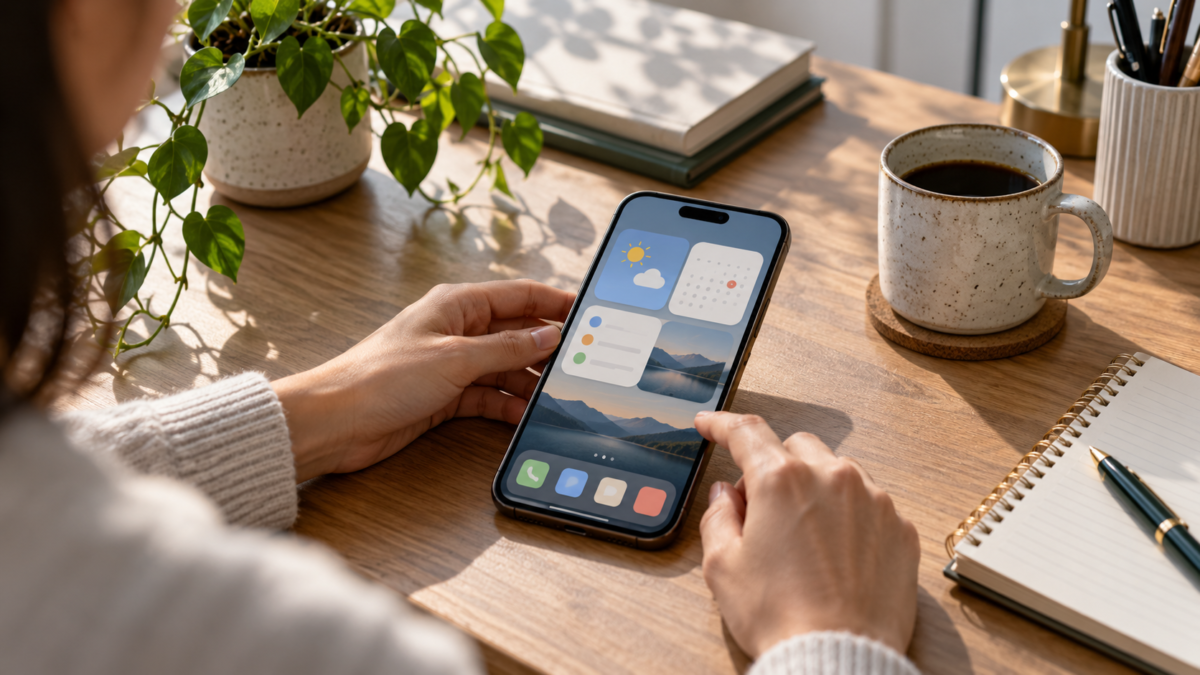
Widgets are small panels that display information or shortcuts without requiring you to open a full app. A calendar on the home screen, the weather on the lock screen, or a visible to-do list can reduce taps and help organize your routine. Android and iPhone offer widgets, but use different rules for size, interactivity, and customization. This guide explains how to choose, add, and review widgets without turning your screen into a difficult-to-understand mosaic.
Why use widgets?
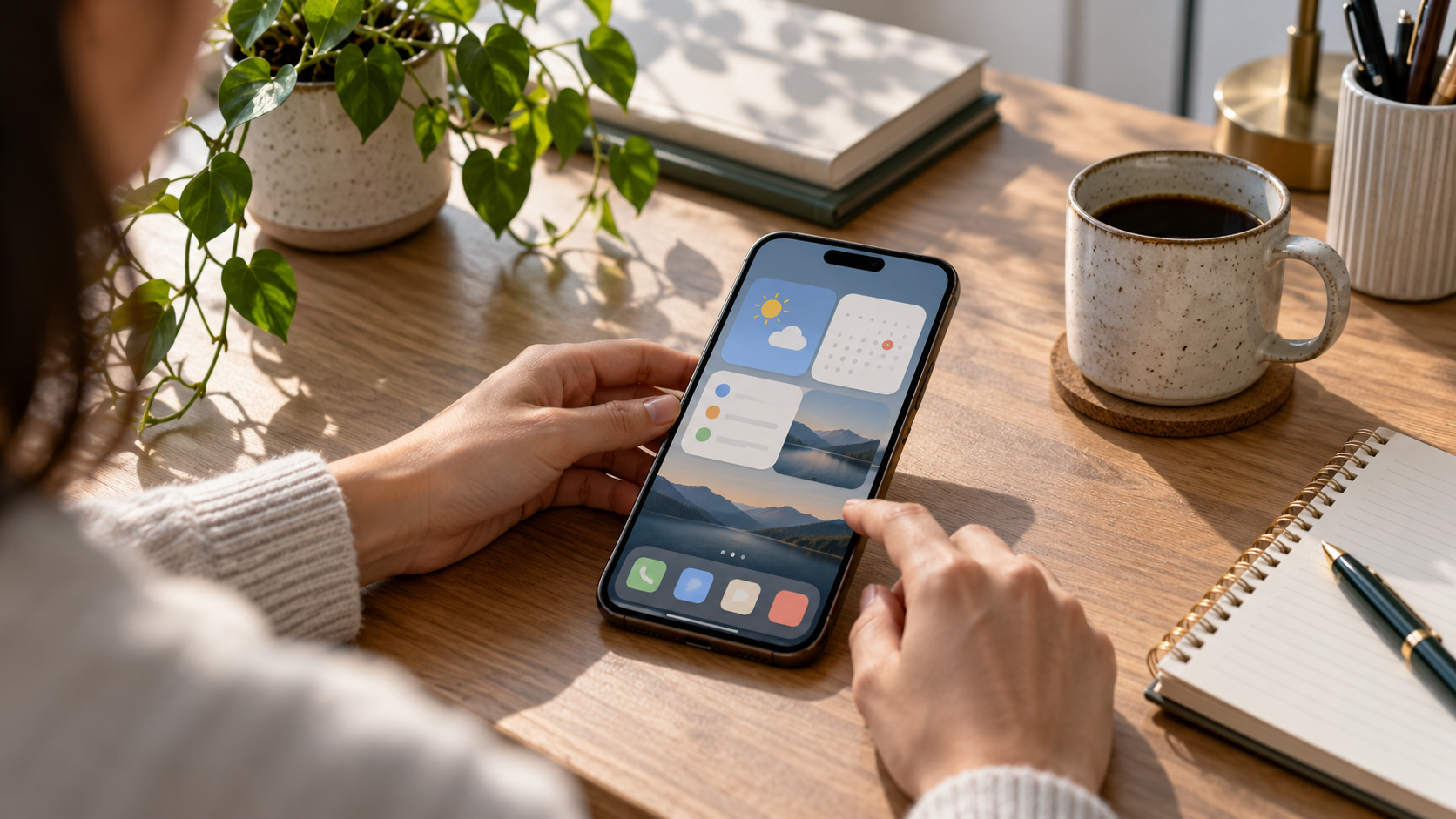
The main benefit is quick context. You can see your next appointment, the weather forecast, or the status of a delivery without interrupting your current task. Widgets also serve as shortcuts for frequent actions, such as starting a timer, opening a conversation, or taking a note. The benefit becomes apparent when each panel addresses a specific need. If you add too many, the screen becomes slower to read and may consume more battery.
Start by asking three questions: what information do I consult several times a day, what action do I repeat, and what information needs to appear before unlocking my device? The answers will guide your app choice. A news widget might be useful for some people, but distracting for others. The goal is to reduce decisions, not create new notifications.
Adding widgets on Android
On most Android devices, hold your finger on an empty area of the home screen and tap Widgets. The list shows options for the system and installed applications. Tap and hold the chosen widget, drag it to a free page, and release it. Some models display a grid to choose the size; others allow you to resize it later by holding the handles.
- Press an empty area of the home screen.
- Tap on Widgets and search for the desired application.
- Hold the panel and drag it to the chosen page.
- Adjust the size and complete the requested setup.
- Tap outside the panel to save the position.
Android allows multiple pages. Reserve the first page for essentials and leave less frequently used controls on a second page. On devices with the At a Glance widget, information such as appointments and alerts may appear automatically. The exact steps vary between Samsung, Motorola, Xiaomi, Pixel, and other brands, so consult your launcher's manual if a menu has a different name.
Adding widgets on iPhone
On iPhone, hold your finger on an empty space on the home screen until the icons start to wiggle. Tap the add button, search for an app, swipe through the sizes, and choose Add Widget. Drag the panel to the desired position and tap OK. On the Lock Screen, press and hold, tap Customize, and choose the widget area available for your iOS version.
The iPhone also offers the Smart Stack, which rotates widgets based on time, location, and usage. It can save space, but only works well if you remove irrelevant panels. Tap and hold a stack to edit the order or turn off auto-rotation. Today View widgets become available by swiping right from the first home screen.
Organizing a screen that helps
Choose one function per page. A work page can include a calendar, tasks, and email; a personal page can display music, photos, and weather. Keep icons and widgets aligned so the eye finds patterns. Medium sizes usually balance information and space. A huge widget that shows only one line usually takes up more space than it delivers.
Use folders for apps you rarely open and keep emergency shortcuts easily accessible. If your device allows themes or focus modes, associate different pages with work, study, or rest times. On iPhones, focus modes can change the visible screen; on Android, some launchers and work modes offer a similar effect.
Privacy in widgets
Widgets on the Lock Screen can reveal messages, appointments, or health data before you unlock the phone. Review each app's permissions and hide sensitive information in public environments. On Android, check the notification options on the Lock Screen. On iPhone, review "Allow access when locked" and disable anything that doesn't need to be visible.
Weather, location, and traffic use position data. If you prefer to reduce sharing, select approximate location or allow access only while in use. A widget that doesn't update may be limited by battery saving or a permission has been revoked. Fix the cause instead of installing multiple versions of the same panel.
Battery, performance and upgrade
Widgets that frequently access the internet or location can increase resource consumption. Opt for moderate updates for information that doesn't change every minute. Remove app panels you've abandoned and keep your system up to date. After a major update, review your widgets because the app may change size or become unsupported.
If your home screen is slow, first remove news, stock quotes, and social media widgets. Restart your device and see if the performance improves. On simpler phones, a few well-chosen panels provide a better experience than a page full of animations.
Widgets for different routines
For studying, combine a weekly calendar, to-do list, and timer. For travel, use a clock from a different time zone, a map, and a currency converter. For remote work, keep shortcuts for meetings and notes. For families, a shared calendar and weather forecast help plan commutes. Adjust your selection according to your actual routine, not according to a list of popular apps.
Some widgets offer interactive buttons; others simply open the app. Test each one for two days and see if you consult the dashboard or ignore the information. If it doesn't save you time, remove it. The home screen is a decision-making tool, not a feature catalog.
How to review the configuration after a week.
After a few days, observe which widgets you actually use. If a dashboard requires scrolling or displays data you already receive via notification, it may be redundant. Reorganize the page to keep urgent information at eye level. Also, check that the information is correct: shared calendars may display duplicate events, and travel watches may remain in an outdated time zone. A weekly review keeps the screen useful without requiring daily maintenance.
When switching devices, don't automatically copy every screen. Use the migration process to delete apps you don't use and recreate only the widgets related to your current routine. This small adjustment prevents you from transferring an organization to your new phone that no longer matches your work, studies, or schedule.
Frequently Asked Questions
Do widgets work without internet access?
Some display already stored data, such as the local calendar. Weather, news, and traffic require an internet connection to update.
Can I put widgets on the lock screen?
On iPhones, this depends on the iOS version and the app. On Android, manufacturers and versions offer different options. Always review the risk of displaying personal data.
How do I remove a widget?
Tap and hold the panel and select Remove on Android, or tap the remove button in edit mode on iPhone. Removing the widget does not uninstall the app.
Why isn't the widget updating?
Check your internet connection, permissions, battery saving settings, and background app updates. If nothing resolves the issue, remove and re-add the app or contact the app's support team.
Conclusion
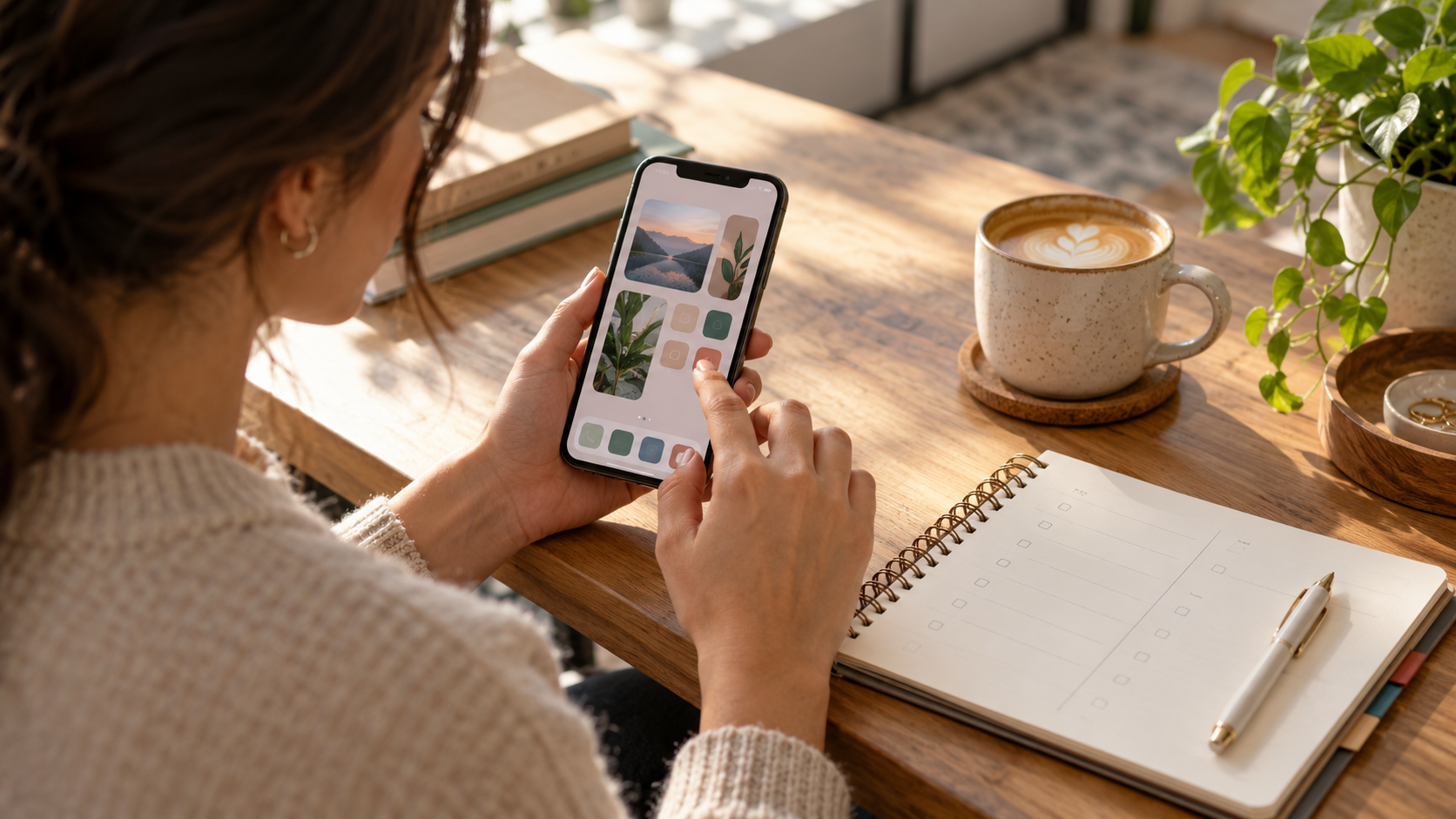
A good widget setup starts small: essential information, frequently used shortcuts, and carefully considered privacy settings. Android and iPhone may change the menu names, but the logic is the same. Organize by context, test for a few days, and remove anything that doesn't reduce taps or decisions. The screen then starts working in favor of your routine.