How to clean and organize duplicate contacts on your cell phone.
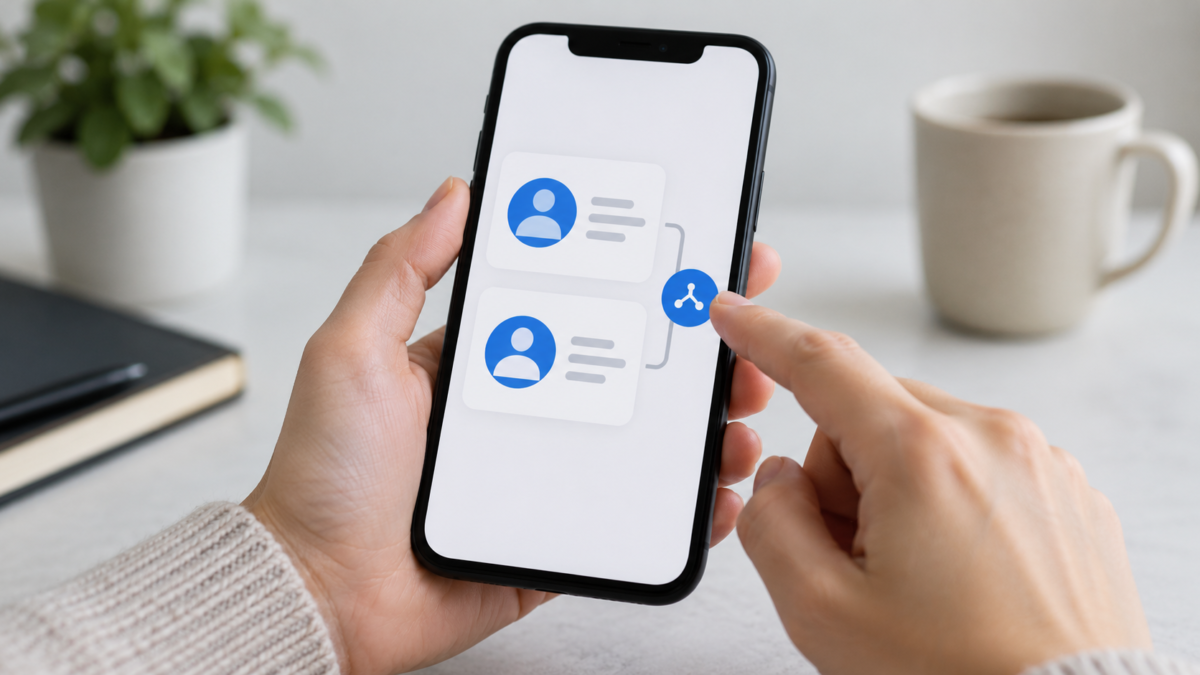
Duplicate contacts appear when you switch devices, import an old address book, or use more than one account to sync numbers. The problem goes beyond a confusing contact list: messages can be sent to the wrong address, birthdays can be repeated, and search functionality becomes less efficient. Android and iPhone offer different ways to review your contact list. Below, you'll see how to identify duplicates, merge records without losing information, and prevent them from reappearing.
Why do contacts get duplicated?
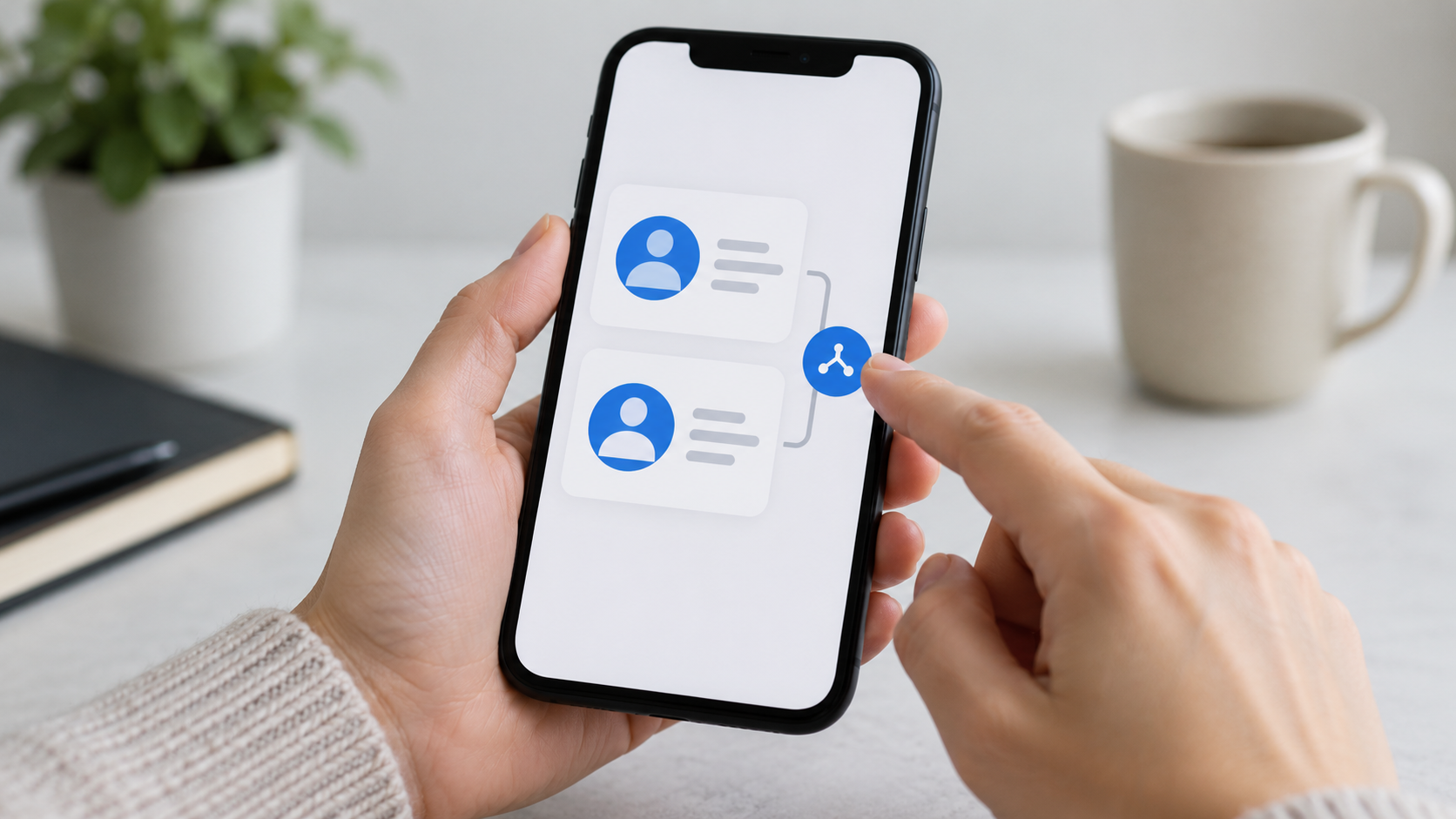
The same person can be saved on the device, in a Google Account, in iCloud, and in a messaging app. When importing a vCard file, the phone creates new records instead of comparing each field. Another common cause is saving a number with and without a country code, or using different abbreviations in the name. Before merging, find out where the contact list is stored; this determines which changes will be synced to other devices.
Back up your contacts if they are important. In Google Contacts, export your entries to a file before cleaning. On your iPhone, confirm that iCloud is syncing and, if possible, make a copy of your contacts via iCloud or your computer. The backup doesn't prevent review, but it offers a way out if two entries contain different information and the merge doesn't turn out as you expected.
Find duplicates on Android
Open the Google Contacts app and look for the corrections or organization section. The “Merge and fix” function may show suggestions of people with the same name or phone number. Review each suggestion before tapping Merge. Google documentation explains that duplicate contacts can be merged when they belong to the same Google Account. If the suggestion is incorrect, ignore it and correct the names manually.
When two records have different phone numbers, compare the fields before accepting. Merging can keep numbers, emails, and addresses in a single contact, but conflicting information requires a decision. Use the message history to find out which number is current. If you don't recognize a record, don't merge it just because the names are similar.
If the contact is saved to a manufacturer account, SIM card, or corporate service, it may not appear in the Google tool. Open the Contacts app display settings and select all accounts. For a work contact list, confirm the company policy before exporting or moving personal data.
How to manually organize contacts on Android.
Search by first name, last name, and number. Standardize the phone number format with the country code, especially if you travel or use apps that require the international standard. Remove extraneous spaces and correct accents without changing the name the person prefers to be found by. Add a company or label when there are homonyms.
After correcting a contact, check that it's saved to the correct account. Google states that contacts saved to your Google Account are synced across connected Android devices. This is convenient, but it means that a deletion or merge might appear on all of them. Wait for the sync to finish before repeating the cleanup on another device.
Review duplicates on iPhone
On your iPhone, open Contacts and check if the list includes accounts from iCloud, Google, and other providers. In recent versions of the system, the app may display a section for duplicates found. Tap on each group, read the data, and choose to merge. If the option doesn't appear, review the accounts separately or use the respective web service, such as Google Contacts.
To control which accounts appear, open Settings, Contacts, and Accounts. Temporarily disable an account to find out where a record came from, but don't choose to delete it from your iPhone without understanding if the removal will also be done on the server. If you use iCloud, confirm that Contacts is enabled and that there is space for synchronization.
The iPhone can link contacts that have the same name, but linking is not the same as deleting. The linked contacts option shows information from different sources in a single record. If you need a truly consolidated address book, edit the main record and remove links that point to old entries.
How to decide what to keep
Choose the record with the most complete name, current photo, and correct history. Before deleting, check extra fields such as work email, address, and notes. In a family, two numbers with the same last name may belong to different people. A safe way is to add a label, such as "work" or "school," instead of automatically merging.
Don't rely solely on a contact's photo: images can be shared between accounts. Compare the country code and the date of the last conversation. If a phone number is deactivated, keep it in a note or history only if there's a clear reason; otherwise, archive the information outside your main contact list.
Prevent new duplicates from appearing.
Set a default account for new contacts and save all important records there. On Android, choose the account when creating a contact; on iPhone, check the default account in Settings, Contacts. Avoid importing the same vCard file more than once. If you switch devices, use account synchronization instead of manually importing a calendar that's already in the cloud.
Perform a short review every few months. Update the name and number when the person changes companies, but don't create a second record to register the change. For work contacts, use the company field and a label; for personal contacts, record the relationship in the observation field without including unnecessary sensitive data.

Frequently Asked Questions
Does merging contacts delete conversations?
Merging changes the calendar, not the messaging app's history. Even so, double-check the main number to ensure the shortcuts continue to point to the correct person.
Can I undo a merge?
Some services offer undo recent or restore from backup. Availability varies, so export first and don't discard the copy until you've reviewed the result.
Why does the same contact keep appearing?
It may exist in another account, on the SIM, or on a corporate service. Filter the display by account and review each source before repeating the merge.
Is it better to save contacts on the SIM card?
SIM cards have field limitations and make synchronization difficult. For a complete calendar, use a reliable account with backups and keep an exported copy.
A simple routine to keep to the schedule.
After the initial cleanup, set aside a few minutes at the end of the month to review new entries. Search for numbers without names, check contacts created by delivery apps, and remove unused drafts. If your address book is shared with a computer, let the synchronization complete and confirm that the number of entries remains the same. This short maintenance prevents a large import in the future from mixing old and new contacts. When in doubt about a person, it's best to keep the two records separate until you confirm their identity.
Conclusion
Clearing duplicate contacts requires comparison, not just a tap on “merge.” Back up your contacts, find out which accounts are active, review suggestions, and choose a main contact list with the most complete data. Then, set a default account and avoid repeated imports. The result is a faster-to-search address book and less chance of messages being sent to the wrong number.
See Google's official help for merging duplicates. and consult the iPhone Contacts documentation.
Read also: learn How to back up WhatsApp conversations before changing devices.