How to share your real-time location safely
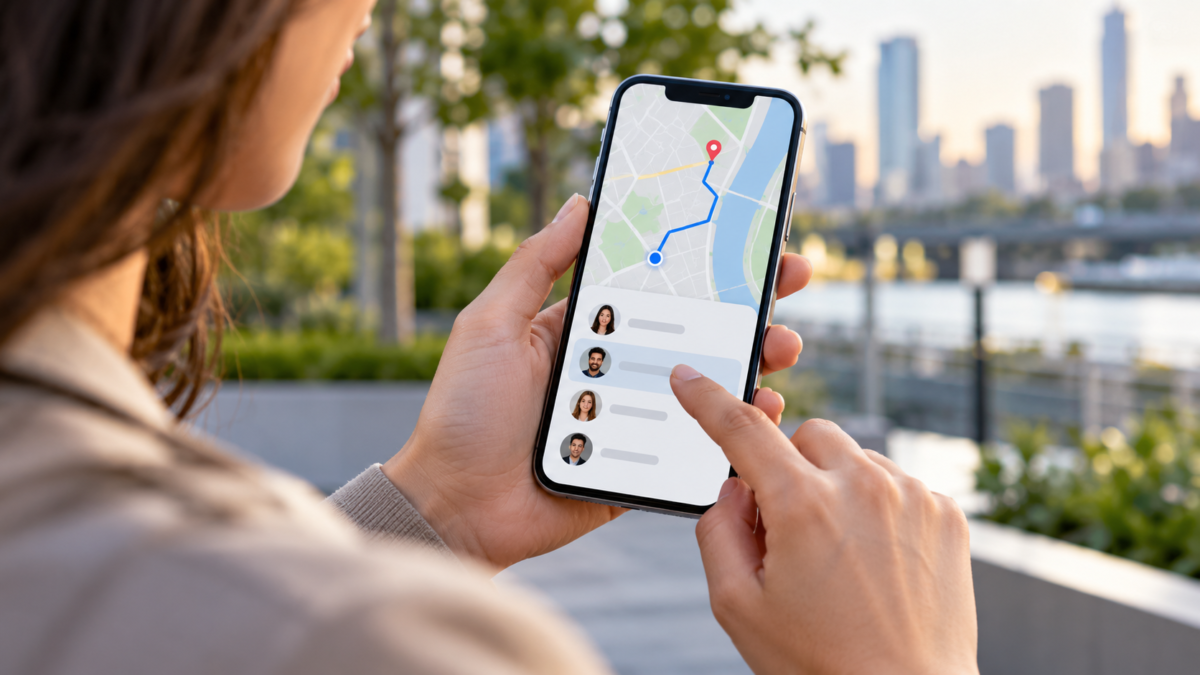
Sharing your real-time location helps someone find you, track a trip, or know when someone has arrived. It also reveals your name, photo, battery level, and movements during the chosen period. The feature should be temporary, directed at trusted people, and reviewed after the encounter. Android and iPhone offer their own tools; Google Maps works on both systems, while the Find My app integrates better with Apple devices.
Before sharing: define the objective.
Choose what the other person really needs to know. For a date, a fixed location might suffice. For a trip, it might make sense to share your location for an hour. Avoid keeping the information permanently shared for convenience. Inform the recipient why you are sending it and agree on when access will end.
Check the account being used, the connection, and Location Services. A location may be inaccurate inside buildings, in rural areas, or when the phone is saving battery. Google warns that sharing may not be available in some countries, for children's accounts, or corporate domains. On iPhone, the Find My app requires Location Services to be enabled.
Share via Google Maps on Android
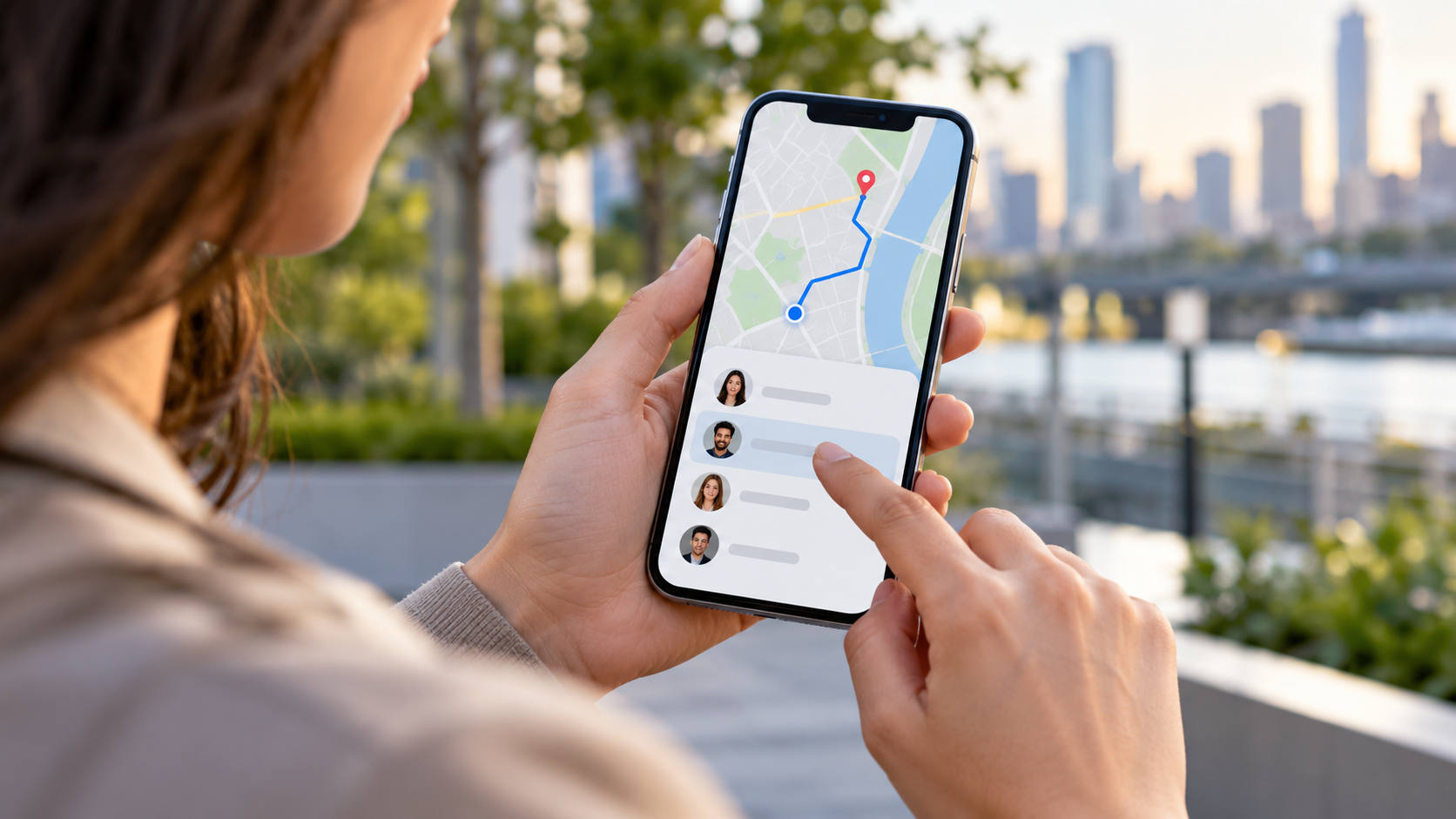
Open Google Maps, tap your profile picture, and choose Location Sharing. Tap New share, select the duration, and choose a contact. You can send it directly to a Google account or copy a link when that option appears. The link is convenient, but treat it as sensitive information: anyone who receives the address can try to open the map before the time limit expires.
Google says the recipient can see your name, photo, recent location, battery level, and, depending on your settings, arrival and departure times. Read the preview before tapping share. To stop, go back to Location Sharing and tap Stop next to the person. If you shared via a link, also stop the sharing associated with that link.
During a trip, use Share Trip Progress on Maps when available. It ends when you reach your destination or when you stop the trip. Don't use a constant location as a substitute for an emergency plan; notify someone by phone if the route changes.
Share via Google Maps on iPhone
On your iPhone, install or open Google Maps and sign in to the correct account. The path is the same: profile picture, Location Sharing, New Sharing, and duration. If the app asks for location permission, choose an option that matches the purpose and review it later in Settings, Privacy & Security, Location Services.
When the recipient doesn't use Google Maps, a link can be an alternative. Send it via private message and don't post it on social media. When finished, check the list of people and active links. Official Google Maps guide It explains how to stop sharing via computer and what information remains visible.
Share via Find My on iPhone
Open Find My, tap Me, and turn on Share My Location. Then, go to People, tap the Add button, and choose Share My Location. Select a contact and set whether access is for one hour, until the end of the day, or indefinitely. Apple recommends using a custom duration when you know the end time.
To stop, open the person in the list and choose Stop Sharing Location. You can also turn off Sharing Location in Me, but this ends all sharing. Search manual It shows how to check which device is providing your location, including an Apple Watch with cellular network.
In a family setting, use family sharing only with people who need access. Don't assume that being in the same group means everyone should see your movements. Review the list after trips, job changes, or relationship breakups.
Permissions, battery, and accuracy
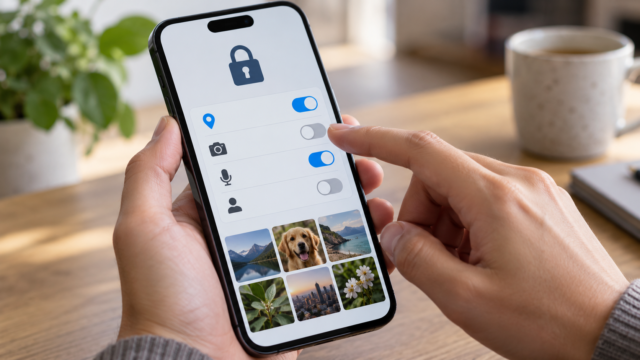
To update the map, the phone needs a GPS signal, Wi-Fi, or mobile network. Battery savers may delay the update. If the person says they see an old location, open Maps or Find My, check the connection, and confirm that the phone is not in airplane mode. An approximate location is normal; don't turn the map point into an accusation.
Sharing doesn't allow you to control another person's phone. It also doesn't show everything you've done between two updates. In areas with network restrictions, the feature may fail or be unavailable. If you need to guide someone to you, agree on a meeting point and an alternative way to communicate.
Arrival and departure notifications
Google Maps may allow notifications when a person arrives at or leaves a location, but these depend on the account, region, and settings. The other person must know that this notification was created. Use generic addresses, such as a hotel or station, when it's not necessary to reveal your home address. Disable notifications when the trip ends; Google indicates that they stop when sharing is canceled.
Privacy and security
Share with an identified contact, not a saved number without a name. Before sending a link, check the last characters of the conversation and the recipient. Scammers may ask for your location to confirm you are away from home. Never post your current location in a photo or public story while traveling.
If you suspect unauthorized sharing, open the lists in Maps, Search, and your Google or Apple accounts. Stop unknown access, change your password, and review connected devices. For risky situations, seek help from authorities or a trusted person; do not confront someone based solely on the map.
When sending only one point
If you only need to indicate a restaurant, hotel, or gate, use the feature to send a point on the map or a message with the address. This avoids keeping your travel history visible. In Google Maps, press and hold the map to drop a pin and share your current location. On iPhone, Maps or Messages can send a point without enabling continuous sharing.
For children and the elderly, explain how sharing works and do a test at home. Define who can help, which channel will be used if the location stops updating, and when permission will be disabled. Do not install hidden trackers or ask for account passwords; transparency is part of security.
When traveling internationally, check roaming, time zones, and local rules. A link sent over an unstable network may arrive late. Keep mobile data only when necessary and stop sharing when crossing borders or arriving at your destination.
Frequently Asked Questions
For how long should I share it?
Use the shortest timeframe that resolves the situation. An hour or until the end of the trip is usually safer than leaving it indefinite.
Can the recipient see my battery?
On Google Maps, the battery level may appear alongside the location. Read the preview and choose another method if this information is sensitive.
Can I stop before the scheduled time?
Yes. Stop in the Location Sharing list or in Find My. Closing removes future access, although the person may have seen previous locations.
Why is the location delayed?
Weak signal, battery saving mode, lack of internet, and limited permissions are causing delays. Confirm the device and use a call if it's urgent.
Conclusion
Real-time location is useful when the objective, recipient, and deadline are clear. Choose an official tool, share it for a short time, specify what will be visible, and check the list afterward. A point on the map complements communication; it doesn't replace common sense, privacy, or a security plan.