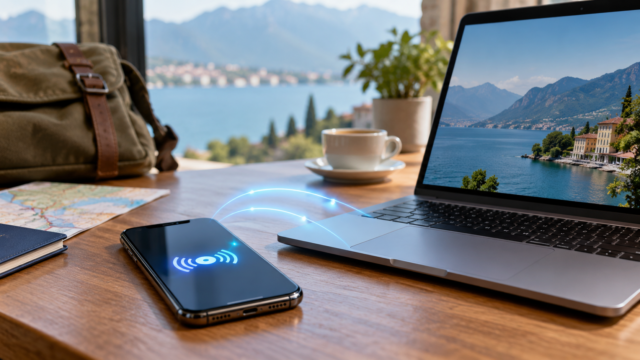
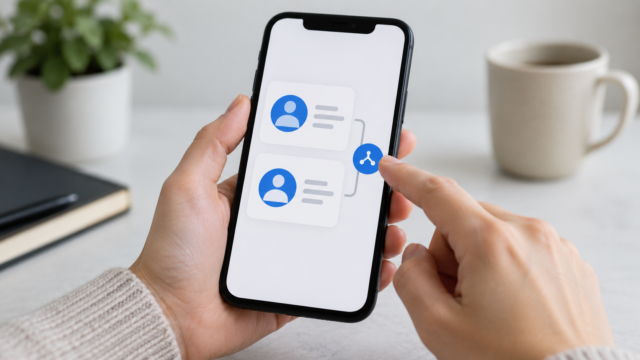
How to share your mobile internet connection with a laptop or other device.

Sharing your mobile internet connection solves an emergency when Wi-Fi is unavailable. Android and iPhone offer Wi-Fi connectivity and, in some cases, USB connectivity, but the result depends on the carrier's plan and the device receiving the connection.
How to share on Android via Wi-Fi
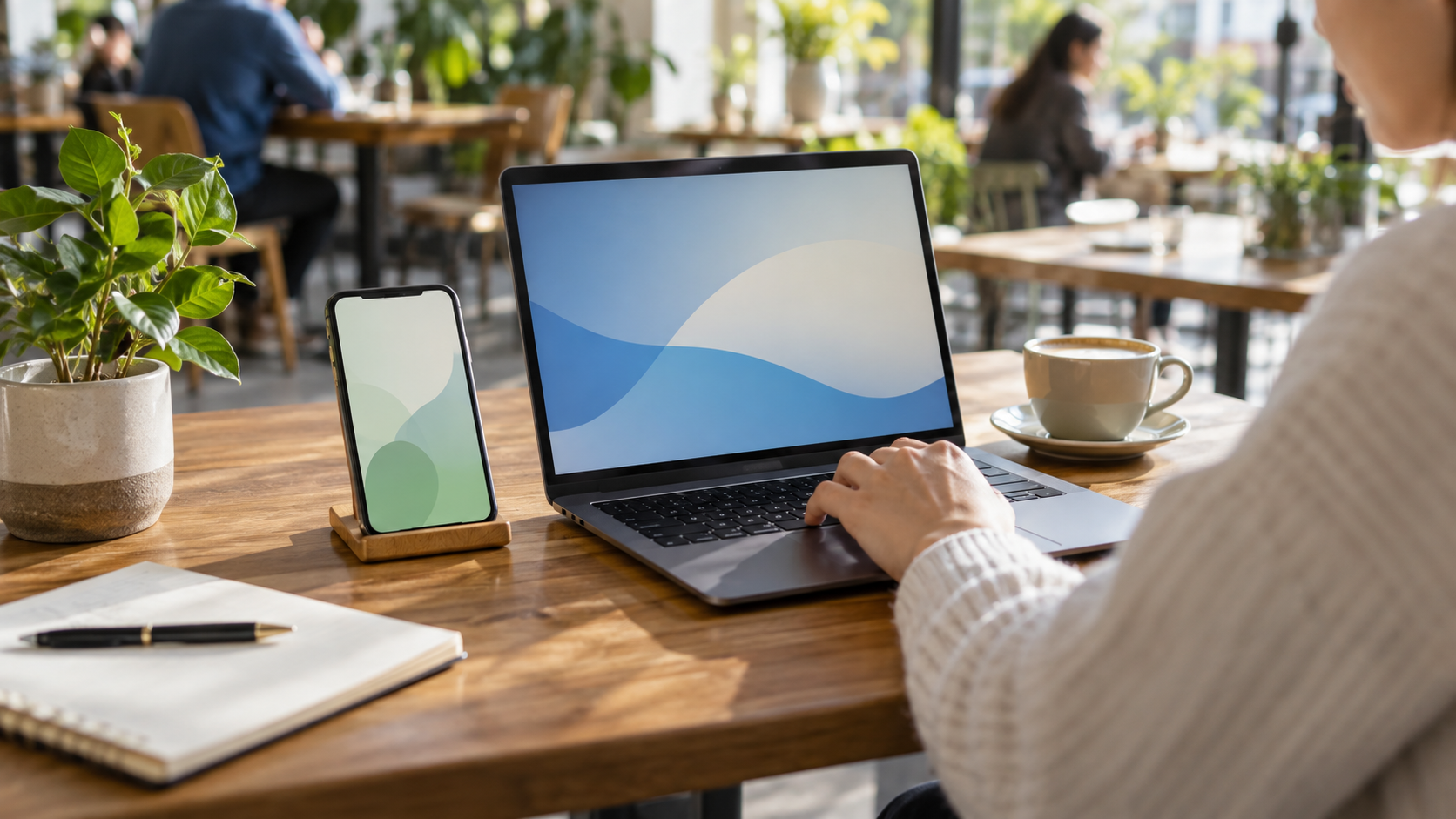
Open your network settings and look for Access point, Hotspot or Wi-Fi Router. Set a strong name and password, enable the access point, and connect the notebook from the list of available networks. On Pixel phones, the path goes through Network & internet and Access point & tethering; the names may vary depending on the manufacturer.
Check that data saving mode is turned off when it prevents sharing. The phone needs to have mobile data enabled and can drain the battery quickly, especially with a weak signal.
How to use Personal Hotspot on iPhone
On your iPhone, open Settings > Personal Access and enable "Allow Others to Join". View the password displayed on this screen and choose the iPhone's name on the laptop or tablet. Keep the screen open during the first connection if the other device cannot find the network.
When is it worth using USB?
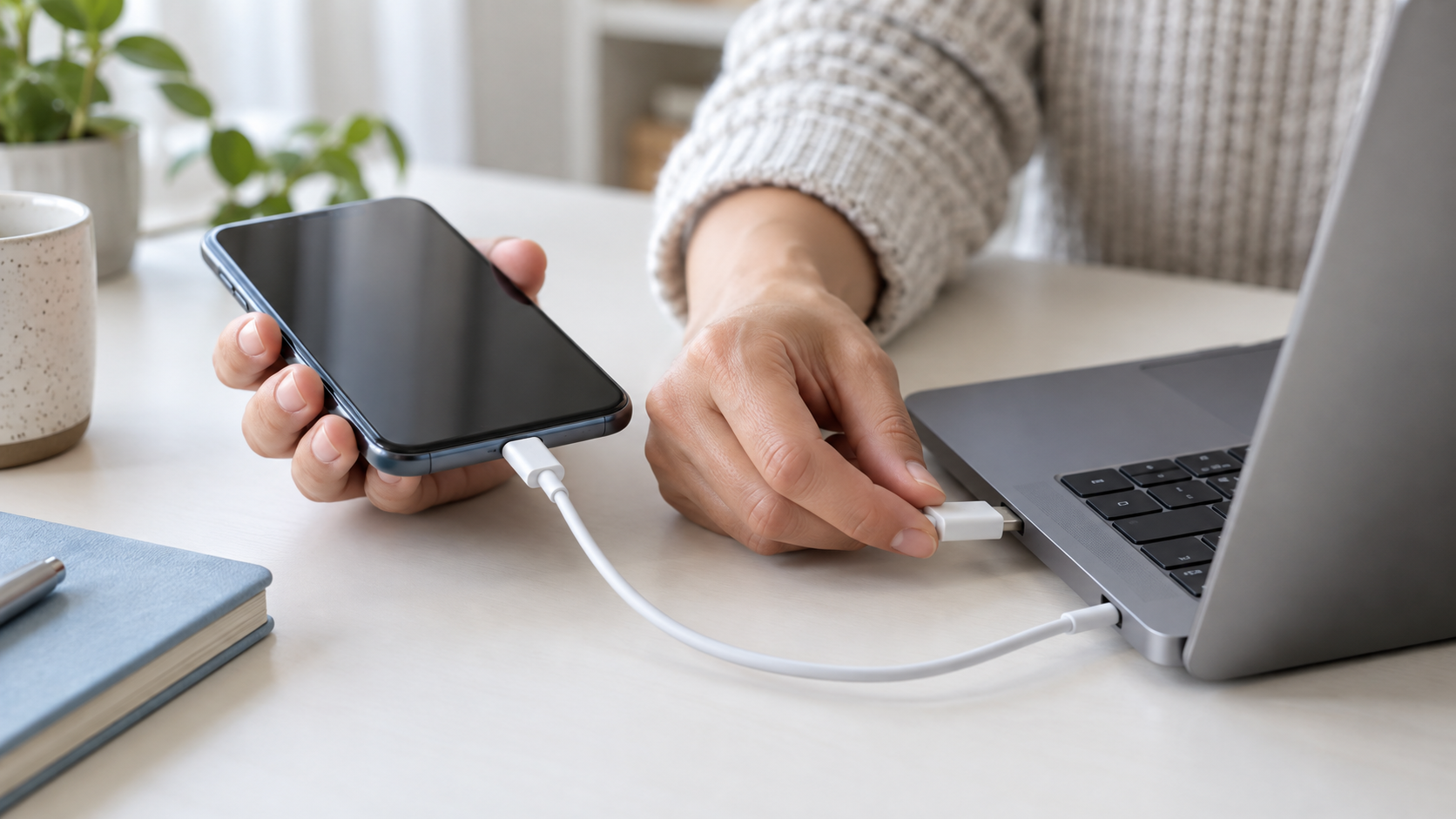
USB tethering is usually more stable and also recharges the phone. On Android, connect the cable, open Access Point and Tethering, and enable USB Tethering. Google's documentation states that this mode is not compatible with Mac. On iPhone, connect the device, accept the trust message, and use Apple support or the necessary drivers on Windows.
Costs, limits and availability
The feature is available on Android and iOS, but your carrier may block the hotspot, limit the speed, or charge according to your plan. Roaming and shared data plans can also affect the cost. Before using it for extended periods, check the terms and conditions of your plan in the country you are in.
If the connection doesn't work
Confirm that your phone is using mobile data, turn the hotspot off and on again, and check the password. Reduce the distance between devices and leave your phone in a location with a signal. On iPhones, the Maximize Compatibility option can help older devices, although it may reduce performance. Turn off the hotspot when you're finished to avoid unexpected data usage.
To track consumption, see How to control mobile data on your cell phone. and discover How to rate free apps more safely.
Conclusion
The hotspot is simple to activate, but it's worth checking your plan, password, and battery usage. Choose Wi-Fi for multiple devices and USB when stability and privacy are more important.