How to safely use your cell phone as a Wi-Fi hotspot.
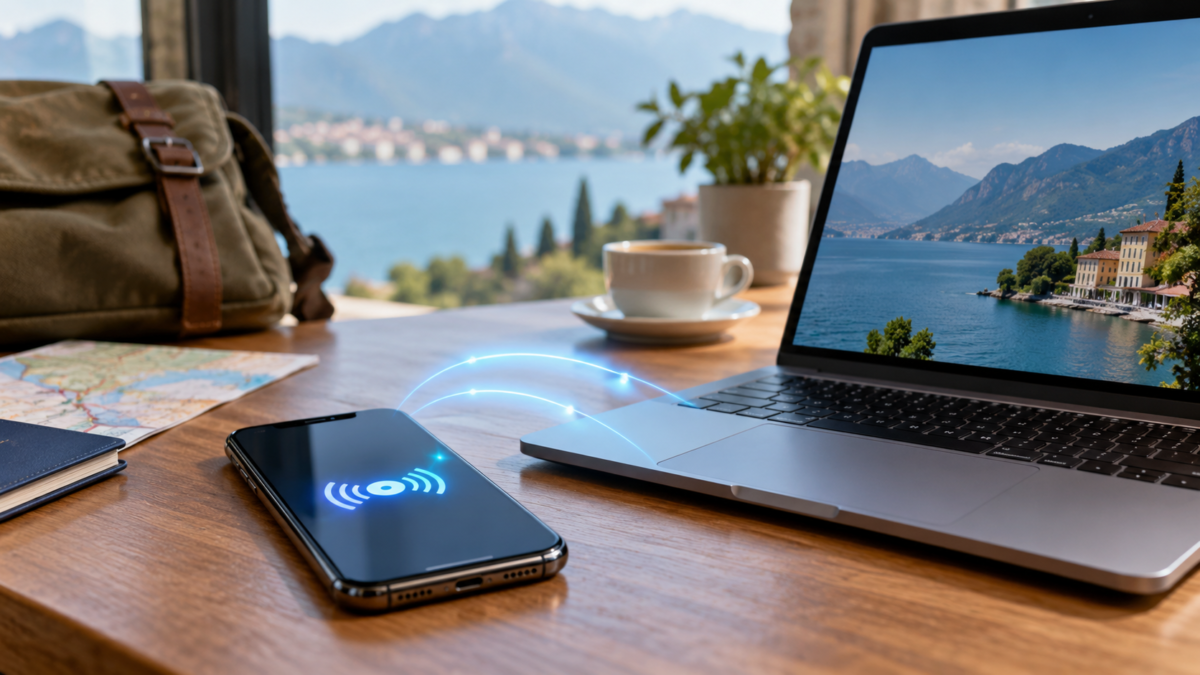
Your cell phone can function as a portable router when you need to connect a laptop, tablet, or another phone to the internet. This feature is useful when traveling, in a location without reliable Wi-Fi, or during a connection drop, but requires attention to data consumption, battery life, and network security. In this guide, you will learn how to activate the hotspot on Android and iPhone, choose the best connection method, and reduce the risks of leaving your network open.
Before you begin: check your plan and signal.
The access point uses the phone's mobile connection. If the device is in an area with a weak signal, the connected device will also have a poor experience. Before sharing, open a simple page on your phone and confirm that the internet connection is stable. Then, check your carrier's app or website to see if your plan allows tethering. Some carriers limit this usage or charge an additional fee, as the official Android documentation warns.
It's also worth checking your remaining data allowance. A computer can download updates, sync photos, and play high-resolution videos without you even noticing. If your data allowance is low, enable metered data mode on your computer and pause cloud services until you're finished. For a short task, sharing via USB is usually more battery-efficient than keeping Wi-Fi active.
How to activate hotspot on Android
On many devices, swipe up twice from the top of the screen and tap on Access point. If the button doesn't appear, tap Edit and drag the shortcut to the quick settings. Alternatively, open Settings and look for "Access Point," "Wi-Fi Router," or "Hotspot." The names vary depending on the manufacturer and Android version.
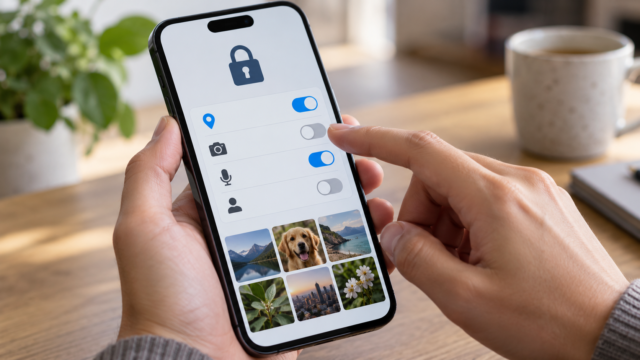
Press and hold the button to open the details. There you can set the network name, password, and security type. Use a long password with letters and numbers that is not the device name or a date. Avoid the "None" option: a network without a password allows nearby people to use your data and try to access local phone services. When finished, disable the feature from the same screen.
To connect the second device, open the list of Wi-Fi networks, select your phone's name, and enter the password. Android also offers tethering via Bluetooth and USB. For Bluetooth, pair the devices before activating the option. For USB, connect the cable, open the access point settings, and enable "USB Tethering". Official support states that Android's USB tethering does not work with Mac computers; in those cases, prefer Wi-Fi or Bluetooth.
How to enable Personal Hotspot on iPhone
On your iPhone, open Settings, tap on Personal Access and enable “Allow Others to Join”. In versions that show the option within Cellular, go to Settings, Cellular, Personal Hotspot. The screen displays the network password; tap it to change it to a unique combination. Keep “Allow Others to Join” turned off when you are not sharing.
The other device finds the iPhone in the Wi-Fi list by device name. If it's a Mac or another device connected to the same Apple Account, Instant Hotspot can simplify the connection, but you can still use the password as usual. Apple recommends keeping Wi-Fi and Bluetooth enabled on the iPhone to improve discovery. If the computer doesn't find the network, turn Personal Hotspot off and on again, keep the iPhone unlocked for a few seconds, and bring the devices close together.
Wi-Fi, USB, or Bluetooth: which one to choose?
Wi-Fi is the most practical option for many devices and for those who need speed. It also consumes more battery, especially when the phone is far from the laptop. USB is useful for a work desk: the cable keeps the phone charged and prevents the network name from being visible to nearby people. Bluetooth uses less energy, but is slower and is usually only suitable for light tasks, such as messaging or browsing a text page.
Don't connect too many devices unnecessarily. Android states that it's possible to share data with up to ten devices, but the actual limit depends on the model and carrier. Each additional connection divides the speed and increases data consumption. For a video meeting, keep only the meeting computer connected and disable automatic synchronization on the others.
How to make your network more secure
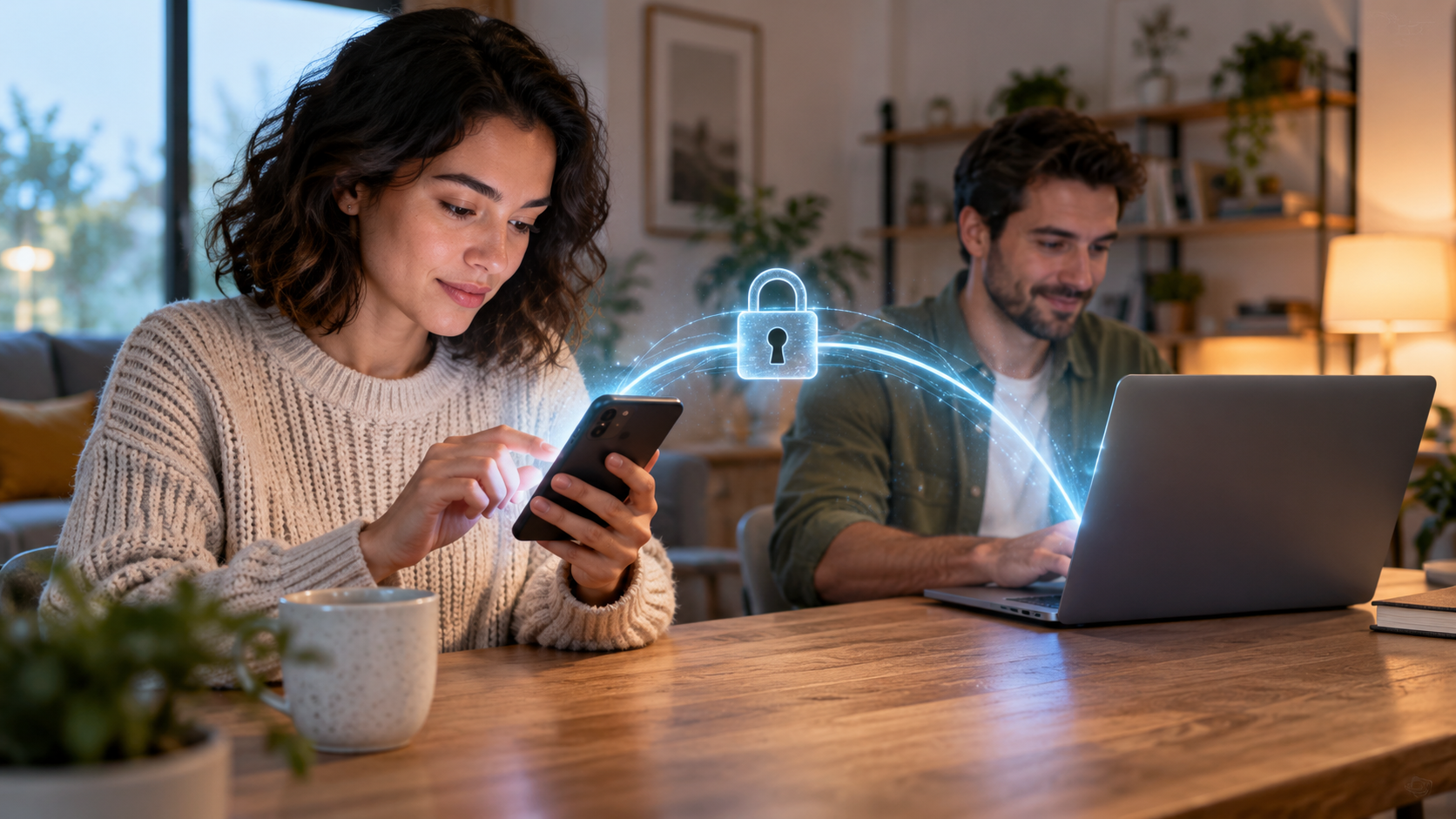
Change the default password before first use, prefer WPA2 or WPA3 when the device offers this option, and avoid sharing the password in public messages. Do not use the access point to access online banking on an unknown computer. On your own laptop, keep the firewall active and install updates before traveling. If someone you don't recognize appears in the list of connected devices, turn off the access point, change the password, and reconnect only trusted devices.
Common problems and solutions
If the connection drops, move your phone to an area with better signal, disable extreme battery saving mode, and keep the device plugged in. If your computer connects but you can't browse, temporarily turn off VPNs, forget the network, and reconnect. When the speed is slow, pause downloads, reduce video quality, and check if another device is using the network. If the access point disappears, check if the automatic shutdown feature is enabled when no devices are connected.
Frequently Asked Questions
Does the access point consume a lot of data?
It consumes the data used by the connected device. Updates, videos, and backups can use several gigabytes; monitor usage in your network settings or your carrier's app.
Can I leave my phone charging while I'm using it?
Yes. During prolonged use, keeping the device plugged in prevents the battery from draining. Leave it on a well-ventilated surface and remove any thick covers if you notice it overheating.
Is it safe to use the hotspot in public?
It's safer than an open network when you use a strong password, keep your system updated, and disable sharing when you're finished. Even so, avoid sensitive activities on computers that aren't yours.
Why is my carrier blocking this feature?
Some plans have specific rules for tethering. Check the plan terms and conditions and contact your provider's support before subscribing to a package or changing your settings.
How to control your consumption while traveling.
When traveling internationally, disable automatic updates and media downloads before activating the hotspot. On Android, the network area allows you to check usage by app; on iPhone, Settings and Cellular show data usage for the period. Set an alert or limit on your device when this function exists. If you share with others, agree on a simple rule: no high-resolution streaming and no full backups while the connection is in use. When you reach a reliable network, disable the access point and resume synchronizations. This routine reduces surprises on your bill and keeps the connection available for what really matters.
Conclusion
The hotspot transforms your cell phone into an efficient emergency connection, provided you control the data allowance and security. Choose Wi-Fi for convenience, USB for a workstation, and Bluetooth for light tasks. Use a unique password, limit the number of devices, and turn off the feature when finished. The steps may vary depending on the brand and region, so confirm the names displayed on your device and the rules of your carrier.
See the official tethering instructions on Android. and consult the Apple's guide to Personal Access.
Read also: look How to save battery on Android and iPhone.