How to share your mobile internet securely on Android and iPhone.

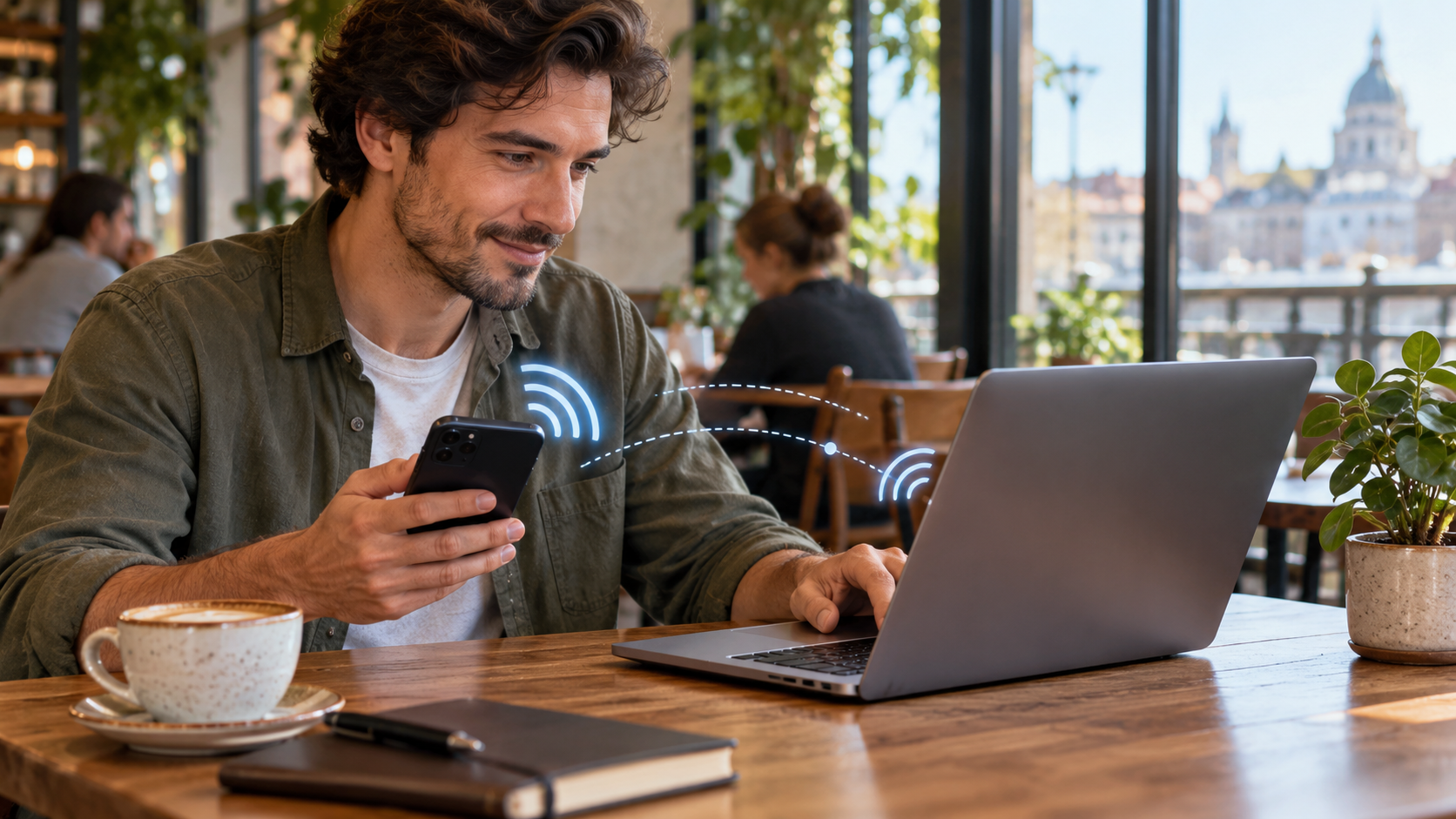
Sharing your mobile internet connection turns your mobile data into a temporary network for your laptop, tablet, another phone, or work equipment. This feature is useful when Wi-Fi goes down, during a trip, or in a location where you don't trust the public network. It can also consume a lot of data and battery, so it's worth configuring the access point carefully.
Android and iPhone offer sharing via Wi-Fi, Bluetooth, and USB cable. The exact path varies between manufacturers, versions, and carriers. In this guide, you'll see how to activate each option, choose a password, limit usage, and resolve the most common problems without leaving your network open to anyone.
Before activating the access point
Check if your mobile plan allows tethering. Some carriers include the feature at no extra cost; others apply limits, reduce speed, or charge a specific fee. The presence of the button on your device does not confirm the terms of the contract. If you are traveling, also check the roaming rules and the price of data used outside the country.
Consider your available data allowance and the type of task you'll be performing. A video call, a system update, or a streaming service can consume significantly more data than a quick query. Disable automatic updates and heavy syncing on the connected device when your data allowance is limited.
Keep your system updated and use a screen lock. The access point transmits a password that should be treated like any other Wi-Fi credential: don't post it in open groups, change it after sharing it with too many people, and turn off the feature when you're finished.
How to share internet on Android
On many Android devices, open Settings, tap Network & internet or Connections, and then go to Wi-Fi Router, Access Point, or Hotspot. Activate the Wi-Fi hotspot and check the network name and password displayed on the screen. On devices from other brands, use the settings search for "hotspot" or "access point".
Choose a long password with letters and numbers, and use WPA2 or WPA3 security when your device offers this option. Avoid using your name, date of birth, or phone number. If there's a device limit, keep it low; this way, a forgotten device won't remain unnecessarily connected.
On your computer or tablet, open the list of Wi-Fi networks, select your phone's name, and enter the password. The Android icon may show how many devices are connected. When finished, go back to settings and disable the hotspot. Some phones automatically turn off the access point when no one is using the network for a few minutes.
Android devices can also share data via Bluetooth or USB. Bluetooth is usually slower, but it consumes less power in some situations. A USB cable offers a stable connection to a computer and can keep the phone charging, although the device will continue to use mobile data.
On Pixel models, the feature may appear under Network & Internet, Hotspot & Tethering. Official support notes that Data Saver may need to be disabled for Wi-Fi sharing to work.
How to share internet on iPhone
On your iPhone, open Settings, tap Cellular, and then Personal Hotspot. Turn on Allow Others to Join. The screen will show the network name, which is usually your iPhone's name, and the Wi-Fi password. Tap the password to create a new combination before sharing it for the first time.
On the other device, open the Wi-Fi settings and select the iPhone's name. Enter the password displayed under Personal Hotspot. If both devices use the same Apple Account, Instant Hotspot may allow connection without entering the password, provided Wi-Fi and Bluetooth are turned on and the feature requirements are met.
The iPhone also allows connection via USB and Bluetooth. For USB with Windows, you may need to install Apple Devices or iTunes depending on your operating system version. If the Personal Hotspot option does not appear, confirm that Cellular Data is turned on and check with your carrier, as the feature depends on your plan.
When you're not using the network, leave Personal Hotspot turned off. A connected device can continue to consume data even without an open window. The iPhone can automatically disconnect when there's no activity, but don't rely on this to control your data allowance.
Wi-Fi, Bluetooth, or USB: which one to choose?
Wi-Fi is the most practical option for connecting multiple devices and usually offers higher speeds. However, it consumes more battery power and makes the network name visible to nearby people. Use a strong password and turn off the hotspot when you're finished working.
Bluetooth is useful for a simple connection between two devices and can be suitable for light tasks. Initial pairing requires a few steps, and the speed may be insufficient for videos, large downloads, or meetings. Prefer it when Wi-Fi stability is not essential.
USB is a good choice for a laptop that will remain stationary on a desk. The cable makes it harder for someone to remotely access the network and reduces interference, but it limits sharing to one device and may require drivers.
How to reduce data consumption
Set the hotspot for a session with a clear purpose and duration. If you only need to send a document, disconnect as soon as the upload is complete. On your computer, pause cloud syncing, game updates, and video autoplay. On your tablet, disable photo backup while using the mobile network.
Use the data saving feature on the connected device and monitor usage in your phone's settings. The report may be delayed, so don't wait for the limit warning to interrupt a demanding task. When possible, download maps, documents, and music before leaving a reliable Wi-Fi network.
High-resolution videos and webcam meetings pose the biggest risks for a small data plan. Reduce the quality, turn off the video when not needed, and inform other connected users about the limit. A shared network should not become a permanent replacement for a fixed connection without evaluating the cost.
Safety in public places
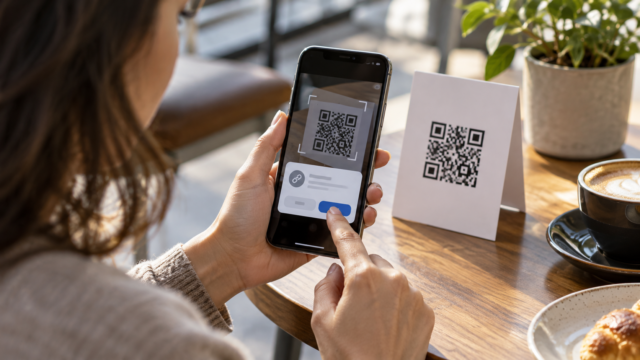
Avoid leaving the access point without a password or with a predictable password. Do not share the network's QR code on a public poster. If someone requests access, confirm who the person is and what task will be performed. Then, change the password or turn off the network.
The hotspot protects the path between your device and your phone, but it doesn't automatically make visited websites secure. Keep your system and browser updated, use HTTPS, and don't enter bank passwords on pages opened through unknown links. If the connection is for work, follow VPN and organizational rules.
When the hotspot is not working
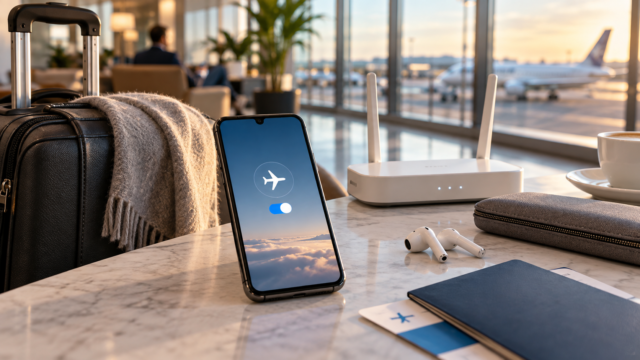
Start by turning the hotspot and Wi-Fi on the connected device off and on again. Confirm that Cellular Data is enabled, that there is a signal, and that the plan allows tethering. If the network appears but you can't browse, restart both devices and check if airplane mode is turned off.
When your computer can't find the network, reduce the distance, turn off other nearby hotspots, and confirm the chosen band. Some older equipment works better with 2.4 GHz than with 5 GHz. On iPhones, enabling Maximize Compatibility can help certain devices, although it may reduce performance.
If the connection drops during calls, your carrier may not allow data and voice at the same time on your network. A weak signal can also interrupt sharing. Test in another location and check with your carrier's support before resetting your network settings.
Frequently Asked Questions
Sharing internet data uses more battery power?
Yes. The phone keeps the mobile network active, creates a local network, and exchanges data with other devices. Leave it plugged into the charger when it is safe to do so, and avoid covering the device, as heat reduces performance.
Can I share a Wi-Fi network using my cell phone?
In most cases, the iPhone only shares the cellular connection. Some Android devices, such as certain Pixel phones, can relay a Wi-Fi network, but this depends on the model and version.
How do you know who is online?
Open the hotspot settings. Android and iPhone usually show the number of devices; some devices display the names. Disconnect all devices and change the password if there is anything unfamiliar.
Does the hotspot work abroad?
It may work with roaming, but costs and limits vary by carrier and country. Confirm your plan before activating mobile data outside your region.
Conclusion
Sharing mobile internet is a practical solution when you combine a strong password, device limits, and attention to data consumption. Use Wi-Fi for multiple devices, USB for a stable connection, and Bluetooth for light tasks. Turn off the hotspot when finished, check your carrier's rules, and monitor your data allowance during the session.
See the official instructions for Android for tethering and hotspot and of iPhone for Personal Access. To better understand the franchise, please also consult our guide on... Mobile data control on Android and iPhone.