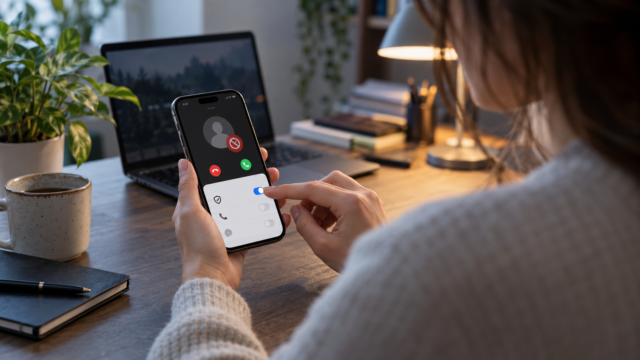
Did you delete a notification without reading it? Check your notification history on Android.


Missing an important notification is easy: simply tap the wrong alert, accidentally clear the notification bar, or open another message before finishing reading it. Many Android phones have a feature that can record these alerts and allow for later review. However, the notification history needs to be activated before the alert disappears. It doesn't function as a retroactive trash can for messages that have already been deleted.
The exact path varies depending on the Android version and the manufacturer's interface. On Pixel devices and versions close to pure Android, the feature is usually found in the notification settings. On Samsung Galaxy phones, it appears within the advanced notification settings. Some models from other brands may hide the option or offer their own panel.
What does the notification history store?
When enabled, Android keeps a list of dismissed notifications and, in some cases, also allows you to see those that are still in the notification bar. The log typically shows the application, the time, and part of the text that the system received. It can help you remember the name of a file, retrieve the sender of a message, or reopen an update notification.
There are important limitations. Sensitive content can only appear in summary form when the preview is protected on the lock screen. Some apps send notifications that cannot be replayed later, and messages deleted by the app itself do not reappear in the history. The log also takes up configuration space and can be cleared by the user.
How to activate on a Google Pixel or Android device close to the original.
Open Settings and tap on Notifications. Search Notification history. On the first visit, Android displays a switch to activate the feature and explains that dismissed notifications will now appear there. Activate the switch and return to the screen after receiving some notifications to confirm that the registration is working.
The name may change to Use notification history or Recent notification history. If you can't find the option, use the search function within Settings and type "history". In older versions, the feature may not be available. In that case, update the system if there is a compatible official version, but do not install unknown applications that promise to recover notifications without explaining how they store the data.
After activating, tap the item to see the list. Alerts appear grouped by app or in chronological order, depending on the version. Tap an item to open that app's settings, but remember that the history isn't necessarily a shortcut to the original message. It records the alert; opening the content still depends on the app.
How to find the feature on a Samsung Galaxy
On Galaxy devices, open Settings, enter Notifications and tap on Advanced settings. Search Notification history and activate the switch. In some versions of One UI, the option appears directly within Notifications, without the advanced settings step.
The Galaxy can display a list of dismissed notifications and an indication of which apps sent the most alerts. Tap on a name to check the app's behavior. If an important alert doesn't appear, check if notifications from that app are allowed, if Do Not Disturb mode was active, or if a battery saving routine suspended sending.
One UI updates may rearrange the menus. If the path doesn't match, use the search field in settings and look for notification history. Avoid following instructions that recommend enabling developer options or granting full access to a third-party app just to view notifications.
How to use the registry without exposing personal data.
The history is useful, but it can include chat previews, confirmation codes, orders, and bank alerts. Treat this screen as a private area. Avoid leaving your phone unlocked on the table when someone else can access the settings. If you use a shared device or a work profile, check if your organization's policy allows this logging.
To reduce the content displayed on the lock screen, open notification settings and choose an option to hide sensitive content. This doesn't necessarily prevent text from appearing in the history after unlocking, but it prevents information from being visible to anyone who turns on the screen. Messaging apps also offer their own preview controls.
When you finish a task, you can clear the history. On the history screen, look for the three-dot menu or the clear option. Disabling the feature prevents new entries, but it's not guaranteed that previous data will disappear immediately on all models. Confirm the message displayed by the device before completing.
Why a notification might not appear
The first reason is that the feature was activated after the notification. Android cannot reconstruct a notification that was never recorded. There may also be a difference between a notification and a card displayed within the application. If the event only occurred on the app's internal screen, it will not be entered in the history.
Another reason is that the app is prevented from sending notifications. In Settings > Notifications > App notifications, Confirm permission and active channels. On devices with aggressive battery management, look for the option to allow background activity. These changes may increase power consumption, so only apply them to the app that really needs quick alerts.
Modes like Do Not Disturb, Data Saver, and work profiles also alter behavior. The history may show that there was a notification, but the banner or sound did not appear. When investigating, compare the time of the alert with the period when an automatic mode was activated.
Alternatives when the device does not offer the feature.
Some manufacturers offer a notification panel within their own interfaces. Consult the official model documentation before installing anything. For important messages, prefer the save, mark as unread, or pin features within the original application. They often preserve more context than a system log.
Apps that read all notifications can work as an alternative, but they require broad permissions. This authorization can expose names, texts, codes, and information from other apps. Only consider such a tool if it has a trustworthy developer, a clear privacy policy, and a concrete need. For most people, enabling native history is simpler and reduces the amount of data shared.
Quick questions
Can the history recover a deleted message?
It can show a preview of the notification that arrived, but it doesn't recover content that the app deleted or an entire conversation. If the notification wasn't logged, there's no way to reconstruct it using this feature.
How long are the notices kept?
The system maintains a limited number of entries and replaces older ones as new notifications arrive. The exact period varies by device and Android version.
Can I open the notification from the history?
In some cases, tapping the item takes you to the app settings or opens the app. In others, it only shows the recorded text. Use the history as a reference, not as a guarantee of reopening.
Does this feature significantly increase battery consumption?
The native history tends to have a small impact, but the device continues to receive normal notifications. The biggest usage usually comes from keeping apps active in the background, not from checking the history.

Menu names may vary; to see the most recent path, check the [link/reference]. Official Android help about notifications.
Conclusion
Enabling notification history before you need it is the difference between recovering a clue and missing the alert altogether. Find the menu on Android or One UI, review the privacy of previews, and keep app permissions under control. This way, you get a second chance to check alerts without handing over your phone's contents to unknown tools.