How to use Focus and Do Not Disturb mode on your cell phone.
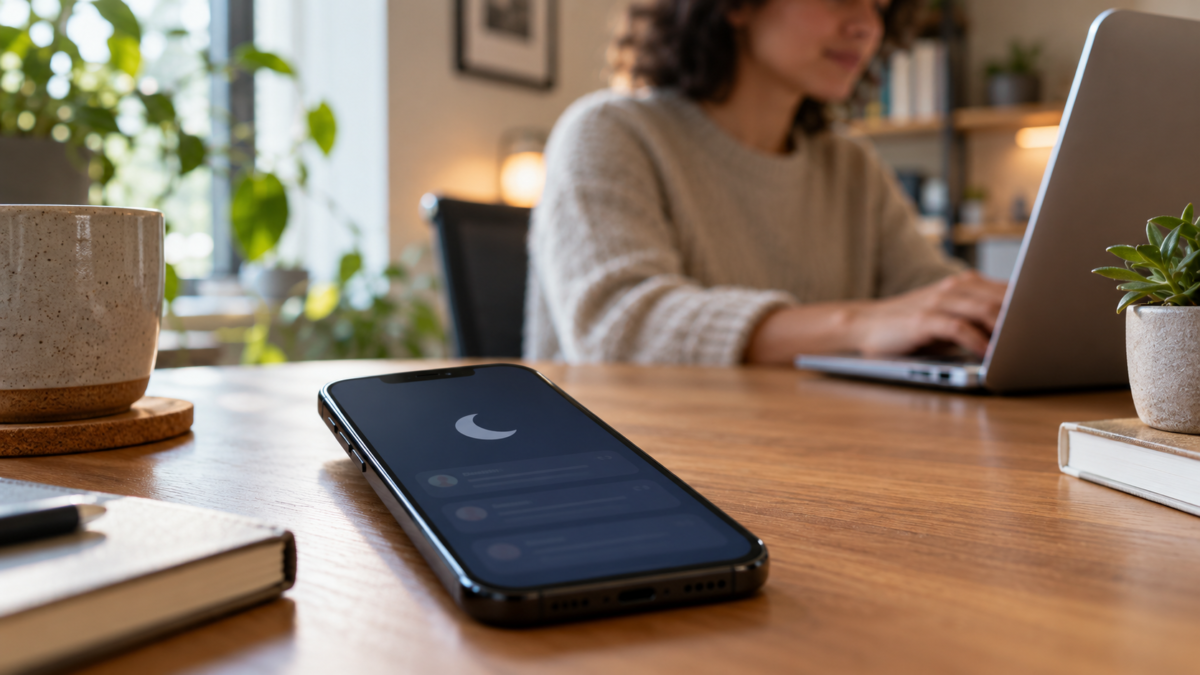
Your cell phone can be useful, but it can also grab your attention every few minutes. iPhone's Focus mode and Android's Do Not Disturb feature are designed to reduce interruptions without turning off your device. The right setup depends on your work, family, and the emergencies you need to handle. Instead of blocking everything, create predictable rules, test them, and keep exceptions for important people and times.
Focus is not the same as airplane mode.
Airplane mode cuts off radio connections and may interrupt calls, mobile data, Wi-Fi, and Bluetooth. Focus or Do Not Disturb keeps the phone connected but controls alerts, sounds, and banners. You continue to receive messages and can check them whenever you want. This difference is important for those who need to be available but want to work or sleep with fewer interruptions.
Set up Do Not Disturb on Android
Open Settings and look for Notifications, Sound, or Do Not Disturb. The name may vary between Pixel, Samsung, Motorola, and other brands. Activate the mode manually or set a schedule, such as for evenings, meetings, or study blocks. Choose which people can interrupt you, which apps have priority, and whether repeated calls should ring.
On many Android devices, the Quick Settings panel allows you to turn on the mode with a single tap. Press the tile to edit the duration and open detailed rules. Disable sounds, vibration, pop-ups, and notifications on the lock screen as needed. Some devices offer separate filters for media, alarms, and reminders; don't accidentally silence alarms.
Android may allow exceptions for favorite contacts or repeated calls within a short interval. Use with caution: the rule helps in emergencies, but it can let a campaign of persistent calls slip through. Review the notification history afterward, using the device's history feature when available; our guide on notifications shows how to recover lost alerts.
Configure Focus mode on iPhone
On your iPhone, open Settings and tap Focus. You'll find Do Not Disturb and modes like Personal, Work, Sleep, or a custom mode. In each, select allowed people and apps, set whether silenced notifications appear on the lock screen, and choose a schedule.
Focus mode can be manually activated in Control Center. Tap Focus, select the mode, and if desired, set it for an hour, until you leave a location, or until the end of a calendar event. In Options, decide whether the mode should dim the lock screen and whether to show silenced notifications.
You can also link a Focus to a lock screen, an Apple Watch face, or a location. When the setting is synced, other Apple devices can switch along with it. Turn off sharing if a computer meeting shouldn't silence the family iPad.
Choosing exceptions without creating loopholes.
Start with a few exceptions: close family, caregiver, school, or the channel used for emergencies. For work, prefer allowing only the team app during designated hours, instead of allowing all messages. If you receive calls from new numbers, keep unknown calls in voicemail and check them at fixed times.
Don't use Focus as an excuse to ignore security, authentication, or transaction alerts. Banks and password managers may warn you about suspicious activity. Allow these alerts or create a review routine. On an Android or iPhone shared with children, combine Focus mode with parental controls; see also how to set up parental controls.
Automations by time, location, and application.
The best time to automate is when the situation repeats itself. Program Sleep mode to start before bedtime and end after your alarm. Use a Work Focus with a calendar to silence yourself during meetings, but make sure events in different time zones don't trigger the rule at the wrong time. When traveling, check the time zone and local calendar.
If your device offers location-based mode, test it away from home. A workplace might cover nearby streets and activate the rule before you arrive. For studying, a fixed schedule is usually more predictable. On iPhones, Focus filters can organize which home screen pages appear; on Android, some manufacturers offer modes with allowed apps.
What happens to silenced notifications?
Silencing doesn't mean deleting. Alerts may appear in the Notification Center, on the dashboard, or in the history. After a period of focused attention, do some triage: respond to urgent messages, archive what can wait, and turn off notifications from apps that interrupt unnecessarily.
If you're expecting an important delivery or confirmation, create a temporary exception or take the app out of notification mode. To avoid loss of context, don't clear all notifications at once. Your phone is like a queue; reading them later still requires organization.
Privacy and coexistence
The lock screen can display the sender's name even when the sound is off. Adjust notification previews to hide sensitive content in public places. Notify colleagues and family members when a focus mode is active and let them know how to reach you urgently. This prevents anyone from interpreting silence as disinterest.
In shared environments, avoid using automations that unnecessarily reveal your location or routine. A location-bound Focus can indicate where you work. Review synchronization between devices and calendar permissions. Fewer interruptions shouldn't mean less control over your data.
Solving common problems
If the mode doesn't silence an app, check if it's on an exception list and if another mode is active. Check alarms, repeated calls, Bluetooth devices, and watch settings. If notifications disappear completely, look in the history or in the Control Center. System updates can reset names and menus, so do a short test again after updating.
When two rules overlap, the more permissive one may win. Disable old schedules and keep them clearly named, such as Work 9-6 PM or Sleep. If the mode activates on its own, review automations by calendar, location, and car connection.
Building a sustainable routine
Observe for a week which alerts truly interrupt you. Instead of creating ten rules, eliminate promotional notifications and let Focus handle the rest. Set aside two times to respond to messages and a third to review tasks. Predictability reduces the anxiety of checking the screen with every vibration.
When traveling or experiencing schedule changes, pause automatic notifications and reactivate them once your routine is stable. For caregivers, include two emergency contacts and test a real call. In teams, agree on a channel for incidents and don't rely on an invisible exception on each colleague's device.
It's also worth creating a reading mode, with low brightness and only the necessary application. At the end of the day, review which exceptions were used. If a rule was never triggered, remove it; if it was triggered too often, redefine the group or the time.
Frequently Asked Questions
Does Do Not Disturb block calls?
He can mute or allow calls depending on the exceptions. The call may still go to voicemail. Check the options for people and repeated calls.
Are the alarms still ringing?
Yes, on many devices, but this varies. Try it with a short alarm before using the night mode.
Can I receive urgent messages?
Yes, by allowing specific contacts or apps. Agree on this rule with the person who needs to talk to you.
Why does the mode activate on another device?
Spotlights can sync between devices with the same account. Disable sharing or adjust each device individually.
Conclusion
Use Focus and Do Not Disturb to protect blocks of time, not to disappear indiscriminately. Start with a simple rule, keep essential exceptions, check alerts afterward, and revise automations when your routine changes. Your phone remains available, but it will better respect your attention.