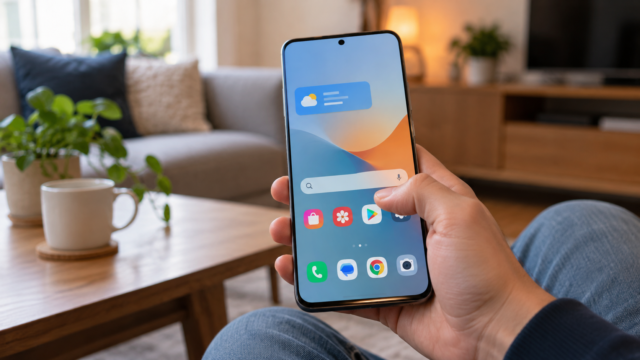
Fewer interruptions: set up Do Not Disturb to receive the calls that matter.
Your cell phone can interrupt your day for many different reasons: a call from family, a promotion, or a delivery notification. Do Not Disturb helps reduce these alerts, but it needs well-chosen exceptions so as not to silence the call you were expecting.
The most useful setting combines two measures: controlling notifications from each app and defining who can interrupt your rest or concentration periods.
Notifications and Do Not Disturb are different controls.
Notifications define how each app alerts you, with sound, vibration, banners, and display on the lock screen. Do Not Disturb applies a set of rules over a period of time and can allow exceptions for people, apps, or alert types.
Muting an alert usually doesn't prevent you from receiving the message; it remains available in the app or notification center. On iPhone, the feature is part of the modes of Focus. In Android, the name and organization vary between manufacturers and versions.
First, reduce the alerts that are not urgent.
On Android
Open Settings > Notifications > App notifications, Or go to Apps, choose an app, and open its notifications. In compatible versions, categories allow you to mute promotions and keep order alerts. Some services offer additional controls within the app itself.
On iPhone
Open Settings > Notifications and select the app. Depending on the available options, adjust sounds, lock screen alerts, banners, and icon indicators. Muting a useful alert might be a better solution than blocking all notifications.
How to set up Do Not Disturb on Android
Search for Do Not Disturb In the settings, you can find the feature under Modes, Sound and Vibration, or Notifications. In the full settings, review people, apps, and other interruptions.
Choose who can call.
The device may offer favorite contacts, saved contacts, or specific lists. If using favorites, review your contact list beforehand. Allowing calls from all contacts may be too broad; allowing only favorites may silence an important number that hasn't yet been saved.
Check for repeated calls and alarms.
Some devices allow a new call from the same number to pass through the mode within a system-defined interval. Read the description, as persistence does not prove urgency. Also review how the mode handles alarms, reminders, events, and media sounds.
How to set up on iPhone
Open Settings > Focus > Do Not Disturb. Review your options for people, apps, and times. Allowing notifications from a list and muting notifications from a list produce different results, so double-check your chosen rule.
In the "People" section, choose who can interrupt the mode and also read the call rules. You can allow repeated calls, but consider the same limit: a persistent call is not automatically important. Only authorize apps whose notifications need to arrive immediately.
If there are other Apple devices linked to the same account, check Focus sharing between devices. Enabling Focus sharing on one device may affect others when this synchronization is enabled.
Calls made through apps
A conventional phone call and a call made through an app are not necessarily treated the same way. The behavior depends on the app's integration with the system, the permissions, and the exceptions configured. Allowing calls from a contact does not guarantee that all messaging apps will do the same.
Program and test
After reviewing the exceptions, create a schedule for sleeping, working, or studying. Check the days and times you have to stop calling. If you are expecting a call from an unknown number, you may need to temporarily expand the number of allowed calls.
With the mode activated, ask someone you trust to make an allowed call, a call that should be silenced, and a call through the app you use most often. Also test the alarm and check the ringtone volume, silent mode, and connected headphones.

Conclusion
Start with a few essential contacts, some apps, and a schedule that fits your routine. No exceptions guarantee a call if the device has no signal, is turned off, or has another active block; the goal is to prevent Do Not Disturb itself from silencing the interruptions you've chosen to allow.
Related readings: control mobile data on your cell phone e passkeys on mobile.
Official sources: Do Not Disturb on Android e Focus on the iPhone.