How to automatically back up photos on Android and iPhone
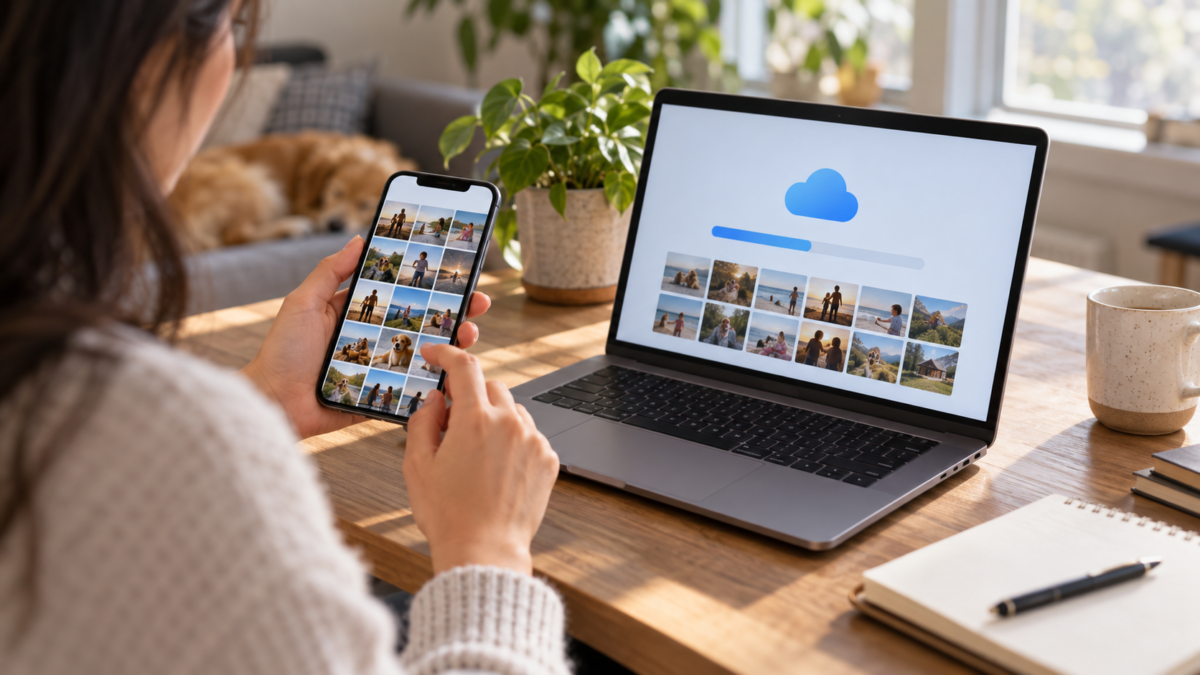
Losing photos because your phone was stolen, fell in water, or simply ran out of storage space is a frustrating experience. Automatic backup reduces this risk by copying new images to a cloud account whenever the device completes synchronization. Android and iPhone offer reliable methods, but the options vary depending on the chosen service, available connection, and storage capacity. This guide shows you how to set up the process, verify that it has actually finished, and decide when to use Google Photos, iCloud Photos, or a combination of both.
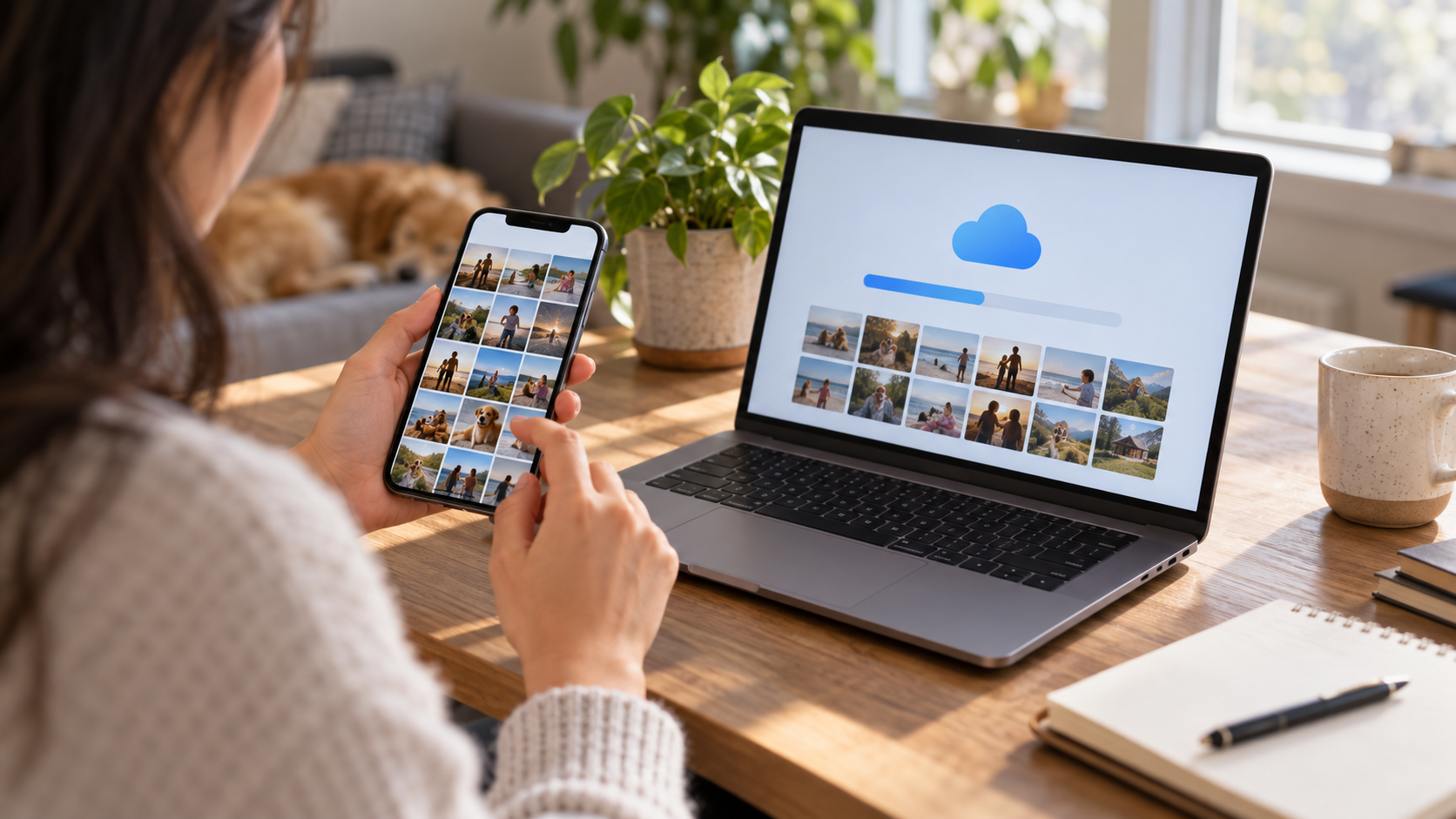
What does automatic backup do?
Backup is an additional copy of your files. The photo remains on your phone, but another version is associated with your account. If you switch devices, you can recover your library by logging into that account. Photo synchronization is similar, but it can reflect deletions and edits on more than one device. Before activating any option, read whether the service treats the cloud as an independent copy or as a mirror of the gallery. This difference changes what happens when an image is deleted.
It's also worth distinguishing between backup and sharing. Sending a photo to a social network or group doesn't create a complete copy of the library and may even reduce its quality. Backup preserves the file on the chosen service, with the space, privacy, and format limitations defined by that service.
How to set up Google Photos on Android
Install or open Google Photos, sign in to the account you want to use, and tap on your profile picture. The settings area shows the backup status and allows you to enable it. Choose the quality available in your plan, remembering that account storage is shared with Gmail and Drive. If multiple accounts are registered, confirm which one appears as the destination, because the application only accepts one backup account at a time.
- Open Google Photos and tap on the avatar.
- Go to Google Photos Settings and then to Backup.
- Activate the switch and review the selected account.
- Specify whether the transfer should use mobile data, Wi-Fi, or charging only, according to your data plan.
- Open the gallery after a few minutes and look for the "Backup complete" indication.
Camera roll backups are usually prioritized. To include screenshots, images received in apps, or a downloads folder, go to your device's folder backup settings and enable only what makes sense. Selecting all folders can quickly consume space and mix memes, receipts, and temporary images into your main library.
How to set up iCloud Photos on iPhone
On your iPhone, open Settings, tap your name, go to iCloud, and then Photos. Turn on iCloud Photos syncing. Your device will send the originals to your account and may keep smaller versions locally when storage optimization is enabled. Check your iCloud storage space before you begin, as your library may exceed your free data allowance.
iCloud Photos works best when your iPhone is connected to Wi-Fi and a charger. Leave the Photos app open or wait for the system to work in the background. Apple's support page explains how to pause and resume syncing and how to recover deleted items. Avoid turning off the feature mid-migration without verifying that all original files are available.
Choosing quality, space and privacy
Cloud services typically offer compression, original quality, or paid plans. The best choice depends on usage: document photos may require detail, while everyday records can tolerate some reduction. If you shoot in RAW or record long videos, calculate the usage before enabling backup of all folders.
Protect your account with a unique password, two-factor authentication, and up-to-date recovery methods. The backup contains places, people, and routines; treat this account like a vault. Review connected devices and remove old access codes. On shared devices, use separate profiles to avoid automatically sending someone else's images to your account.
How to check if the copy is complete
Don't assume the backup is finished just because the switch is on. Open the app and look for the explicit status. Do a small test: take a photo, wait for it to upload, and access photos.google.com or iCloud.com on another device. If the file appears, the basic path is working. For a large library, also check old videos, screenshots, and folders you chose to include.
When the transfer freezes, check your battery, Wi-Fi, local storage, and cloud storage. System updates, power saving mode, and background data restrictions can delay the task. Temporarily disable power saving mode only if the device is fully charged and connected to a reliable network. If the problem persists, restart the app and consult the official documentation before deleting data.
Migration between Android and iPhone
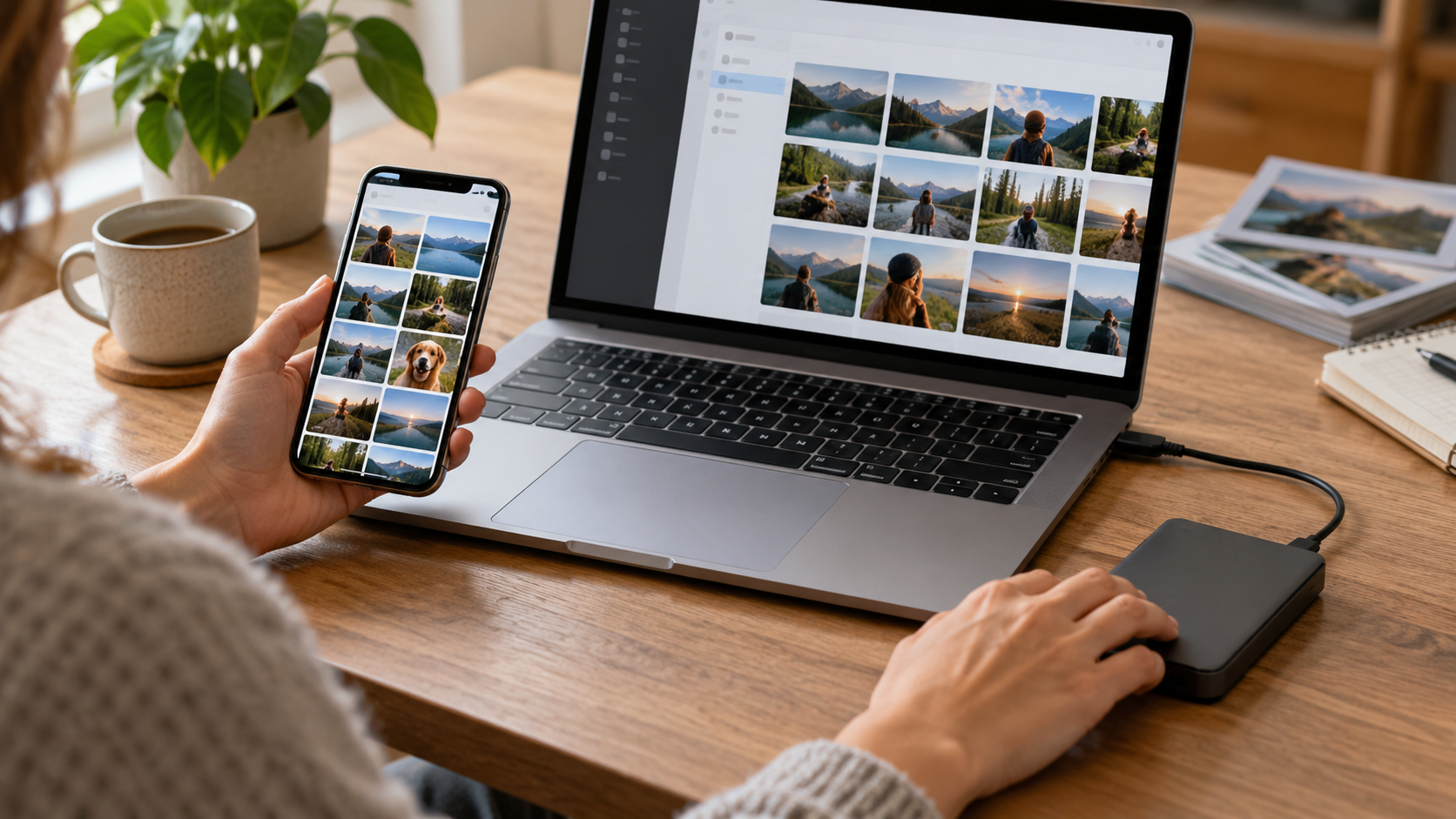
When switching platforms, keep your old account active until you confirm the backup. Google Photos works on both systems and can serve as a single library, while iCloud is more integrated into the Apple ecosystem. You can use Google Photos on your iPhone, but this creates a second setup that needs to be monitored. Another alternative is to export a copy to a computer or external drive; this protects against account lockouts and plan changes.
Perform the migration in stages. First, complete the backup on the old device. Then, install the chosen service on the new device and wait for indexing. Only then remove the old phone from the account and restore the device. For guidance on privacy before sharing images, see also our guide on [topic missing from original text]. how to remove photo location tags.
Common mistakes that cause photos to be left out.
- Enable backup on a different account than the one used on the new device.
- Allow only the camera folder and forget received or scanned images.
- Restrict the transfer to Wi-Fi and expect an immediate copy when you're away from home.
- Deleting the photo from your phone before confirming that it has appeared in the cloud.
- Ignore large videos, which can take hours or require more storage space.
Frequently Asked Questions
Does automatic backup use a lot of mobile data?
You can spend a lot, especially on videos. Keep uploads limited to Wi-Fi if your data plan is small, and only allow mobile data when absolutely necessary.
Can I use Google Photos and iCloud at the same time?
Yes, but each service needs to be configured and monitored. Two copies increase security, but they also consume more space and can cause confusion when deleting files.
Does deleting a photo delete the backup?
It depends on the service and the action used. In synchronized libraries, deletion may be reflected in the cloud. Check the recycle bin and documentation before removing items.
How do I make a copy outside of the cloud?
Export your photos to a computer or external drive at regular intervals. This backup is useful for important files and for situations where you lose access to your account.
Before a trip or switching devices, manually check some important dates. Open old photos, play videos, and confirm that shared albums are still accessible. This small test reveals flaws that a general synchronization indicator might hide.
Conclusion
Automatic backup works when there is a correct account, sufficient space, and a confirmed status. First, configure a service, test it on another device, and only then adjust folders, quality, and mobile data. With this routine, switching phones ceases to be a race to save files and becomes a predictable step.