How to use data saving on Android and iPhone

High-resolution videos, video calls, and automatic updates can consume your mobile data plan without you realizing it. When your data allowance runs out, your carrier reduces speed or charges extra, making simple tasks difficult. Data saving mode helps control this usage by limiting background activity and prioritizing Wi-Fi connections.
This feature doesn't block internet access or replace a proper data plan. It changes app behavior, delays synchronizations, and may reduce image and video quality. This guide explains how to activate it on Android and iPhone, which exceptions to configure, how to measure usage, and how to prevent aggressive data saving from interfering with browsing, work, or important messages.
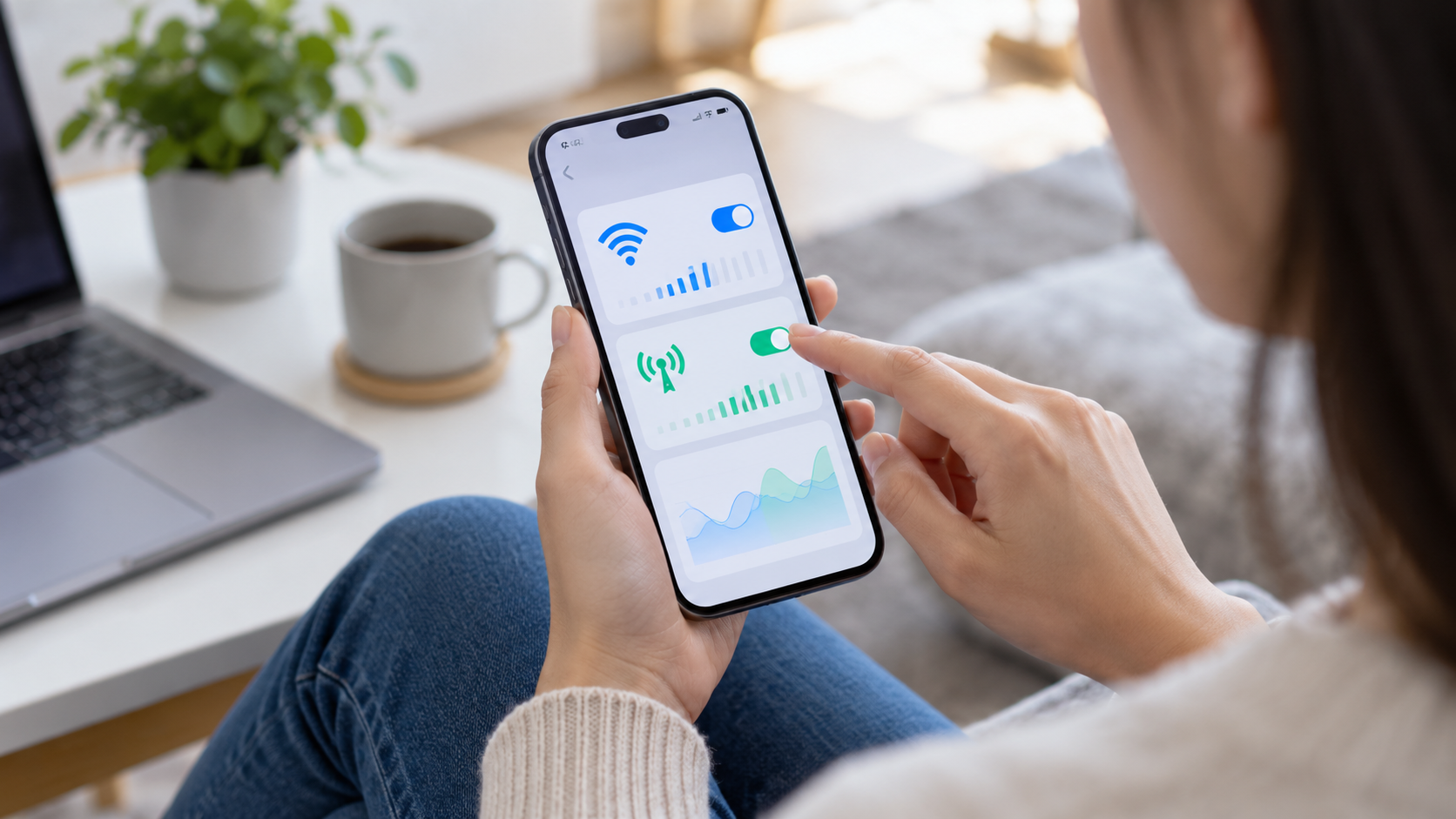
What does data saving mode do?
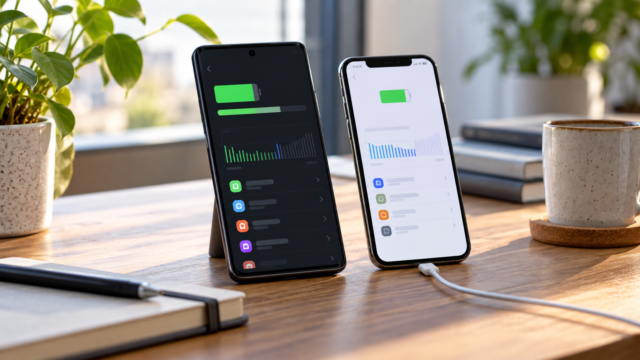
On Android, Data Saver reduces background app activity. An app might wait for you to open it to refresh your feed, download images, or sync files. On iPhone, Low Data Mode applies similar rules to your mobile network and chosen Wi-Fi: automatic updates and backups may be paused, and streaming quality may decrease.
These modes do not prevent normal use of the application currently on the screen. If you open a map, watch a video, or start a call, the phone will continue transferring data. The power saving feature is designed to avoid invisible data consumption between tasks, not to make a resource-intensive activity free.
How to activate on Android
Open Settings > Network & internet > Data saver Or search for “data saver” in the Settings search bar. Activate it. Using Data Economy. In some interfaces, the path is Settings > Connections > Data usage > Data saver. The name and positioning vary between Pixel, Samsung, Motorola, Xiaomi, and other manufacturers.
After activating it, enable the option to allow unrestricted usage. Choose only the apps that need to receive immediate alerts, such as messages, authentication, transportation, or security monitoring. An authorized app may consume data in the background even with power saving enabled. Review the list after a few days; forgotten exceptions negate some of the benefit.
In the data usage panel, set a warning and, if your carrier allows it, a monthly limit. Android shows which apps used the most data and over what period. Compare the numbers with your carrier's billing cycle, as your phone may start counting on a different date. Adjust the start of the cycle so that the alert makes sense.
How to activate on iPhone
For the mobile network, open Settings > Cellular > Cellular Data Options and activate Low Data Mode. To connect to a Wi-Fi network, tap on Settings > Wi-Fi, Tap the information button next to the network and activate the same mode. The setting is individual: power saving can be turned on on home Wi-Fi and turned off on the work's fast network.
The iPhone may pause iCloud backups, automatic updates, and some sync tasks. If you use iCloud Photos, confirm that your library is up to date before relying on a backup while traveling. The system resumes work when power saving mode is turned off or when suitable conditions are encountered, but there is no guarantee that this will happen immediately.
Choose exceptions so you don't miss alerts.
Too much data saving can delay a login code, an emergency message, or a travel notification. On Android, include essential messaging and authentication apps in the unrestricted use list, but leave social media, app stores, and games off it. On iPhone, check notifications and keep mobile data active for apps that need to work when you're away from Wi-Fi.
Don't enable everything for convenience. Each exception allows background synchronization and can increase data consumption. Try this: activate power saving mode, lock the screen, and ask someone you trust to send a message. If the notification arrives late, review only the necessary app and don't disable the entire mode.
Reduce in-app spending.
Enable automatic media downloads only on Wi-Fi in messaging apps. In video services, choose automatic or low quality for mobile networks and disable autoplay. For music and podcasts, download episodes at home. Maps can be saved offline before a trip; this avoids repeatedly loading streets and images.
Social media platforms often have options to save data, reduce video previews, or prevent high-resolution media from loading. Browsers offer a data-saving mode in some versions, but avoid unknown extensions that intercept all traffic. Compression can reduce quality and does not replace caution regarding malicious websites.
Control synchronization, updates, and backups.
On Android, open your Google account and review which services sync automatically. Only disable items that you can update manually, such as contacts from an old account. Don't pause syncing of authentication, important contacts, or work files without knowing how to restore them. On iPhone, check Settings > General > Background App Refresh and leave the necessary applications active.
System updates and backups are important and should be done over Wi-Fi. If your phone hasn't updated for several days, connect it to a reliable network and let it charge. A delayed backup can be more expensive than the data saved, especially before replacing or restoring your device.
How to measure if the economy worked
Note your usage before activating the mode and compare it after seven full days. Check your carrier's dashboard, as your phone and carrier may count data differently. If usage drops only slightly, look for an app that plays videos, backs up photos, or uses background location services. If it drops significantly and messages are delayed, add a specific exception.
Consider the context. A week at home, connected to Wi-Fi, doesn't represent usage during a trip. Take another measurement during a period with commutes and calls. The goal is to keep essential services running with the lowest possible consumption, not to reach a fixed number.
Common problems and solutions
If an app stops updating, confirm that power saving mode is enabled and that it's set to restricted use. Also check airplane mode, coverage, and background data permissions. If a video call becomes unstable, temporarily disable power saving mode or connect to Wi-Fi. When finished, re-enable power saving mode so you don't forget the setting.
If your phone is consuming data even with power saving mode enabled, check the data panel for each app and look for uploads, backups, or manual updates. An app open on the screen can still consume data normally. Restart your phone after changing many settings to ensure all services reread the configurations.

Frequently Asked Questions
Does saving data make the internet slower?
It can postpone background tasks and reduce media quality, but it doesn't necessarily limit the speed of the activity you're using. The perception depends on the network, the application, and the configured exceptions.
Can I leave the mode on all the time?
Yes, as long as messages, authentication, and other essential alerts are allowed. Review the list when installing a new app or switching carriers.
Does this mode prevent extra data charges?
There is no guarantee. A manually initiated activity can consume a lot of data, and the carrier sets the charges. Use your carrier's limit and dashboard as an additional reference.
Why isn't the backup finishing?
The backup mode may pause until it finds Wi-Fi or is disabled. Connect the device to a reliable network, charge the battery, and confirm that the backup is complete.
Conclusion
Data saving mode is most useful when combined with in-app settings. Activate it, authorize only essential services, download media over Wi-Fi, and monitor usage according to the correct cycle. This way you reduce invisible transfers without losing messages, backups, or important resources while traveling.
Official sources: Android help on saving data e Low Data Mode on iPhone.