Real-time location on WhatsApp: how to share and stop
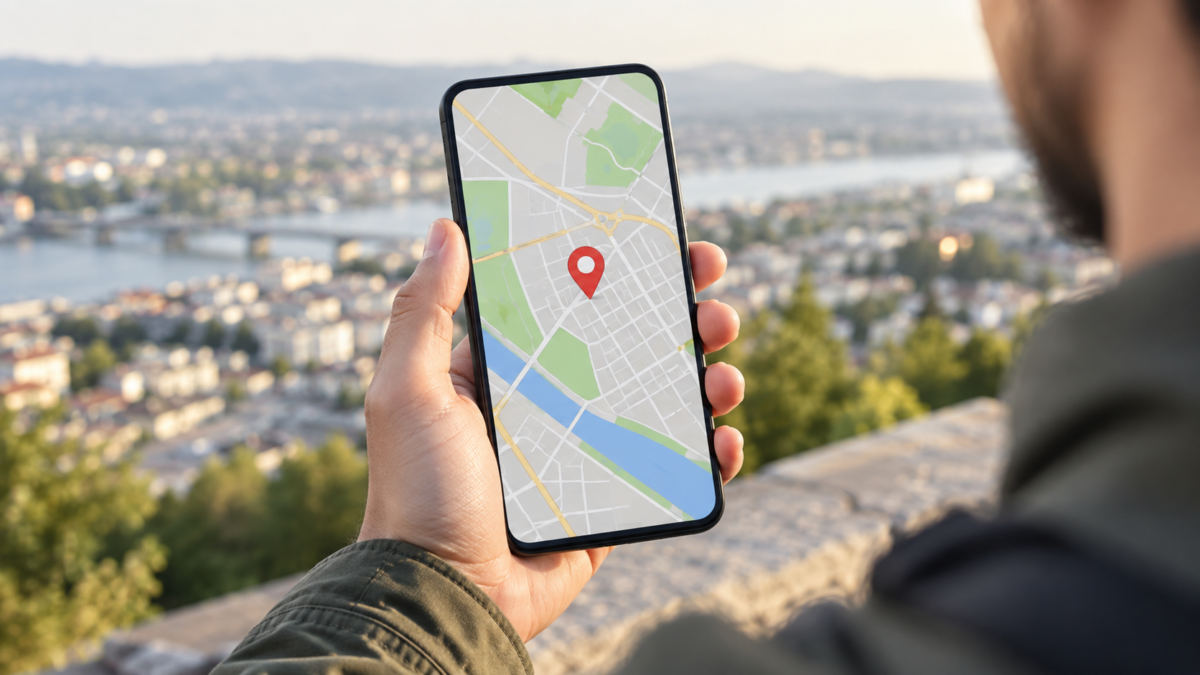
Sharing your real-time location via WhatsApp helps you arrange a meeting, let people know you're on your way, or track a route. The tool sends updates over a defined period, instead of just showing your current location at the time of sending. Therefore, it's important to understand the difference between your current location and your real-time location, as well as how to stop sharing it.
The menu names may vary slightly between Android, iPhone, and WhatsApp versions. The principle is the same: open a conversation, attach your location, choose the duration, and confirm. In this guide, you'll also see how to review permissions, reduce privacy risks, deal with GPS glitches, and decide when a simple point on the map is sufficient.
Current location or real-time location?
Current location sends a fixed point. If you leave that location, the recipient will continue to see the original point. It is suitable for indicating an address, a building entrance, or the location where someone should pick you up. Real-time location continues to update the map for the chosen duration, as long as the device can obtain a position and transmit data.
Use live mode only when movement is part of the context. To share a meeting address, a fixed point is simpler and exposes less information. For a trip, a night walk, or the arrival of a delivery person, temporary tracking can avoid repeated messages.
How to share on Android
Open the individual or group chat that should receive the information. Tap the attachment icon and choose Location. If it's the first time, Android may ask for permission to access the location; allow it while the app is in use when this serves the purpose. Then, select share real-time location.
Choose the duration offered by WhatsApp and, if you wish, write a message explaining the reason for sharing. Check the names at the top of the conversation before tapping send. In a group, all participants will be able to see the update, so prefer an individual conversation when the route doesn't concern the entire group.
WhatsApp displays a card with a map and a countdown timer. While the timer is active, you can open the card to check the status and tap "stop sharing." WhatsApp's official documentation explains this process and the available controls, which may change with app updates.
How to share on iPhone
On your iPhone, open the conversation, tap the add button, and choose Location. If the system requests access, check that permission is set to allow its use during sharing. If access is blocked, open Settings, find WhatsApp, and adjust Location Services as needed.
Select real-time location, set the duration, and send. iOS may show an indicator that the app has used the location. This doesn't mean the map is perfect at all times: buildings, tunnels, rural areas, and battery saving can cause delays or reduce accuracy.
How to stop before the deadline
To stop sharing, open the conversation where it was sent and locate the map card. Tap "stop sharing" and confirm. If you sent your location in more than one conversation, check each card or use the general option to stop all active sharing, when available in your version.
Deleting the message removes the card from the conversation, but it doesn't replace stopping the sharing. Stop first and only then delete the message if that makes sense. It's also worth closing the map and checking again after a few minutes, especially if the phone had no signal.
GPS permissions and accuracy
The app needs location access to update the map. On Android, the options include precise and approximate location, as well as permission options during use or all the time. On iPhone, the options are in Privacy & Security Settings. Use the lowest permission that works for you and review it after completing your trip.
GPS accuracy is not synonymous with an exact address. The device combines satellites, mobile networks, and Wi-Fi, and may show an approximate area when the signal is weak. If the map appears static, leave an enclosed area, keep Location Services active, and check if battery saving mode is restricting WhatsApp.
Battery, mobile data, and background operation
Updating your location for extended periods consumes more battery than sending a single point. On a long journey, charge your phone before setting off and avoid choosing a longer battery life than necessary. Data usage is usually moderate, but can vary depending on the frequency of updates and network quality.
Some Android manufacturers close background apps to save power. If updates stop, check WhatsApp's battery settings and allow necessary activity during the sharing period. Don't permanently disable all protections; adjust only what's needed for that specific trip.
Privacy and security when sharing
Location reveals more than just a point: it can indicate schedules, routines, and places visited. Share it only with people who need the information and choose a short duration. In large groups, consider sending a fixed point or a private message. Never post a location card in an open space if it allows people to deduce where you live.
Before leaving, agree on what the recipient should do if the signal stops. A person can receive notification that you've arrived, instead of following every step of the way. For children or the elderly, explain the tool and check that the phone has battery and a connection. The feature helps with coordination, but it doesn't replace an emergency plan.
When sharing doesn't update
First, check if the duration is still active and if WhatsApp has location permission. Then, check the internet signal and if the device is in airplane mode. In underground locations, the update may be delayed until the GPS finds satellites again. Closing and reopening the app may help, but only do so after confirming that sharing is still active.
If the card shows "location unavailable," send a message informing them of the last known location. Don't assume the recipient is seeing a recent location. On international trips, networks and permissions may behave differently, and data costs depend on the carrier and local plan.
Alternatives for specific situations
To share an address without tracking, use your current location or send a map link. To track a group on a trail, set meeting points and check-in times in addition to the WhatsApp feature. For transportation services, the app itself can offer ride-sharing with vehicle and route details.
Don't install unknown apps just to share your location. Extra tools may request continuous access to your contacts, microphone, or location history. If you only need to get to a place, a fixed point and clear instructions are usually sufficient.
Frequently Asked Questions
Whoever receives the location can see my route later?
The card shows updates during the active period. After you pause or the deadline expires, live tracking stops updating. However, the message and points already viewed may remain in the conversation according to each participant's rules.
Can I share it with multiple people?
Yes, you can send it in an individual chat or in a group. Remember that all group members will have access to the card. When the route is personal, a private chat offers more control.
Does WhatsApp work without GPS?
It can use mobile networks and Wi-Fi to estimate a position, but accuracy tends to drop. In areas without signal or inside enclosed structures, updates may be delayed until the connection and positioning improve.
How do I know if I'm still sharing?
Open WhatsApp settings and look for the privacy area related to real-time location, or locate the active cards in conversations. Disable any item that is no longer needed.
Conclusion
Real-time location sharing works best when you set a purpose, choose a short duration, and confirm permissions before leaving. Use the fixed point for addresses, reserve live mode for routes, and stop sharing as soon as the coordination ends. Also, notify the recipient when signal or battery issues might affect updates.
Please refer to WhatsApp's official guidelines regarding real-time location. and review your system permissions. If you plan to share photos of the route, also check How to remove photo location tags before sending..